Real-time Data Capture from TDSQL Boundless via DTS
Download
포커스 모드
폰트 크기
TDSQL Boundless supports real-time monitoring and capture of data changes in instances through DTS, converting them into message objects and pushing them to Kafka, facilitating downstream businesses to subscribe, obtain, and consume.
Limitations
Binlog can only be enabled for database instances with kernel version 21.2.x or later.
Database instances with kernel versions below 20.0.0 will automatically disable the
CREATE TABLE ... AS SELECT ... syntax after Binlog is enabled. To restore it, contact technical support to disable the synchronization feature and restart the instance.Database instances with kernel versions below 21.0.0 do not support generating Binlog for VIEW operations.
Currently, generating Binlog for FUNCTION, PROCEDURE, and TRIGGER operations is not supported.
Step 1: Enable the Binlog of the TDSQL Boundless Instance
1. Follow the procedures described in Managing Binlog to enable Binlog for the instance.
After successful activation, you will receive the IP address and port for Binlog CDC. Please keep it secure as it will be used to create data subscription tasks later.
2. Create a dedicated user for data subscription and grant the
REPLICATION CLIENT, REPLICATION SLAVE, PROCESS, and SELECT privileges on all objects.2.1 Log in to the Console, navigate to the Instance List, and select Instance ID for which Binlog is enabled.
2.2 Go to the Account Management page, click Create Account, and create a user for data synchronization.
2.3 In the row of the target account, click Modify Permissionsin the Operation column to grant the
REPLICATION CLIENT, REPLICATION SLAVE, PROCESS, and SELECT permissions on all objects.
Step 2: Prepare the Network
To use DTS for database subscription, you must establish network connectivity between the DTS service and your source/target databases.
DTS supports accessing source/target databases via the "Cloud Database". Follow the instructions in Granting DTS Access IP for a Single Task to configure network access.
Step 3: Create a Data Subscription Task in DTS
1. Log in to the DTS Console, select the Data Subscription page in the left navigation, and click Create Subscription.
2. On the Create Subscription page, select the appropriate configuration and click Buy Now.
Configuration Item | Description |
Service Type | Data Subscription |
Database | Select TDSQL Boundless. |
Region | Must be the same region as your source database instance.Version |
Edition | Select Kafka Edition, which supports direct consumption via Kafka clients. |
Subscribed Instance Name | Provide a name for your data subscription instance. |
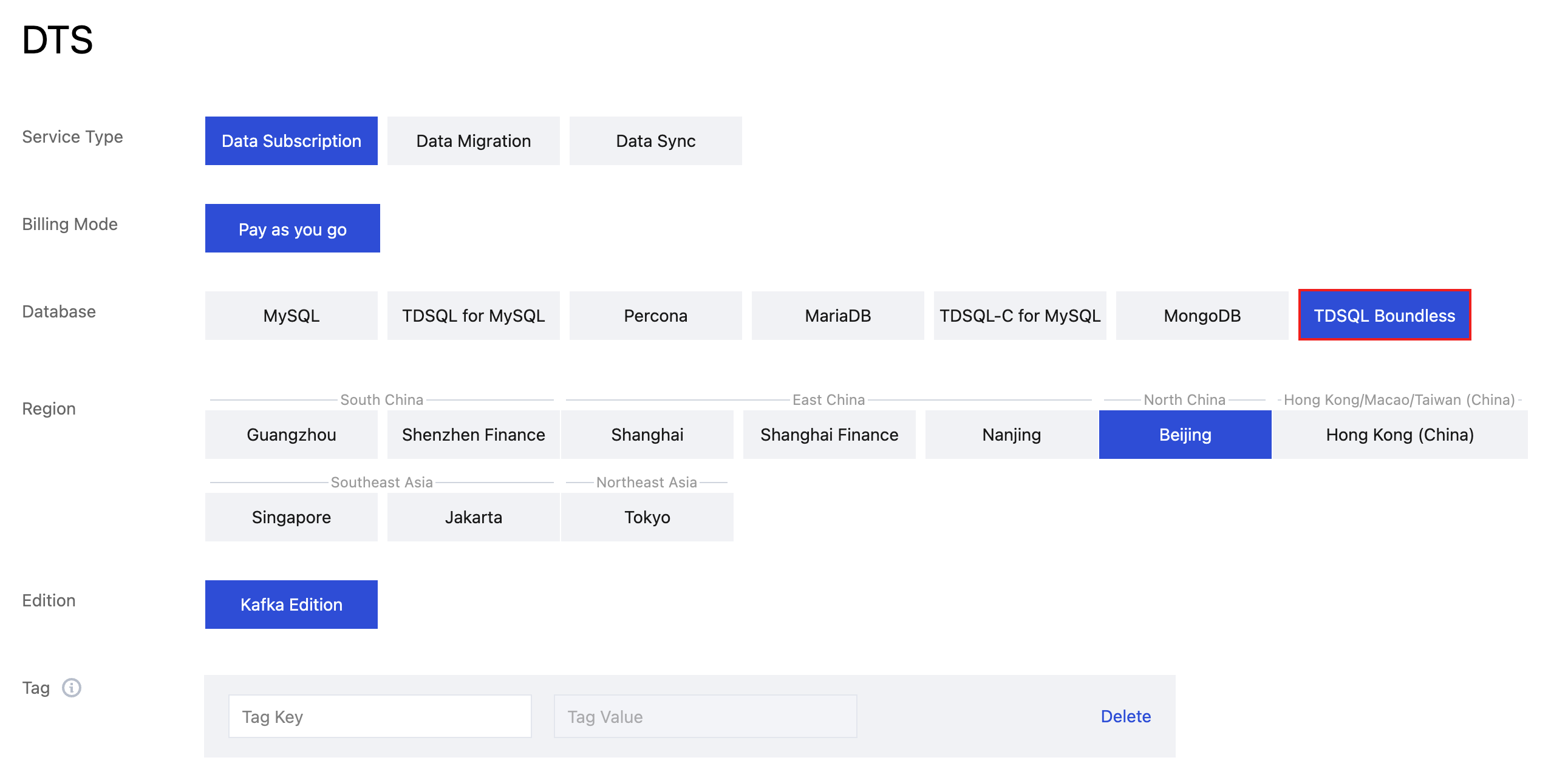
3. After the purchase is success, return to the Data Subscription list. click Configure Subscription in the Operation column, configure the newly purchased subscription; it can be used after configuration is completed.

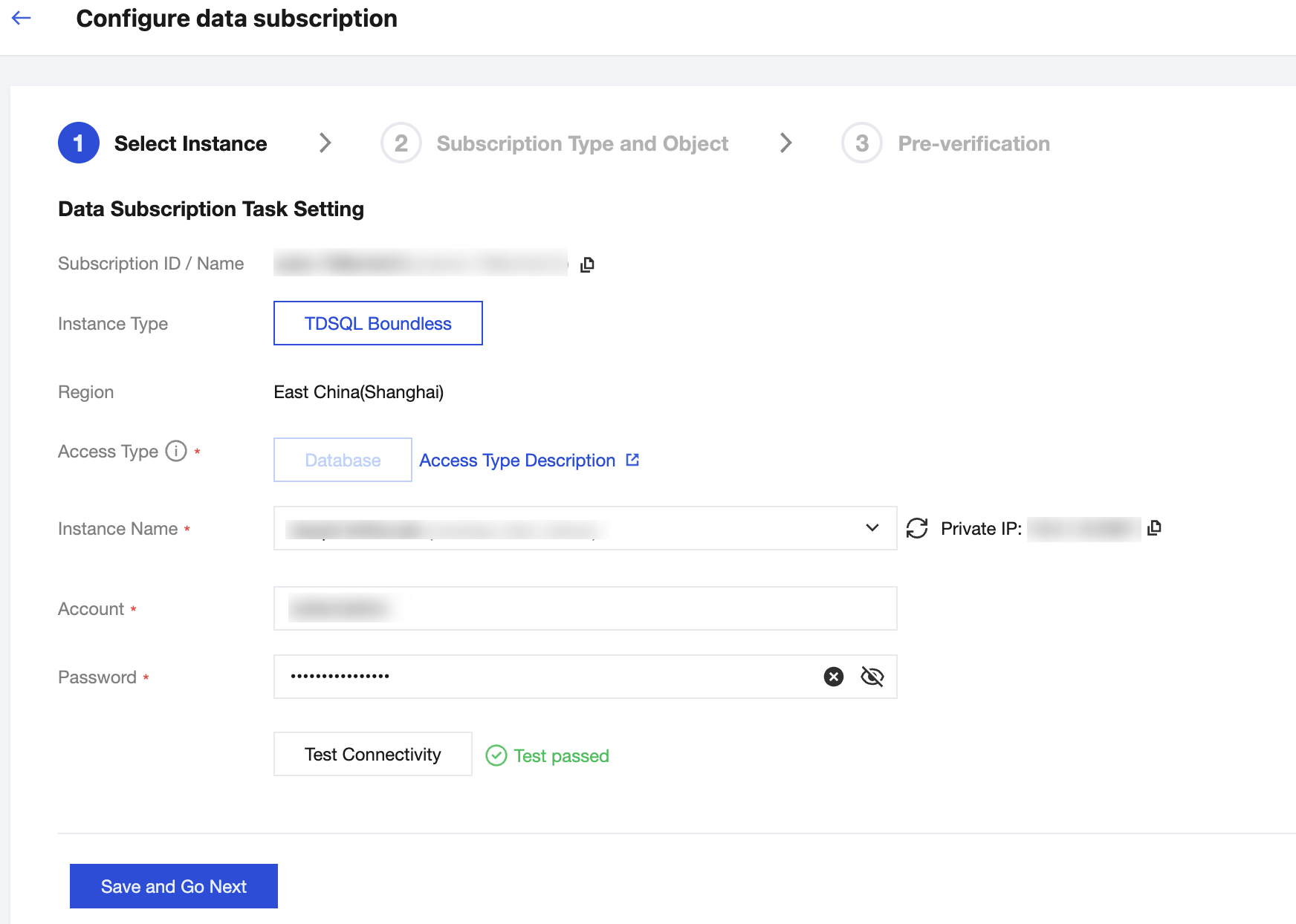
4. On the Configure data subscription page, set up the source database connection. Click Test Connectivity, and after the test passes, click Save and Go Next.
Configuration Item | Description |
Instance Name | Select the instance where Binlog has been enabled in the first step. |
Account/Password | The account created in the first step with REPLICATION CLIENT, REPLICATION SLAVE, PROCESS , and SELECT privileges on all objects. |
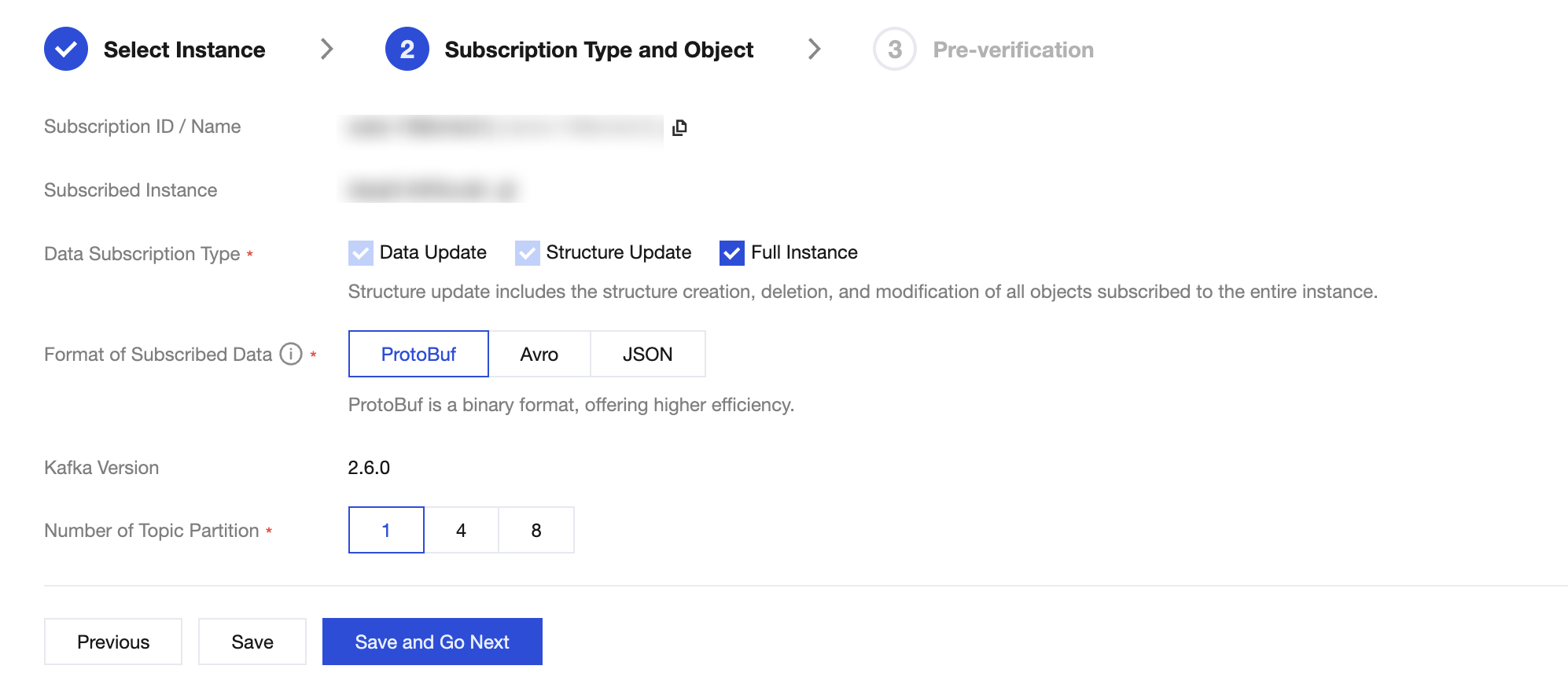
5. On the Subscription Type and Object page, select the subscription type, then click Save and Go Next.
Configuration Item | Description |
Data Subscription Type | Data Update: Data Updates: Subscribes to data changes ( INSERT, UPDATE, DELETE) for all objects.Structure Update: Subscribes to schema changes (e.g., creating, modifying, or deleting objects). Full Instance: Subscribes to both data and structure updates for the entire instance. |
Format of Subscribed Data | Supports ProtoBuf, Avro, and JSON. ProtoBuf and Avro are binary formats offering higher consumption efficiency. JSON is a lightweight text format that is simpler to use. |
Number of Topic Partition | Sets the number of partitions for the topic in the built-in Kafka. Increasing partitions can improve write and consumption throughput. A single partition guarantees message order, while multiple partitions do not. If strict ordering is required, select 1. |
Topic Partitioning Policy | Required when the number of partitions is 4 or 8. By table name: Routes data for the same table to the same partition. By table name + primary key: Routes data with the same primary key to the same partition. Recommended for tables with hot spots to improve concurrent consumption. |
Custom Partitioning Policy | When using 4 or 8 partitions, you can define a custom strategy. Data is first matched against regular expressions for database/table names and partitioned accordingly (by table, table + PK, or column). Unmatched data is routed using the default strategy. For details, refer to Setting Partition Policy. |
6. On the Pre-verification page, the validation task will run for 2-3 minutes. After the pre-check passes, click Start to complete the configuration of the data subscription task.
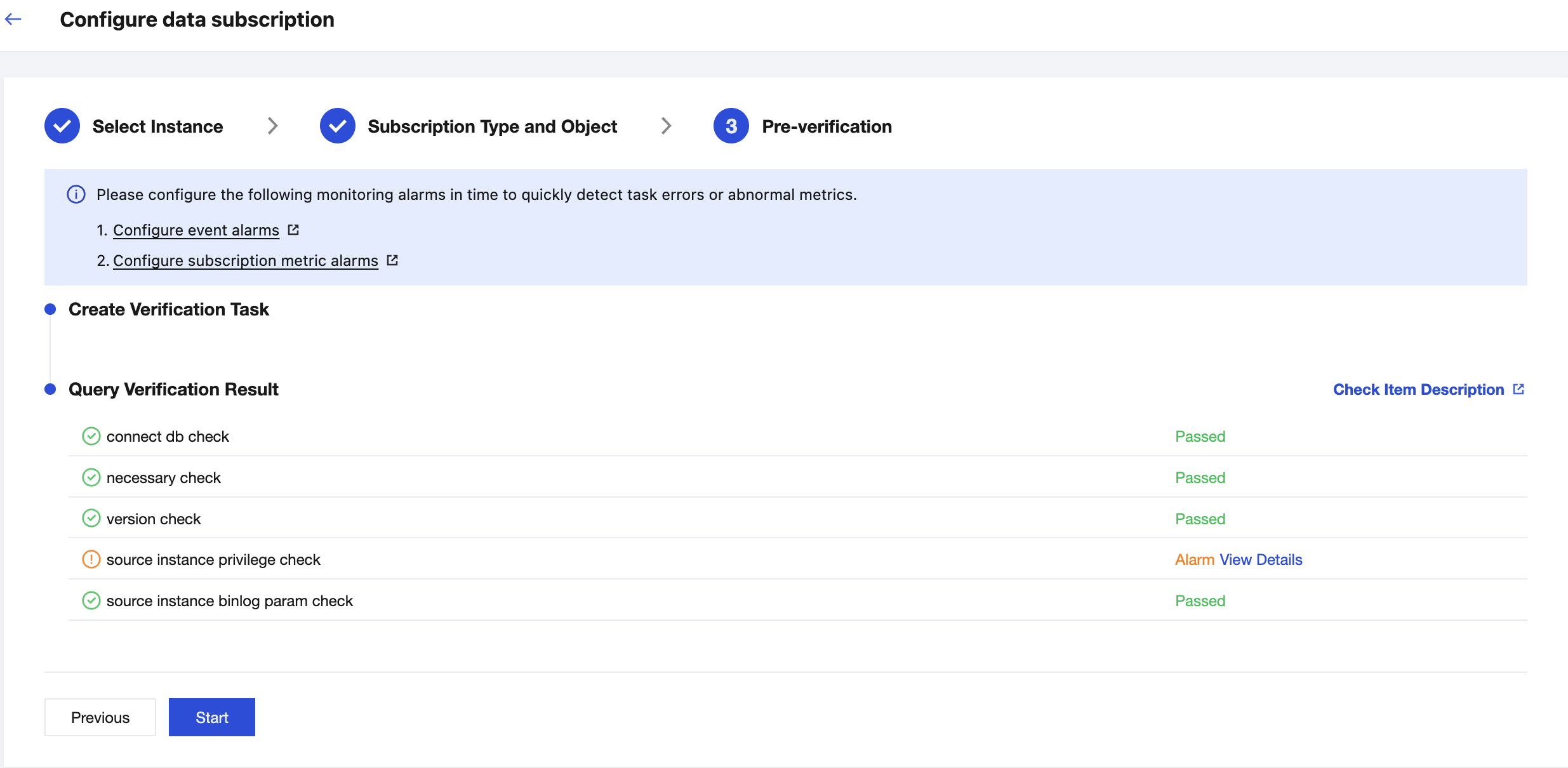
7. After clicking Start, the subscription task will initialize, which takes approximately 3-4 minutes. Once initialization is successful, the task status will change to Running.
피드백