Experience Center
다운로드
포커스 모드
폰트 크기
The Experience Center lets you quickly try different types of models and choose the one that best fits your needs. You can try text generation models in the Language Models section.
Prerequisites
Using models in the Experience Center consumes your model usage quota. For models that support free trials, the platform automatically claims a free trial package for you upon first use. For details, see New User Free Trial Package.
For models whose free trial quota has been exhausted, you must first go to the Online Inference Service page, locate the model, and click Enable Postpaid in the Actions column.
Language Model
You can interact in real time with various LLMs integrated on the platform on the Language Model page to evaluate the model’s understanding, reasoning, and creative capabilities.
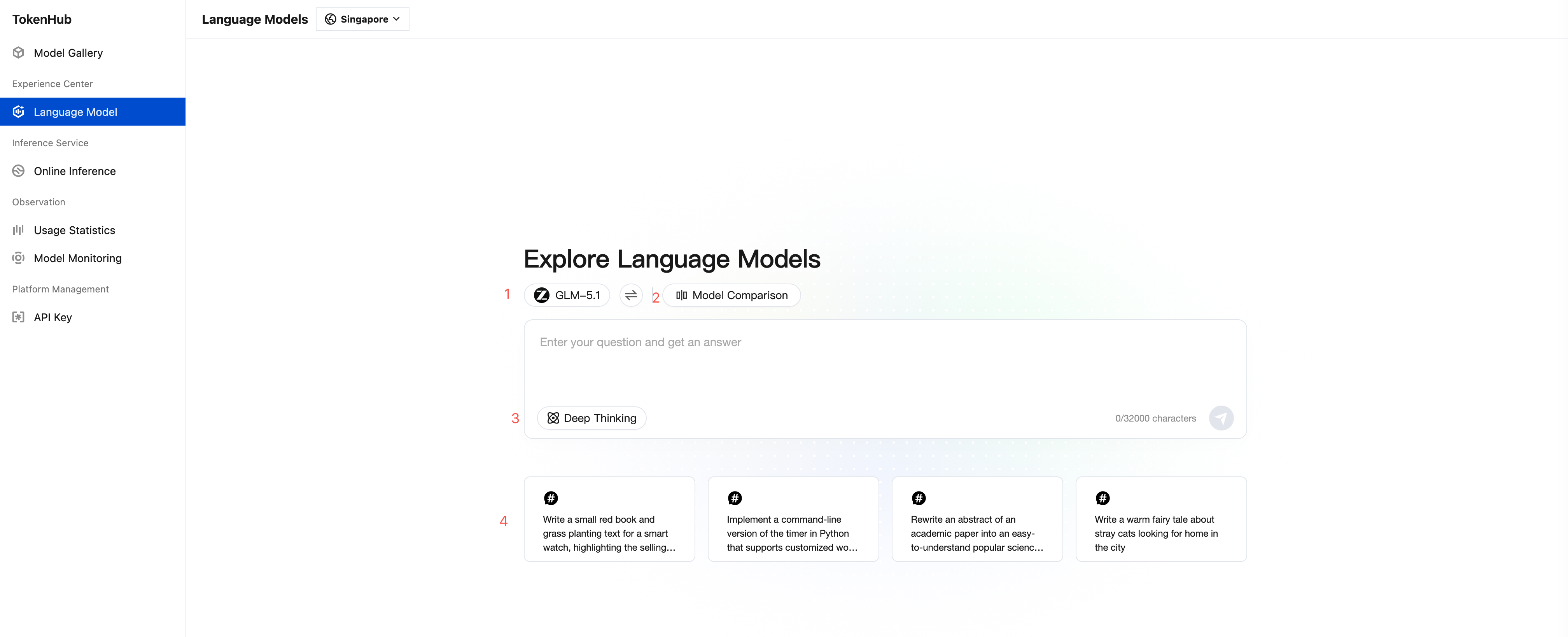
No. | Feature | Note |
1 | Select a Model | Click the toggle button to the right of the model name to open the model list, where you can browse and select the model you want to try. Note: If you are redirected here by clicking Try This Model on the model details page in the Model Gallery, the system will automatically pre-select the corresponding model, eliminating the need for manual selection. |
2 | Model Comparison | Click Model Comparison on the right side of the model selector to compare up to four models side by side based on responses to the same question. |
3 | Deep Reasoning | Deep Reasoning is disabled by default. After Deep Reasoning is enabled (the Deep Reasoning icon turns blue to indicate it is enabled), the model will perform deeper reasoning analysis, suitable for scenarios requiring complex logical reasoning, mathematical calculations, or professional analysis. Note: In Deep Reasoning mode, responses may take longer, but answer quality is generally higher. |
4 | Suggested Prompts | Provides multiple suggested prompts, including preset example questions, to help you quickly understand the model’s capabilities across different use cases. |
피드백