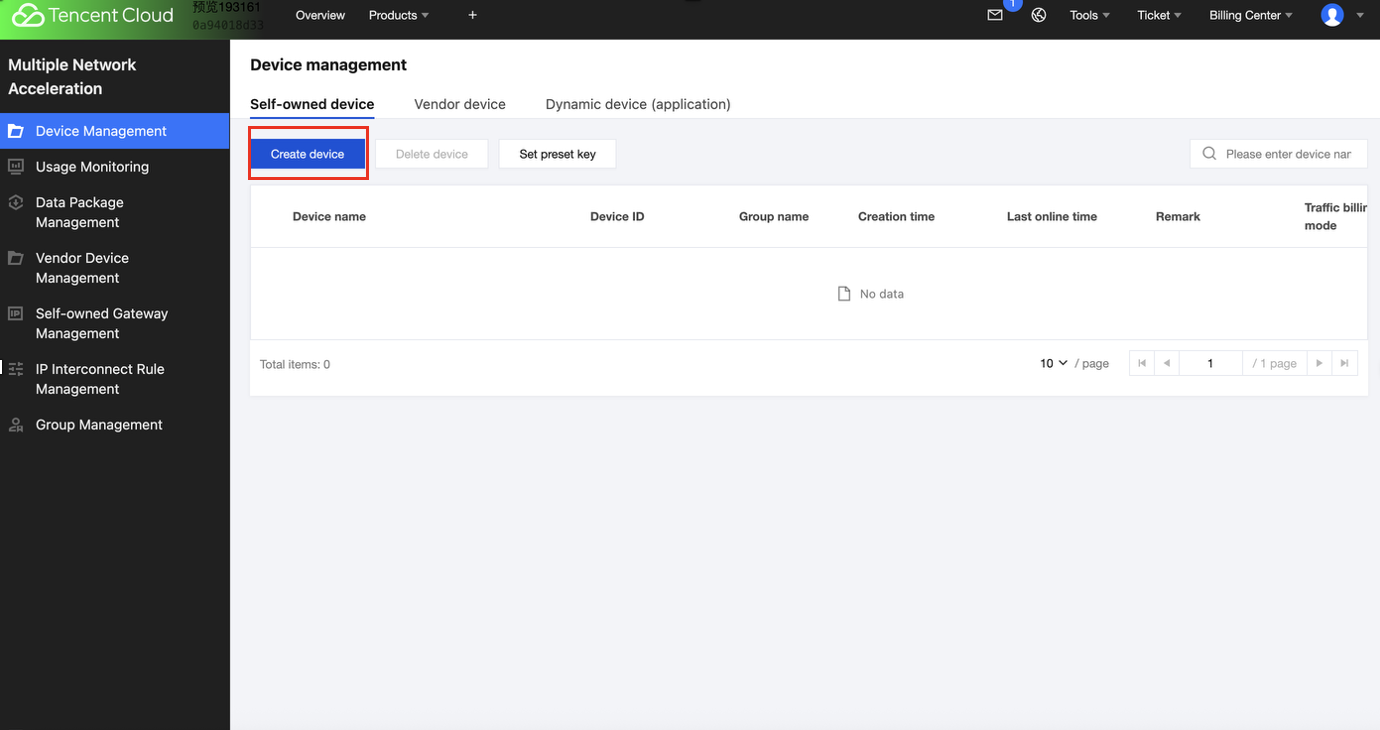
Enter the Console of the product, go to Device Management in the left menu bar, click self-owned device and you can manage your self-owned device on this page.
Note:
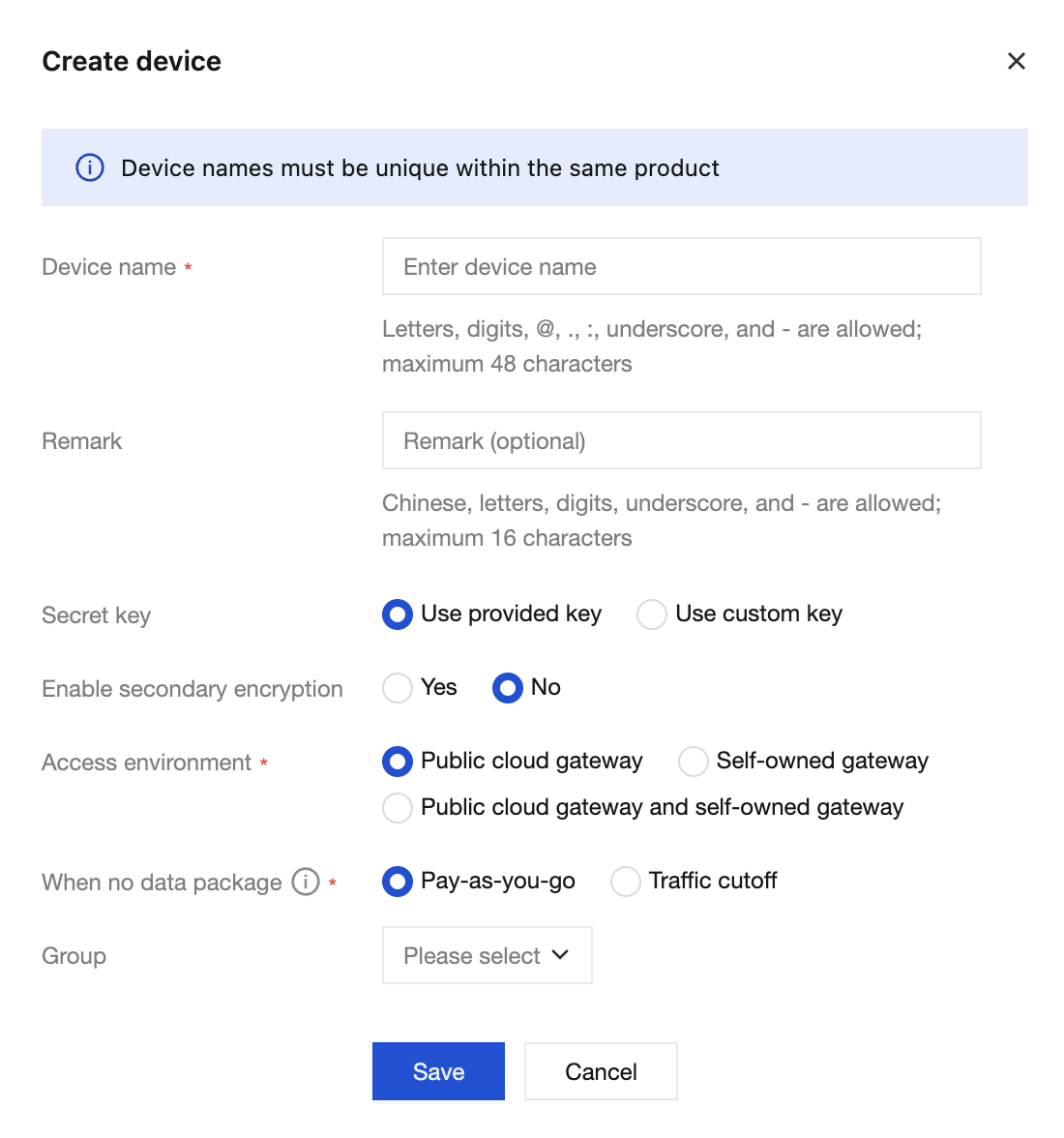
Secret key: It is recommended to prioritize selecting Use the Provided Key.
License validity period: It is set to a one-time authorization by default. To use a monthly authorization, you need to contact support staff.
No data transfer plan processing method: pay-as-you-go and traffic cutoff.
Pay-as-you-go means continuing to use the service after the data package expires or is exhausted. The usage is billed on a pay-as-you-go basis during settlement, and the charges are settled at the end of the month.
Traffic cutoff means directly blocking traffic when the data package expires or is exhausted, making it no longer usable.
Click Create device to enter the new device page. On the page, fill in the information sequentially and click Save to successfully create a new device.
Note:
A device with a one-time authorization can be started and used only after payment is made.
After a device is successfully created, its secret key (dataKey) is displayed on the page. You must store this key securely. If it is lost or you forget it later, contact support staff to retrieve it.
Multiple Network Acceleration (Tencent Cloud Multiple Network Acceleration) requires a one-key-per-device policy. Ensure that each physical device uses a unique key.
2. Viewing Device Details
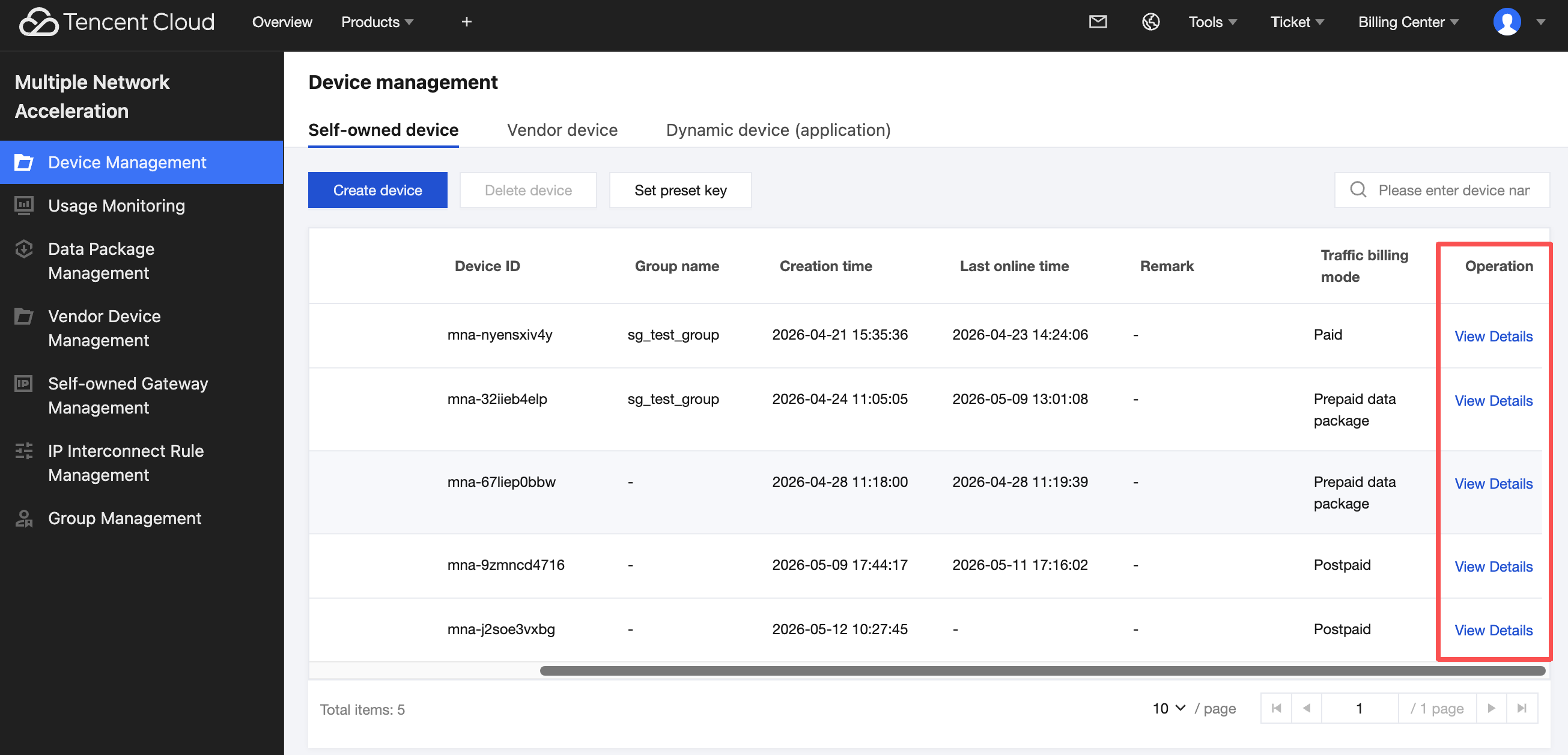
Click View Details to enter the details page of the device.
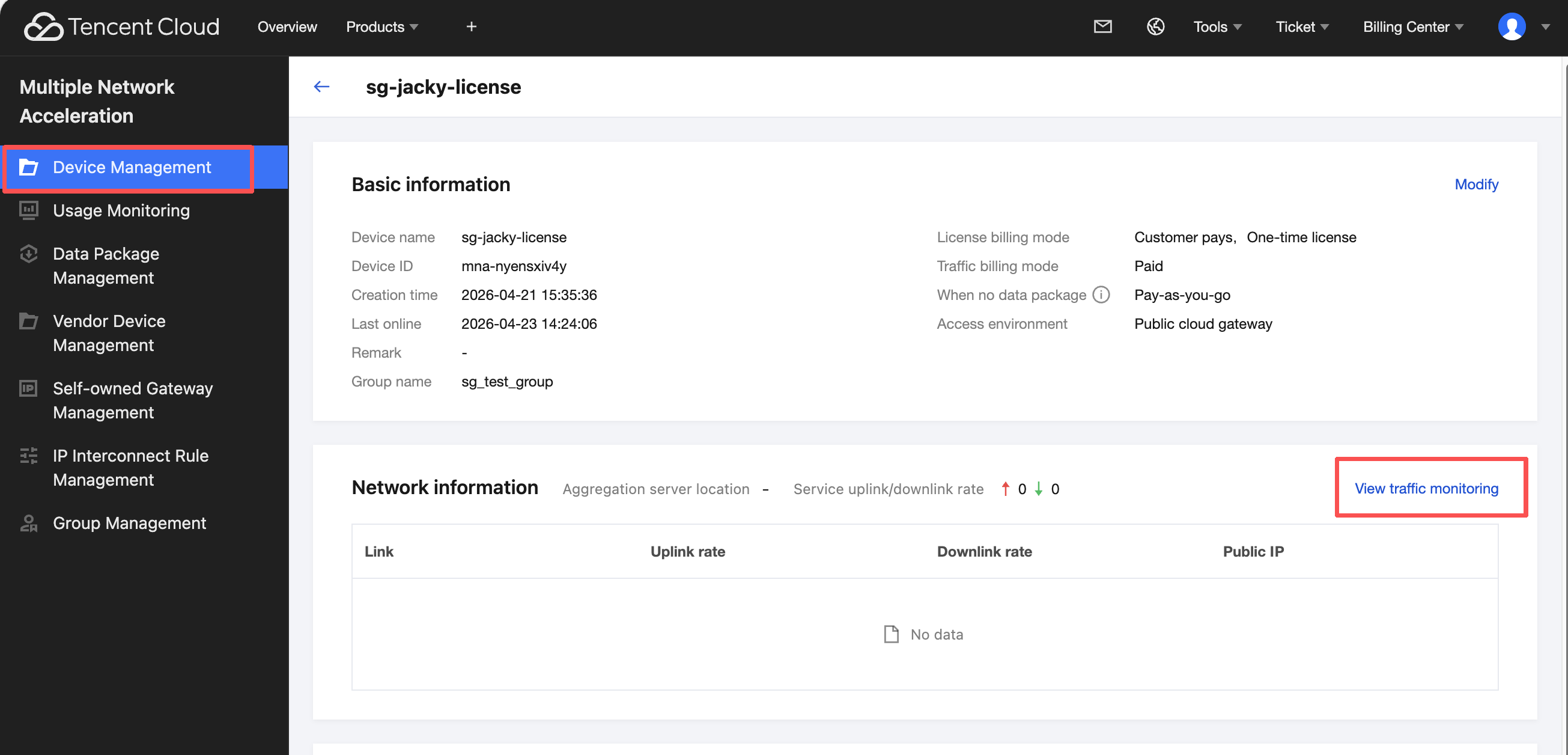
The device details page displays device information, related network conditions, aggregated server nodes, uplink/downlink rate statistics, and the data package list.
On the Device Management > Network Information page, click View traffic monitoring. You will be redirected to the real-time traffic monitoring page for that device.
3. Modifying Device Information
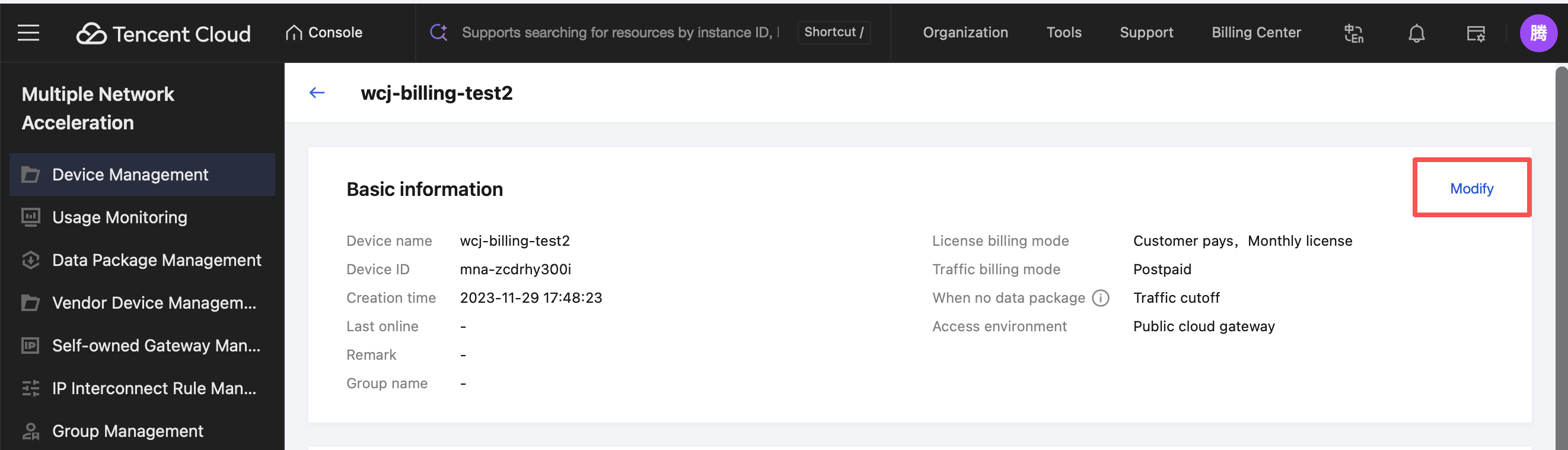
Go to Device Management. On the Basic Information page, click Modify to modify the device name and remarks fields.
4. Related SDK APIs
4.1 Android SDK
Note:
Complete the environment configuration in advance. MpAccRegister class, setEnv API.
//Context is the ApplicationContext.
MpAccRegister.setEnv(context, 1);
For SDK downloads and detailed documentation, see the API Overview. This section only lists the specific APIs corresponding to the features described in this document.
setDataKey
Set the Device secret key for authentication of Self-owned device
public static void setDataKey(String uuid, String dataKey)
Parameter description:
Parameter
Type
Description
uuid
String
The unique identifier of the device (the deviceId returned by TencentCloud API can be reused).
dataKey
String
The device key (each dataKey corresponds to a single device and cannot be reused).
4.2 iOS SDK
Note:
Complete the environment configuration in advance. During SDK initialization, call MpAccClient.shared.enableOverseas(true) to switch to the international site environment.
funcenableOverseas(enabled:Bool)
For SDK downloads and detailed documentation, see the API Overview. This section only lists the specific APIs corresponding to the features described in this document.
setupDataKey
Set the public cloud registration parameters.
funcsetupDatakey(_ datakey:String, uuid:String)
Parameter
Description
datakey
Device key
uuid
Unique device identifier
4.3 Linux SDK
Note:
For SDK downloads and detailed documentation, see the API Overview. This section only lists the specific APIs corresponding to the features described in this document.
Call the following interface to configure acceleration parameters (only configuration, no acceleration is started):
"dataKey":"get this devicekey from tencent and replace it here",
"interfaces": ["usb0","usb1","eth0"],
"registerEnv": 1,
"scheduleMode":"bonding"
}'
This API accepts a Client entity, which is defined as follows:
Term
Type
Description
dataKey
string
Required device dataKey.
interfaces
[string]
Required. The list of interfaces participating in multi-network aggregation. Supports specifying a priority, ranging from 0 to 255. A smaller value indicates a higher priority. The priority and the network interface are separated by a colon. If no priority is provided, it defaults to 64. Note: Priority cannot be specified in redundant mode. ["eth1:100", "eth2"].
scheduleMode
string
Required. The default acceleration mode is "bonding", "redundant", or "rtc".
registerEnv
integer
Required. The value: 1.
4.4 Windows SDK
Note:
For SDK downloads and detailed documentation, see the API Overview. This section only lists the specific APIs corresponding to the features described in this document.
Call the following interface to configure acceleration parameters (only configuration, no acceleration is started):
datakey Mode
curl -X POST "http://127.0.0.1:9801/api/v2/client/mp-speeder" ^