RTMP Protocol Access Practices
다운로드
포커스 모드
폰트 크기
This document describes how to access the ISS over RTMP, including device-side push streaming and software push streaming.
Prerequisites
A camera or NVR device that supports RTMP push streaming is ready (device-side push streaming).
OBS is installed. For the download link, see OBS official download page (software push streaming).
Operation Steps
Creating a Device
1. Log in to the ISS console and select Device Management.
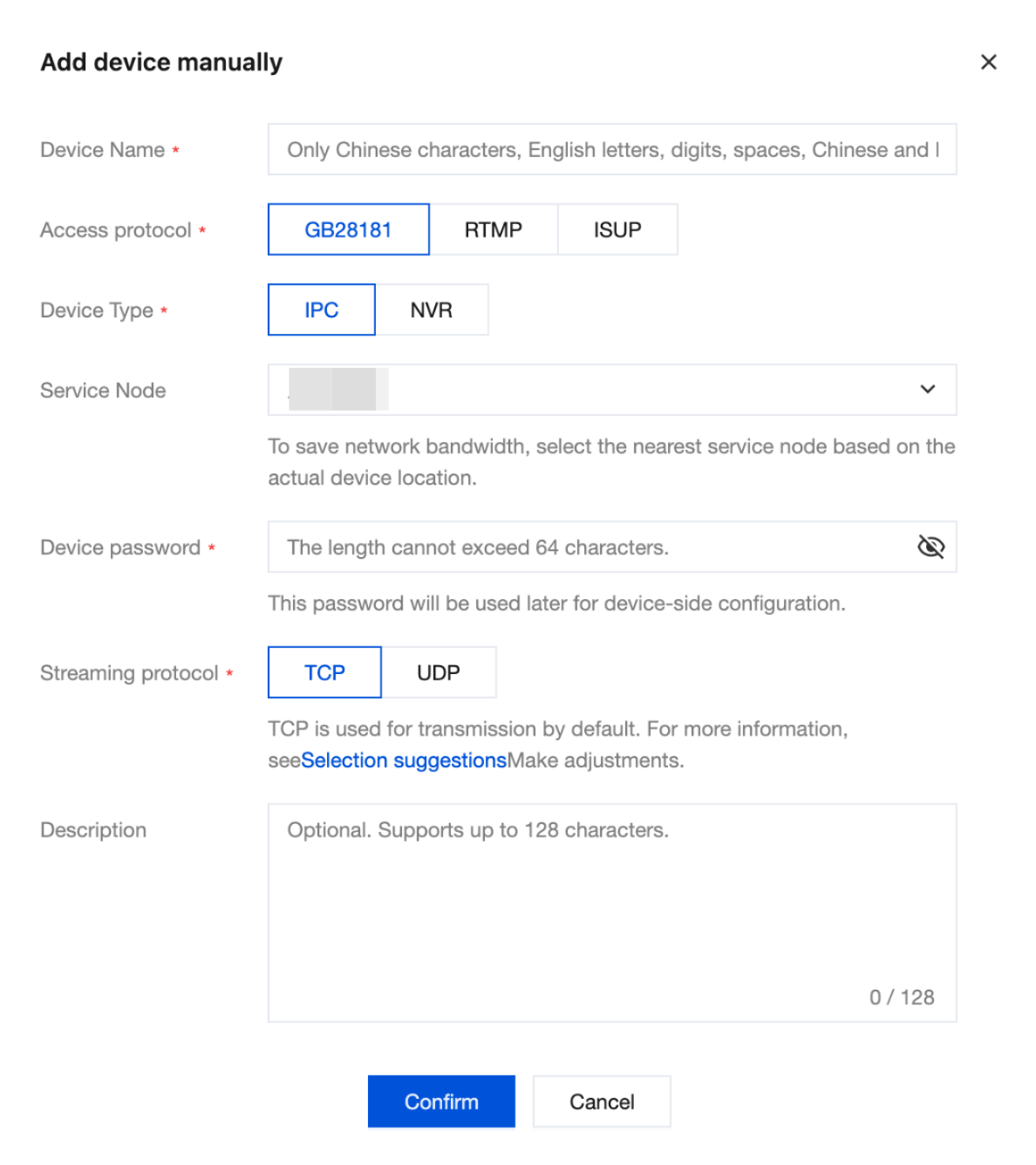
2. Select the target organization and click Add Device. Both manual addition and batch import are supported. This document uses manual addition as an example.
3. Optional: Customize the
{appname} and {streamname} parameters to generate a custom RTMP push streaming URL.4. After configuration, click Confirm to complete device addition.
Note:
The RTMP push streaming URL generated by the platform is in the format
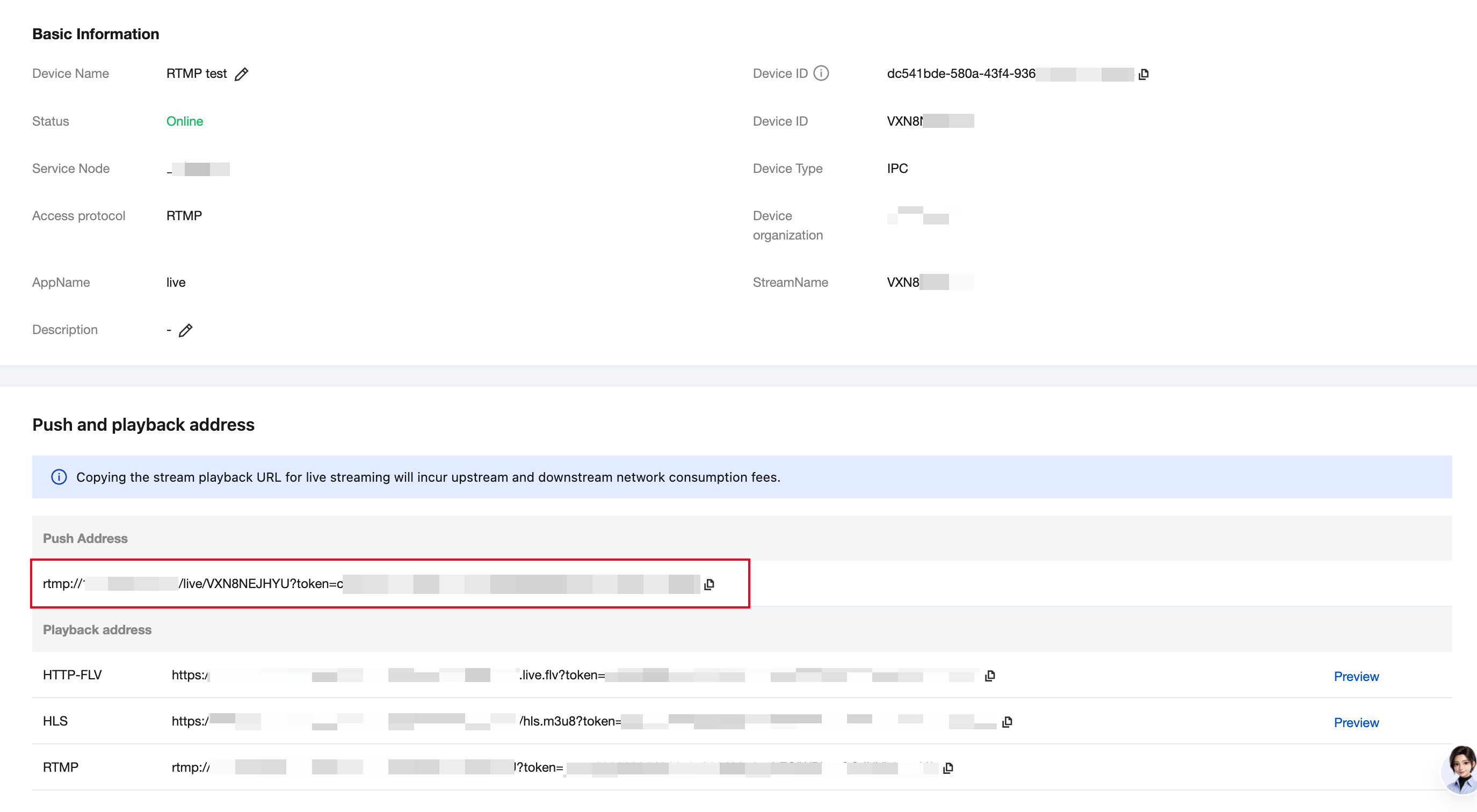
rtmp://{domain name}/{appname}/{streamname}, and all three parameters are customizable:domain name: the push streaming domain. You can upload a filed domain as prompted on the page. Otherwise, the public IP address of the platform service is used by default.appname: only letters and digits are supported, and the length cannot exceed 32 characters. Otherwise, the default value is live.streamname: only letters and digits are supported, and the length cannot exceed 32 characters. Otherwise, the default value is the 10-digit device ID generated by the platform.Obtaining the Push Streaming URL
On the Device Management page, click the target device name to go to the device details page and obtain the RTMP push streaming URL.
Configuring Push Streaming
Based on your actual scenario, select one of the following methods to configure push streaming.
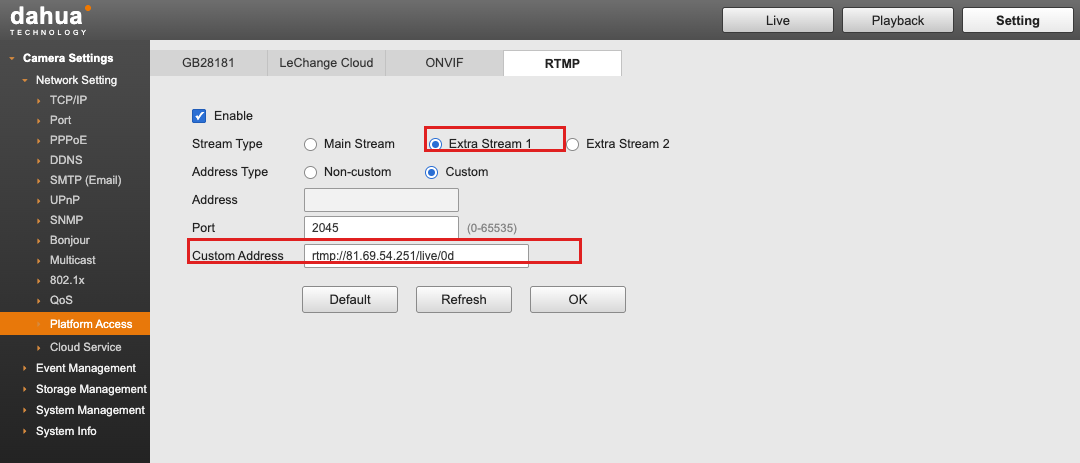
Device Push Streaming (Dahua Camera as an Example)
The configuration methods for devices from other vendors are similar.
Select Custom Address Type, enter the push streaming URL generated by the platform, and enable push streaming.
Software Push Streaming (OBS as an Example)
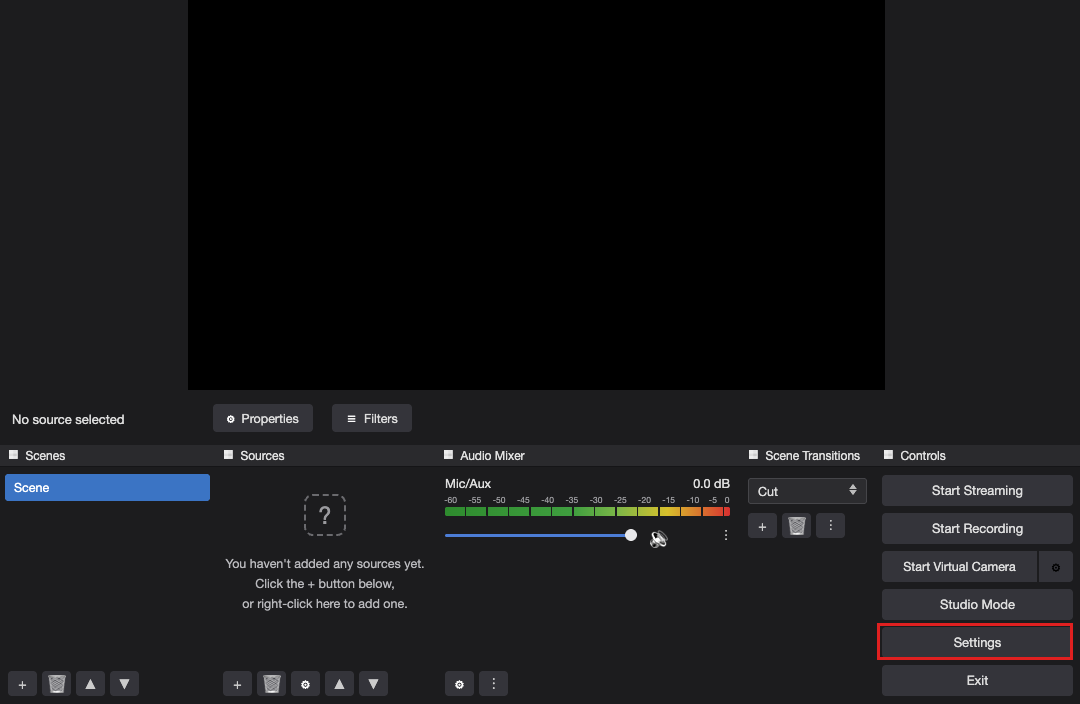
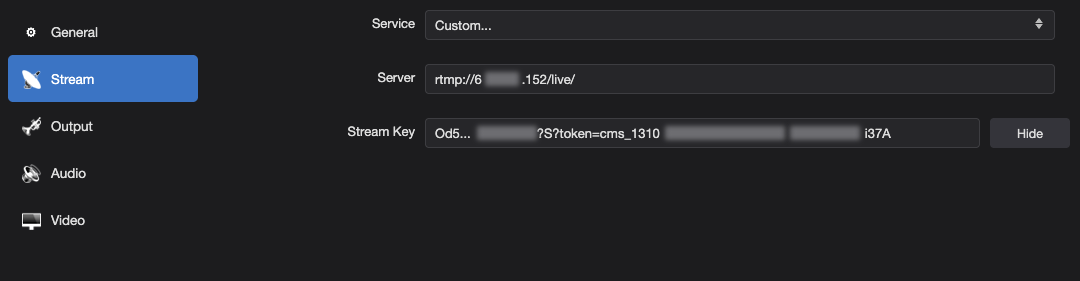
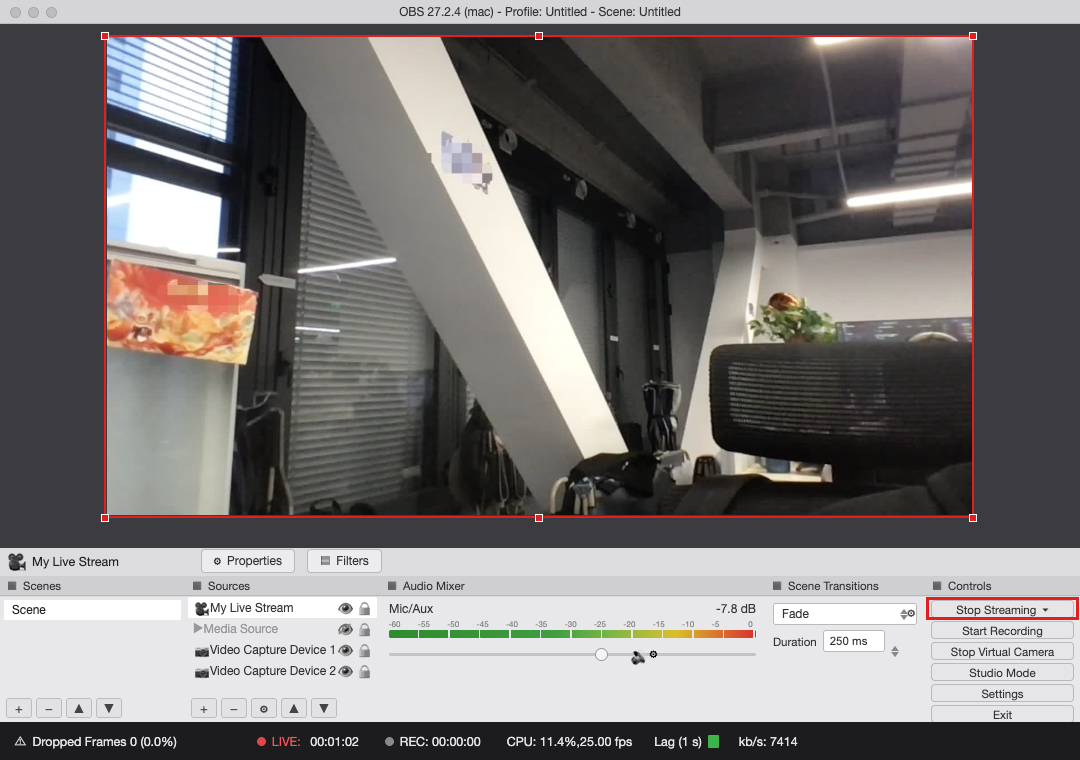
1. Open OBS, choose Controls > Settings to go to the settings page.
2. Select Push Streaming and configure it as follows:
Parameter | Description |
Service type | Select Custom. |
Server address | Enter the server address part of the push streaming URL, for example, rtmp://{domain name}/{appname}/. |
Stream key | Enter the stream name and subsequent content in the push streaming URL, for example, {streamname}?token=cms_131...37A. |
Note:
To obtain the push streaming URL, see "Obtaining the Push Streaming URL" above.
3. After the configuration is completed, choose Controls > Start Push Streaming to start push streaming.
Configuring Audio and Video Parameters (Optional)
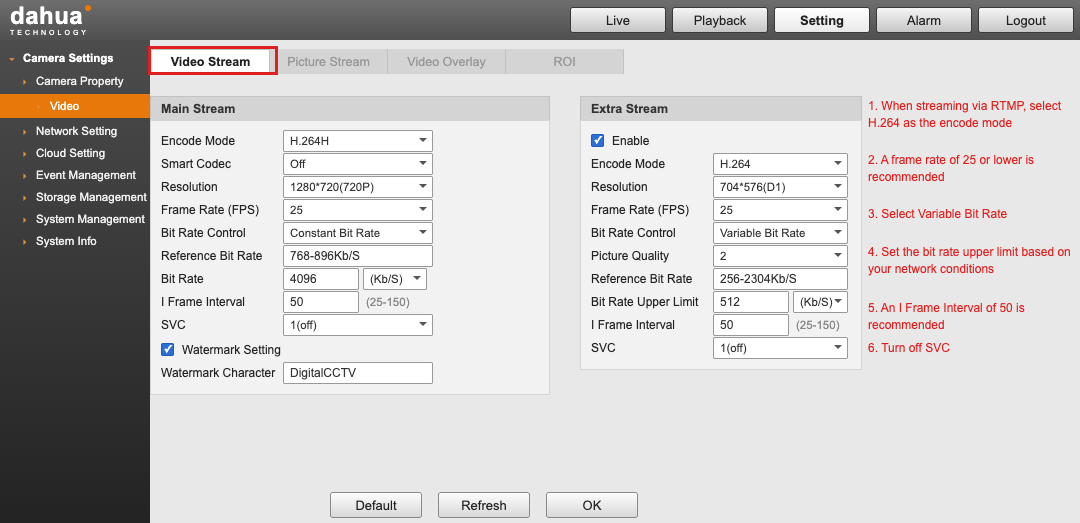
When network resources are insufficient or fluctuate significantly on the same network, video stuttering or live streaming failures may occur. It is recommended to configure audio and video parameters by referring to the following methods. This configuration is required only for device-side push streaming, and is not required for software-based push streaming.
Log in to the device Web management page and configure the audio and video parameters. This document uses the secondary stream as an example.
Verifying Access Results
After completing the push streaming configuration, return to the ISS console and confirm on the device details page that the device status is displayed as Online and the live streaming preview plays normally. This indicates that the device access is successful.
Must-Knows
The
appname and streamname in the push streaming URL support only letters and digits, with a maximum length of 32 characters. If not customized, they default to live and the 10-digit device ID generated by the platform, respectively.The push streaming domain must have completed ICP filing. Otherwise, the public IP address of the platform service is used by default.
Token anti-leech authentication is enabled by default on the platform. If authentication is not required, you can disable it in Service Configuration > Authentication Configuration.
피드백