Device Connection
다운로드
포커스 모드
폰트 크기
Scenarios
With the device access feature, you can build a device organization tree and add terminal devices that use various access protocols such as GB28181, RTMP, and ISUP to the platform for unified management.
Prerequisites
The ISS service has been activated.
Configure a stream playback domain first. Otherwise, you cannot add devices. For detailed operations, see Domain Configuration.
Operation Steps
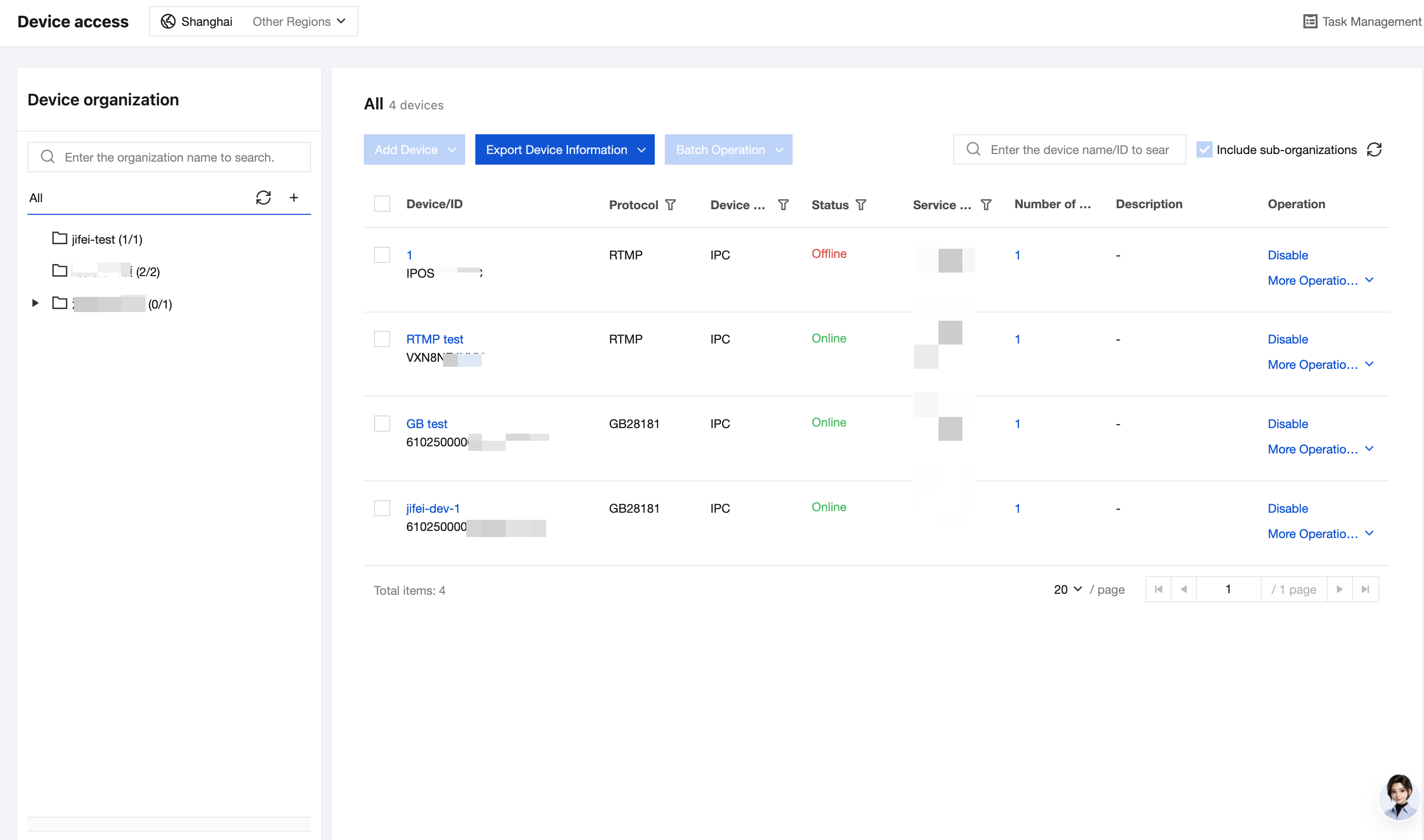
Creating a Device Organization
1. Click **+** in the upper-right corner of the device organization area. In the <1>Add Organization window that appears, customize the organization name, select the parent organization, and click OK** to complete the creation.
Note:
A device organization is a logical tree for mounting devices. All subsequent feature usage is organized around device organizations:
The number of organizations is unlimited, and the vertical hierarchy is limited to 9 levels. It is recommended to divide organizations by administrative regions such as province, city, district/county, township/town/street, village/household, and specific location.
Organization names must be globally unique and can contain only Chinese characters, letters, digits, spaces, Chinese and English parentheses, underscores (_), and hyphens (-). The maximum length is 64 characters.
Each organization displays the number of online devices and the total number of devices mounted under it. For example, (1/100) indicates that the organization has 100 devices in total, with 1 device currently online.
2. Hover over an organization to rename it, add a suborganization, or delete it.
3. Click the target organization in the organization tree. The device list on the right will display the devices under this organization. Select Include Suborganizations to display all devices mounted under the current organization and its suborganizations.
Adding a Device
1. In the device organization tree on the left, click the target organization.
Note:
You cannot add devices without selecting an organization. Select the target device organization before adding devices.
2. Click Add Device > Manual Add, and fill in the device information in the pop-up window.
Parameter | Description |
Device Name | Customize the device name. Only Chinese characters, English letters, digits, spaces, Chinese and English parentheses, underscores (_), and hyphens (-) are supported. The length cannot exceed 128 characters. |
Access Protocol | Supports protocols such as GB28181 and RTMP. Form fields vary slightly by protocol. See the instructions below. |
Device Type | IPC or NVR |
Service Node | Select the nearest service node based on the actual location of the device to save network bandwidth. |
Description | Device description (optional). Supports up to 128 characters. |
3. Fill in the corresponding parameters based on the selected access protocol:
GB28181: Enter the device password, which will be used later for device-side configuration, and select the streaming transport protocol (TCP or UDP, with TCP used by default).
RTMP: You can customize AppName and StreamName, which are used to generate the push streaming URL. If left blank, they default to live and the platform-generated device ID respectively. Ensure that a push streaming domain name has been added to the selected service node. Otherwise, you cannot customize these parameters.
ISUP: Enter the key.
4. Click Confirm to complete device addition. After the device is added successfully, it will appear in the device list of the selected organization.
Note:
For GB28181 protocol devices, the platform also supports the following features:
Audio Switch: Whether to accept device audio.
Directory Subscription: Actively subscribes to the real-time status of video channels under NVR devices. Some device brands may not respond.
Managing Devices
View Device Details: Click a device name in the list to go to the device details page, where you can view basic device information and stream playback URLs. For GB28181 devices, you can also view the GB28181 configuration information. The platform generates three real-time stream playback URLs for each video channel using HTTP-FLV, RTMP, and HLS protocols, which you can integrate into your customer applications.
View Channel Information: Click Channel Count in the device list. A channel information drawer will appear on the right side of the page, where you can view the name/code, video channel ID, channel status, and stream status of all video channels under the device. Click Synchronize Channels to refresh and obtain the latest video channel information.
Batch Operations: After selecting one or more devices in the device list, click Batch Operations to move, enable, disable, delete, or synchronize channels for the selected devices.
Single Device Operations: In the operation column of the device list, click Disable/Enable to switch the device status. Click More Operations to quickly jump to live streaming or recording playback, or delete the device.
Export Device Information: Click Export Device Information to export the current device list information as a spreadsheet file for local retention and statistics.
피드백