Analysis Template
다운로드
포커스 모드
폰트 크기
Scenarios
An analysis template defines the recognition capabilities for visual understanding and consists of two parts: model configuration and screenshot configuration. The model configuration tells the VLM what to recognize and how to output results. The screenshot configuration determines how often and during which time periods to capture frames from the video stream for analysis.
Note:
Each tenant can create 2 analysis templates by default. To request a higher quota, please contact us.
Prerequisites
You have activated the ISS service, and visual understanding is available in the current region. For the regions where each feature is supported, see Specifications and Limits.
Operation Steps
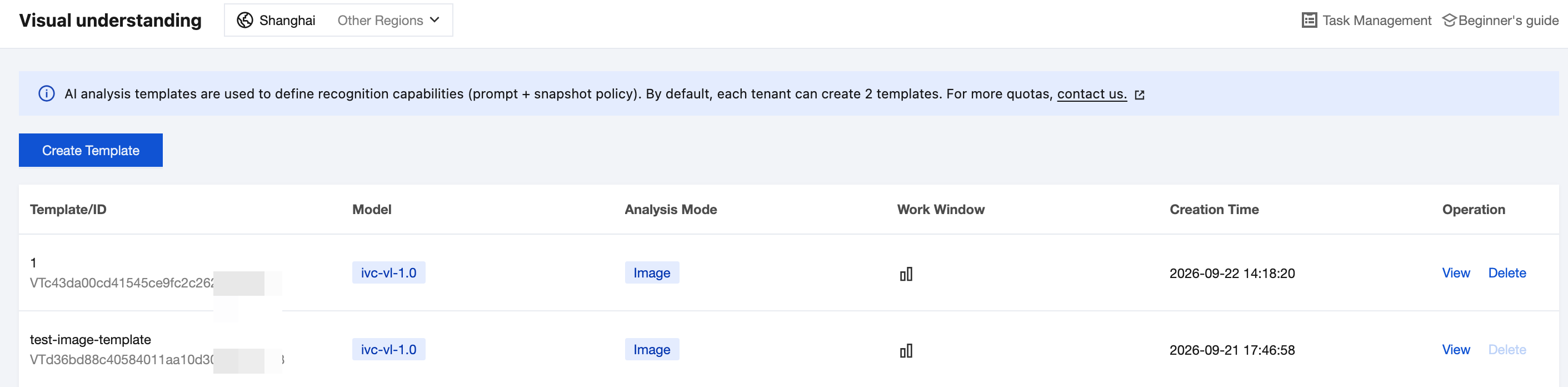
Creating an Analysis Template
1. Click Create Template. In the panel that appears on the right, complete the model configuration by configuring the following parameters.
Parameter | Required | Description |
Template Name | Yes | Only Chinese characters, English letters, digits, underscores (_), and hyphens (-) are supported. The length cannot exceed 32 characters. |
Model Name | Yes | Select a visual understanding VLM from the drop-down list for analysis. |
Analysis Mode | Yes | Select the organization method for the materials to be analyzed. Currently, image mode is supported, which analyzes captured screenshots frame by frame. |
Description | No | Describes the purpose of the template. The length cannot exceed 128 characters. |
Prompt | Yes | Enter the Prompt sent to the VLM, which is used to define recognition targets, judgment criteria, and output format. |
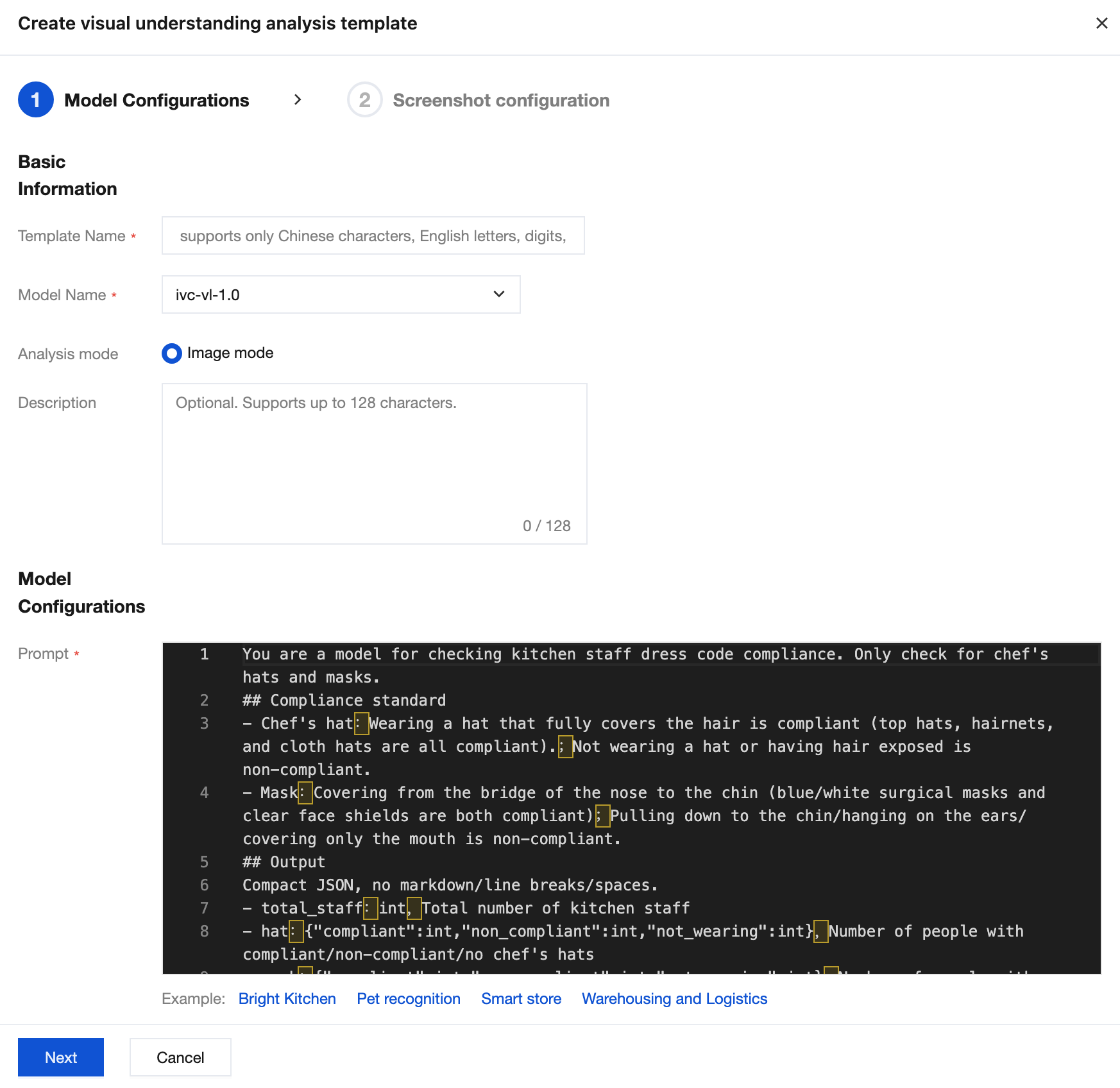
2. (Optional) When writing a prompt, you can click the examples below the input box, such as Transparent Kitchen, Pet Recognition, Smart Store, and Warehousing and Logistics, to apply the prompt sample for the corresponding scenario and then adjust it based on your business needs.
3. Click Next and complete the screenshot configuration by configuring the following parameters.
Parameter | Required | Description |
Screenshot Type | Yes | Determines the platform's pull streaming method and frame capture frequency range. |
Screenshot Frequency | Yes | Time interval between two adjacent screenshot periods, that is, how many seconds between each frame capture for analysis. |
Screenshot Mode | Yes | Single Image Mode: Only one image is captured in each screenshot cycle. Multi-Image Mode (Continuous Capture): Multiple images are captured continuously in each screenshot cycle, determined by Continuous Capture Quantity and Continuous Capture Interval. |
Number of Consecutive Screenshots | Yes (in multi-shot mode) | Number of images captured consecutively within each screenshot period. |
Consecutive Screenshot Interval | Yes (in multi-shot mode) | Time interval between two adjacent images during continuous capture. |
Effective Time Range | Yes | The days of the week and time range during which the template takes effect. In the time grid from Monday to Sunday, 0:00 to 24:00, hold down the left mouse button and drag to select. Unselected periods do not capture frames or generate analysis. |
Note:
The screenshot frequency and continuous capture quantity directly determine the number of VLM invocations, which in turn affects analysis costs. Configure these settings based on your actual business needs to avoid unnecessary high-frequency analysis.
4. Click OK to complete the creation. After the template is created, it appears in the template list. The analysis will not run until you associate the template with an analysis plan and bind it to a video channel.
Viewing Analysis Templates
1. In the template list on the Analysis Templates page, view the information of created templates, including Template Name/ID, Model Name, Analysis Mode, Effective Period, and Creation Time.
2. Click View in the operation column of the target template. In the Template Details panel that appears on the right, view the following information.
Area | Content |
Basic Information | Template name, template ID, model name, analysis mode, description, and creation time. |
Model Configuration | Complete prompt content used by the template. |
Screenshot Configuration | Screenshot type, screenshot frequency, screenshot mode, number of consecutive screenshots, and interval between consecutive screenshots. |
Effective Time Range | The effective time range for each day from Monday to Sunday. Dates that are not configured are displayed as Not enabled. |
Note:
The template details page is read-only, and template parameters cannot be modified. To adjust prompts or screenshot policies, create a new template and switch the associated template in the analysis plan.
Deleting an Analysis Template
1. On the Analysis Templates page, click Delete in the operation column of the target template.
Note:
When a template is associated with an analysis plan, the Delete button is unavailable. To delete the template, switch to another template in the analysis plan that references it to remove the association first.
2. Confirm the prompt message in the dialog box that appears to complete the deletion.
Warning:
Once a template is deleted, it cannot be recovered or referenced by any new analysis plan.
Related Documentation
After creating an analysis template, create an analysis plan on the Visual Understanding > Analysis Plans page and associate the template with it. Then bind a video channel to the plan. Only after these steps will the platform perform analysis based on the prompts and screenshot policies defined in the template.
피드백