This document describes the service configuration of ISS, including domain name configuration and URL authentication configuration.
Prerequisites
You have prepared a domain that has completed ICP filing. According to the Measures for the Administration of Internet Information Services, this service cannot be used with a domain that has not completed ICP filing. If you do not have your own domain, you can register one through Tencent Cloud Domains. If you are filing for the first time, see First-Time Domain ICP Filing.
You have prepared an SSL digital certificate. An SSL certificate can switch a site from HTTP to HTTPS, ensuring data transmission security through encrypted transmission. If you do not have a digital certificate, you can purchase or apply for a free certificate through Tencent Cloud SSL Certificates.
Domain name configuration
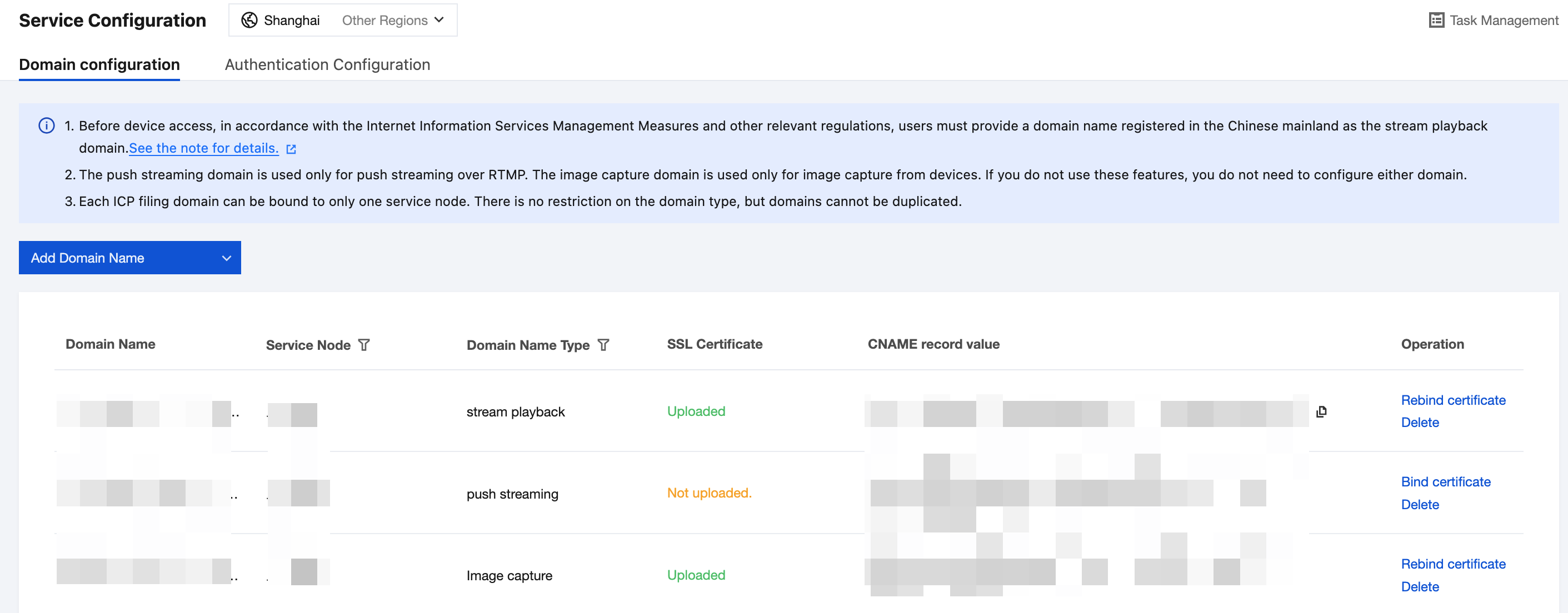
Domain configuration is used to manage the platform's stream playback domains, push streaming domains, and image capture domains, including CNAME resolution and SSL certificate binding for the domains.
Operation Steps
Step 1: Domain CNAME Resolution
1. Log in to ISS, select Service Configuration, and you will be directed to the Domain Configuration tab by default.
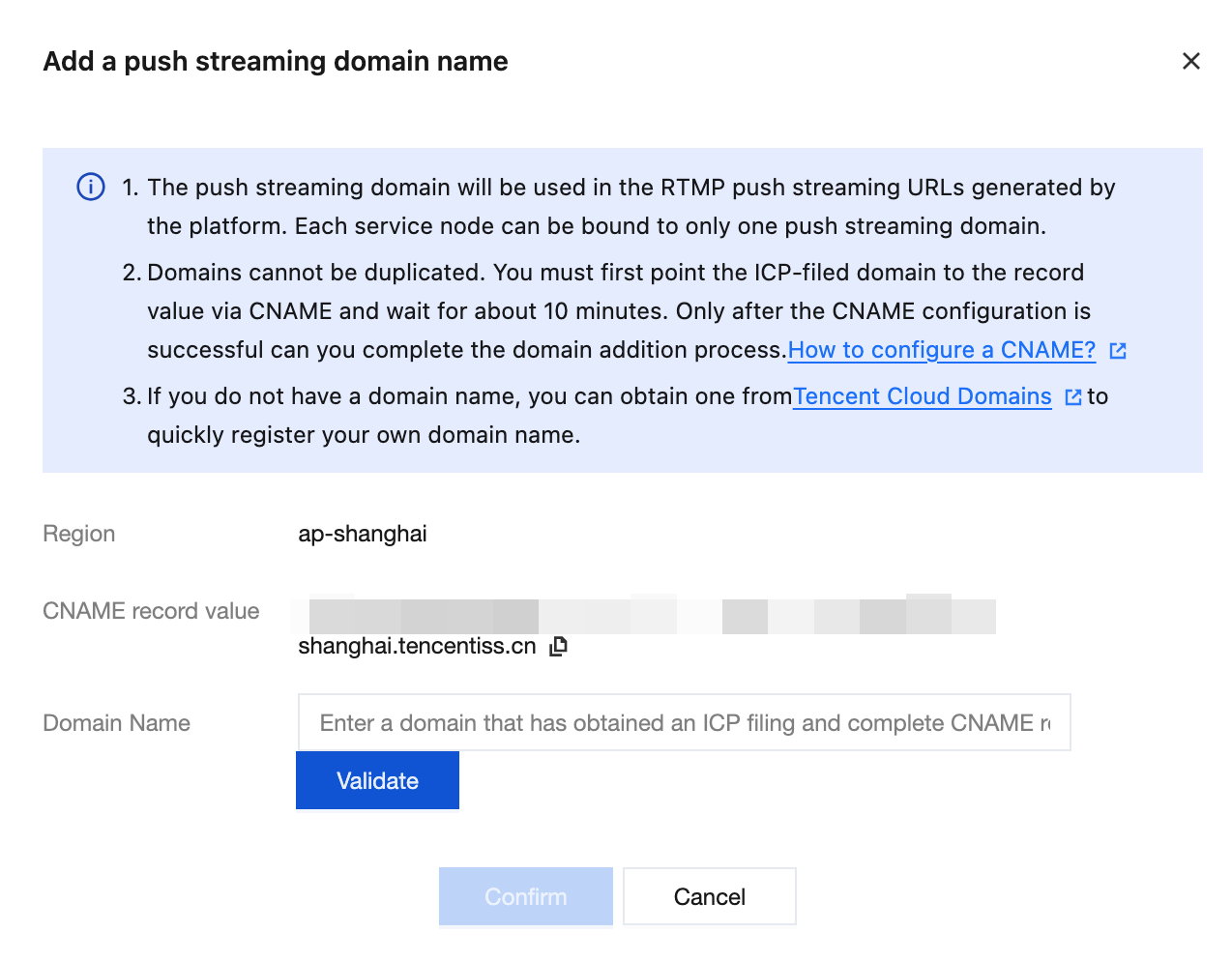
2. Click Add Domain. The following uses adding a stream playback domain as an example.
The purposes of different domain types and their SSL certificate requirements are as follows:
Domain Type
Function
Whether to Bind SSL Certificates
Stream playback domain
URL for live streaming, recording playback, and recording download.
Yes
Push streaming domain
RTMP push streaming URL generated only by the platform.
No
Image capture domain
Image URL for device-side capture and upload.
Yes
3. Copy the CNAME record value generated by the platform, and go to your DNS service provider to add a CNAME resolution record.
4. Take Tencent Cloud DNS resolution as an example to add a CNAME resolution record. For operations on other platforms, see the corresponding vendor's documentation.
4.2 Select the target domain, click Resolve in the operation column, and go to the record management page of the domain.
4.3 Click Add Record and configure the following parameters:
Configuration Item
Description
Host Record
Domain name prefix. For example, to resolve test.example.com, enter test; to resolve example.com, enter @.
Record Type
Select CNAME.
Line Type
Select the default option.
MX priority
Not required.
Record Value
Enter the CNAME record value generated by the platform.
TTL
Cache duration. A smaller value means faster propagation across regions. The default value is 600 seconds.
4.4 Click Save to complete the addition.
5. Wait approximately 10 minutes for the resolution to take effect, then return to the console and click Verify to go to the next step.
Step 2: Binding an SSL Certificate
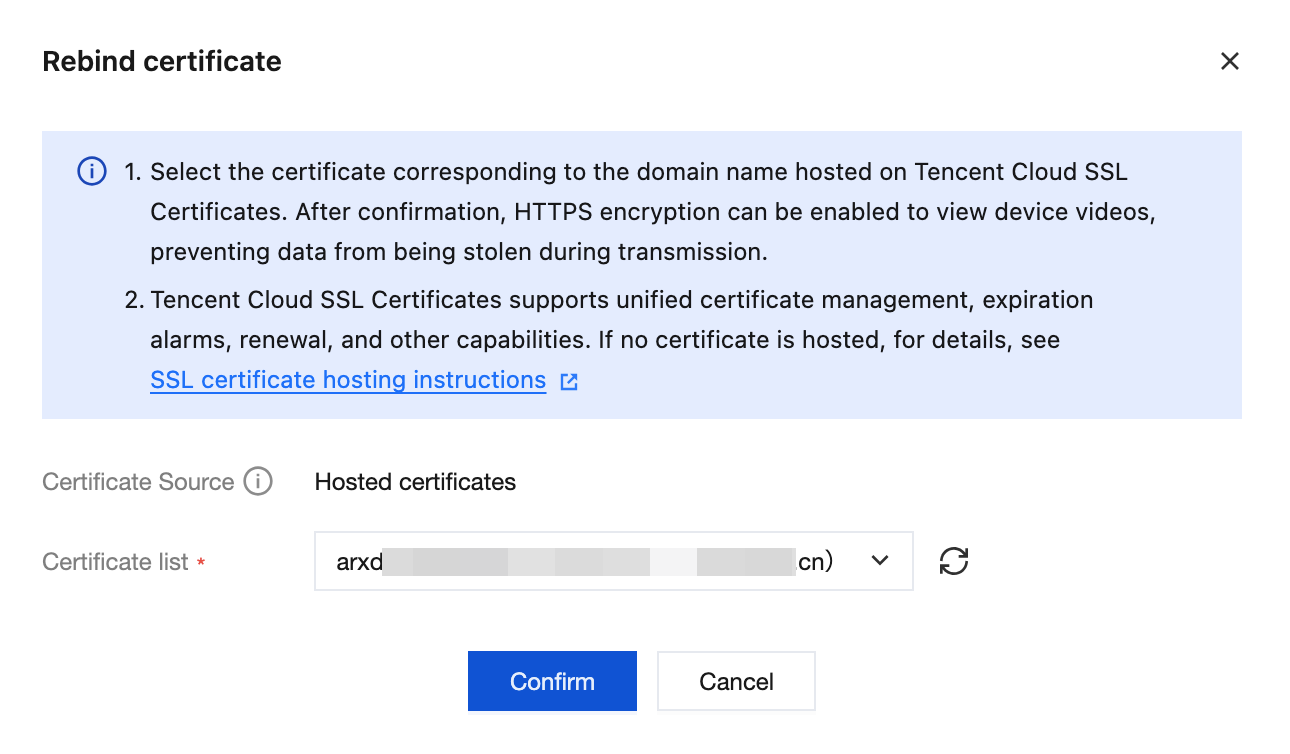
1. Select a certificate hosted in Tencent Cloud SSL Certificates and click OK. The certificate will be automatically deployed to the resources of this product, allowing clients to access videos over HTTPS.
Note:
Tencent Cloud SSL Certificates provides unified certificate management, expiration alarms, and renewal capabilities. If you have not hosted a certificate, see Uploading (Hosting) SSL Certificates to upload one.
The system sends notifications by in-app message, email, or SMS three times on days 29, 15, and 3 before certificate expiration. By default, notifications are sent to the root account, which must have contact information configured.
2. If you update or replace a certificate in SSL Certificates, rebind the certificate in this product by clicking Rebind Certificate to avoid service disruption.
Authentication Configuration
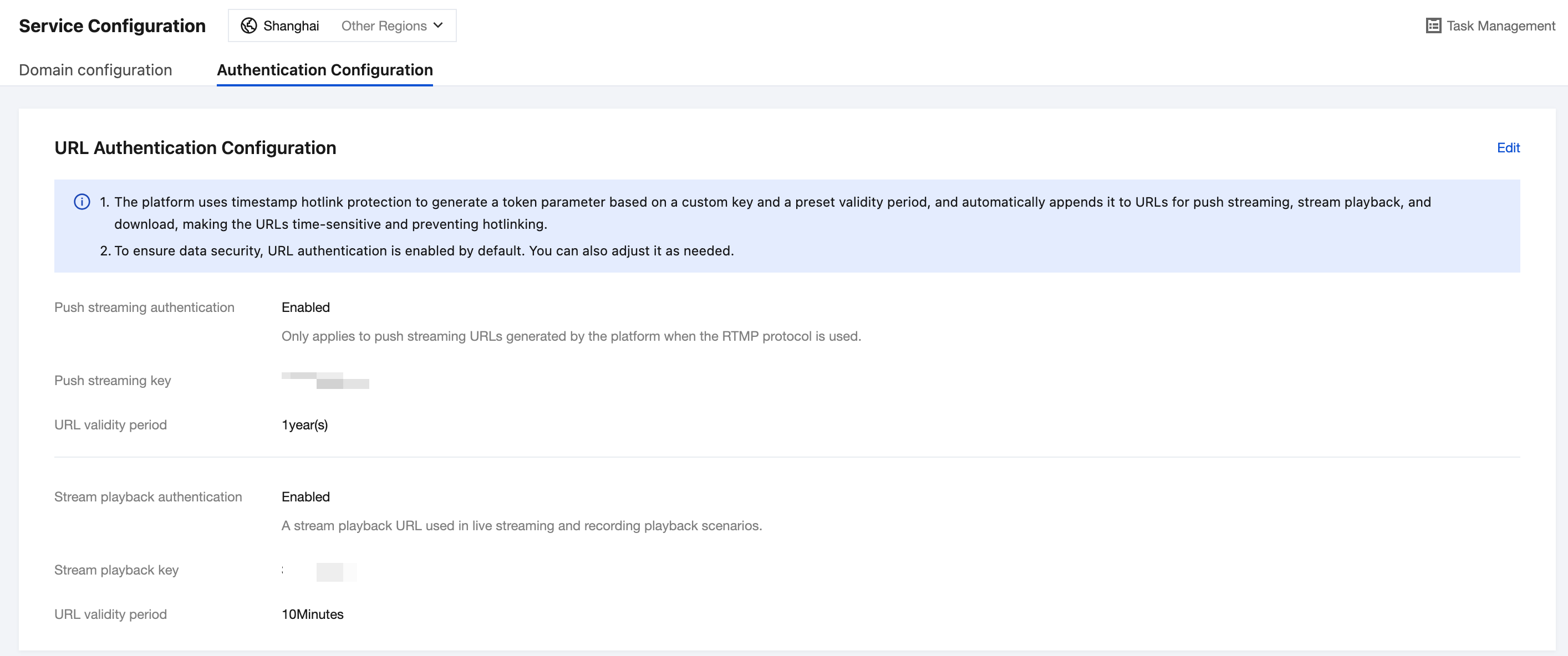
URL authentication is based on timestamp hotlink protection. It encrypts your custom key and expiration time to generate a Token, which is then appended to all push streaming and stream playback URLs. Each stream URL is time-sensitive and becomes invalid after expiration, preventing the URL from being stolen. For security reasons, this feature is enabled by default, and you can adjust it as needed.
Operation Steps
1. Log in to ISS, select Service Configuration, and switch to the Authentication Configuration tab.
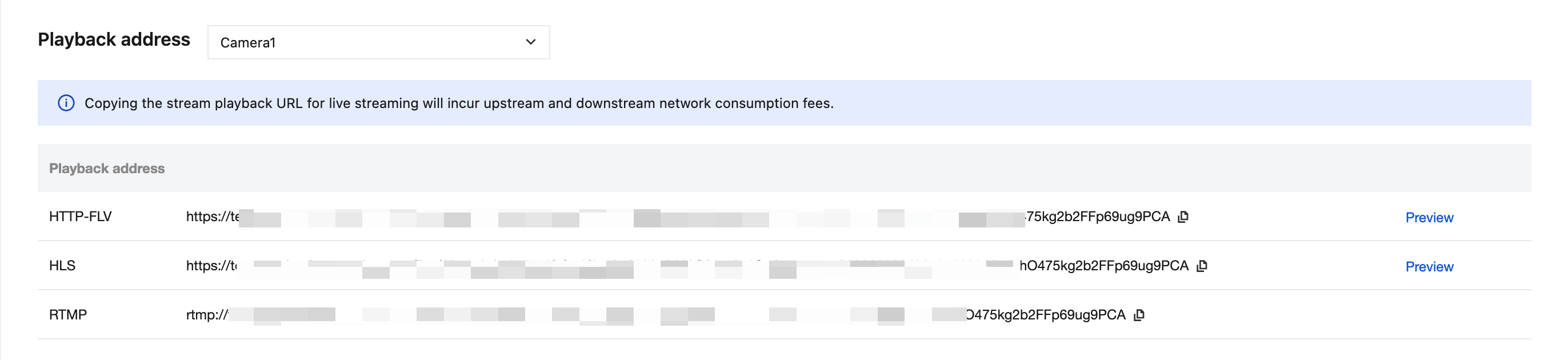
2. Click Edit and enter the Push Streaming Key, Stream Playback Key, and URL Validity Period. The URL Validity Period specifies how long a stream playback URL remains valid. For example, if it is set to 10 minutes, the URL becomes invalid when playback is attempted after 10 minutes, further preventing data leakage.
3. After the configuration is completed, the platform will generate an encrypted Token string for the stream playback URLs of all video channels. You can go to the Device Access page and click a device name to view the details.