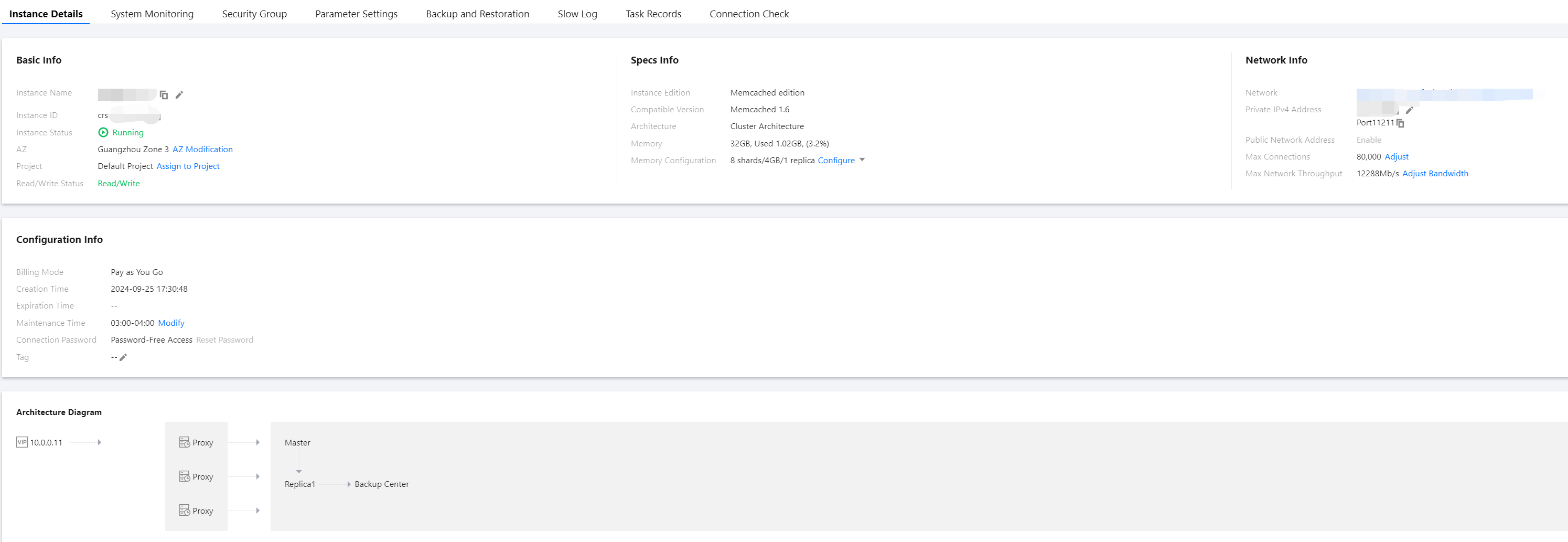
After purchasing a Memcached instance, you can view detailed information about the instance in the console in an intuitive and fast way. This includes the instance's running status, capacity usage, cluster primary-secondary relationship, network status, and other information. You can also efficiently manage the ops of the instance.
Prerequisites
The instance has not been destroyed and is isolated in the recycle bin.
2. Select the region at the top of the instance list page on the right.
3. Find the target instance in the instance list. You can use the search box in the upper right corner of the instance list to enter instance ID, instance name, private IP address, or tag key to search for the target instance. Only instance name supports fuzzy search.
Note:
If the target instance is not found in the instance list, select Recycle Bin in the left sidebar to check whether the instance has been isolated due to overdue payments. To restore the instance, see Restoring Isolated Instance.
4. Check the running status, configuration specifications, architecture version, and capacity usage of the target instance.
Instance List Information
Description
Instance ID/Name
Instance ID: The unique identifier of an instance.
Name: The name set when the instance is created. Place the mouse over the instance name, click
, to re-edit the instance name for easier identification and management.
Status: The running status of the instance. The normal status is Running.
Task: When a task is being executed, the name of the current task in progress will be displayed here. For example, Configuration change in progress.
Project
The project that the instance belongs to. A Tencent Cloud account can create multiple projects. In the upper-right corner of the console page, go to Account Center > Project Management to create projects, manage projects, and view the consumption details of the entire project. If you need to transfer to another project, for specific operations, see Reassigning Instances to Projects.
Availability zone
The AZ information specified for the instance. If
is displayed to the right of the AZ, it indicates that the instance is deployed across multiple AZs. Place the mouse over this icon to view the information of the multiple AZs for the instance.
Deployment Mode
Indicates whether the instance is deployed across AZs.
Single AZ: The current instance is deployed within the same region and AZ.
Multiple AZs: The current instance is deployed across different AZs within the same region.
Network
The VPC name, subnet name, and private IPv4 address to which the instance belongs. Click the VPC name in blue font to view network details. The private IPv4 address is used to access the database, and you need to specify this IP address. For specific operations, see Connecting to an Instance.
Billing mode
Billing mode: pay-as-you-go or yearly/monthly subscription. The two billing modes are different. For details, see Billing Overview.
Auto-Renewal
Indicates whether the auto-renewal feature is enabled for the current instance.
Architecture Version
The database version and architecture, which only supports Memcached 1.6 cluster architecture.
Instance Edition
Currently only supports the Memcached edition.
Used/Total Capacity
The used memory capacity and total memory capacity of the current instance.
Creation Time
The specific date and time when the instance was created.
Tag
Displays the tag information of the instance. Instances can be managed via tags. For how to edit tags, see Edit Instance Tags.
Click Configuration Change to scale out nodes, scale down nodes, add replicas, delete replicas, add shards, or delete shards. This allows you to expand or reduce the memory capacity of instance nodes, increase or decrease the number of instance replicas, and add or remove shards in cluster architectures. For specific operations, see Modifying Instance Specifications.
Choose More > Security Group to reselect security group inbound rules. For specific operations, see Configuring Security Groups.
Yearly/monthly subscription billing mode: Choose More > Refund; For pay-as-you-go instances: Choose More > Terminate to return the instance and isolate it in the recycle bin. For specific operations, see Instance Termination.
Choose More > Edit Tags to modify the tag keys and values of the instance. For specific operations, see Edit Instance Tags.
Viewing Instance Details
In the Instance ID/Name column of the target instance, click the blue-font Instance ID to go to the Instance Details page.
Section
Parameter
Description
Basic information
Instance name.
The name set when the instance was created. Hover over the instance name and click
to re-edit it for easy identification and management.
Instance ID
The unique identifier for the instance.
Instance State
Current running status of the instance. Normal status is Running.
Availability Zone
The region and AZ to which the instance belongs. Click Change AZ to upgrade instances currently deployed in a single AZ to multiple AZs. For specific operations, see Change the Availability Zone.
Associated Project
The name of the project to which the instance belongs. Click Assign to Project to reassign the instance to another project. For specific operations, see Assign an Instance to a Project.
Read-write status
Current read-write status of the database.
Specification Information
Product Version
Currently only Memcached Edition is supported.
Compatible Versions
Only Memcached 1.6 is supported.
Architecture Version
The information of the deployment architecture of the instance.
Memory Capacity
The total memory capacity, used capacity, and usage percentage of the current instance.
Memory Configuration
The memory configuration specifications of the purchased instance include: number of shards/memory capacity per shard node/replica quantity. Click Configuration Change to adjust the node memory capacity, number of shards, and number of replica nodes. For details, see Changing Instance Specifications.
Network Information
Network
The VPC name of the instance. Click Switch Network to switch the VPC and subnet. For specific operations, see Configuring Network. If you need to create a VPC, see Creating a VPC.
Private IPv4 address
The private IP address assigned to the database instance. This IP address needs to be configured to access the database. For more details, see Connecting to the instance.
Click
to modify the IP address and port number.
Click
to copy the IP address and port number directly.
Maximum Number of Connections
The maximum number of client connections currently limited for the database. Click Adjust to modify the number of access connections. For specific operations, see Adjusting Connections.
Maximum network throughput
The maximum network throughput for database access, as well as the trigger conditions for inbound traffic throttling and outbound traffic throttling. Click Bandwidth Adjustment to increase additional bandwidth. For specific operations, see Bandwidth Adjustment.
Configuration Information
Billing Modes
The billing modes for the instance: pay-as-you-go and yearly/monthly subscription.
Creation time.
The time when the instance was created.
Expiration Time
The yearly/monthly subscription billing mode displays the expiration time of the instance.
Maintenance window
The instance has a maintenance window. To ensure database stability, the backend system performs maintenance operations on the instance during the maintenance window from time to time. Click Modify to adjust the maintenance window, which is recommended to be set during off-peak business hours. For specific operations, see Setting the Maintenance Window.
Connection password
The password required when the database is connected to. Click Reset Password to reconfigure the password or set up password-free authentication. For specific operations, see Resetting Password.
Tag
The tags associated with the instance. Tags can be modified. For specific operations, see Editing Instance Tags.
Architecture Diagram
Architecture diagram of the database instance deployment.
More Operations
Change Instance Name
1. In the Instance List, place the mouse pointer over the instance name to be modified, and click the
on its right.
2. In the instance name input box, reconfigure an instance name that is easy to identify and manage. The requirements are as follows:
The character length must be between 1 and 60.
You can enter Chinese characters, English letters, digits, underscores "_", and hyphens "-".
A Chinese character occupies 3 characters, while an English letter, digit, or special symbol each occupies one character.
Set Instance List Fields
1. In the upper-right corner of the instance list, click
.
2. On the Custom List Fields page, select the fields to be displayed.
3. Click OK, and you can immediately see the reset fields in the instance list.
Instance list export
In the upper-right corner of the instance list, click