Account protection refers to an additional layer of login/operation protection added by Tencent Cloud when you perform login or sensitive operations, such as modifying your account login method, changing your account password, or updating your verification mobile number.
After you enable login protection, identity verification is required when you log into the Tencent Cloud official website. This prevents others from logging into your account even if they steal your password, thereby maximizing the security of your account.
After you enable operation protection, you must complete identity verification before performing sensitive operations to ensure that it is you performing the operation.
This document describes the types of account protection and the steps for enabling/disabling it.
Attention:
To enable/disable account protection for a sub-account, the operation must be performed by the root account or an account with management permissions. For details, see Setting Security Protection for Sub-users.
Notes
The verification for sensitive operations is valid for 60 minutes. If you perform a sensitive operation again after more than 60 minutes, you must be verified again.
If both login protection and operation protection are enabled for your account and you complete two-step verification during login, performing sensitive operations within 60 minutes after login does not trigger sensitive operation verification.
Account Protection Types
Note:
To enable U2F security key verification, your account must have a U2F security key linked. U2F security key verification is supported only on PCs and is not currently supported for verification on mobile devices.
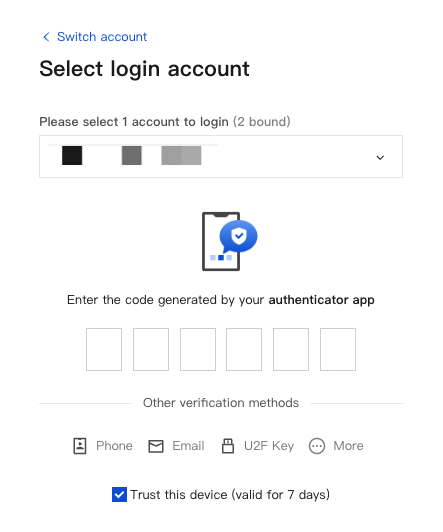
After entering the account and password on the login page, go to the U2F device confirmation page, insert the U2F security key, and tap the button to complete the login.
After performing a sensitive operation on the console, go to the U2F device confirmation page, insert the U2F security key, and tap the button to complete verification. The operation can be completed only after the verification is passed; otherwise, it cannot be executed.
Enable MFA Device Verification.
After entering the account and password on the login page, go to the MFA password input page, and enter the correct MFA password to complete the login.
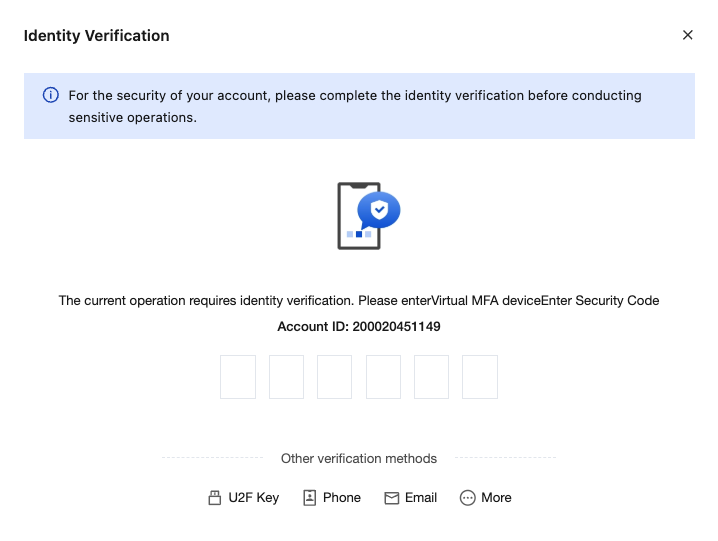
When performing a sensitive operation on the console, go to the identity verification page and enter the MFA password. The operation can be completed only if the entered MFA password is correct; otherwise, it cannot be executed.
Enable SMS Verification Code Verification.
After entering the account and password on the login page, go to the SMS verification code input page, click to obtain the SMS verification code, and enter the correct verification code to complete the login.
When performing a sensitive operation on the console, go to the identity verification page and enter the SMS verification code. The operation can be completed only if the entered verification code is correct; otherwise, it cannot be executed.
Enable Email Verification Code Verification.
After entering the account and password on the login page, go to the email verification code input page, click to obtain the email verification code, and enter the correct verification code to complete the login.
When performing a sensitive operation on the console, go to the identity verification page and enter the email verification code. The operation can be completed only if the entered verification code is correct; otherwise, it cannot be executed.
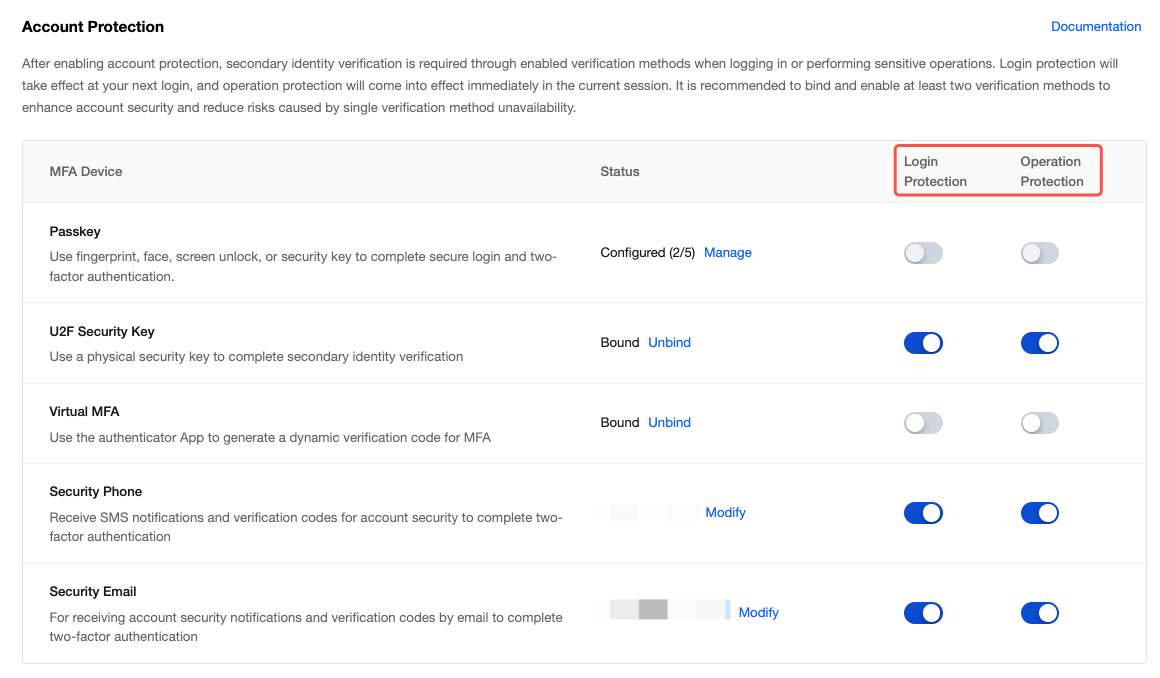
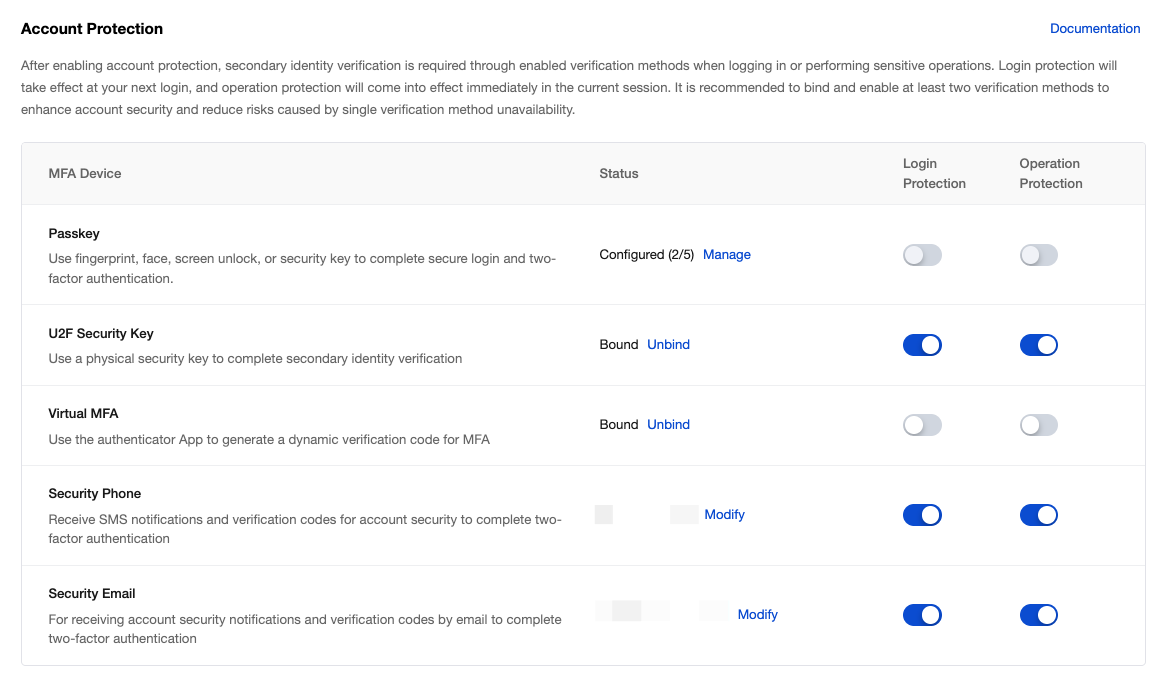
2. In the Account Protection section, locate login protection and operation protection.
3. Select the type of protection you want to enable, and click
to enable login protection or operation protection.
Note:
You can enable login protection and operation protection for multiple devices simultaneously. By default, the system verifies the device you used in your last verification. Alternatively, on the identity verification page, you can select another enabled device for verification as needed.
4. In the identity verification window that pops up, follow the on-page instructions to proceed. Once the verification is successful, the feature will be enabled.
Note:
If the identity verification method is unavailable, please contact us or submit a ticket to obtain support.
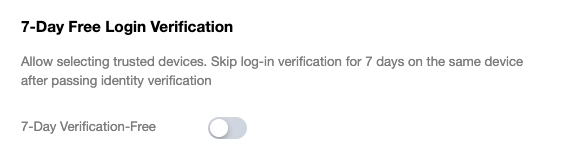
5. On the 7-Day Login-Free Verification page, you can also optionally choose to trust your login device and enable 7-day login-free verification. If you do not need this, please ignore it.
Disabling Account Protection
Warning:
Disabling account protection lowers the security level of your account and assets. Please proceed with caution.
After you disable login protection, daily logins require only your account and password. Two-step verification is no longer mandatory, which may increase the risk of account theft if your password is compromised.
After you disable operation protection, identity is no longer verified for routine sensitive operations. This increases the risk of erroneous operations, which can lead to data loss or asset damage.
Note: For certain high-risk operations, such as when an account has not been logged into for 30 days, when the login environment is abnormal, or during account cancellation, disabling account protection does not apply. The system will still enforce identity verification to further safeguard your account and assets.
1. Log in to the Tencent Cloud console and go to the Security Settings page.
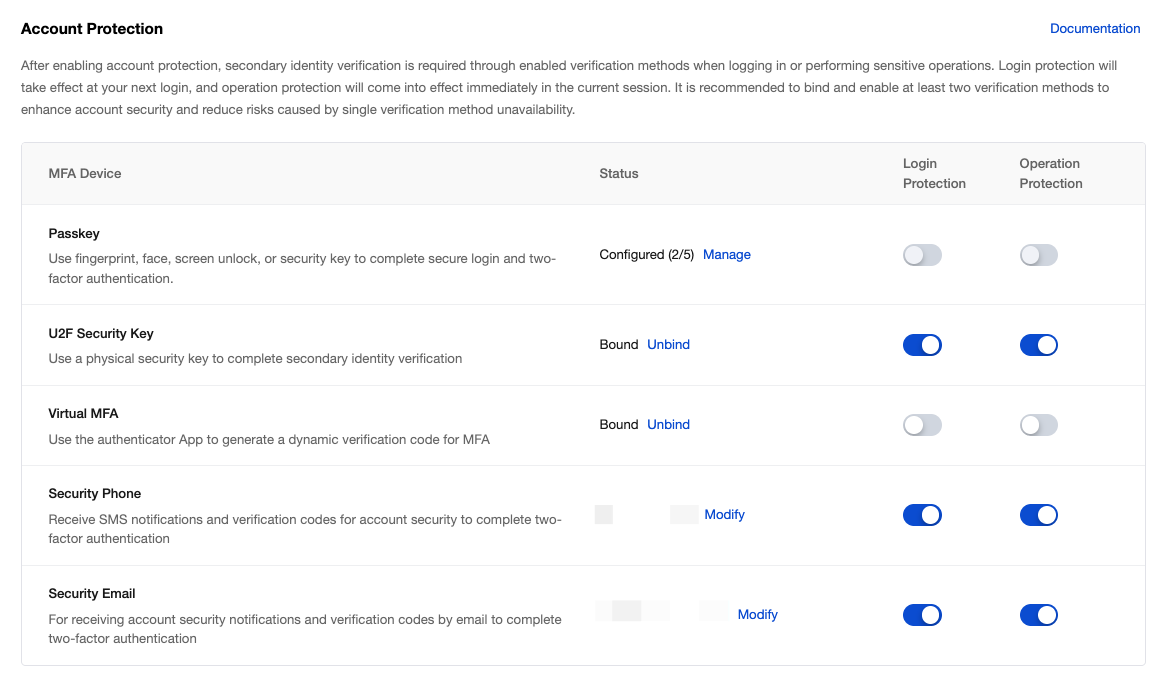
2. In the Account Protection section, locate login protection and operation protection.
3. Select the type of protection you want to disable, and click
to disable login protection or operation protection.
4. In the verification window that pops up, follow the on-page instructions to proceed. Once the verification is successful, the window will close.
Note:
If the identity verification method is unavailable, please contact us or submit a ticket to obtain support.
Account Protection Verification Sequence
Your account can enable login protection and operation protection for multiple devices simultaneously. By default, the system verifies the device you used in your last verification. Alternatively, on the identity verification page, you can select another enabled device for verification as needed.
1. If you have bound multiple MFA devices and enabled login protection for them.
2. On the identity verification page, the method you used in your last verification is displayed by default. Alternatively, you can switch to another verification method at the bottom to complete the process.