Configuring an ACL User
Download
포커스 모드
폰트 크기
TDMQ for CKafka (CKafka) supports identity verification via the Simple Authentication and Security Layer (SASL) protocol. After enabling the SASL authentication, only authenticated users can access CKafka resources. This document describes how to create a user, modify the password of a user, and delete a user in the CKafka console. After creating a user, for specific operation steps to authorize the user for a topic, see Configuring Topic Read/Write Permissions.
Constraints and Limitations
Securely store your username and password to prevent leakage. When producing and consuming messages on the client, you will need to configure these parameters.
Modifying the user password will cause service interruption. You need to update the password in the client configuration file or code in a timely manner. Proceed with caution.
Prerequisites
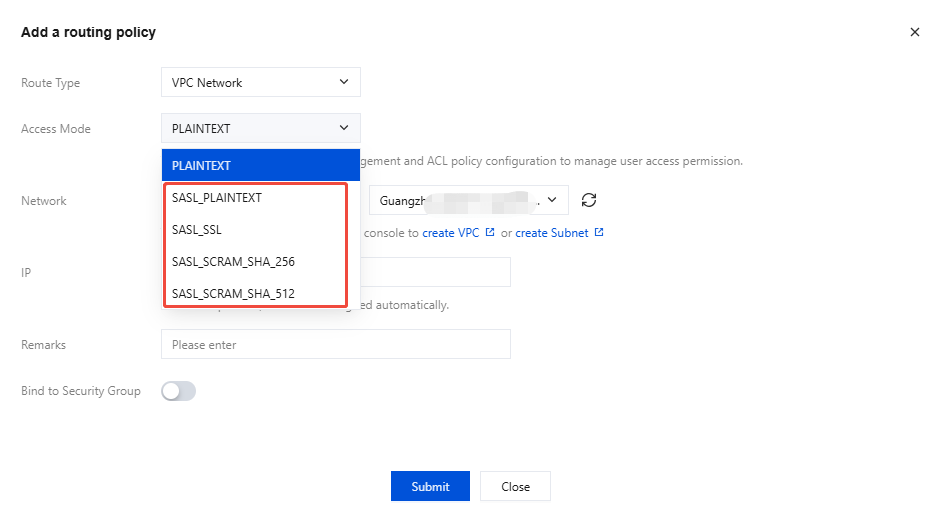
The SASL authentication for the instance has been enabled. For differences between access methods and specific operation steps, see Network Connection Instructions.
Creating User
1. Log in to the CKafka console.
2. In the left sidebar, select Instance List, select the target region, and click the ID of the target instance to go to the basic instance information page.
3. On the basic instance information page, choose ACL Policy Management > User Management. Click New and enter the username and password.
Username: It needs to comply with the naming rules. It can only contain letters, digits, underscores (_), hyphens (-), and periods (.), and must start with a digit or letter.
Password: It needs to meet the password requirements. It must contain at least two of the following items: lowercase letters, uppercase letters, digits, and special characters [()`~!@#$^&*-_=|{}[]:;',.?/].
4. Click Submit to complete the creation. On the user management list page, you can copy the username.

After creating a user, you can see Configuring Topic Read/Write Permissions to grant the user read/write permissions for the topic.
Changing User Password
1. On the user management page, click Change Password in the Operation column of the user whose password you want to modify.
2. Enter the old password in the pop-up window to complete verification, then enter the new password and confirm it. Click Submit to complete the modification.
Deleting User
Once deleted, the user will be restricted from accessing the CKafka instance. Proceed with caution.
1. On the user management page, click Delete in the Operation column of the user to be deleted.
2. In the pop-up window, click OK to delete the user.
피드백