Using Multi-Line Full-Text Extraction Mode to Collect Logs
Download
포커스 모드
폰트 크기
마지막 업데이트 시간: 2026-08-17 16:40:39
AI 번역
Scenarios
A multi-line full-text log is a complete piece of log data spanning multiple lines (for example, Java program logs). In such cases, using the line break \\n as the end identifier of the log seems improper. To enable the log system to clearly distinguish each log, the first-line regular expression method is used for matching. When a line of log matches the preset regular expression, it is considered to be the beginning of a log, and the beginning of the next line serves as the end identifier of the log.
When the multi-line full-text extraction mode is used to collect logs, a default key value __CONTENT__ will also be set for storing multiple lines of logs. The log data itself will not be processed in a structured manner, nor will log fields be extracted. The time item of log attributes is determined by the time of log collection. This article shows you how to collect logs using the multi-line full-text extraction mode.
Prerequisites
The server where the target file resides has LogListener installed. For details, see:
at com.test.logging.FooFactory.createFoo(FooFactory.java:15)
at com.test.logging.FooFactoryTest.test(FooFactoryTest.java:11)
The log is finally structured by the Cloud Log Service as follows:
__CONTENT__:2019-12-1517:13:06,043[main] ERROR com.test.logging.FooFactory:\\njava.lang.NullPointerException\\n at com.test.logging.FooFactory.createFoo(FooFactory.java:15)\\n at com.test.logging.FooFactoryTest.test(FooFactoryTest.java:11)
Operation Steps
Step 1: Creating/Selecting a Log Topic
Create New Log Topic
Using an Existing Log Topic
To select a new log topic, perform the following steps:
2. In the left sidebar, select Overview to go to the overview page.
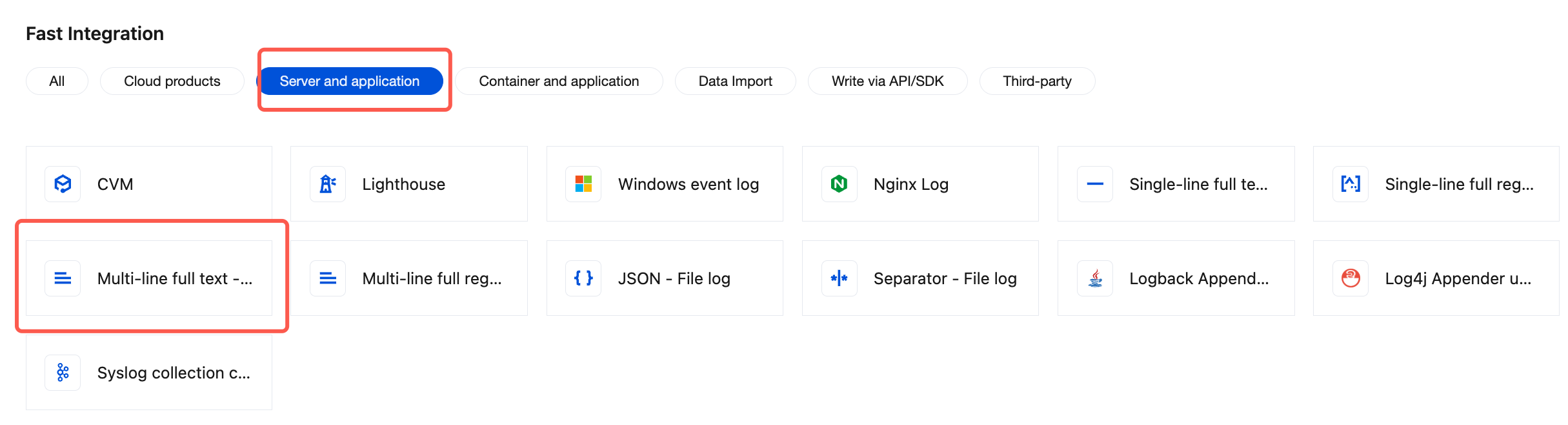
3. In Fast Integration > Server and application, locate and click Multi-line full text - File log , and enter the data collection configuration process.
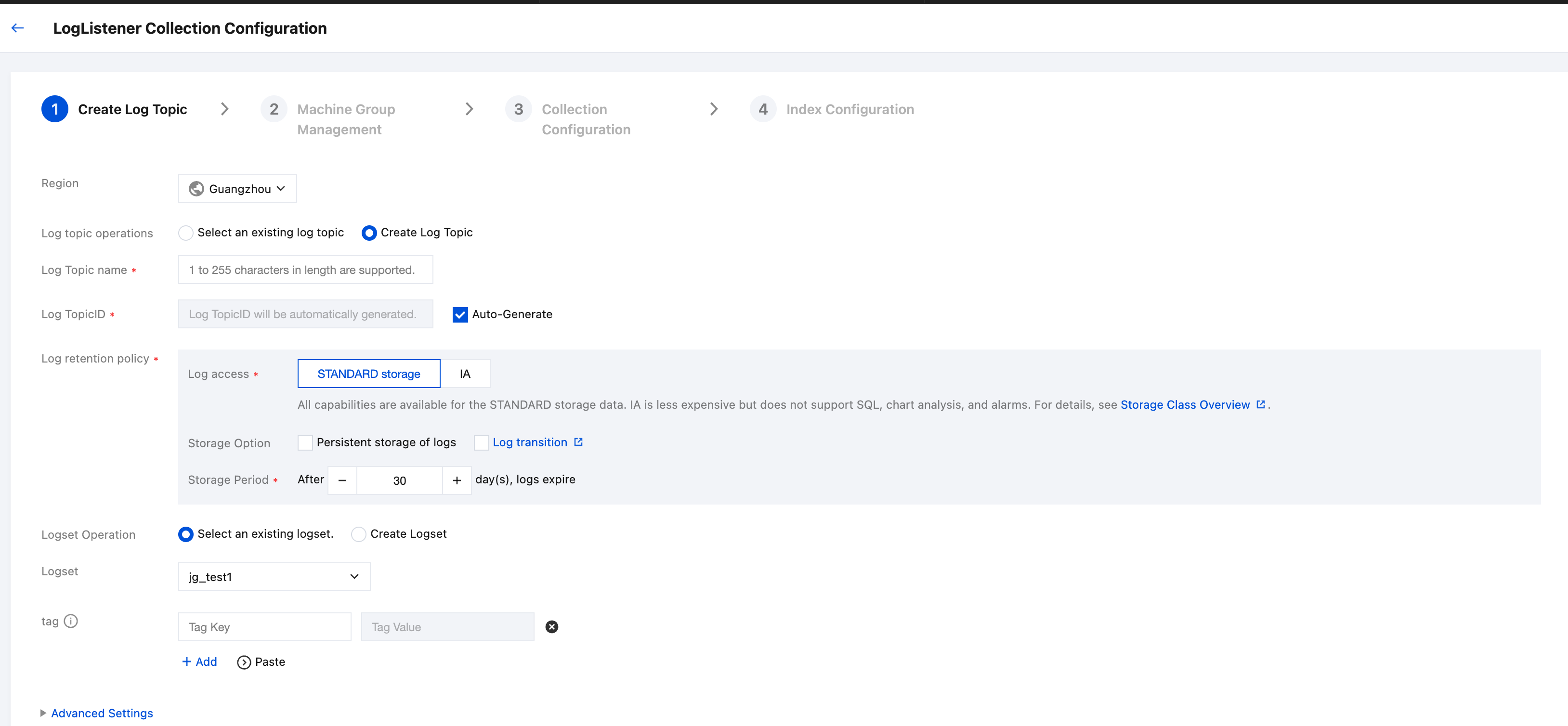
4. On the Create Log Topic page, specify the log topic name, configure the log storage duration, select a logset based on your actual requirements, and click Next.
To select an existing log topic, perform the following steps:
2. In the left sidebar, select Log Topic, then choose the target log topic you want to ship, click the log topic name, and enter the log topic management page.
3. Select the Collection Configuration tab, click Add under the LogListener Collection Configuration section, and enter the data source selection.
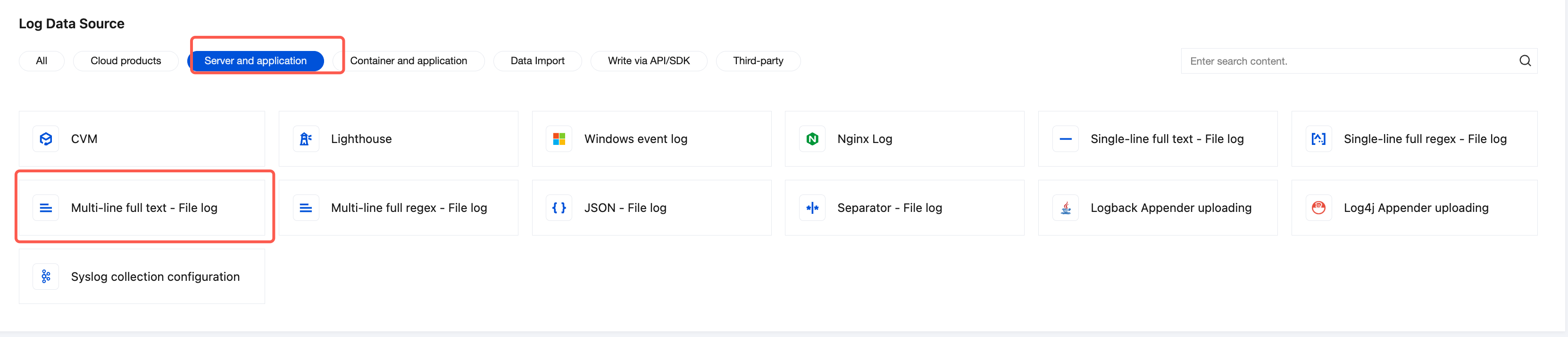
4. On the log data source selection page, select Servers and application, locate and click Multi-line full text - File log, and enter the data collection configuration process.
Step 2: Managing Machine Groups
If the target server from which you want to collect logs does not have LogListener installed, see:
In the machine group management interface, you can choose to use existing machine groups or create machine group.
Create a Machine Group
Select an Existing Machine Group
To create a new machine group, perform the following steps:
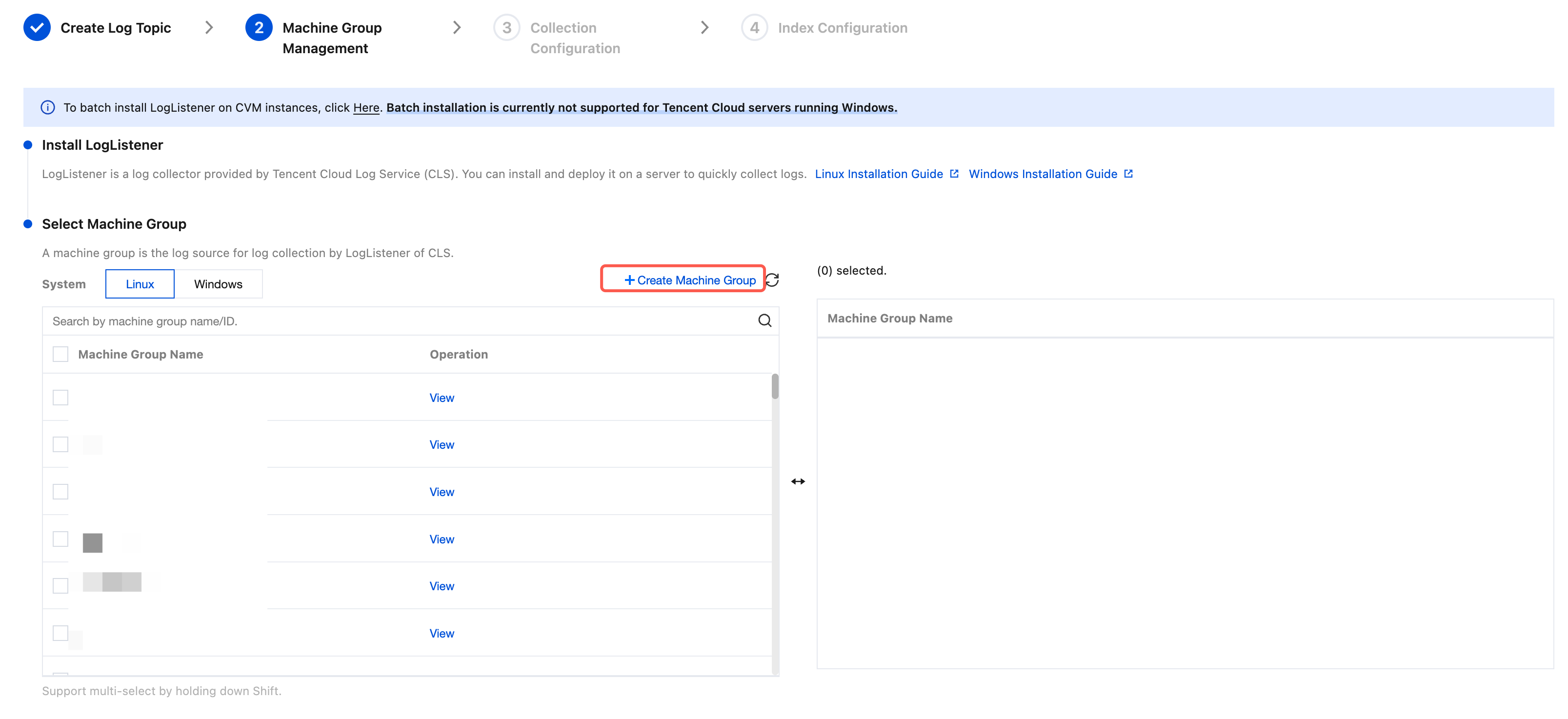
1. Click Create Machine Group.
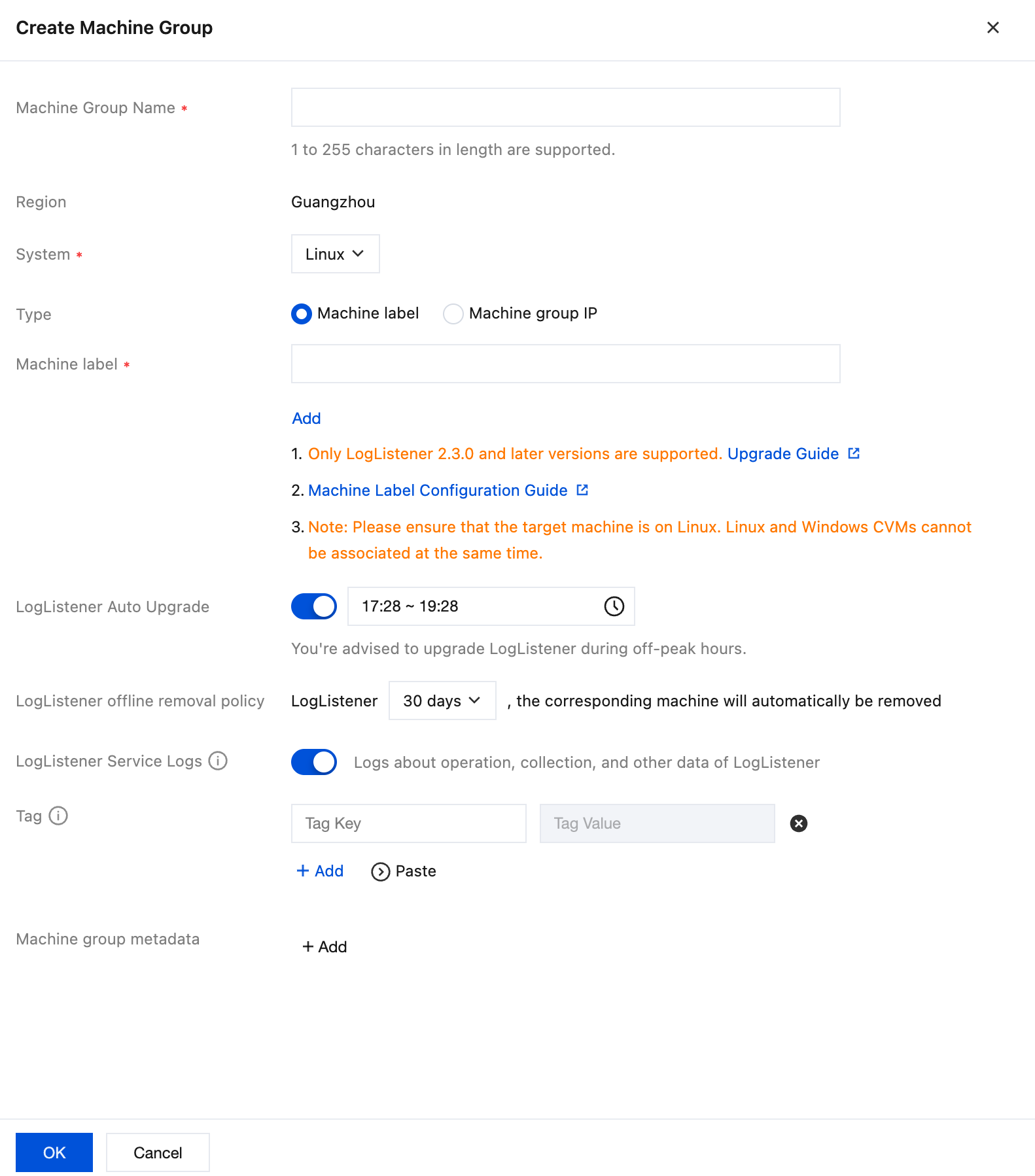
2. Fill in the machine group name, associate the target server with LogListener installed via machine label (see Machine Group for details), and then click OK.
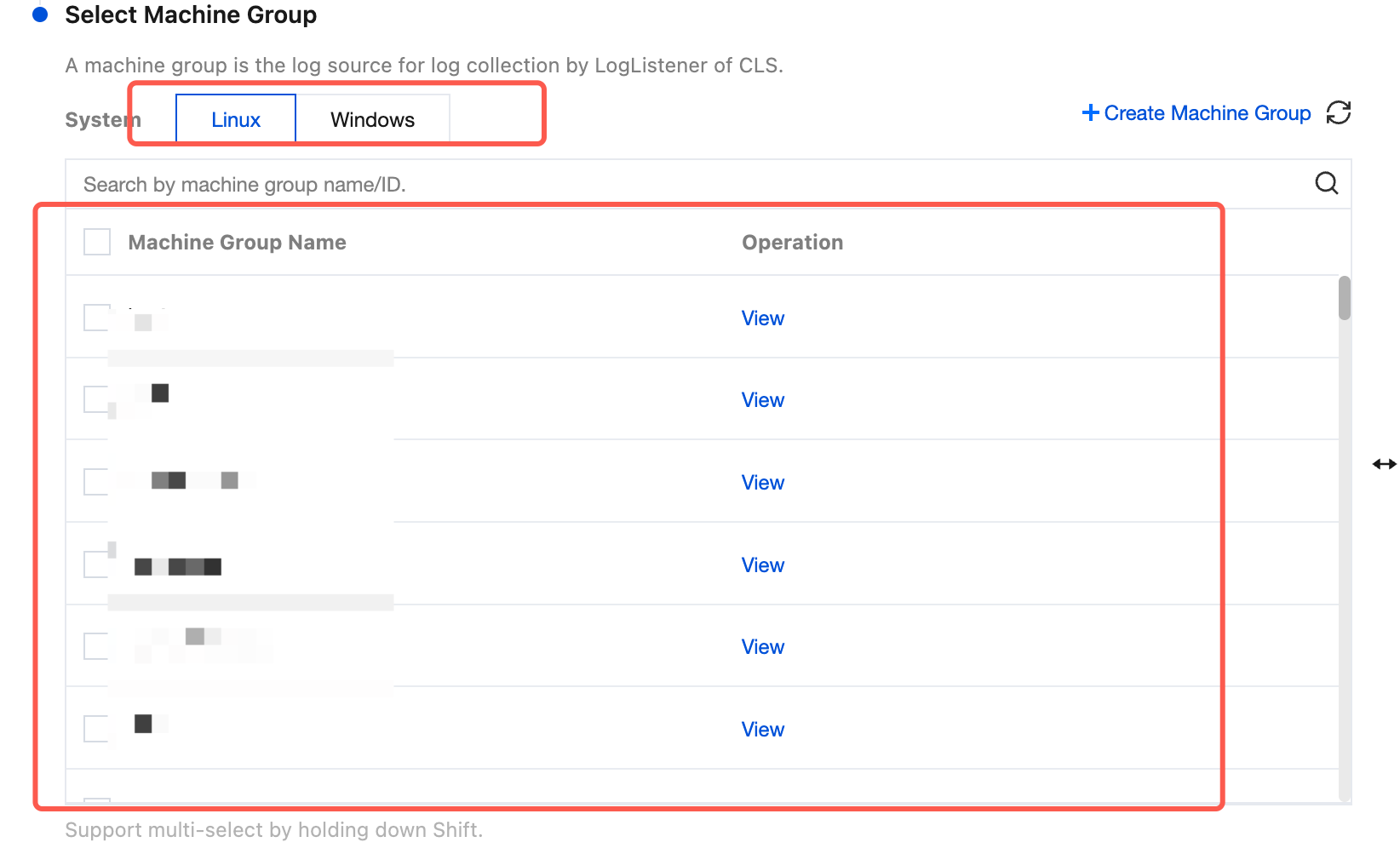
3. After creation is completed, select the system environment of the machine group you created from the Tab options, check your target machine group in the list, and click Next.
If you want to select existing machine groups, select the system environment of your created machine group from the Tab options, check your target machine group in the list, and click Next.
Step 3: Collection Configuration
Configuring the Log File Collection Path
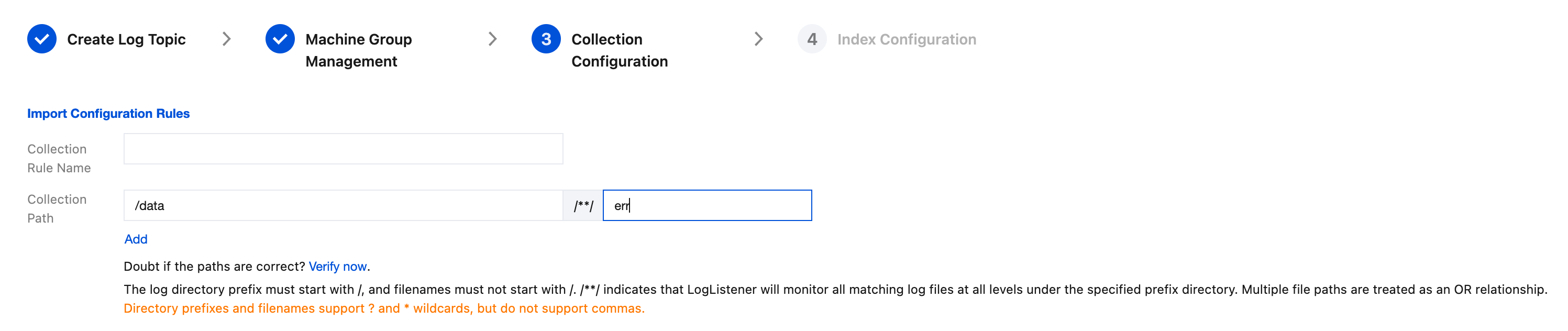
On the Collection Configuration page, enter a collection rule name and specify the Collection Path based on the log collection path format. Example format:
Note:
For Linux systems, the log path must start with /. For Windows systems, the file path must start with a drive letter, such as C:\\.
Log path in Linux system: /[directory prefix expression]/**/[file name expression], for example: /data/log/**/*.log.
Log path in Windows systems: [drive letter]:\\[directory prefix expression]\\**\\[file name expression], for example: C:\\Program Files\\Tencent\\...\\*.log.
After the log collection path is filled in, LogListener will match all common prefix paths that meet the rules according to [directory prefix expression] and monitor all log files that meet the [file name expression] rule under these directories (including sub-layer directories). The parameters are detailed as follows:
Field
Description
Directory Prefix
The prefix directory structure of log files only supports the wildcard characters * and ?.
* indicates that multiple arbitrary characters are matched.
? indicates matching of a single arbitrary character.
Commas are not supported.
**
Indicates the current directory and all subdirectories.
File Name
Log file name. Only wildcard characters * and ? are supported.
* indicates that multiple arbitrary characters are matched.
? indicates matching of a single arbitrary character.
Commas are not supported.
Common configuration modes are as follows:
/[Common directory prefix]/**/[Common file name prefix]*
/[Common directory prefix]/**/*[Common file name suffix]
/[Common directory prefix]/**/[Common file name prefix]*[Common file name suffix]
/[Common directory prefix]/**/*[Common string]
Example configurations:
No
Directory Prefix Expression
File Name Expression
Description
1
/var/log/nginx
access.log
In this example, the log path is configured as /var/log/NGINX/**/access.log LogListener will listen to all log files named access.log in all subdirectories under the /var/log/NGINX prefix path.
2
/var/log/nginx
*.log
In this example, the log path is configured as /var/log/NGINX/**/*.log. LogListener will listen to all log files ending with.log in all subdirectories under the /var/log/NGINXprefix path.
3
/var/log/nginx
error*
In this example, the log path is configured as /var/log/NGINX/**/error*, LogListener will listen to all log files starting with error in all subdirectories under the /var/log/NGINX prefix path.
Note:
Windows environments do not support soft link collection.
Only LogListener 2.3.9 and later versions support adding multiple collection paths.
It is recommended to configure the collection path as log/*.log, and rename the rotated old log files as log/*.log.xxxx.
By default, a log file can only be collected by one log topic. If you need multiple collection configurations for a file and the file resides in a Linux environment, add a soft link to the source file and add it to another set of collection configurations.
Configuring Collection Path Blocklist
After the collection path blocklist is enabled, the specified directory prefixes or complete file paths can be ignored during collection. Directory and file name can be matched exactly or using wildcard patterns.
The collection blocklist supports two filter types, which can be used simultaneously:
File name: In the collection path, the complete file path for the collection needs to be ignored. The wildcard * or ? is supported, and ** path fuzzy matching is supported.
Directory: In the collection path, the directory prefix for the collection needs to be ignored. The wildcard * or ? is supported, and ** path fuzzy matching is supported.
Note:
LogListener 2.3.9 or later is required.
The collection blocklist excludes paths under the collection path. Therefore, in both file name mode and directory mode, the specified path should be a subset of the collection path.
Configuring Collection Policy
All Collection: When LogListener collects a file, it reads from the beginning of the file.
New Collection: When LogListener collects a file, it collects only the newly added content in the file.
Configuring Backtracking Collection
When Collection Policy is set to New collection, you can further set the starting point for backtracking collection, and specify whether to start collecting from the position offset by the specified number of bytes from the latest position when LogListener starts.
Note:
Windows environments currently do not support custom metadata.
Encoding Mode
UTF-8: Select this option if your log file is encoded in UTF-8 mode.
GBK: Select this option if your log file is encoded in GBK mode.
Configure Multi-Line Full-Text Format
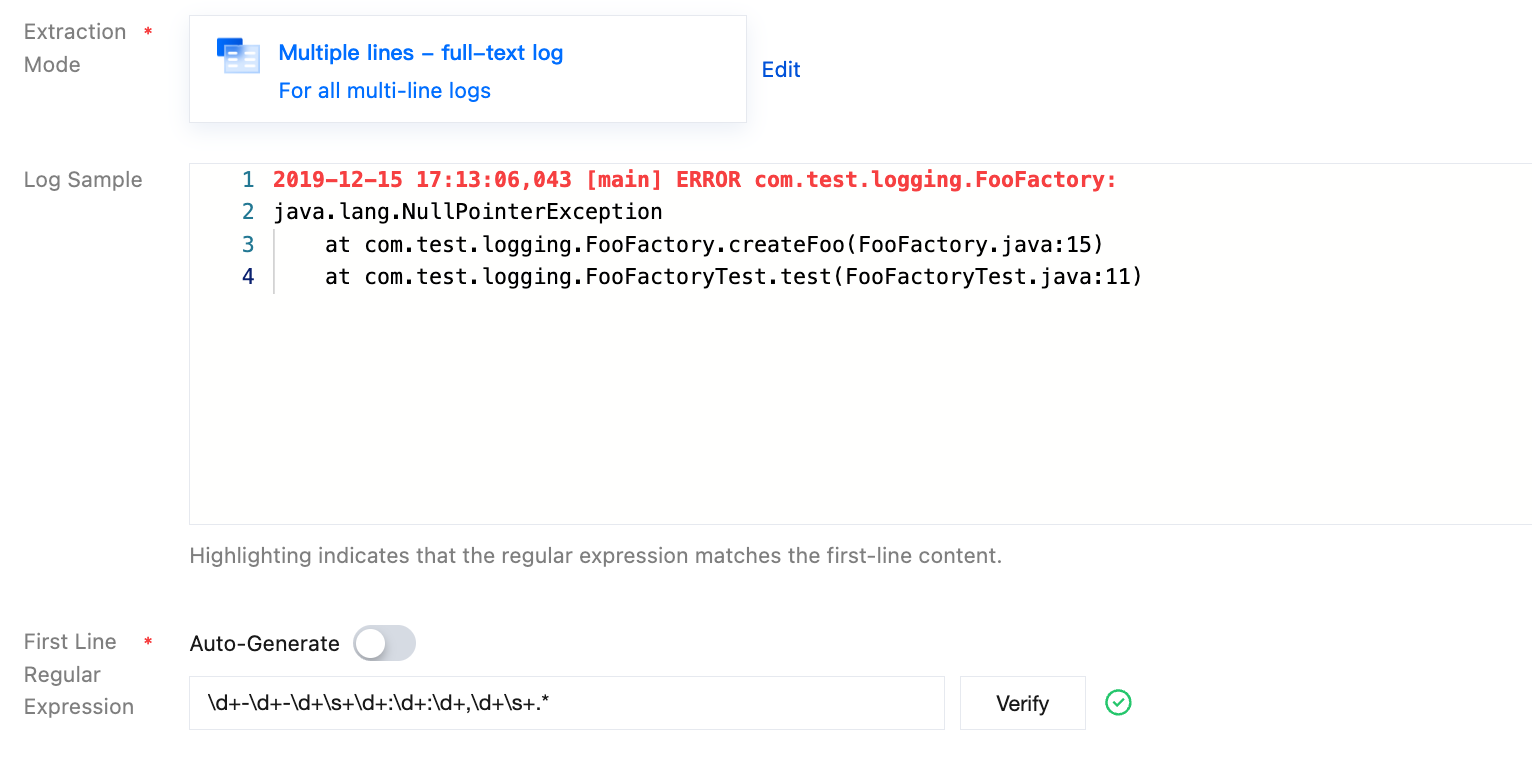
1. On the "Collection Configuration" page, set the "Extraction Pattern" to Multiple lines - full-text log. As shown below:
2. Define a regular expression according to the following rules.
You can choose Auto-Generate or Enter Manually to define a first-line regular expression. The system will verify the regular expression based on the sample content.
Automatically Generated
Manual Input
Enter a log sample in the text box and click Auto-Generate. The system will automatically generate a first-line regular expression in the grayed-out text box. As shown below:
Enter a log sample in the text box, enter the first line of regular expression, and click Verify. The system will judge whether the expression passes. As shown below:
Configuring Custom Metadata
Note:
Custom metadata can only be configured with LogListener 2.8.7 and above versions.
You can configure custom metadata to distinguish logs. The following metadata configurations are supported. For details, see Custom Metadata.
Machine group metadata: Use machine group metadata
Collection Path: Extract values in the collection path as metadata using regular expressions.
Custom: Use custom key-value as metadata.
Configure Filter Conditions
The purpose of the filter is to add log collection and filtering rules according to business requirements, so as to help you screen out valuable log data.
In multi-line full-text mode, __CONTENT__ is used as the key name of the full text by default and supports the following filtering rules:
Equal to: Only collect logs with specified field values matching the specified characters. Exact or regular matching is supported.
Not equal to: Only collect logs whose specified field values do not match the specified characters. Exact or regular matching is supported.
For example, the sample format of multi-line full-text log is:
10.20.20.10 - - [Tue Jan 22 14:24:03 CST 2019 +0800] GET /online/sample HTTP/1.1 127.0.0.1 200 628 35 http://127.0.0.1/group/1
Mozilla/5.0 (Windows NT 10.0; WOW64; rv:64.0) Gecko/20100101 Firefox/64.0 0.310 0.310
If you want to collect 10.20.20.10 all logs of this machine, enter __CONTENT__ in the key field, select equal to as the filter rule, and enter 10.20.20.10.* in the value field.
Note:
Windows environments currently do not support custom metadata.
The filtering rules "Not equal to", "Field exists", and "Field does not exist" are only supported in LogListener 2.9.3 and later versions.
Multiple filtering conditions are in an AND relationship. If multiple filtering conditions are configured for the same key name, the rule will be overwritten.
Configure the Upload of Logs Failed to Be Parsed
It is recommended to enable upload parsing-failed logs. When enabled, LogListener will upload various logs that fail to be parsed. If upload parsing-failed logs is disabled, the failed log will be discarded.
After this function is enabled, the key value (LogParseFailure by default) failed to be parsed needs to be configured. All logs failed to be parsed are uploaded with the input content as the key name (Key), and the original log content as the value (Value).
Advanced Configuration
Note:
Windows environments currently do not support custom metadata.
Select the advanced configuration you need to define by checking:
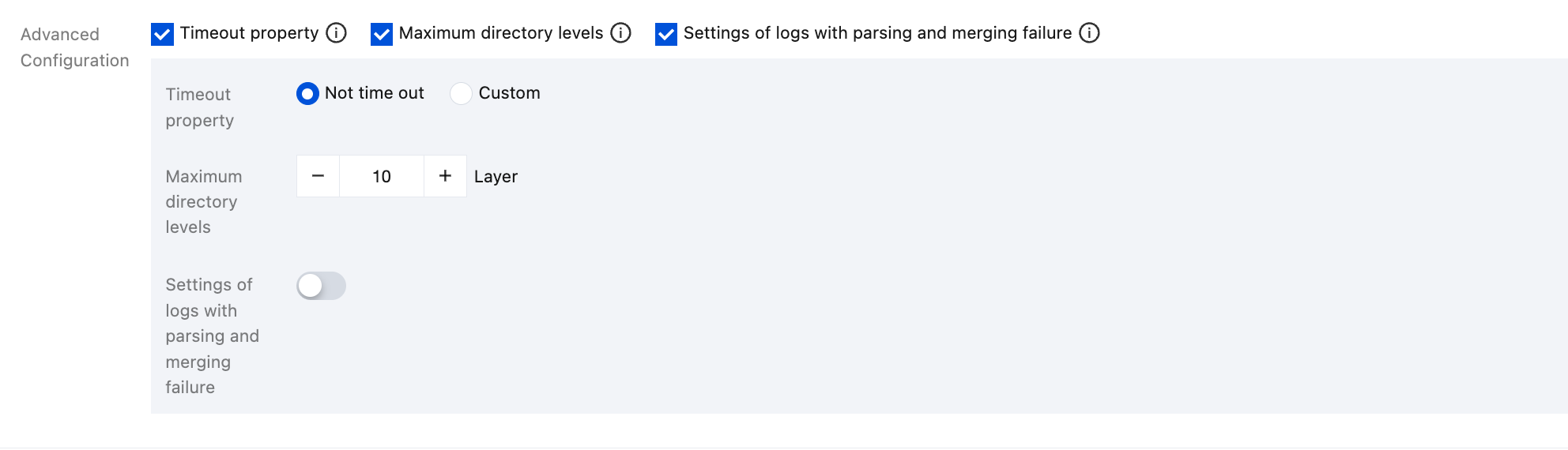
In multi-line full-text extraction mode, the following advanced configurations are supported:
Name
Description
Configuration Item
Timeout property
This configuration controls the timeout period for the log file. If a log file has no updates within the specified time, it is timed out. LogListener will no longer collect the timed-out log file. When you have a large number of log files, recommend reducing timeout to avoid waste of LogListener performance.
No timeout: Log files never time out.
Custom: Timeout period of custom log files
Maximum directory levels
This configuration controls the maximum directory depth for log collection. LogListener does not collect log files in directories where the hierarchy exceeds the specified maximum depth. When your target collection path includes fuzzy matching, configure an appropriate maximum directory depth to avoid waste of LogListener performance.
An integer greater than 0. 0 represents no drill-down of subdirectories.
Settings of logs with parsing and merging failure
Note:
The feature for merging logs that failed to be parsed can only be configured for LogListener 2.8.8 and later versions.
This configuration allows LogListener to merge the logs that have continuously failed to be parsed in the target log file into a single log for upload during collection. If your first-line regular expression does not cover all multi-line logs, it is recommended to enable this configuration. This helps avoid the situation where a multi-line log, which fails the first-line match, gets split into multiple individual log entries.
Enable / Disable
Data Processing
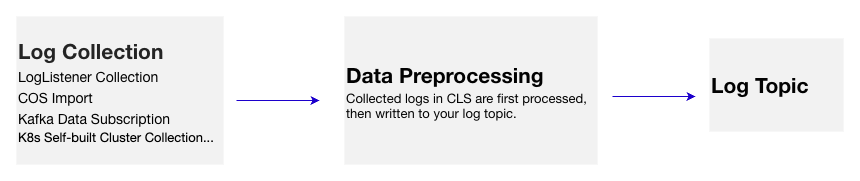
If you need to further process the collected CLS logs, such as structuring, masking, or filtering, before writing them into the log topic, you can click Data Processing at the bottom of the Collection Configuration page, add data processing, and then configure the index.
Note:
For data processing-related operations, see the Preprocessing of Data tab in Creating Processing Task.
Data processing will incur fees. For details, see Billing Overview.
Step 4: Index Configuration
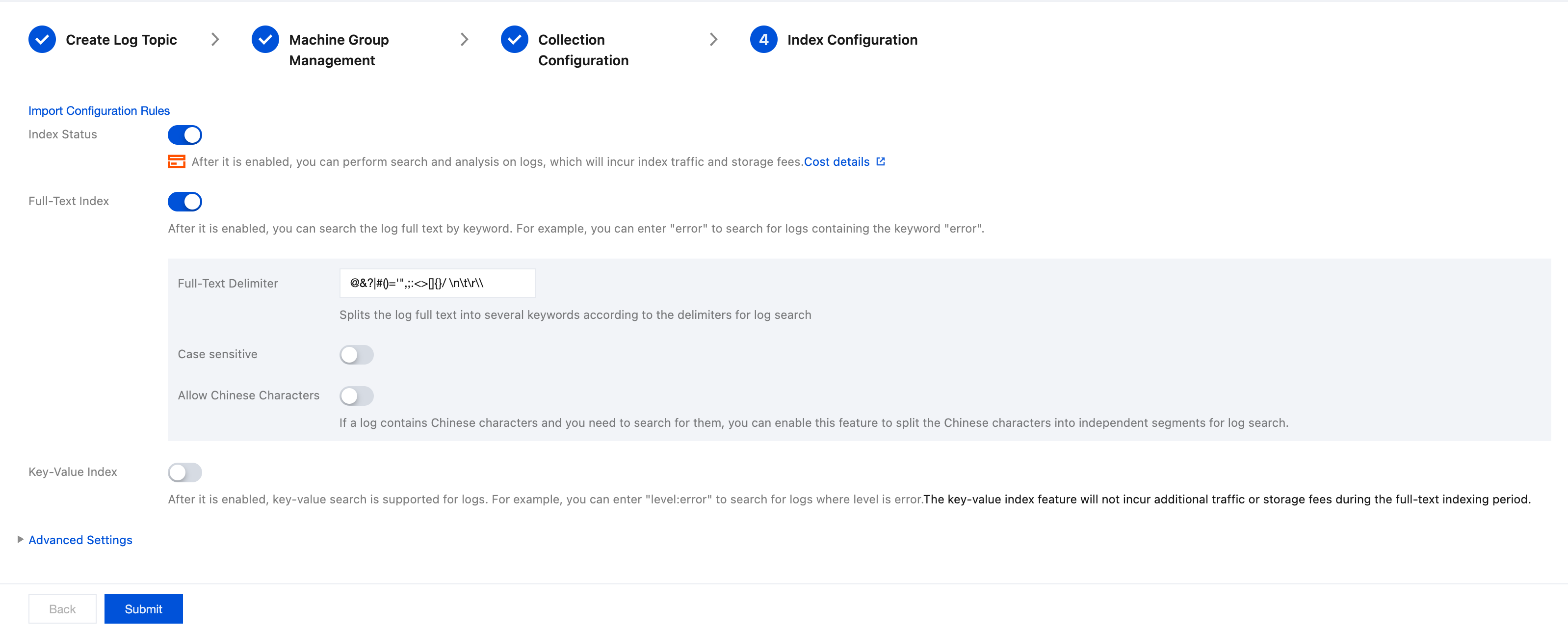
1. Click Next to enter the Index Configuration page.
2. On the Index Configuration page, configure the following information. For configuration details, please see Index Configuration.
Note
Index configuration must be enabled before you can perform searches.
3. Click Submit to enter the edit index configuration confirmation page.
If you have set the index configuration to take effect only for newly written logs, click Confirm. If you want this configuration to take effect for historical data, click Confirm, then for details, see Rebuilds indexes for further settings.
4. Operation succeeded. The collection configuration is complete.