This document describes how to view the context of a log in the original file in the CLS console.
Overview
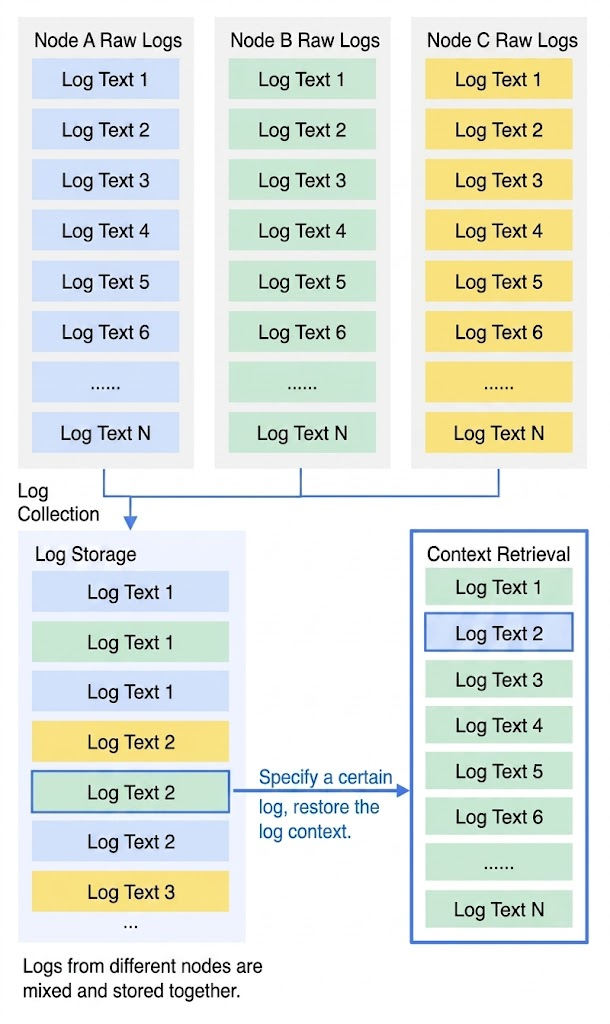
Log context search refers to searching for the log’s context, that is, several logs before or after the log itself. This feature allows you to troubleshoot quickly whenever an error occurs.
Advantages
Log context search frees you from the hassles associated with machine logins. On the log search page, you can quickly view the log context of any file/machine.
Knowing the actual error occurrence time, you can specify a time range on the log search page to quickly locate the suspicious log and query its context for troubleshooting.
Storage capacity of the server or data loss caused by log rotation will not be a problem. The data history can be viewed on the log search page anytime.
This feature is only available for logs collected through the following methods:
LogListener
GO SDK
JAVA SDK
fluent-bit-go-cls SDK
log4j SDK
log4j2 SDK
logback SDK
You have enabled and configured index. For more information, please see Configuring Index.
Example
The common process of an order is as follows: log in > browse merchandise > select merchandise> add merchandise to the shopping cart > place an order > pay for the order > make a deduction > generate the order.
Use case: if one of the orders of a user fails, you can query the error log using the order number. Then, locate the log’ s context to find out the cause (for example, order deduction failed).
You can troubleshoot in CLS as follows:
1. Log in to the CLS console and go to the Search and Analysis page. Then, specify a time range based on the error occurrence time and enter the keyword (order number) to locate the error log of the order.
2. Scroll up/down based on the error log until you locate the desired context of the log.
2. On the left sidebar, click Log Search to go to the Search and Analysis page.
3. Select the region and log topic based on actual needs.
4. On the Raw Logs tab, locate the target log, click
, and view the context of that log.
Note:
Context search is only supported for logs collected using the methods specified in the Prerequisites. The button is visible for such logs, while it is automatically hidden for logs collected using other methods.
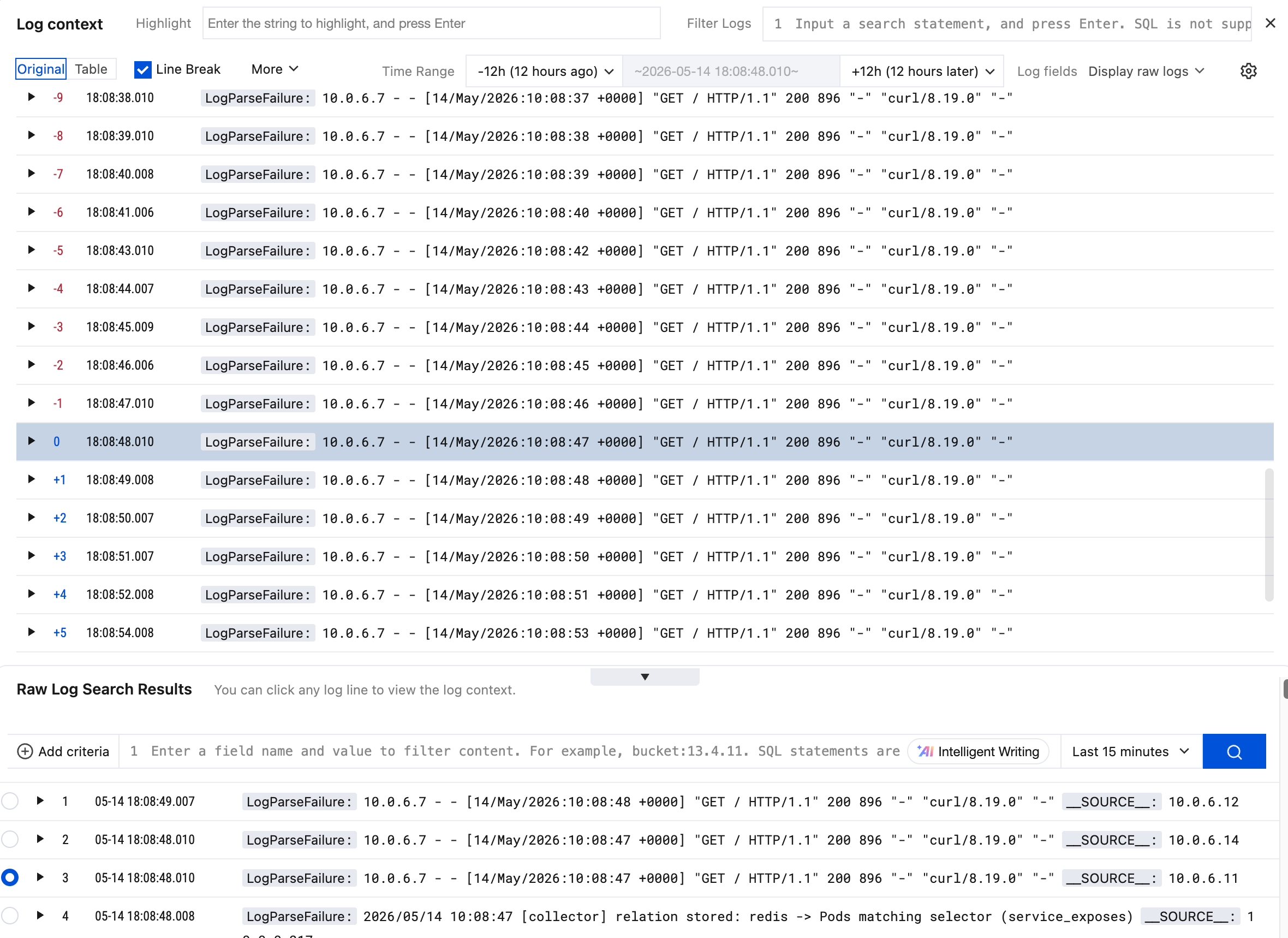
5. On the Log Context page, the log with a grey background and line number 0 is the current target log. The logs above and below it are its context, respectively.
6. On this page, you can perform the following operations:
Use the mouse pointer to scroll vertically on this page to view more contextual logs. By default, 50 logs are loaded per scroll; you can click the settings button in the upper-right corner to configure the number of logs loaded per scroll.
In the Highlight text box, enter a keyword to highlight it. If there are multiple keywords, they will be highlighted in different colors, respectively.
In the Filter Logs text box, enter a search statement to filter contextual logs.
In Raw Log Search Results at the bottom, you can modify the search statement to find other target logs whose context needs to be viewed. Then, select the target log to view its context in the upper section.