Importing LogListener Collection Configuration
Download
포커스 모드
폰트 크기
This document describes how to use LogListener to quickly import the collection configuration rules of other log topics.
Overview
LogListener collection configuration refers to the collection path, use limits, collection mode, and other collection rules configured in the LogListener collection server before log collection. The collection configuration rule import feature allows users to import the collection configuration of an existing log topic to quickly configure LogListener collection rules when they add or modify collection configuration. This eliminates repetitive and tedious operations for configuring multiple log topics and improves the efficiency of collection configuration.
Note:
By default, a file can be collected by only one LogListener configuration.
To apply multiple collection configurations to one file, you need to add a soft link to the source file and add the soft link to another group of collection configuration.
LogListener version 2.3.9 and later supports adding multiple collection paths to a single collection configuration.
Directions
Step 1: Selecting a Log Topic
1. Log in to the CLS console.
2. In the left sidebar, select Log Topic to go to the log topic page.
3. Select an existing log topic and click its log topic ID or name to go to the Log Topic Details page.
4. Click the Collection Configuration tab to go to the Collection Configuration tab page.
5. In the upper-right corner of the LogListener Collection Configuration list, click Add to go to the data source selection page.

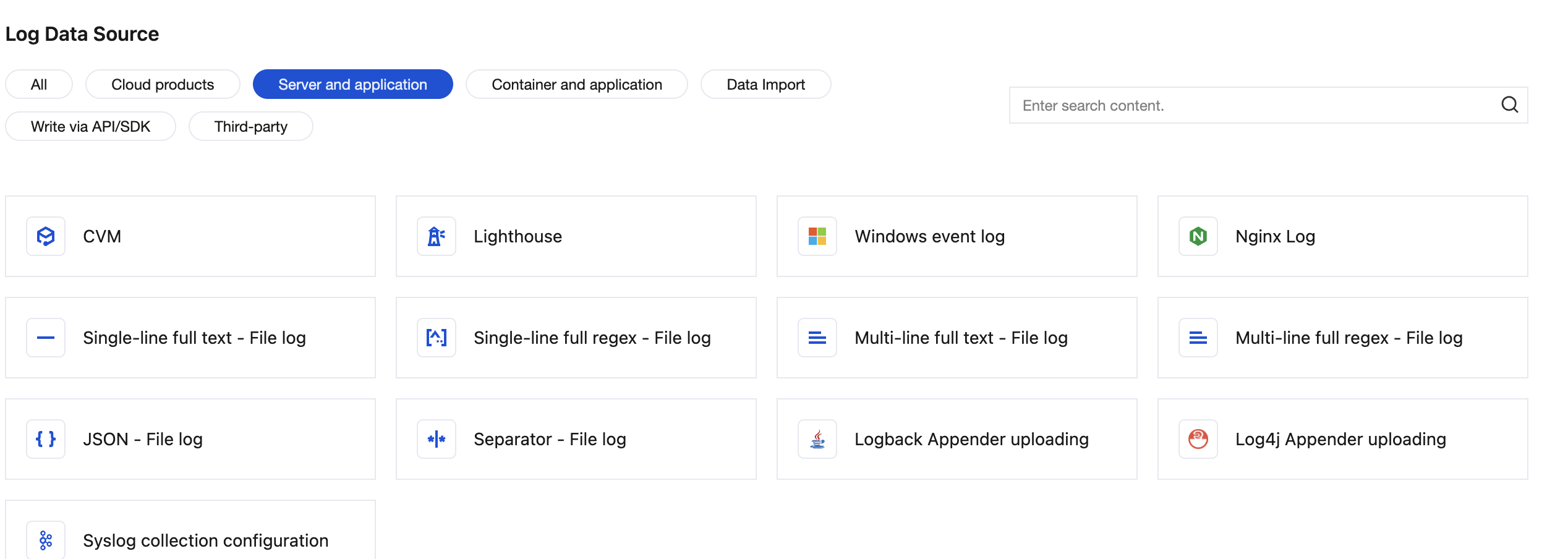
6. On the data source page, select the data source you want to collect and click to go to the collection process.
Note:
Windows Event Log, Logback Appender upload, Log4j Appender upload, and SYSLOG collection do not support importing collection configurations.
Step 2: Managing Machine Groups
If the target server from which you want to collect logs does not have LogListener installed, see:
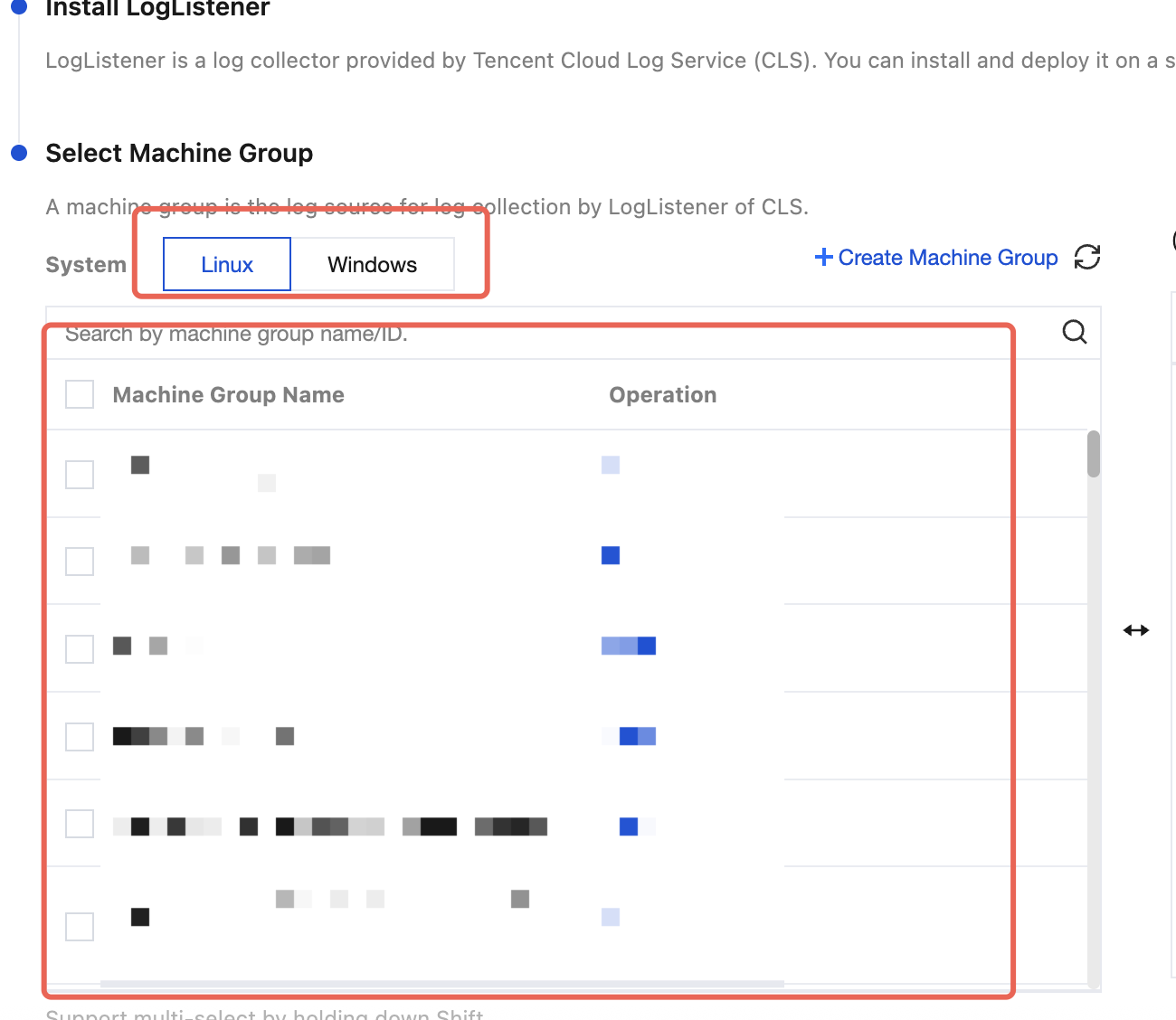
On the Machine Group Management page, you can select an existing machine group or create a machine group.
If you want to create a machine group, perform the following operations:
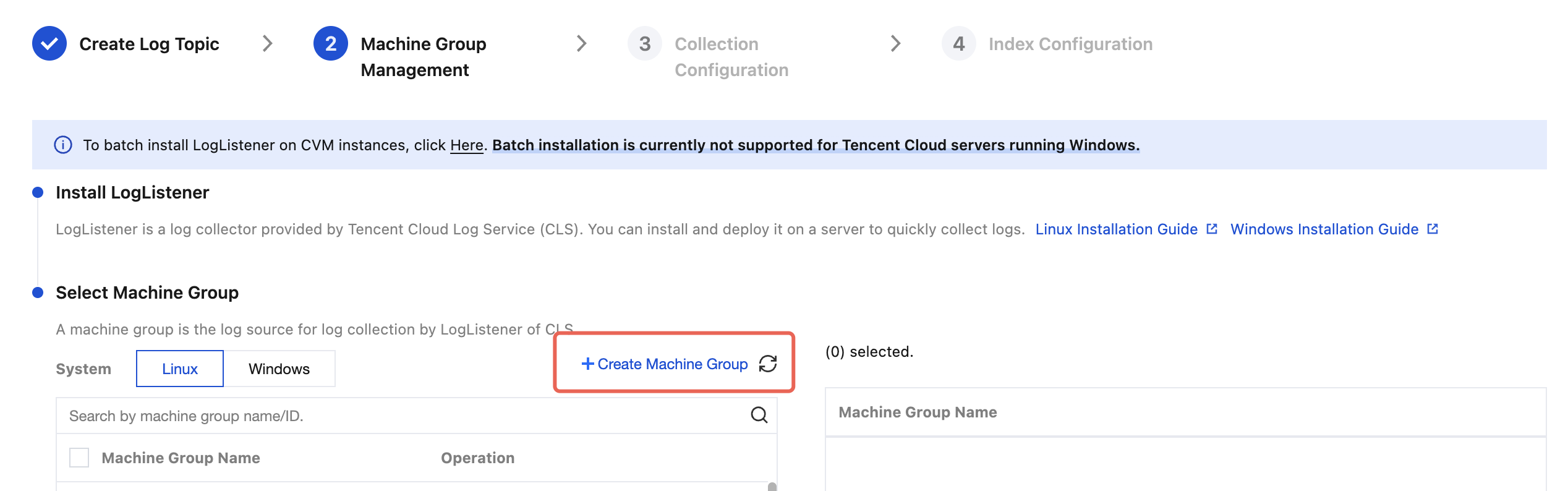
1. Click Create Machine Group.
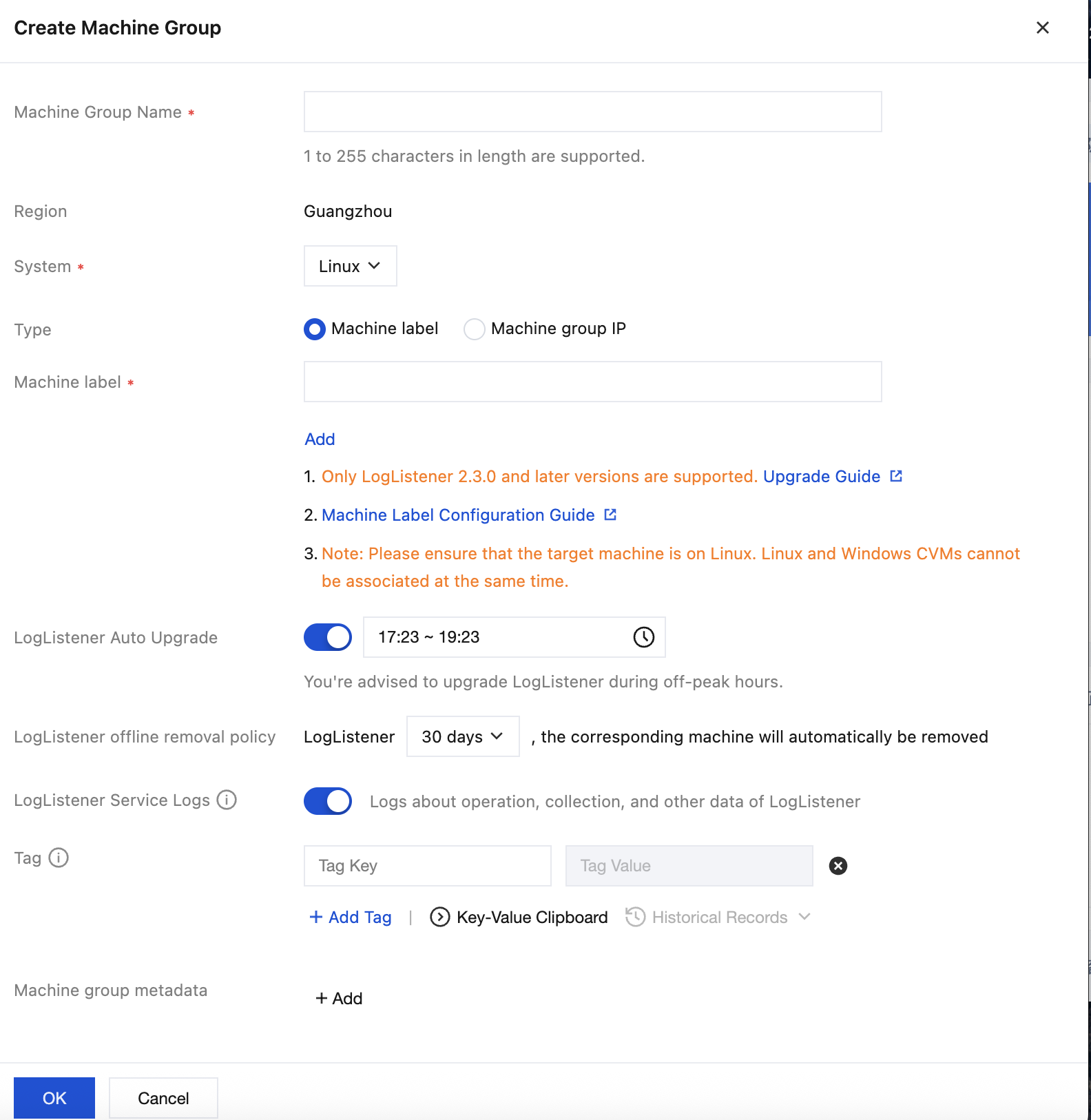
2. Fill in the machine group name, associate the target server with LogListener installed via machine id (see Machine Group for details), and then click OK.
3. After creation is complete, select the system environment of your created machine group from the Tab options, check your target machine group in the list, and click Next.
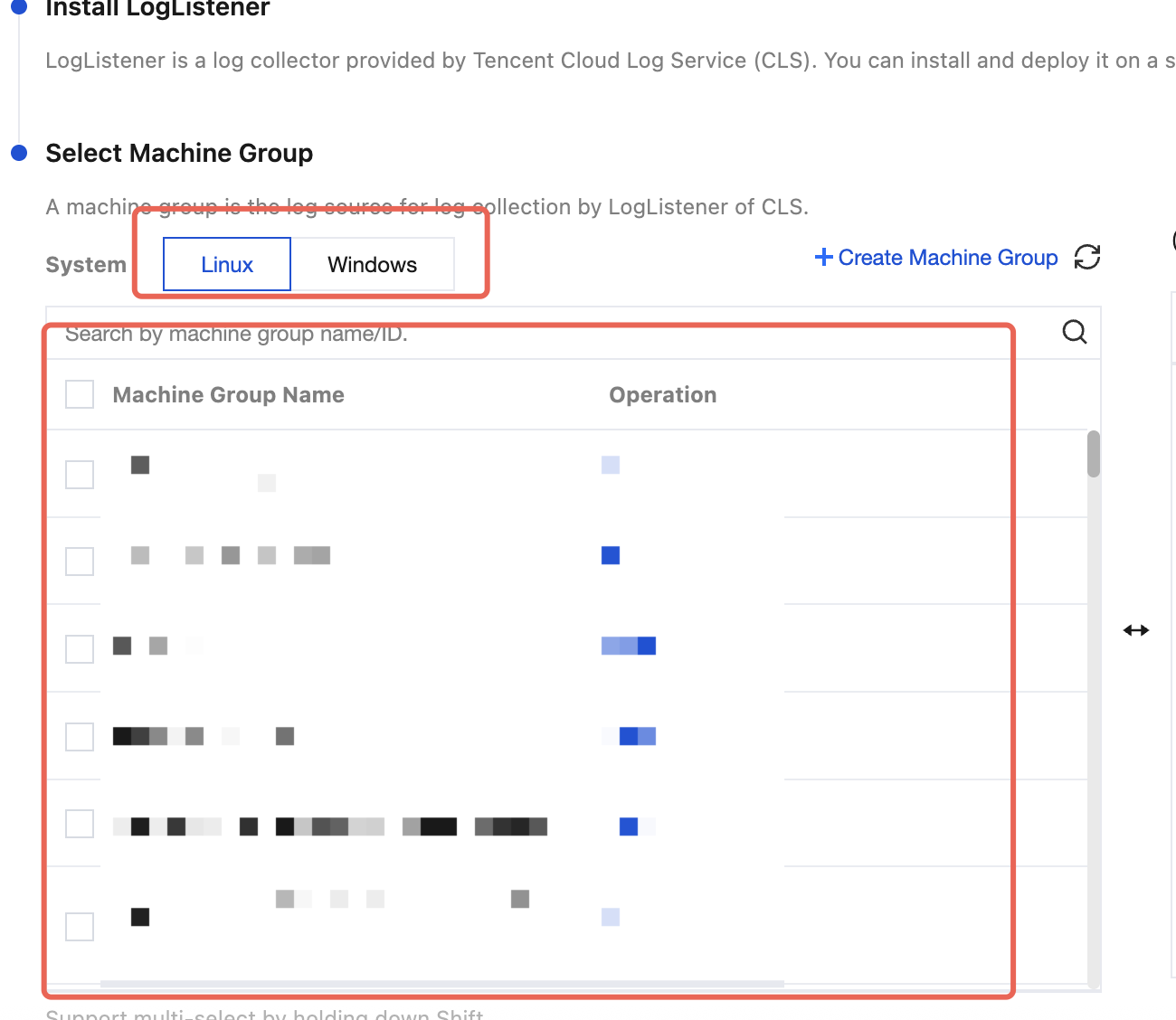
If you want to select an existing machine groups, select the system environment of your created machine group from the Tab options, check your target machine group in the list, and click Next.
Step 3: Collection Configuration
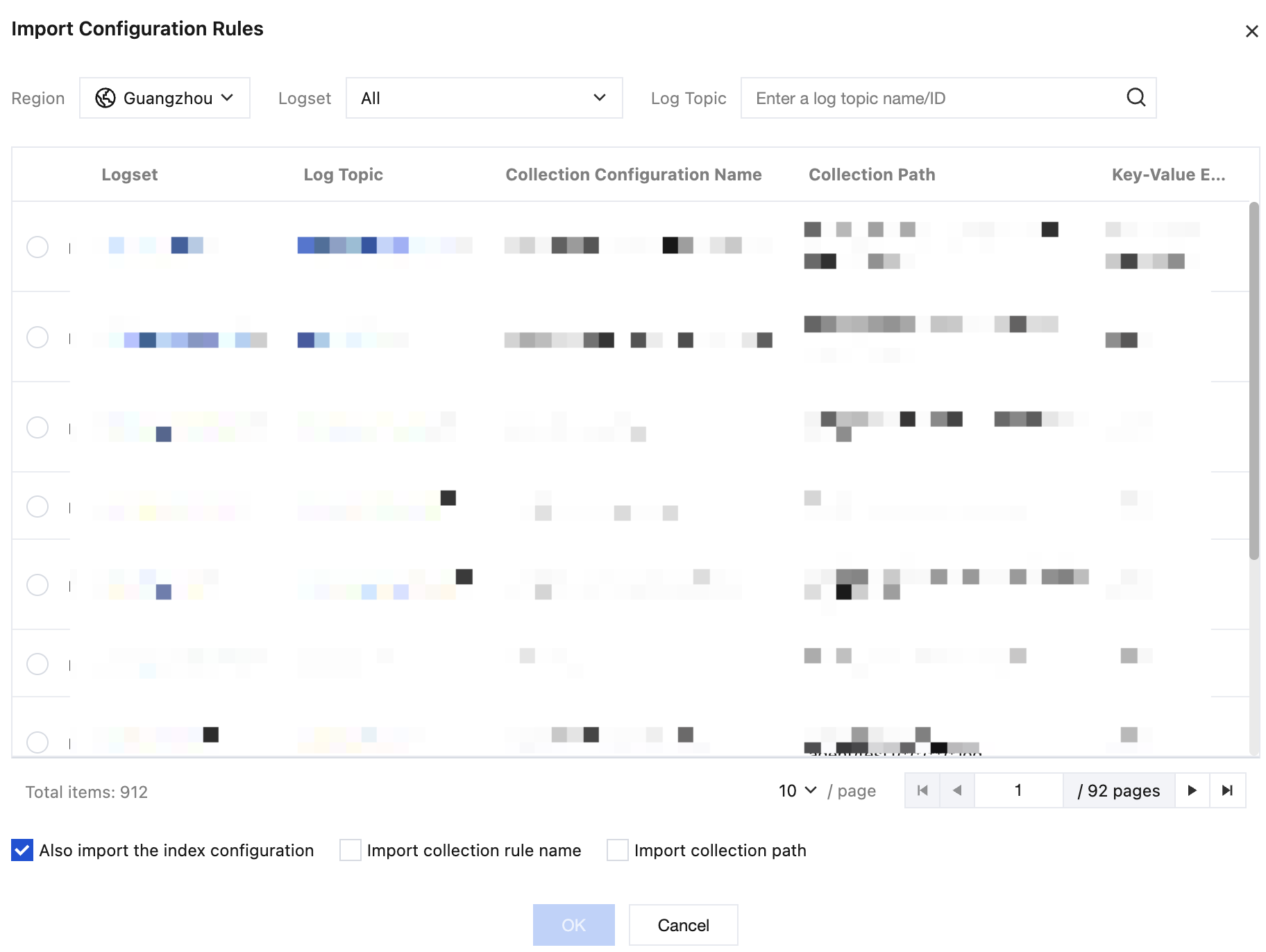
1. In the collection process, after completing the machine group management configuration, click Import Configuration Rules in the upper-left corner of the collection configuration section.

2. In the Import Configuration Rules dialog box, select the configuration rules of the target log topic, and click OK to import them into the collection configuration of the current log topic.
Note:
The list displays all log topics in the selected region by default. CLS supports importing log configuration rules for log topics across regions.
Log topics without specified collection paths cannot be imported into log collection configuration rules of the selected log topic (their collection paths must be explicitly defined in the collection configuration of that log topic).
Step 4: Configuring Indexes
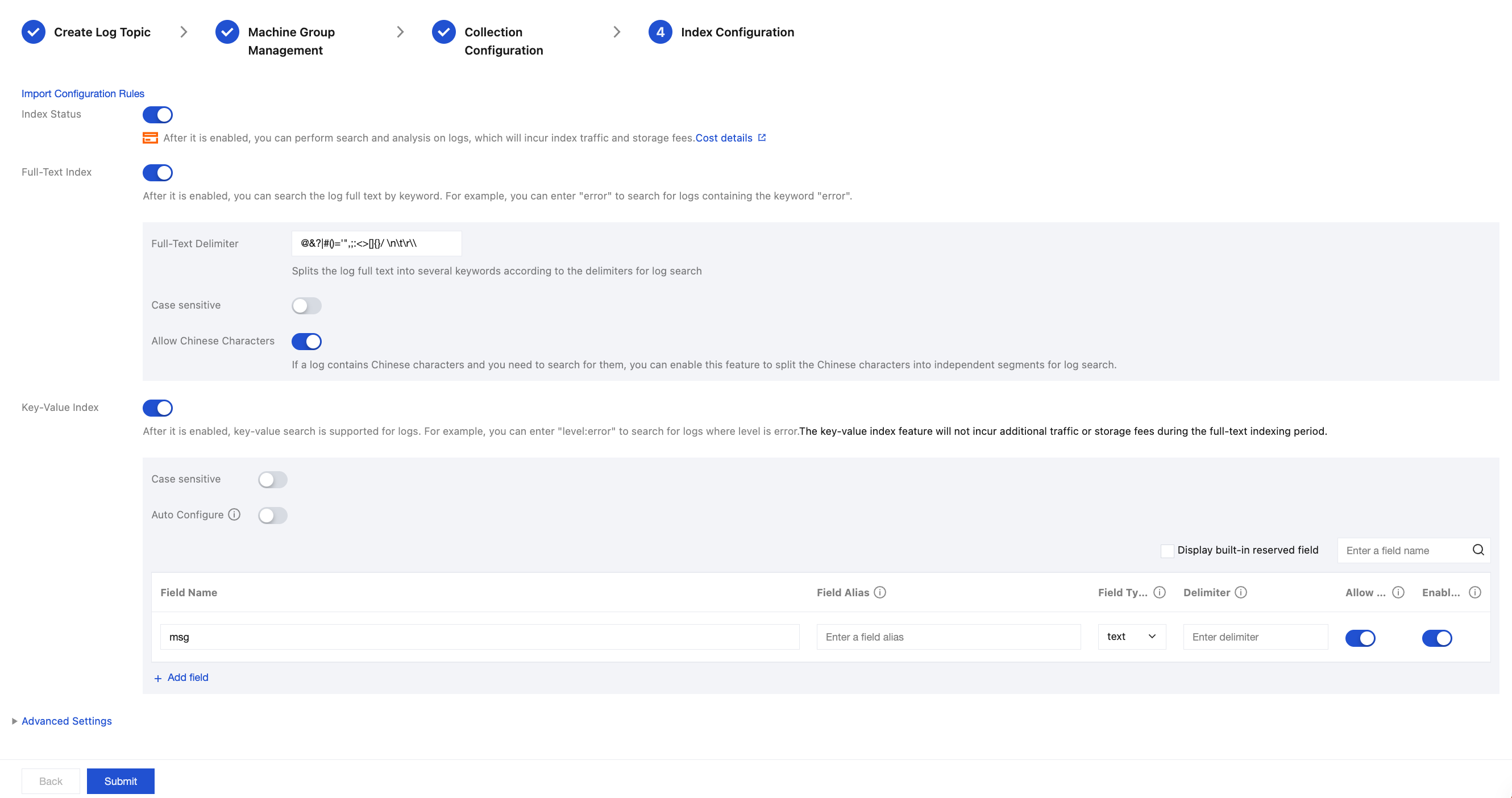
1. Click Next to go to the index configuration page.
2. On the index configuration page, configure the following information. For configuration details, see Index Configuration.
Note:
Index configuration must be enabled before you can perform searches.
3. Click Submit to go to the Edit Index Configuration confirmation page, and then click OK.
If you want the index configuration you have set to take effect only for newly written log, click Confirm. If you want this configuration to take effect for historical data, click Confirm, then for details, see Rebuilds indexes for further settings.
4. The operation is successful. The collection configuration step ends.
Related Documentation
피드백