제품 업데이트
Tencent Cloud 오디오/비디오 단말 SDK 재생 업그레이드 및 권한 부여 인증 추가
TRTC 월간 구독 패키지 출시 관련 안내
Android/tuiroomkit folder on Github:src/res/drawable-xxhdpi folder to ensure that the color tone and style of the icons in the entire App remain consistent. Please keep the name of the icon file unchanged when replacing.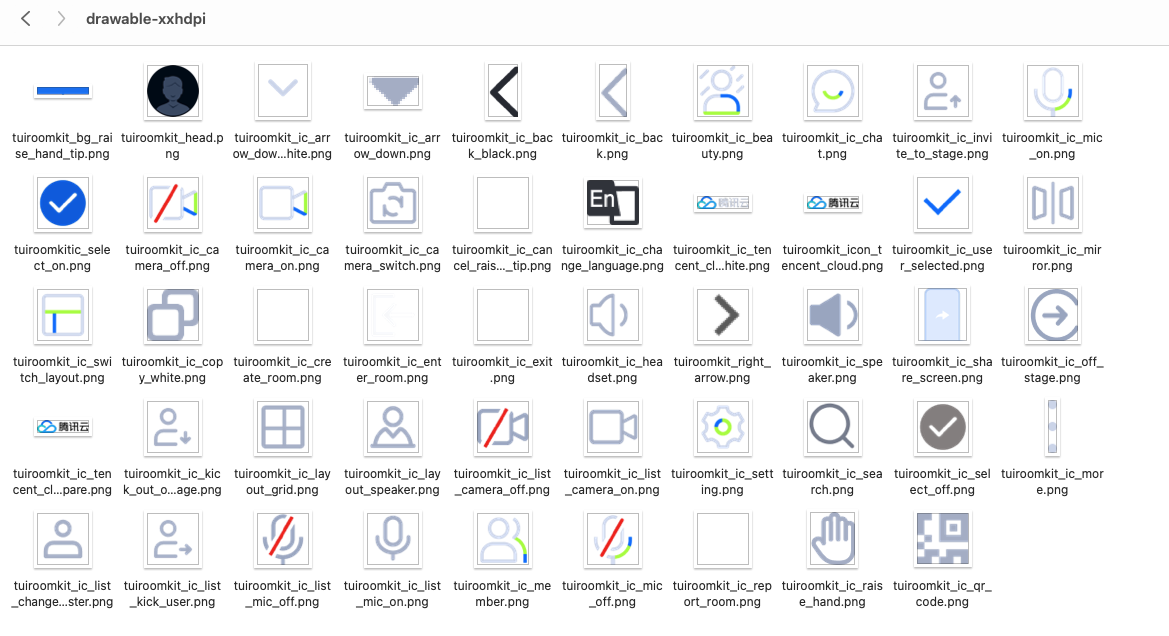
strings.xml files in values-zh and values-en.src/main/java/com/tencent/cloud/tuikit/roomkit/view directory, and the screen view is in the TUIVideoSeat Component.view├── basic│ ├── BaseBottomDialog.java // Common Bottom Dialog│ ├── BaseDialogFragment.java // Common Dialog Fragment│ ├── BaseSettingItem.java // Common Setting Item│ ├── ConfirmDialog.java // Common Confirm Dialog│ ├── NotificationView.java // Common Notification Bar│ ├── PrepareView.java // Preparation Interface│ ├── RoomToast.java // Common Toast Notification│ ├── RoundRelativeLayout.java // Common Rounded Corner RelativeLayout│ ├── SwitchSettingItem.java // Common Switch Setting│ └── TipToast.java // Common Tip Toast Notification├── create // Create Meeting Interface│ ├── CreateConferenceActivity.java│ ├── CreateConferenceView.java│ └── RoomTypeSelectView.java├── join // Join Meeting Interface│ ├── EnterConferenceActivity.java│ └── EnterConferenceView.java├── main // Meeting Main Interface│ ├── ConferenceMainFragment.java // Meeting Main Fragment│ ├── ConferenceMainView.java // Meeting Main View│ ├── RoomMainActivity.java // Meeting Main Activity│ ├── RoomWindowManager.java // Manager for Switching Between Meeting Interface and Floating Window│ ├── aisssistant // AI Assistant│ │ └── AIAssistantDialog.java│ ├── bottomnavigationbar // Bottom Navigation Bar│ │ ├── BottomLayout.java│ │ ├── BottomView.java│ │ └── SeatRequestCountView.java│ ├── chat // Chat Pop-up│ │ └── ChatActivity.java│ ├── conferenceinvitation // In-Meeting Invitation│ │ ├── InvitationReceivedActivity.java│ │ ├── InvitationReceivedView.java│ │ └── SlideToAcceptView.java│ ├── exitroom // Exit Meeting│ │ └── ExitRoomDialog.java│ ├── floatwindow // Floating Window│ │ ├── screensharingindicate│ │ │ └── ScreenSharingIndicateFloatView.java│ │ └── videoplaying // Video Playback Floating Window│ │ ├── RoomFloatViewService.java│ │ └── RoomVideoFloatView.java│ ├── invite // Bottom Invite Dialog│ │ └── InviteDialog.java│ ├── localaudioindicator // Local Audio Status Indicator│ │ └── LocalAudioToggleView.java│ ├── mediasettings // Media Settings (Audio/Video)│ │ ├── MediaSettingPanel.java│ │ ├── QualityInfoPanel.java│ │ ├── VideoFrameRateChoicePanel.java│ │ └── VideoResolutionChoicePanel.java│ ├── raisehandcontrolpanel // Raise Hand User Management Panel│ │ ├── RaiseHandApplicationListPanel.java│ │ └── RaiseHandNotificationView.java│ ├── roominfo // Meeting Information│ │ └── RoomInfoDialog.java│ ├── screensharecontrol // Screen Sharing Control (Member List Functions)│ │ └── MoreFunctionDialog.java│ ├── share // Share Meeting│ │ └── ShareRoomDialog.java│ ├── speechtotext // Speech-to-Text│ │ ├── SpeechToTextActivity.java│ │ ├── SpeechToTextRecyclerView.java│ │ └── SpeechToTextSubtitleView.java│ ├── topnavigationbar // Top Navigation Bar│ │ ├── AudioRouteSwitchView.java│ │ ├── CameraSwitchView.java│ │ ├── ConferenceDurationView.java│ │ ├── ConferenceNameView.java│ │ └── TopView.java│ ├── transferownercontrolpanel // Transfer Owner Selection Panel│ │ └── TransferMasterPanel.java│ ├── usercontrolpanel // User Management Panel│ │ ├── UserListPanel.java│ │ ├── UserListTypeSelectView.java│ │ ├── UserRecyclerView.java│ │ ├── userlistitem // User Management Panel List Items│ │ │ ├── CallUserView.java│ │ │ ├── CameraIconView.java│ │ │ ├── InviteSeatButton.java│ │ │ ├── ListUserInfoView.java│ │ │ ├── MicIconView.java│ │ │ └── ScreenIconView.java│ │ └── usermanager // User Management Popup│ │ ├── ModifyNameKeyboard.java│ │ └── UserManagementPanel.java│ ├── videoseat // Video Seat Layout│ │ └── TUIVideoSeatView.java│ └── watermark // Watermark│ └── TextWaterMarkView.java
private BottomItemData createCameraItem() {BottomItemData cameraItemData = new BottomItemData();//Set button type to differentiate different buttonscameraItemData.setType(BottomItemData.Type.VIDEO);//Set whether the button is clickableif (isOwner()) {cameraItemData.setEnable(true);} else if (mRoomStore.roomInfo.enableSeatControl) {cameraItemData.setEnable(false);} else {cameraItemData.setEnable(mRoomStore.roomInfo.enableVideo);}//Set the default icon of the buttoncameraItemData.setIconId(R.drawable.tuiroomkit_ic_camera_off);//Set the background image of the buttoncameraItemData.setBackground(R.drawable.tuiroomkit_bg_bottom_item_black);//Set the icon of the button when it is not clickablecameraItemData.setDisableIconId(R.drawable.tuiroomkit_ic_camera_off);//Set the default icon of the buttoncameraItemData.setName(mContext.getString(R.string.tuiroomkit_item_open_camera));//Button click effect, if your button needs to switch images/names, etc. when clicked, you need to construct this dataBottomSelectItemData camaraSelectItemData = new BottomSelectItemData();//Set the name of the button when selectedcamaraSelectItemData.setSelectedName(mContext.getString(R.string.tuiroomkit_item_close_camera));//Set the name of the button when not selectedcamaraSelectItemData.setUnSelectedName(mContext.getString(R.string.tuiroomkit_item_open_camera));//Set whether the button is selectedcamaraSelectItemData.setSelected(false);//Set the icon of the button when selectedcamaraSelectItemData.setSelectedIconId(R.drawable.tuiroomkit_ic_camera_on);//Set the icon of the button when not selectedcamaraSelectItemData.setUnSelectedIconId(R.drawable.tuiroomkit_ic_camera_off);//Set the click event of the button when selected/unselectedcamaraSelectItemData.setOnItemSelectListener(new BottomSelectItemData.OnItemSelectListener() {@Overridepublic void onItemSelected(boolean isSelected) {enableCamera(isSelected);}});cameraItemData.setSelectItemData(camaraSelectItemData);return cameraItemData;}
피드백