Anchor Core View (Android)
다운로드
포커스 모드
폰트 크기
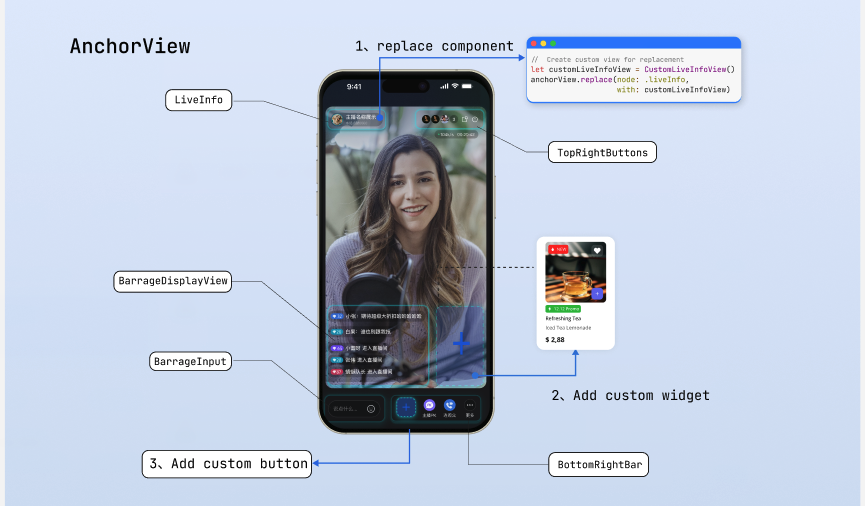
AnchorView is the primary UI component for the host side. Use this component to quickly build a basic live streaming interface. AnchorView offers a rich set of APIs and is highly customizable. This guide walks you through customizing UI elements, from simple button tweaks to advanced view replacements.
Prerequisites
Before customizing the live streaming page UI, complete the main workflow setup by following Host Go Live.
Feature Overview
AnchorView provides the following core customization interfaces and properties:
Method/Property | Description |
topRightItems | Configure the set of buttons in the top right corner of the live room. Add custom buttons or adjust the layout of built-in buttons. |
bottomItems | Configure the set of buttons at the bottom of the live room. Add custom buttons or adjust the layout of built-in buttons. |
replace(node: AnchorNode, view: View?) | Replace the default component at a specified location (such as the top info area or bottom operation bar) with a fully custom view. |
overlayView | A dedicated overlay layer for adding global business UI elements that float above the video. |
perform(action: AnchorAction) | Trigger built-in default logic from within a custom view, such as displaying the default audience list or the default co-host management panel. |
Quick Start
The following example shows how to quickly build a showcase-style host dashboard:
Add a beauty filter button to the bottom bar.
Replace the live info node with a custom business-styled view.
Add a floating "Popularity Leaderboard" widget.
import android.view.Viewimport android.widget.Buttonimport android.widget.FrameLayoutimport com.trtc.uikit.livekit.features.anchorview.*fun setupUI(anchorView: AnchorView) {val context = anchorView.context// Step 1: Create a beauty filter button and set button orderval beautyButton = Button(context).apply {text = "Beauty"}// Order: Co-host, PK (Battle), Custom Beauty Button, MoreanchorView.bottomItems = listOf(AnchorBottomItem.CoHost,AnchorBottomItem.Battle,AnchorBottomItem.Custom(beautyButton),AnchorBottomItem.More)// Step 2: Replace the LiveInfo view with a custom styleval customLiveInfoView = CustomLiveInfoView(context)anchorView.replace(AnchorNode.LIVE_INFO, customLiveInfoView)// Step 3: Add a floating "Popularity Leaderboard" widgetval rankWidget = RankWidgetView(context)// Position below the top left cornerval params = FrameLayout.LayoutParams(dp2px(70f), dp2px(30f)).apply {topMargin = dp2px(120f)leftMargin = dp2px(12f)}// Add the widget to the overlay layeranchorView.overlayView.addView(rankWidget, params)}// Utility method (example)fun dp2px(dpValue: Float): Int {val scale = Resources.getSystem().displayMetrics.densityreturn (dpValue * scale + 0.5f).toInt()}
Customizing Bottom Action Buttons
The bottom toolbar is the main area for host interaction. By default, it displays "PK", "Co-host", and "More" buttons from left to right. Insert custom buttons using
AnchorBottomItem.Custom(View), or add/remove built-in features and adjust button order via the bottomItems property.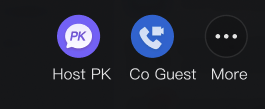
Implementation
Step 1: Prepare a custom button view. Create the custom button view object as needed.
Step 2: Update the bottom button array. Assemble a collection of
AnchorBottomItem sealed classes and assign it to the component property.// Example: Only keep the Co-host feature in the bottom toolbar and add a product list trigger buttonfun adjustBottomBar(anchorView: AnchorView) {val context = anchorView.context// Step 1: Prepare the custom button viewval goodsButton = ImageView(context).apply {setImageResource(R.drawable.shop_cart)}// Step 2: Update the bottom button arrayanchorView.bottomItems = listOf(AnchorBottomItem.CoHost,AnchorBottomItem.Custom(goodsButton))}
Customizing Top Action Buttons
The top area typically displays key room information and controls. By default, it shows "Audience Count", "Floating Window", and "Close" buttons from left to right. Use the
topRightItems property to streamline or add control buttons in the top right corner.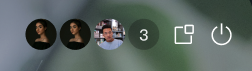
Implementation
Step 1: Prepare a custom button view. Create the custom button view object as needed.
Step 2: Update the top button array. Assemble a collection of
AnchorTopRightItem sealed classes and assign it to the component property.// Example: Keep the Audience Count and Close Room buttons in the top right, and add a "Report" buttonfun adjustTopRightBar(anchorView: AnchorView) {val context = anchorView.context// Step 1: Prepare the custom button viewval reportButton = ImageView(context).apply {setImageResource(R.drawable.report_btn)}// Step 2: Update the top button array according to display orderanchorView.topRightItems = listOf(AnchorTopRightItem.AudienceCount,AnchorTopRightItem.Custom(reportButton),AnchorTopRightItem.Close)}
Replacing Specific UI Areas
If button adjustments are not enough for structural changes (for example, replacing the live comments input box in the bottom left with another button), use the
replace interface to fully replace a specified area view.The component defines five customizable UI areas via the
AnchorNode enum. Refer to the "Page Structure Diagram" at the top for context:AnchorNode | Description |
LIVE_INFO | Top left area displaying host and room information. |
TOP_RIGHT_BUTTONS | Top right area for system control buttons. |
NETWORK_INFO | Network status indicator area. |
BOTTOM_RIGHT_BAR | Bottom right area for business operation bar. |
BARRAGE_INPUT | Bottom left area for triggering the live comments input box. |
Implementation
Step 1: Create a custom view object.
Step 2: Call the
replace interface of the AnchorView component, passing in the node enum to be replaced and the custom view.// Example: Replace the default live info area with a custom viewfun replaceLiveInfoNode(anchorView: AnchorView) {val context = anchorView.context// Step 1: Initialize a custom view for business needsval customInfoView = MyInfoView(context).apply {setBackgroundColor(Color.DKGRAY)}// Step 2: Call the replace interface to update the specific nodeanchorView.replace(AnchorNode.LIVE_INFO, customInfoView)}
Custom View Layout Guidelines
The
replace interface inserts your custom view into the specified area. In Android, the size of your replaced View is determined by the LayoutParams you set or its own onMeasure logic. Use WRAP_CONTENT or explicit width/height in your custom View to ensure it adapts to the container:class MyInfoView(context: Context) : FrameLayout(context) {init {val label = TextView(context).apply {text = "Live now"setPadding(24, 24, 24, 24)}// Use WRAP_CONTENT to fit the text sizeval params = LayoutParams(LayoutParams.WRAP_CONTENT, LayoutParams.WRAP_CONTENT)addView(label, params)}}
Binding Events and Triggering Logic
When replacing default buttons or local nodes with custom views, you must handle interaction events for those views. In the event handler, execute custom business logic or use the
perform method to trigger built-in LiveKit logic.Implementation
Step 1: Bind events to the custom view. Use
setOnClickListener or gesture recognizers to add click events.Step 2: Trigger built-in logic or execute business code. In the event callback, call the
perform method with the AnchorAction enum, or execute other business code.// Example: Bind a click event to a custom live info view and reuse the SDK's built-in host info panelfun setupCustomLiveInfoNode(anchorView: AnchorView) {val customLiveInfoView = MyInfoView(anchorView.context)// Step 1: Enable user interaction and add a click eventcustomLiveInfoView.isClickable = truecustomLiveInfoView.setOnClickListener {// Step 2: Reuse the built-in host info popup on clickanchorView.perform(AnchorAction.SHOW_LIVE_INFO)// Or display your own host info popup here}anchorView.replace(AnchorNode.LIVE_INFO, customLiveInfoView)}
Advanced Custom Business Popups
If the built-in panels triggered by
perform don't meet your business requirements, you can fully take over this logic and build new panels based on the underlying data interface AtomicXCore.Core Approach
Use
AtomicXCore to obtain room, user, and status data, and build and bind interactions for custom views. After building your custom view, use the internal AtomicPopover component to display it. This ensures your panel gets the same background mask, rounded corners, and smooth animations as SDK built-in panels.Implementation
Step 1: Build a custom business view. Create an independent View and use the core data interface (such as
LiveAudienceStore) to fetch or listen to business data for UI updates.Step 2: Instantiate the popup container. Create an
AtomicPopover object and specify its popup position (BOTTOM or CENTER).Step 3: Configure and display the custom view. Set the popup height mode (such as by screen ratio), pass your custom view to the container via
setContent, and call show() to display.import android.content.Contextimport android.graphics.Colorimport android.widget.FrameLayoutimport io.trtc.tuikit.atomicx.widget.basicwidget.popover.AtomicPopover// Import the underlying data interface for business developmentimport io.trtc.tuikit.atomicxcore.api.live.LiveAudienceStore// Step 1: Build a custom business view (e.g., audience list)class CustomAudienceListView(context: Context) : FrameLayout(context) {init {setBackgroundColor(Color.WHITE)setupUI()bindLiveData()}private fun setupUI() {// Add your custom UI controls here, such as audience avatars, user levels, etc.}private fun bindLiveData() {// Use AtomicXCore's core interface to get current room status or user data// For example: LiveAudienceStore.create(liveID)...// After fetching core data, update the custom UI built above}}// Example: Slide up a fully custom panel from the bottom of the screen occupying 50% of the heightfun presentBusinessPanel(context: Context) {// Step 2: Instantiate the popup container, specify to pop up from the bottomval popover = AtomicPopover(context, AtomicPopover.PanelGravity.BOTTOM)// Step 3: Configure and display the custom view// Set panel height to 50% of the screen (or use WrapContent for adaptive height)popover.setPanelHeight(AtomicPopover.PanelHeight.Ratio(0.5f))// Instantiate the custom business viewval audienceListView = CustomAudienceListView(context)// Set the view into the Popover and displaypopover.setContent(audienceListView)popover.show()}
Refer to the following documents to implement custom feature panels using the
AtomicXCore interface:Feature Description | Reference Documentation |
Implement audience co-host management panel: co-host requests/invites/accept/reject, co-host member permission control (microphone/camera), status sync. | |
Implement cross-room co-hosting panel for hosts: manage co-hosting interactions, initiate/accept/reject co-hosting. | |
Implement audience list: count audience, listen to audience join/leave events. | |
Implement audio effects panel: voice changer (child/male), reverb (KTV, etc.), monitoring adjustment, real-time effect switching. |
Adding Custom Floating Widgets
Complex live streaming scenarios often require floating activity icons or interactive stickers above the video. These views, which need to be positioned above the video layer and independent of the base layout, should be added to the
overlayView layer.Floating widgets often serve as entry points for activity panels. Combine them with
AtomicPopover: bind a click event to the widget, and display your custom business popup when clicked.Implementation
Step 1: Create the widget view and enable interaction. Instantiate the floating control and set its size and position.
Step 2: Bind the click event. Add a click event to the widget to respond to host actions.
Step 3: Add to the overlay layer and link to the popup. Add the widget to
overlayView and, in the click callback, invoke the custom popup logic defined earlier.// Example: Display a floating red packet widget in the top left corner, and pop up the custom business panel when clickedfun addRedPacketWidget(anchorView: AnchorView) {val context = anchorView.context// Step 1: Create the widget view and enable interactionval redPacketWidget = ImageView(context).apply {setImageResource(R.drawable.red_packet_icon)isClickable = true}// Step 2: Bind the click eventredPacketWidget.setOnClickListener {presentBusinessPanel(context)}// Step 3: Set layout attributes and add to the overlay layerval params = FrameLayout.LayoutParams(dp2px(60f), dp2px(60f)).apply {leftMargin = dp2px(15f)topMargin = dp2px(120f)}anchorView.overlayView.addView(redPacketWidget, params)}
FAQs
Why is my custom button not responding to clicks?
If you use
AnchorBottomItem.Custom() or pass in a custom node view and clicks are not triggered, check the following:Troubleshooting:
1. Check interaction properties: For native
ImageView or regular View, make sure isClickable = true is set (some controls are not clickable by default).2. Check gesture scope/layout size: Ensure
LayoutParams are set correctly. If the custom view’s width/height is 0, or its display area exceeds the parent container’s bounds, click events may not be intercepted properly.3. Confirm event binding: Make sure
setOnClickListener is properly called.Dynamically Hide or Show Action Buttons
You may need to dynamically adjust the bottom or top toolbars based on the host's level or room state (for example, hide the co-host button during PK phase).
Solution: The
bottomItems and topRightItems properties of AnchorView support reactive updates. Assemble a new List and assign it to the property. The SDK automatically triggers a view refresh; you do not need to manually call invalidate() or other redraw methods.Abnormal Size or Not Displayed After Replacing View
Make sure the main view you pass in has explicit width and height set via
LayoutParams. Use WRAP_CONTENT to let internal subviews expand, or specify explicit dp dimensions, to avoid rendering issues caused by the parent container being unable to calculate the size.피드백