Configuration management allows you to modify key configuration parameters of popular open-source components like HDFS, YARN, Hive, and Spark. The configuration of services can be modified as needed at the level of cluster, node, or configuration group. This document describes how to configure service parameters in the console.
Caution
For security reasons, when a custom configuration file is deleted in Configuration Management in the console, it will not be deleted from the client.
If you need to delete a custom configuration file from the client, you can use a cluster script to batch perform the operation on existing clusters.
After configuration modification, if the configuration status in Role Management changes to Configuration expired, you need to restart the service to make the configuration effective.
Directions
Editing a configuration item
1. Log in to the EMR console, select the target cluster in the cluster list, and click Service to enter the cluster service list.
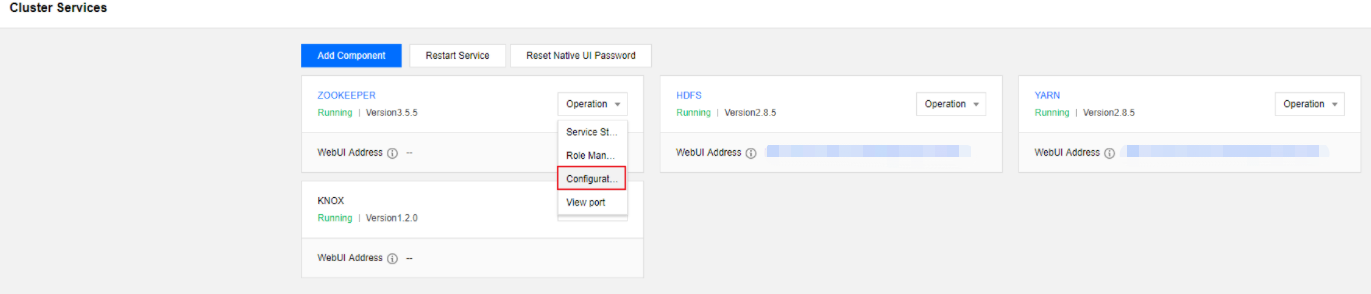
2. In the cluster service list, select Operation > Configuration Management in the top-right corner of the target service panel.
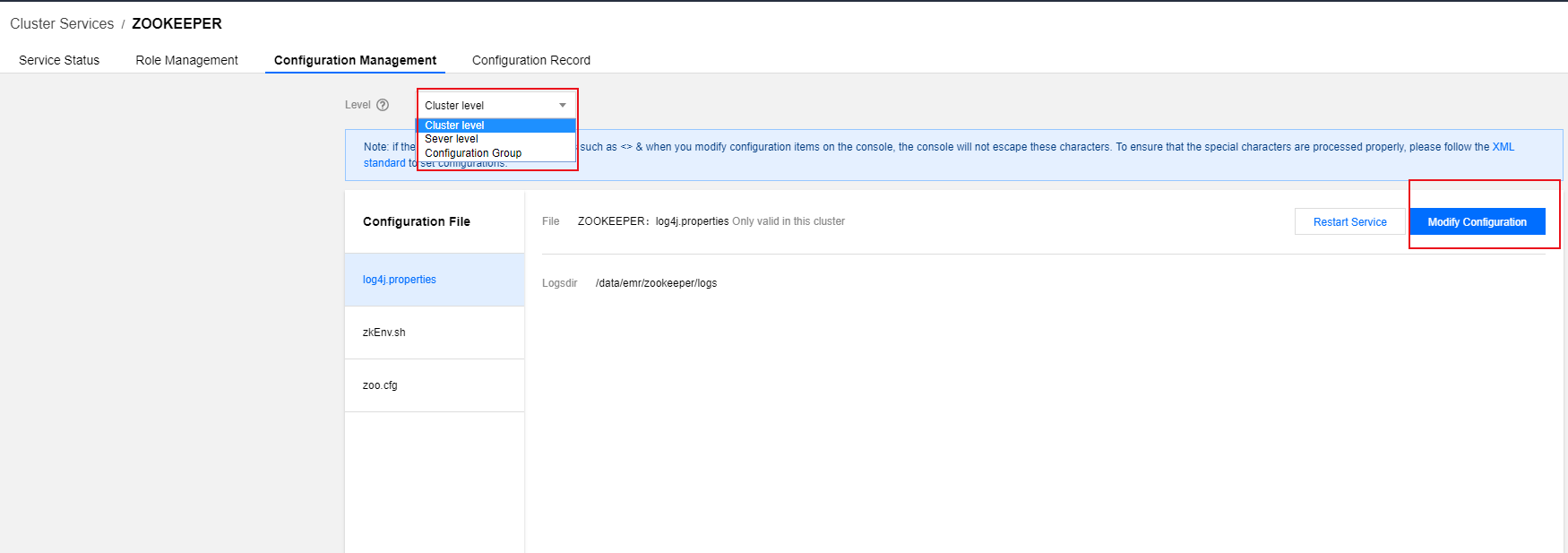
3. On the Configuration Management page, select the Level as needed. By default, Cluster level is selected.
To configure the parameters of all nodes of the selected service in the cluster, select Cluster level.
To configure the parameters of multiple specified nodes of the selected service, create a configuration group and use it as the level.
To configure the parameters of a specified node of the selected service, select Node level.
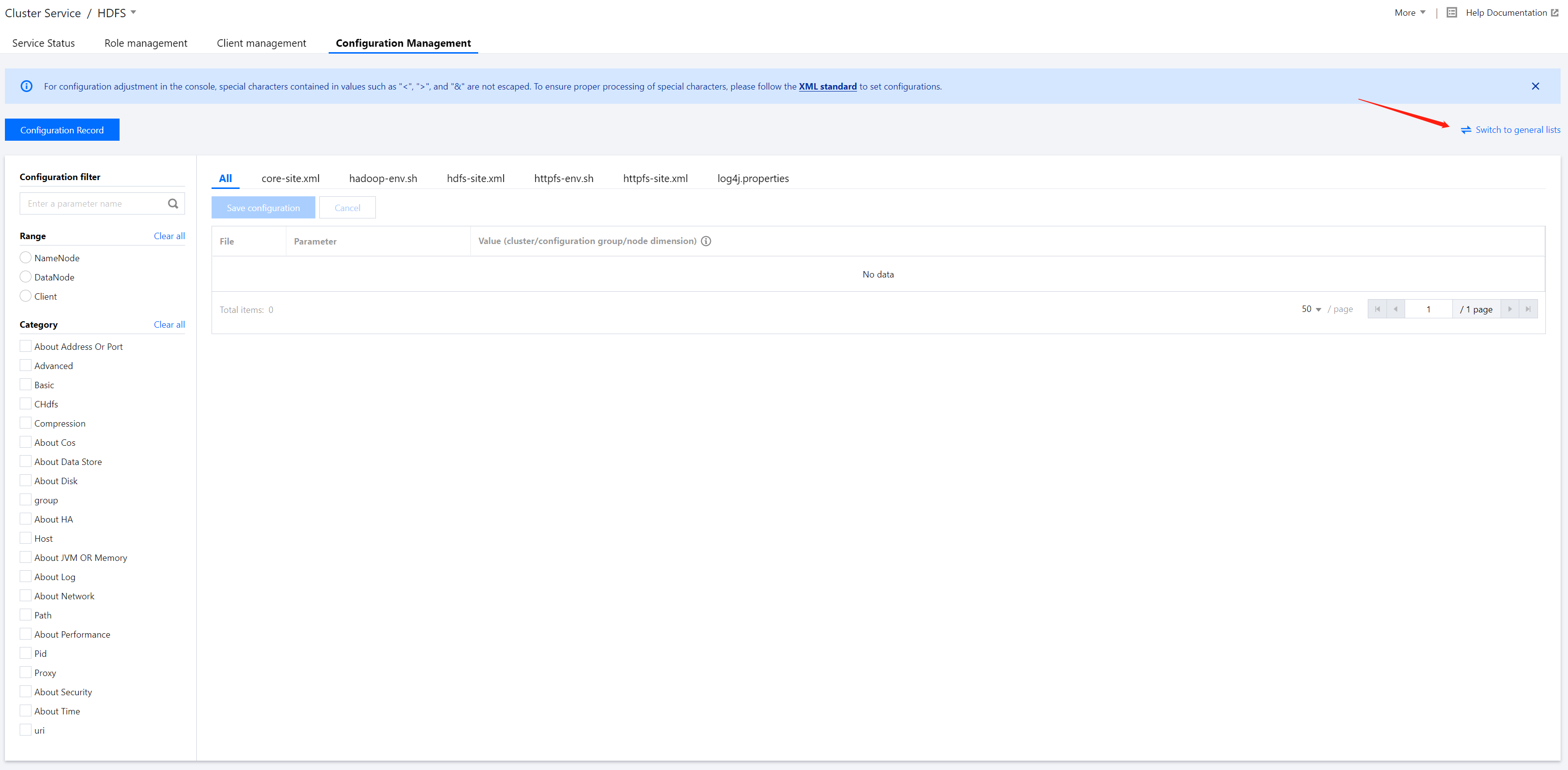
4. You can search for a configuration item or narrow down the search scope with the filter on the left.
5. Select the target configuration file, click Edit Configuration, and perform operations such as adding, editing, and deleting configuration items as needed.
Enter the new parameter value for the target parameter. If needed, you can click Recover to recover a parameter to its original value. You can also click Default Value to restore the parameter to the default value recommended by the system.
You can delete certain configuration items by clicking Delete > OK.
If the file does not have the parameter you want to configure, click Add a configuration item and enter the new parameter name and value in the pop-up window.
6. After confirming that the modification is correct, click Save configuration. After the configuration is delivered successfully, click Restart Service.
Note
If the service process configuration is modified, the configuration will not take effect unless you restart the service.
If the client configuration is modified, the configuration will take effect immediately after being saved.
Adding a configuration file
1. Log in to the EMR console, select the target cluster in the cluster list, and click Service to enter the cluster service list.
2. In the cluster service list, select Operation > Configuration Management in the top-right corner of the target service panel.
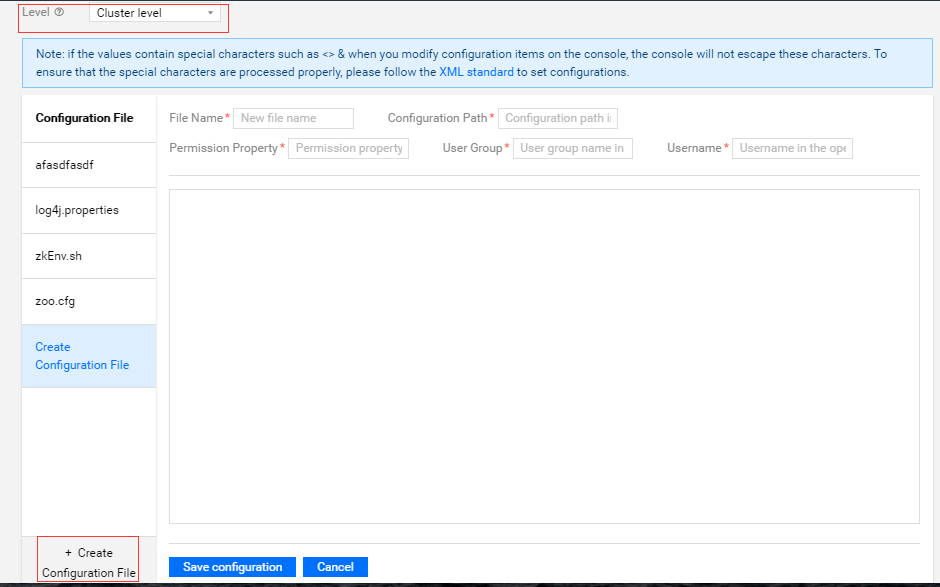
3. If the configuration file you want to configure does not exist, you can click Add configuration file on the right to configure a configuration file.
4. After you click Save configuration, the parameters will be delivered, and the configuration file name will be updated in the configuration file list.
5. After the custom configuration file is delivered and takes effect, it can be modified and deleted.
Comparing configurations at different levels
After configurations are modified at different levels, click Switch to dimension-based comparisons to compare them at the cluster, configuration group, and node levels. To make the configuration at a level the same as that at the higher level, overwrite the difference and save the modification.