iOS (SwiftUI)
Baixar
Modo Foco
Tamanho da Fonte
Feature Description
If you have integrated TUIKit SwiftUI, you can use the message emoji reaction feature directly.
Notice:
The emoji reaction feature is available only with the Pro edition Plus or Enterprise edition plans. Please purchase the Pro edition Plus or Enterprise edition before using this feature.
Feature Showcase
Sending Emoji Reactions
After integrating the emoji reaction feature, an emoji selection area appears at the top of the long-press message menu. To see more emojis, click the button on the right side of the emoji selection area. Select an emoji to react to the message. If you have already reacted to the message with a particular emoji, clicking it again will remove your reaction.
Long-press message menu | More emojis |
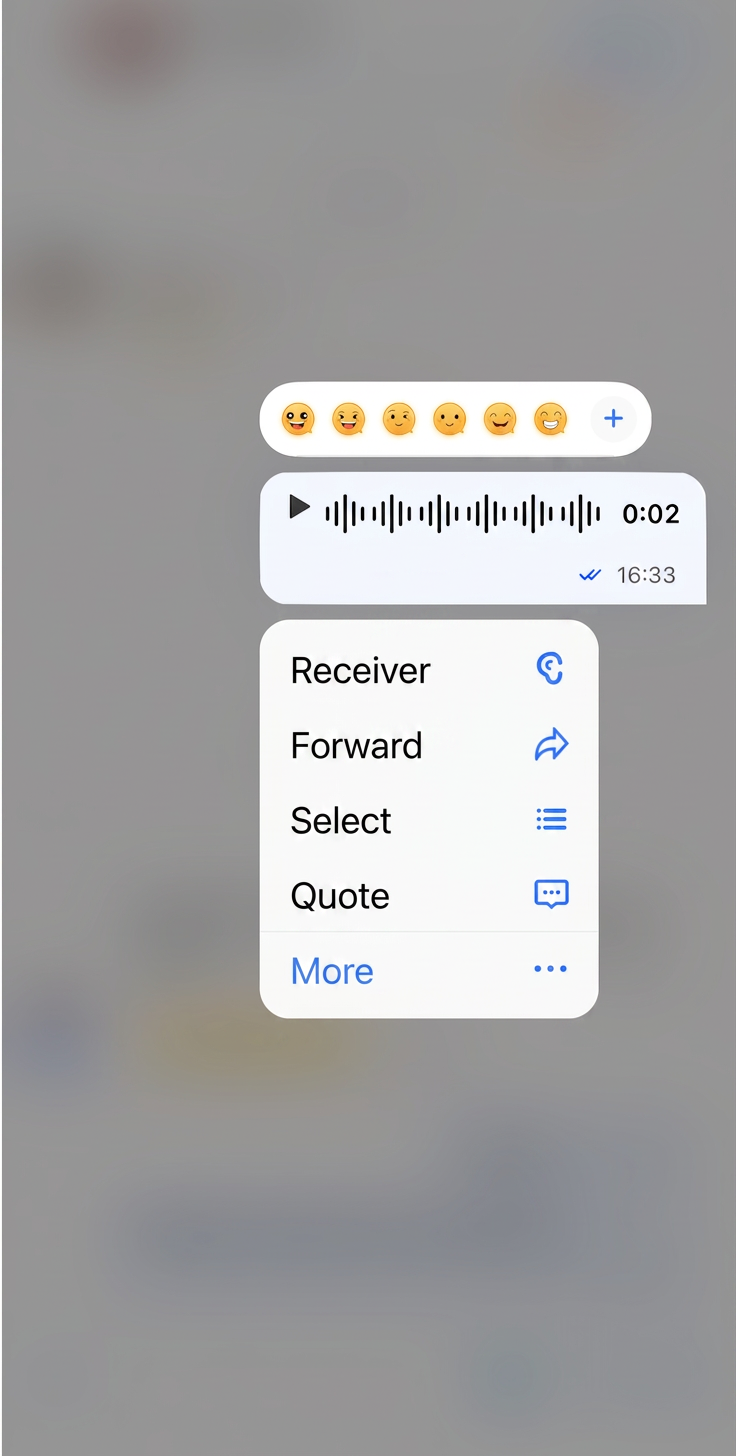 | 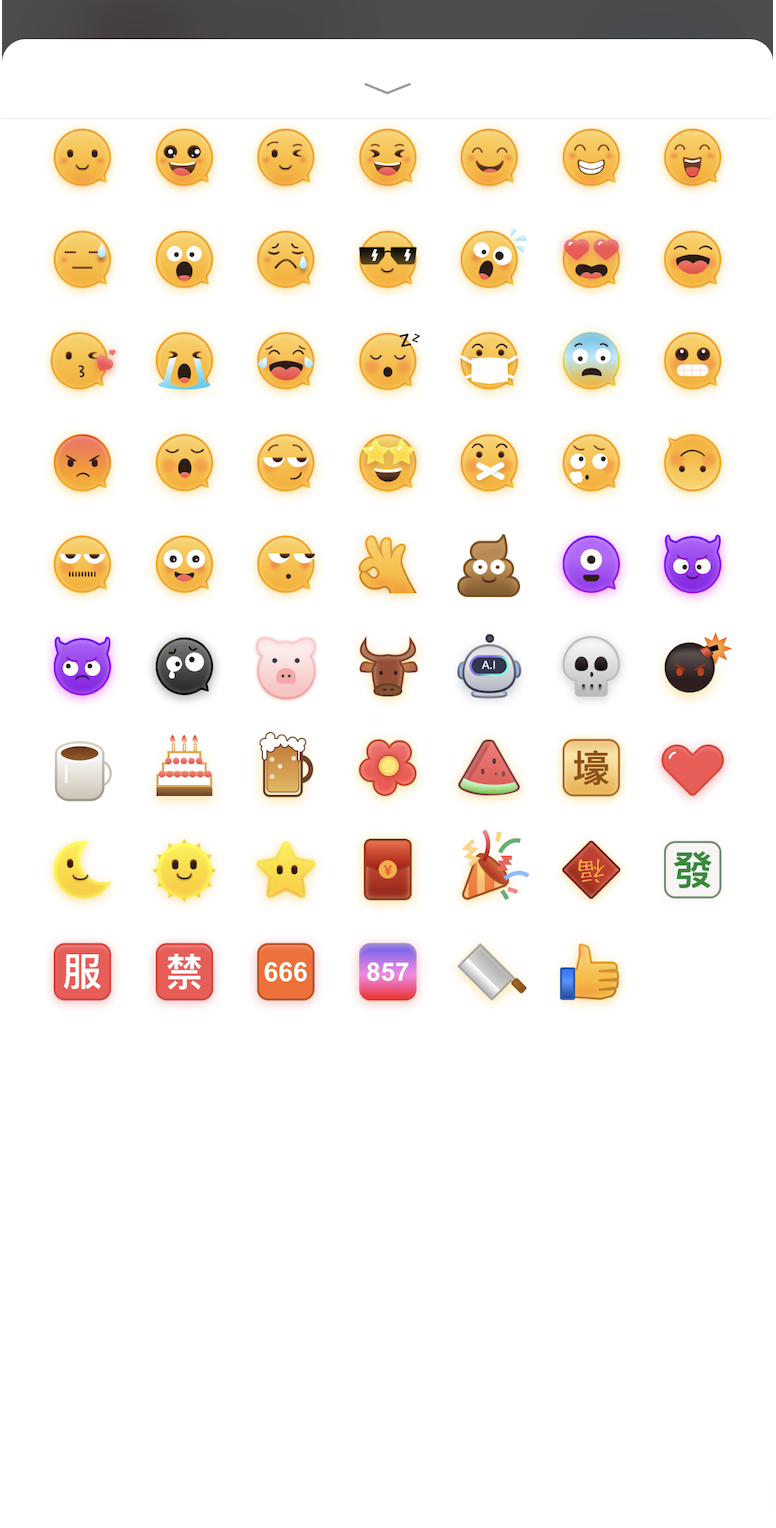 |
Displaying Emoji Reactions
All emoji reactions for a message are displayed below the message and are visible to everyone in the conversation.
The reacted emojis and the nicknames of users who reacted are shown under the message. Click an emoji or nickname to view detailed information about emoji reactions for that message.
In the emoji reaction details view, you can quickly remove your emoji reaction by clicking on the emoji you sent.
Emoji reaction preview | Emoji reaction details |
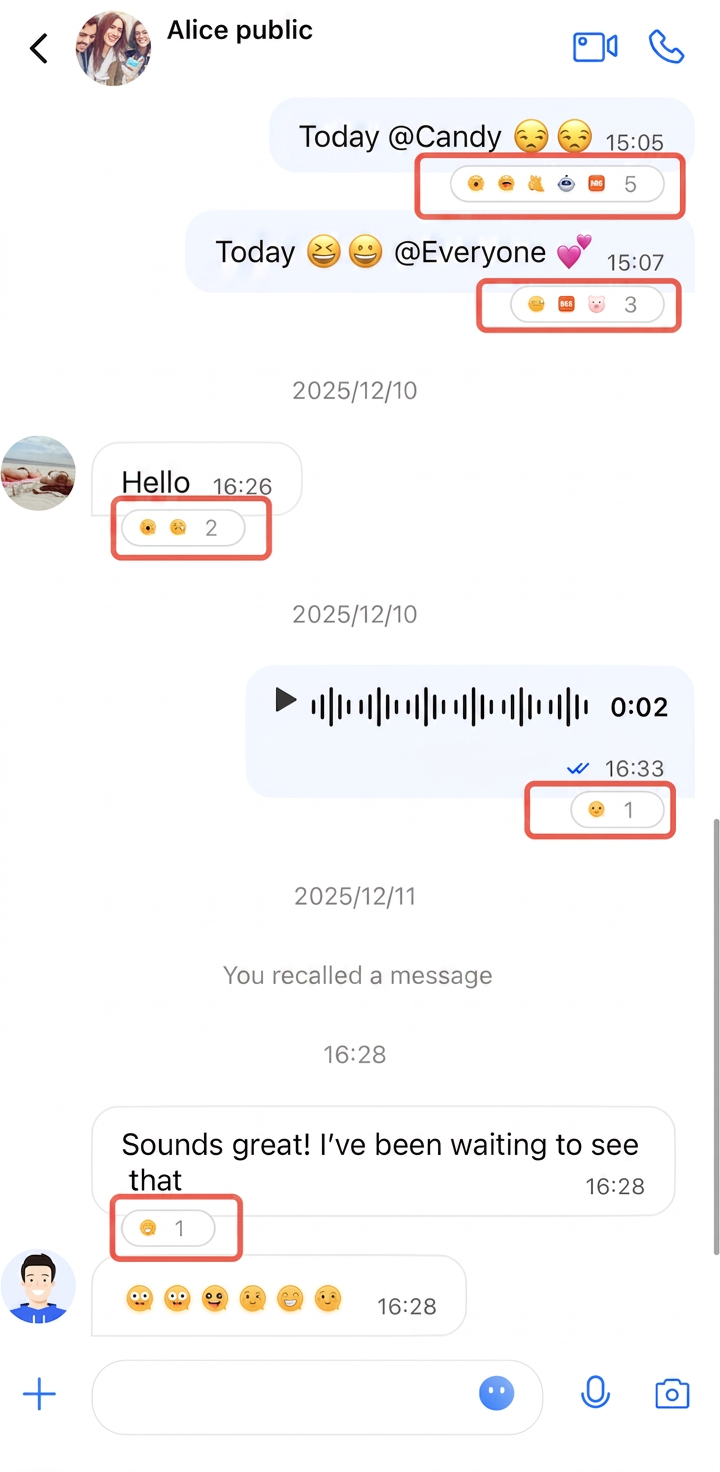 | 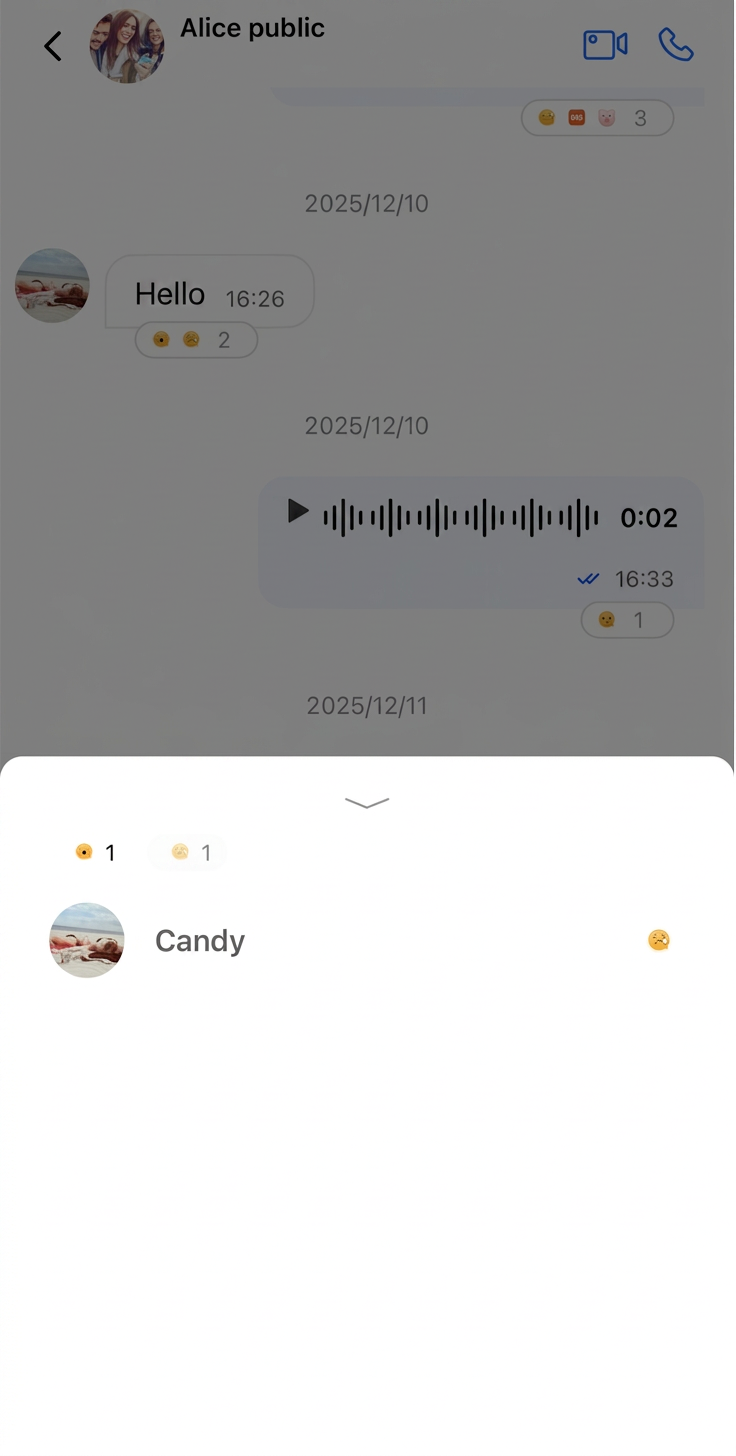 |
Disabling Message Emoji Reactions
In the MessageListConfig.swift file, the
isSupportReaction property (of type BOOL) controls whether the emoji reaction feature is enabled. By default, it is set to true.To disable the emoji reaction feature, pass the configuration parameter when initializing the MessageList:
// Turn off emoji reactionlet config = ChatMessageListConfig(isSupportReaction: false)// Pass to MessageListMessageList(conversationID: conversationID, config: config, ...)
Ajuda e Suporte
Esta página foi útil?
Você também pode entrar em contato com a Equipe de vendas ou Enviar um tíquete em caso de ajuda.
comentários