Managing Instance Keys (Linux)
Baixar
Modo Foco
Tamanho da Fonte
Overview
Lighthouse currently provides two types of user credentials for remote login to instances: passwords and SSH key pairs. After an instance is created, you can bind a key pair to it. Then, you can log in to the instance by using the private key.
Note:
The SSH key pair login method is applicable to Linux instances only.
An SSH key pair is a pair of keys generated by an encryption algorithm, providing a more secure and convenient authentication method for remote login to instances. SSH key pairs created by Tencent Cloud are generated by using the RSA 2048-bit encryption method and include a public key and a private key:
Public key: After an SSH key pair is successfully generated, Tencent Cloud stores only the public key. For Linux instances, the public key content is stored in the
~/.ssh/authorized_keys file.Private key: You need to download and properly keep the private key. The private key can be downloaded only once, and Tencent Cloud does not store your private key. Anyone who has your private key can decrypt your login information. Therefore, you must store the private key in a secure location.
Strengths
An SSH key pair has the following strengths compared with a username and password:
Security: compared with general password login, an SSH key pair has a higher security and cannot be cracked with brute force. It is generated by using an asymmetric encryption algorithm and encrypted with a public key. Then, it can be decrypted only with the corresponding private key stored by yourself without being sent over the network.
Convenience: you can quickly log in to a Linux instance remotely by using an SSH key pair without entering the password each time. In addition, you can also maintain and manage multiple Linux instances more easily in a unified manner in this way.
Use Limits
Up to ten SSH key pairs can be created in each region under one account.
An SSH key can be bound only to a Lighthouse Linux instance in the same region.
Notes
The Tencent Cloud Lighthouse Console offers two approaches to binding/unbinding keys, including Online and Offline.
If you choose online binding/unbinding, please ensure that the status and Tencent Cloud Automation Tools status of your selected instance are both running.
If you choose offline binding/unbinding, the server will be forcibly shut down during the process for a running instance. You can proactively shut down the instance before performing this operation. To avoid any data losses, plan for the operation time in advance. It is recommended that you perform the operation during business off-peak periods, to minimize impact.
To enhance the security of your Lighthouse instance, password-based login for the root user is disabled by default after an SSH key is bound to a Linux instance. If you still need to retain the password login method, refer to Modify SSH Configuration to Enable Password Login to make the change.
Directions
Creating SSH key
1. Log in to the Lighthouse console and click SSH Key Pair in the left sidebar.
2. On the key list page, click Create.
3. In the Create an SSH Key window that pops up, specify the region for the key and select a creation method, as shown in the following figure.
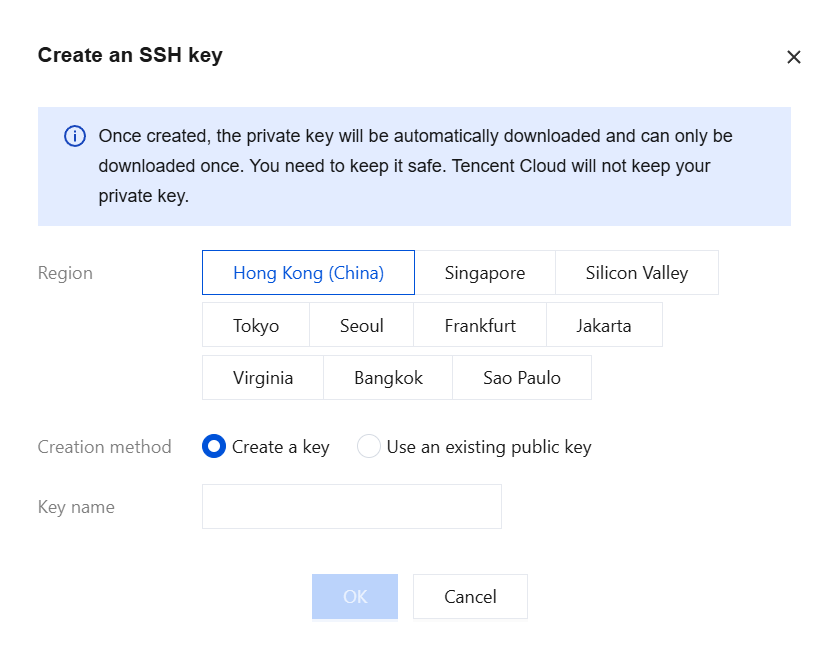
Creation Method:
If you select Create a key as the creation method, enter a key name.
If you select Use an existing public key as the creation method, enter a key name and the existing public key information.
Note:
Public keys support four encryption methods: ssh-rsa, ssh-dss, ecdsa-sha2-nistp256, and ssh-ed25519.
Key Name: Enter a custom name.
4. Click OK to complete the creation of the server group.
Note:
After the creation is complete, the private key will be downloaded automatically. Tencent Cloud does not store your private key information. If the private key file is lost, you can consider recreating the key and binding it to the corresponding instance.
The private key can be downloaded only once and will be automatically saved to your browser's default download location. Please keep it securely.
If the download pop-up window does not appear, check your browser's download page to see whether it was blocked.
Binding/Unbinding Online (Recommended)
Binding Online
Note:
When an instance is bound, the region of the instance must match the region of the key.
Log in to the Lighthouse console. Then, based on your actual operating habits, select a method to bind/unbind.
1. In the left sidebar, click SSH Key Pair.
2. On the SSH Key page, select the SSH key that you want to bind to an instance, and then click Bind Instance.

3. In the Bind Instance pop-up window, select the instance to be bound, choose Bind online, and click OK.
Note:
The default user for Ubuntu is ubuntu, while for other systems it is root.
1. On the server instance card or in the instance list, select the instance to which you want to bind a key, and go to the instance details page. On the SSH Key tab, click Bind Key. The process is shown in the following figure:

2. In the Bind SSH Key pop-up window, select the key to be bound, choose Bind online, and click OK.
Note:
The default user for Ubuntu is ubuntu, while for other systems it is root.
Unbinding Online
Note:
After unbinding the key, you will no longer be able to use it to log in to the instance remotely. Proceed with caution.
Log in to the Lighthouse console. Then, based on your actual operating habits, select a method to unbind the key.
1. In the left sidebar, click SSH Key Pair.
2. On the SSH Key page, select the SSH key from which you want to unbind an instance, and then click Unbind Instance.

3. In the Unbind Instance pop-up window, select the instance to be unbound, choose Unbind online, and click OK.
1. On the server instance card or in the instance list, select the instance from which you want to unbind a key, and go to the instance details page. On the SSH Key tab, click Unbind. The process is shown in the following figure:

2. In the Unbind SSH Key pop-up window, confirm the instance information to be unbound, select Unbind online, and click OK.
Note:
Deleting SSH key
Note:
If an SSH key is already associated with a Linux instance, it cannot be deleted.
Once a key is deleted, it cannot be recovered. Proceed with caution.
1. Log in to the Lighthouse console.
2. In the left sidebar, click SSH Key Pair.
3. On the SSH Key page, select the SSH key to be deleted, and then click Delete.

4. In the Delete Key window, click OK.
Relevant Operations
Modifying SSH configuration
1. Log in to the Linux instance using OrcaTerm. Alternatively, you can choose other login methods based on your actual operational habits. For details, see Logging in to Linux Instances.
2. Run the following command to open the
sshd_config configuration file:sudo vi /etc/ssh/sshd_config
3. Press i to switch to the edit mode, find
#Authentication, and change the value of the PasswordAuthentication parameter to yes as shown below:Note:
If the
sshd_config configuration file doesn't contain this configuration item, add PasswordAuthentication yes.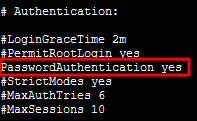
4. Run the following command to restart the SSH service. This document uses CentOS 7 as an example. Run the applicable command based on your actual operating system.
sudo systemctl restart sshd
After the restart, you can try logging in with a password.
Binding/Unbinding Offline
Notes
When performing offline key binding/unbinding operations, if the instance you selected is not shut down, note the following:
During the binding/unbinding process, the instance will be shut down and then restarted. This will cause a brief service interruption. We recommend performing this operation during off-peak hours.
If the instance fails to shut down normally, it will be forced to shut down. Forced shutdown may cause data losses or file system corruption. Therefore, perform forced shutdown with caution.
Forced shutdown may take a while. Please be patient.
To enhance the security of your Lighthouse instance, password-based login for the root user is disabled by default after an SSH key is bound to a Linux instance. If you still need to retain the password login method, refer to Modify SSH Configuration to Enable Password Login to make the change.
Binding Offline
Note:
When an instance is bound, the region of the instance must match the region of the key.
Log in to the Lighthouse console. Then, based on your actual operating habits, select a method to bind/unbind.
1. In the left sidebar, click SSH Key Pair.
2. On the SSH Key page, select the SSH key that you want to bind to an instance, and then click Bind Instance.

3. In the Bind Instance pop-up window, select the Linux instance to which you want to bind the key, choose Offline Bind, read and select the offline unbinding notice, and click OK.
1. On the server instance card or in the instance list, select the instance to which you want to bind a key, and go to the instance details page. On the SSH Key tab, click Bind Key. The process is shown in the following figure:

2. In the Bind SSH Key pop-up window, confirm the instance information for key binding, select Offline Bind, read and select the offline unbinding notice, and click OK.
Unbinding Offline
Note:
After unbinding the key, you will no longer be able to use it to log in to the instance remotely. Proceed with caution.
Log in to the Lighthouse console. Then, based on your actual operating habits, select a method to unbind.
1. In the left sidebar, click SSH Key Pair.
2. On the SSH Key page, select the SSH key from which you want to unbind an instance, and then click Unbind Instance.

3. In the Unbind Instance pop-up window, select the Linux instance to be unbound, choose Offline Unbind, read and select the offline unbinding notice, and click OK.
1. On the server instance card or in the instance list, select the instance from which you want to unbind a key, and go to the instance details page. On the SSH Key tab, click Unbind. The process is shown in the following figure:

2. In the Unbind SSH Key pop-up window, confirm the instance information to be unbound, select Offline Unbind, read and select the offline unbinding notice, and click OK.
Ajuda e Suporte
Esta página foi útil?
Você também pode entrar em contato com a Equipe de vendas ou Enviar um tíquete em caso de ajuda.
comentários