After a user is successfully added, you can lock or freeze the user to prevent them from logging into the IDSEC console.
Operation Steps
Locking Users
1. Log in to the IDSEC console, choose User Management > User Management in the left sidebar, and go to the User Management page.
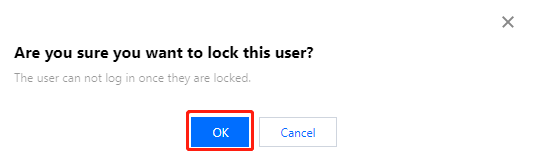
2. On the User Management page, click Lock user in the Operation column. A "Confirm Lock" dialog box will pop up.
3. In the "Confirm Lock" dialog box, click OK. The user will then be locked and cannot log in to the console.
Note:
If a user is locked by an administrator, it must be unlocked by the same administrator.
If a user login triggers a lockout policy, the system will automatically unlock the account according to the unlock policy specified within the lockout policy.
Freezing Users
1. Log in to the IDSEC console, choose User Management > User Management in the left sidebar, and go to the User Management page.
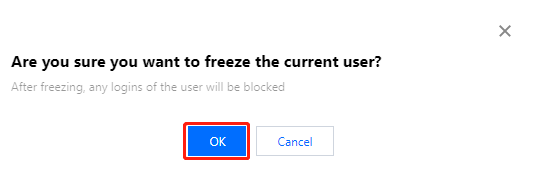
2. On the User Management page, click Freeze user in the Operation column. A "Confirm Freeze" dialog box will pop up.
3. In the "Confirm Freeze" dialog box, click OK. The user will then be frozen and cannot log in to the console.