To filter data for components on the current page, you can use a text filter with the associated chart.
Note: If the text filtering drop-down list loads slowly, it is strongly recommended to create a separate dimension table for dropdown options. For example, if there is a "city" filter and the "order table" is used directly as a data source, each access actually performs aggregation on millions of data entries in the order table. At this point, you can create a "City Table" in the data layer and refresh it daily, which is equivalent to querying a table with only 100 data entries each time, making it much faster.
The text filter supports two types of interaction: text input and text selection.
Text input: No need for an associated field, user-submitted text as filtering conditions, commonly used for interaction methods similar to search, such as querying employee output value information for the name "Zhang San";
Text selection: Must be associated with a text field, used to select a drop-down item as a filtering condition, commonly used for categorization, such as querying KPI completion status for employees in the "sales department."
Through this document, you will learn the following:
Set text input type filter
Set selection input type filter
Set cache for filter
Select input filter view operation
Practical Tutorial
Set "Text Input" Type Filter
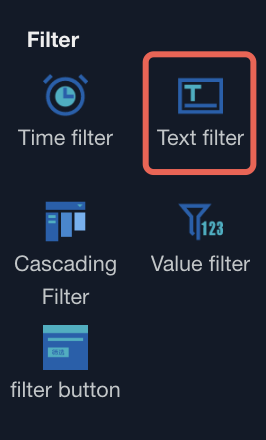
1. Enter the editor, select text filter: from component library > interactive component category.
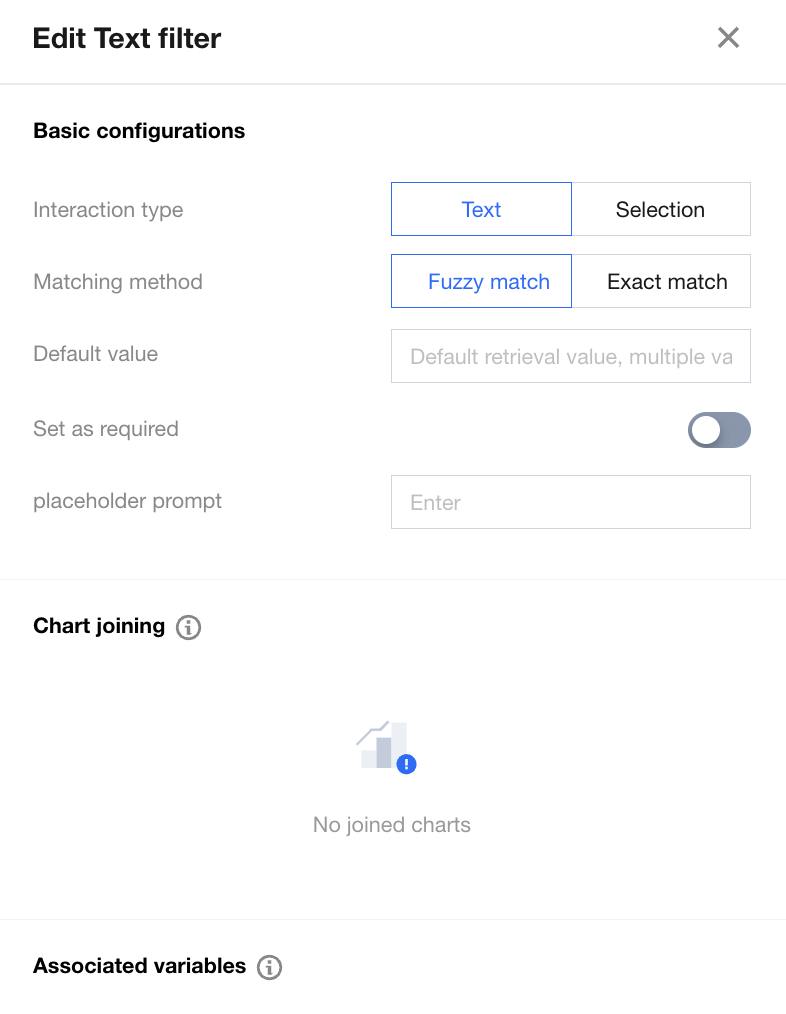
2. Select the interaction type as Text(text input):
Text input supports the following settings:
Settings | Settings Description |
Matching Method | Optional fuzzy matching and precision match. When searching for user input "Zhang San", the difference is: Fuzzy matching: returns results like "Zhang San", "Zhang Sanfeng", "Wang Zhang San" Precision match: can only find "Zhang San". |
Default Value | After the webpage loads, auto-execute the default query for data initialization. |
Set as Required | When Required is enabled, you must select the default value, and the user needs to input at least one value. |
placeholder prompt | To save space, a placeholder character can be set. |
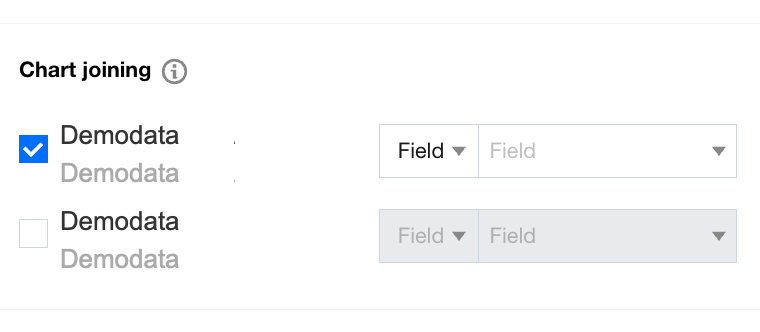
3. Set associated charts: If we want to input "Zhang" in the name input box to search for all employees with "Zhang" in their name (impacting charts are "employee input-output analysis" and "department income analysis"), follow these operations:
Set the interaction type of the "name" filter to "text"
Set the match mode to "fuzzy matching"
Select "Employee Input-Output Analysis" and "Department Income Analysis" in associated charts.
Select the association method for these two charts as "field".
Set the field to "name"
If the sql parameter has been set (see sql Parameter Passing), you can transmit the current input box value to the sql parameter in the following ways to query: Set the interaction type of the "name" filter to "text input"
Set the match mode to "fuzzy matching"
Select "Employee Input-Output Analysis" and "Department Income Analysis" in associated charts.
Select the association method for these two charts as "parameter".
Set the associated sql parameter to "name" (name is the sql parameter defined in the sql table creation).
Set "Selection Input" Type Filter
1. Enter the editor, select text filter; from component library > interactive component category.
2. Select the interaction type as selection input: The user's input must be a dimension value that exists in the database, so it must be associated with a numerical source:
Selection input supports the following settings:
Settings | Settings Description |
numerical source | The value source of the dropdown option can originate from a data table or manually customized input. For frequent changes and considerable values, recommend using a data table (such as "customer name"). Conversely, for fixed and few values, recommend using custom (such as "province"). |
filter field | Fields for actual execution filtering |
Display Fields | Fields displayed in the drop-down list are consistent with the filter fields by default. If set as not the same, one value (such as "Shenzhen") will be displayed, and one value (such as "0755") will be executed, similar to a dictionary table. |
Selection Method | Supports single selection and multiple selection. |
Default Value | Set default filter values |
Set as Required | When Required is enabled, you must select the default value, and the user needs to input at least one value. |
placeholder prompt | To save space, a placeholder character can be set. |
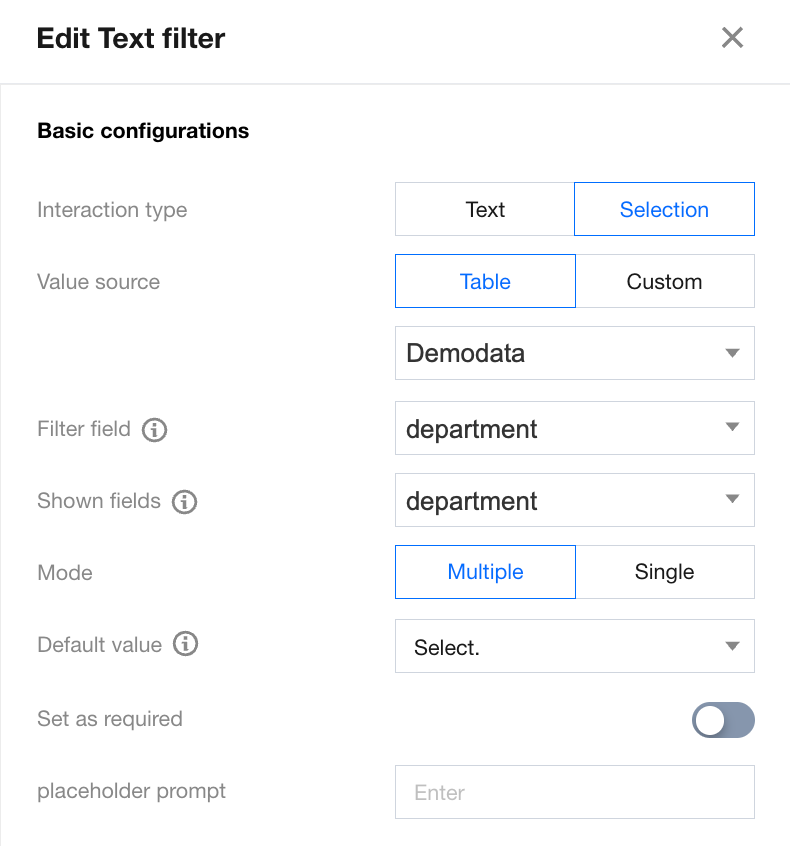
If we want to select a department in the "Department" dropdown select box, the impact chart will show "Employee Output Value Distribution" and "Employee Output Value & Expenses". Follow these operations:
Set the interaction type of the "department" filter to "selection input".
Set the data table of "numerical source" to "Demo data" and the field to "department".
Selection method is "multiple selection" (multiple departments can be selected simultaneously).
Select "Employee Output Value Distribution" and "Employee Output Value & Expenditure" in associated charts.
Select the association method for these two charts as "field".
Set the field to "department".
Setting Cache for Filter
Set cache for the filter when the numerical source is a data table to speed up the drop-down list display.
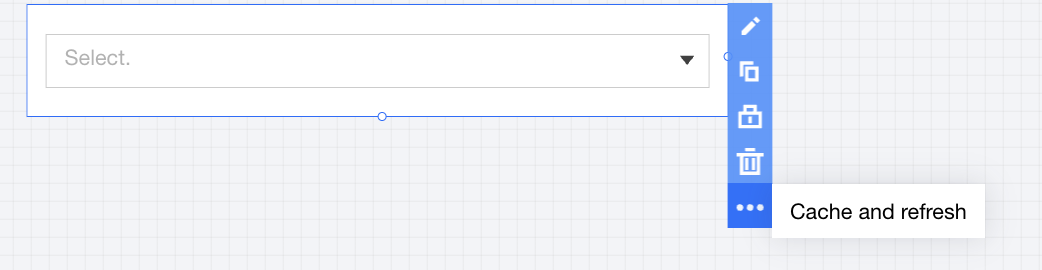
Entry: Go to the editor, then select Cache and Refresh under the More icon of the component.
View Filter Operations
The text drop-down filter supports the following operations:
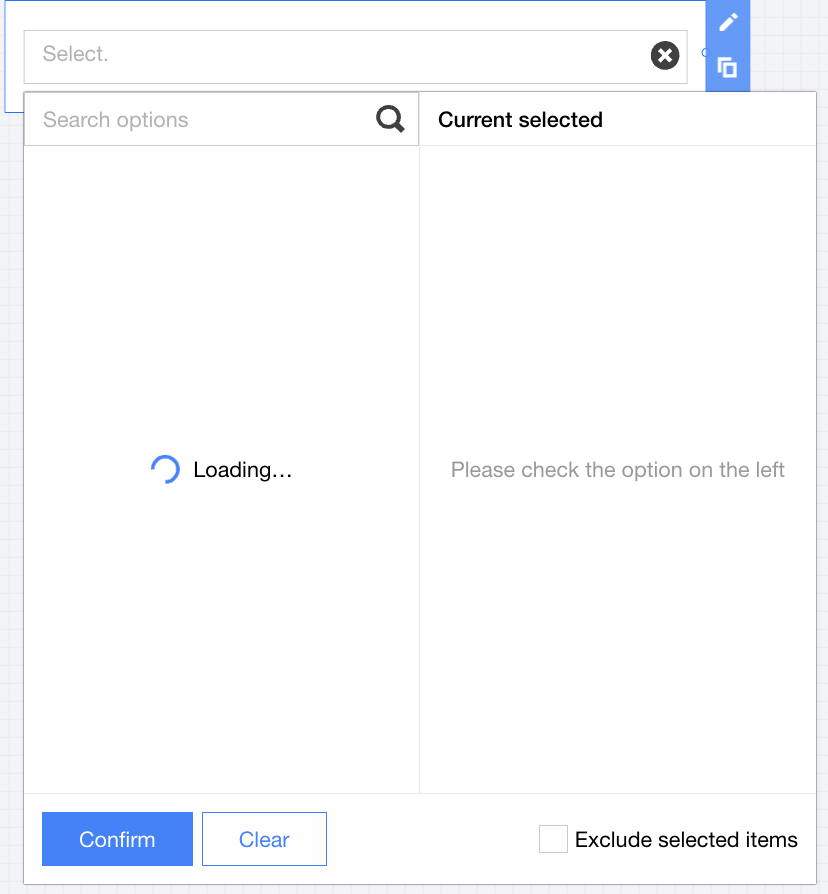
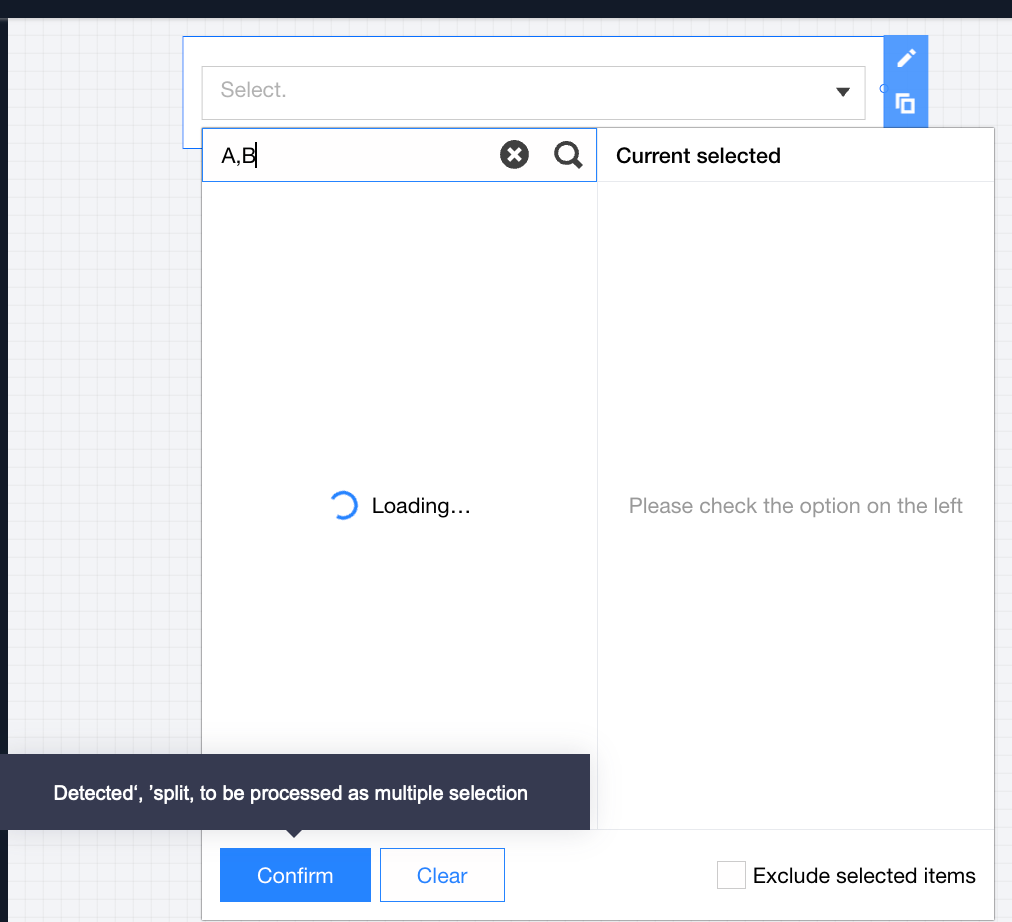
Support quick input: When the input value is entered but the drop-down hasn't finished loading, you can confirm submission directly without waiting for loading to complete, just filter the user-submitted input.
Support batch input: When entering multiple values separated by ",", you can filter multiple inputs in batch.
Practical Tutorial
How to enhance list loading speed?
When the connected data table has a large volume of data, data aggregation will take longer.
Processing method:
Use static tables to reduce aggregation time.
If the order table has 5 million data entries and we want to filter by "channel partner," directly aggregating by "channel partner" would require processing all 5 million entries every time, resulting in a lengthy duration.
We can process a City Table. This processed table will aggregate channel partners from the order table and then generate a static table (assuming 1,000 channel partners). Dropdown Data is read from the static table. Since aggregation is not required, it is equivalent to querying only 1,000 data entries, significantly increasing speed.