tencent cloud

Tencent Cloud Observability Platform

Release Notes and Announcements
Release Notes
Product Introduction
Overview
Strengths
Basic Features
Basic Concepts
Use Cases
Use Limits
Purchase Guide
Tencent Cloud Product Monitoring
Application Performance Management
Mobile App Performance Monitoring
Real User Monitoring
Cloud Automated Testing
Prometheus Monitoring
Grafana
EventBridge
PTS
Quick Start
Monitoring Overview
Instance Group
Tencent Cloud Product Monitoring
Application Performance Management
Real User Monitoring
Cloud Automated Testing
Performance Testing Service
Prometheus Getting Started
Grafana
Dashboard Creation
EventBridge
Alarm Service
Cloud Product Monitoring
Tencent Cloud Service Metrics
Operation Guide
CVM Agents
Cloud Product Monitoring Integration with Grafana
Troubleshooting
Practical Tutorial
Application Performance Management
Product Introduction
Access Guide
Operation Guide
Practical Tutorial
Parameter Information
FAQs
Mobile App Performance Monitoring
Overview
Operation Guide
Access Guide
Practical Tutorial
Tencent Cloud Real User Monitoring
Product Introduction
Operation Guide
Connection Guide
FAQs
Cloud Automated Testing
Product Introduction
Operation Guide
FAQs
Performance Testing Service
Overview
Operation Guide
Practice Tutorial
JavaScript API List
FAQs
Prometheus Monitoring
Product Introduction
Access Guide
Operation Guide
Practical Tutorial
Terraform
FAQs
Grafana
Product Introduction
Operation Guide
Guide on Grafana Common Features
FAQs
Dashboard
Overview
Operation Guide
Alarm Management
Console Operation Guide
Troubleshooting
FAQs
EventBridge
Product Introduction
Operation Guide
Practical Tutorial
FAQs
Report Management
FAQs
General
Alarm Service
Concepts
Monitoring Charts
CVM Agents
Dynamic Alarm Threshold
CM Connection to Grafana
Documentation Guide
Related Agreements
Application Performance Management Service Level Agreement
APM Privacy Policy
APM Data Processing And Security Agreement
RUM Service Level Agreement
Mobile Performance Monitoring Service Level Agreement
Cloud Automated Testing Service Level Agreement
Prometheus Service Level Agreement
TCMG Service Level Agreements
PTS Service Level Agreement
PTS Use Limits
Cloud Monitor Service Level Agreement
API Documentation
History
Introduction
API Category
Making API Requests
Monitoring Data Query APIs
Alarm APIs
Legacy Alert APIs
Notification Template APIs
TMP APIs
Grafana Service APIs
Event Center APIs
TencentCloud Managed Service for Prometheus APIs
Monitoring APIs
Data Types
Error Codes
Glossary

Instance Group

PDF
Modo Foco
Tamanho da Fonte
Última atualização: 2024-01-27 17:33:16

Feature Overview

You can group cross-region and cross-project group instances of a Tencent Cloud product for unified management. When creating a large number of instances, you can create instance groups as needed. By managing instance groups, you can better manage instances, configure alarm policies, and improve Ops efficiency.

Use Cases

Alarm policies can be set for cross-instance and cross-region projects of the same product in a unified manner.
You can manage various resources under your Tencent Cloud account by service category.

Notes

Each instance group can contain up to 2,000 instances, and a maximum of 200 instances can be added to an instance group at a time.
By grouping instances, you can manage cross-region and cross-project group Tencent Cloud products in a unified manner and configure alarm policies to avoid repeated operations and improve Ops efficiency.

Directions

Creating an instance group

1. Log in to the TCOP console.
2. On the left sidebar, click Instance Group to enter the Instance Group page.
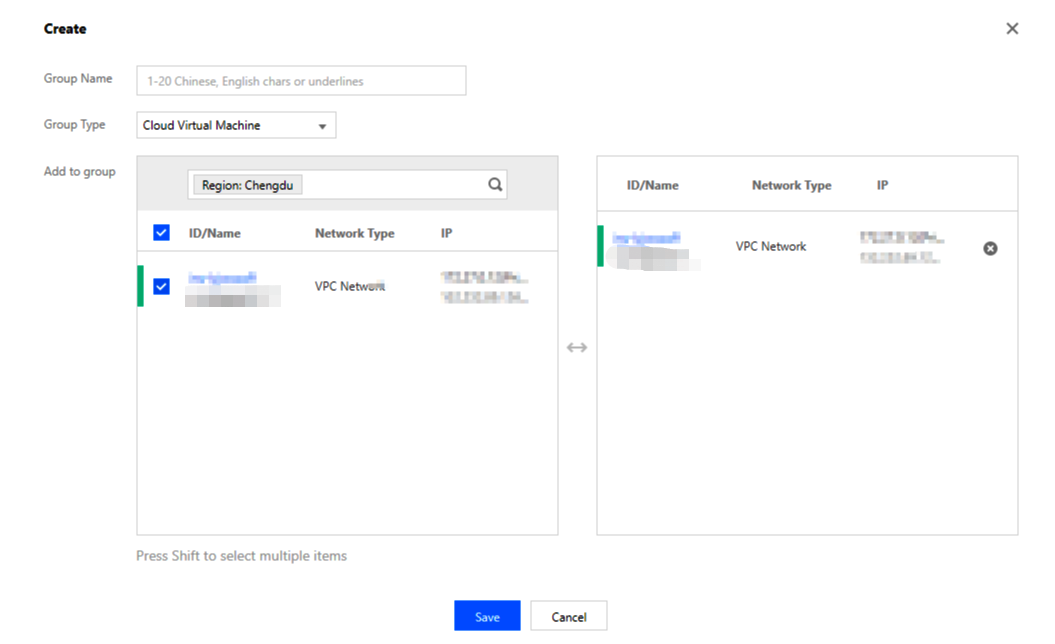
3. Click Create and configure the following fields:
Group Name: Enter the instance group name.
Group Type: Select an option as needed.
Add to Group: Select instances to be added to the group.


4. Click Save.

Editing an instance group

Note:
If an instance group has been bound to an alarm policy, the instances added to it will be automatically bound to the alarm policy.
If an instance group has been bound to an alarm policy, the instances removed from it will be unbound from the alarm policy.
1. Log in to the TCOP console.
2. On the left sidebar, click Instance Group to enter the Instance Group page.
3. Select the name of the target instance group to enter the instance management page. You can create or delete instances in the instance group on this page.

Adding an instance

1. Click Add.
2. In the pop-up window, select the target instance.
3. Click OK.

Removing an instance

1. Select the target instance and click Remove.
2. In the pop-up window, click Remove.

Deleting an instance group

1. Log in to the TCOP console.
2. On the left sidebar, click Instance Group to enter the Instance Group page.
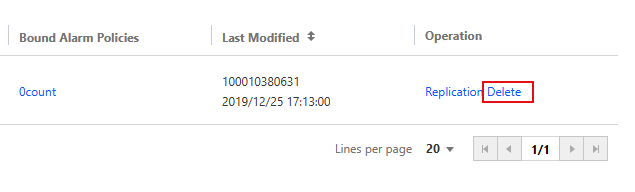
3. Find the target instance group and click Delete in the Operation column on the right.


4. In the pop-up window, click Confirm.
Note:
When an instance group bound to an alarm policy is deleted, the alarm policy will become invalid.

Copying an instance group

1. Log in to the TCOP console.
2. On the left sidebar, click Instance Group to enter the Instance Group page.
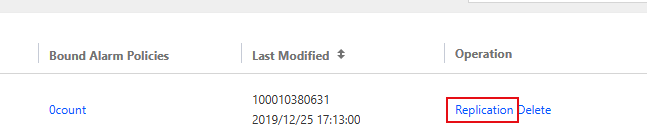
3. Find the target instance group and click Copy in the Operation column on the right.


4. In the pop-up window, click Copy.
Note:
When an instance group is copied, only instances in the group will be copied. If the copied instance group is bound to an alarm policy, the binding relationship will not be copied.
Binding an instance group to an alarm policy

1. Log in to the TCOP console.
2. On the left sidebar, click Alarm Configuration > Alarm Policy to enter the alarm policy management page.
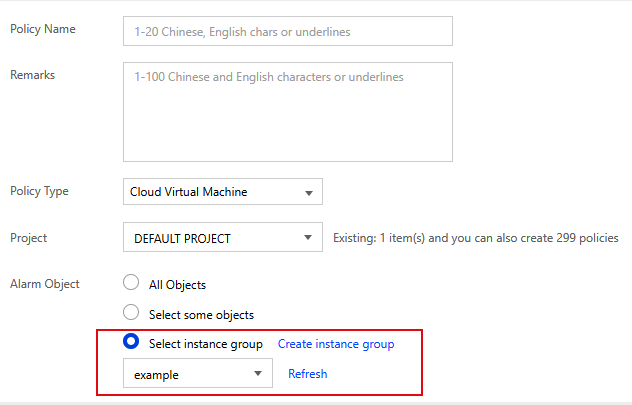
3. Click Create to enter the Create Policy page.
4. Find the Alarm Object configuration item and select Instance Group.


5. Complete settings of other configuration items on the page.

Ajuda e Suporte

Esta página foi útil?

comentários