Getting Started
Baixar
Modo Foco
Tamanho da Fonte
Overview
Cloud Video on Demand (VOD) is a one-stop audio and video service by Tencent Cloud. Build your entire upload-to-playback workflow—upload, processing, AI generation, and distribution—without setting up any infrastructure. It supports long-form and short-form video, AIGC content creation, online education, and e-commerce, with pay-as-you-go pricing and elastic scaling.
The new VOD console sidebar groups features into four areas: Basic Information (Service Overview, Application Management), Media AI (AI Space, AI Generation, AI Media Asset), Data Center (Usage Statistics), and Common Tools (Resource Package Management, License Management, etc).
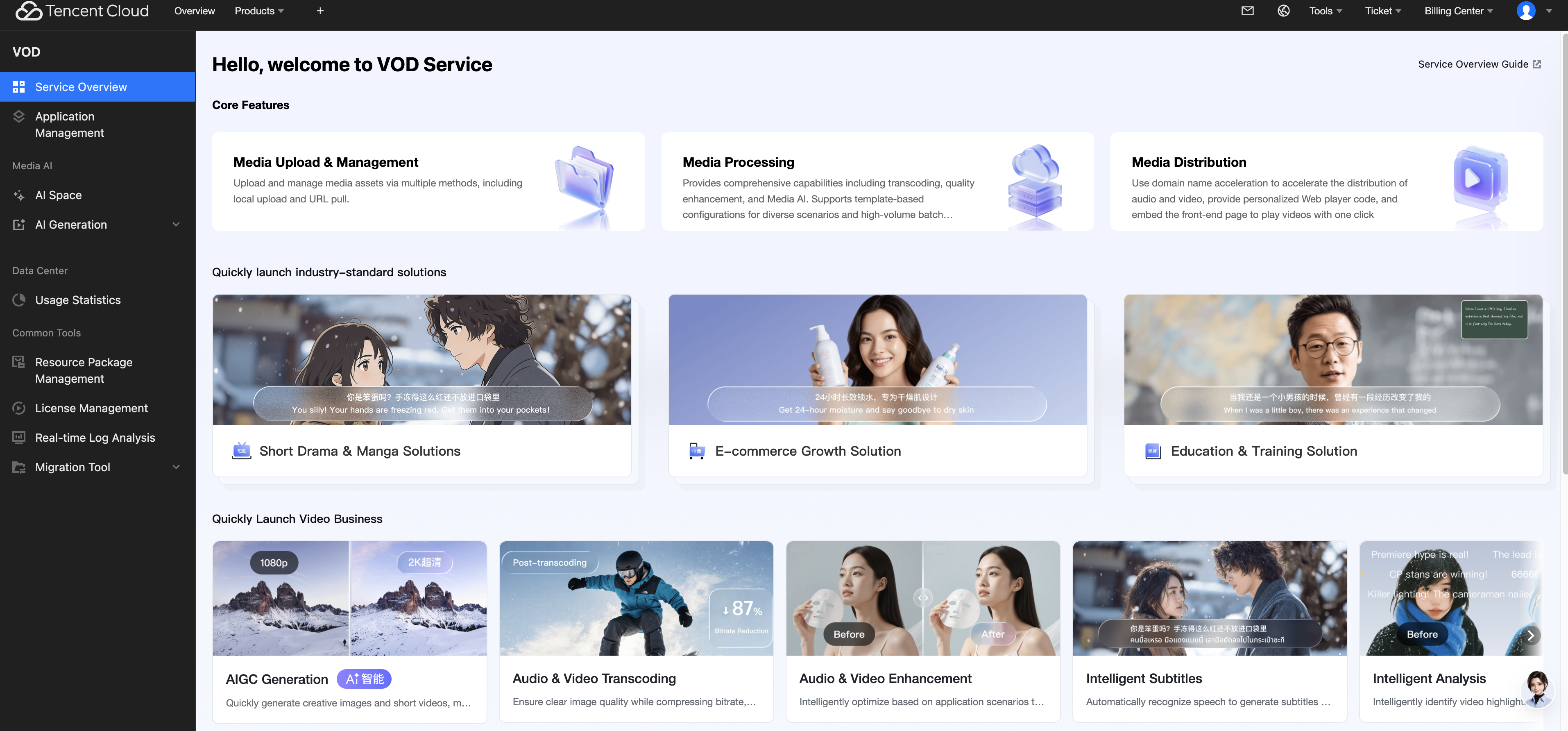
This document guides you on how to quickly upload local videos to VOD and process them using VOD services.
Step 1: Activating VOD
1. Sign up for a Tencent Cloud account and complete identity verification.
2. Purchase VOD services. For details, see Billing Overview.
3. Go to the VOD console.
Note:
If the VOD service has already been activated, skip this step.
Step 2: Creating an Application
VOD isolates resources and billing at the application level.
1. Go to the VOD console > Application Management page.
2. Click Create Application and enter the name and description to complete the creation.
Note:
After an application is created, the system automatically assigns a SubAppId. All subsequent media uploads, processing, and AI calls are based on this ID.
We recommend creating separate applications for each business line to facilitate permission management and billing separation.

Step 3: Upload a video
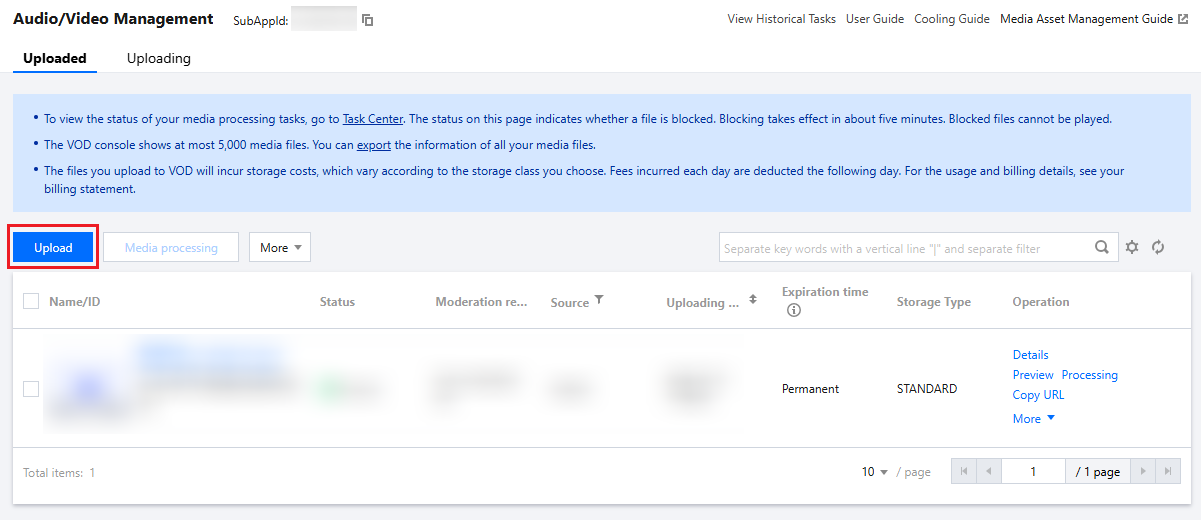
1. On the Application Management page, click the name of the created application. You will be directed to the Video/Audio Management > Audio/Video Management page by default. Then, click Upload.
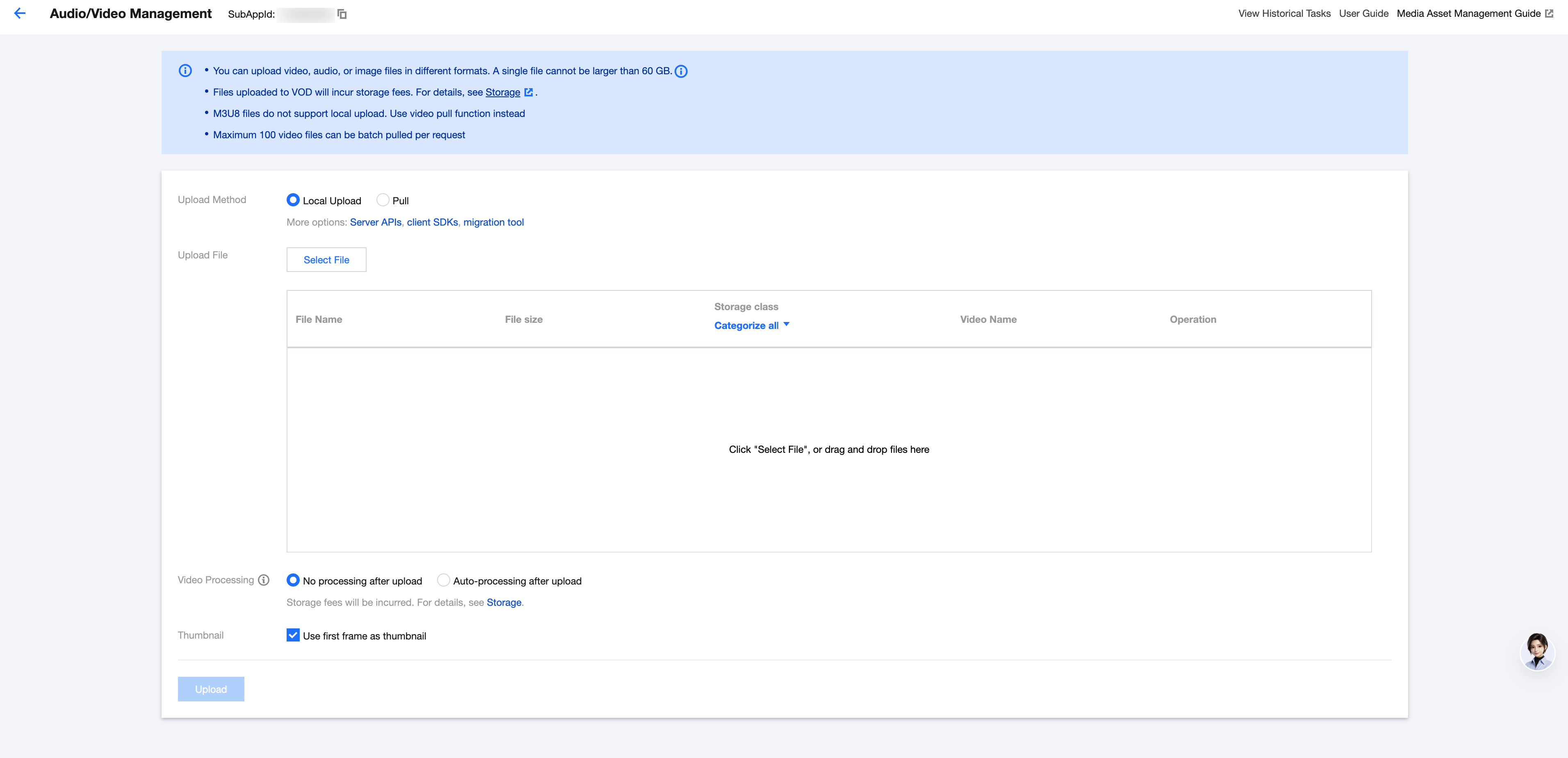
2. Select "Local Upload" for the upload method, and then upload a local file. Supported formats include MP4, MOV, AVI, and others.
3. For video processing, select "No processing after upload". Then, click Upload and wait for the upload to complete.
Step 4: Processing a Video
To transcode a video and obtain the transcoded output, refer to How to Transcode a Video.
To add a complex watermark to a video, refer to How to Add a Complex Watermark to a Video.
Usage Statistics Dashboard
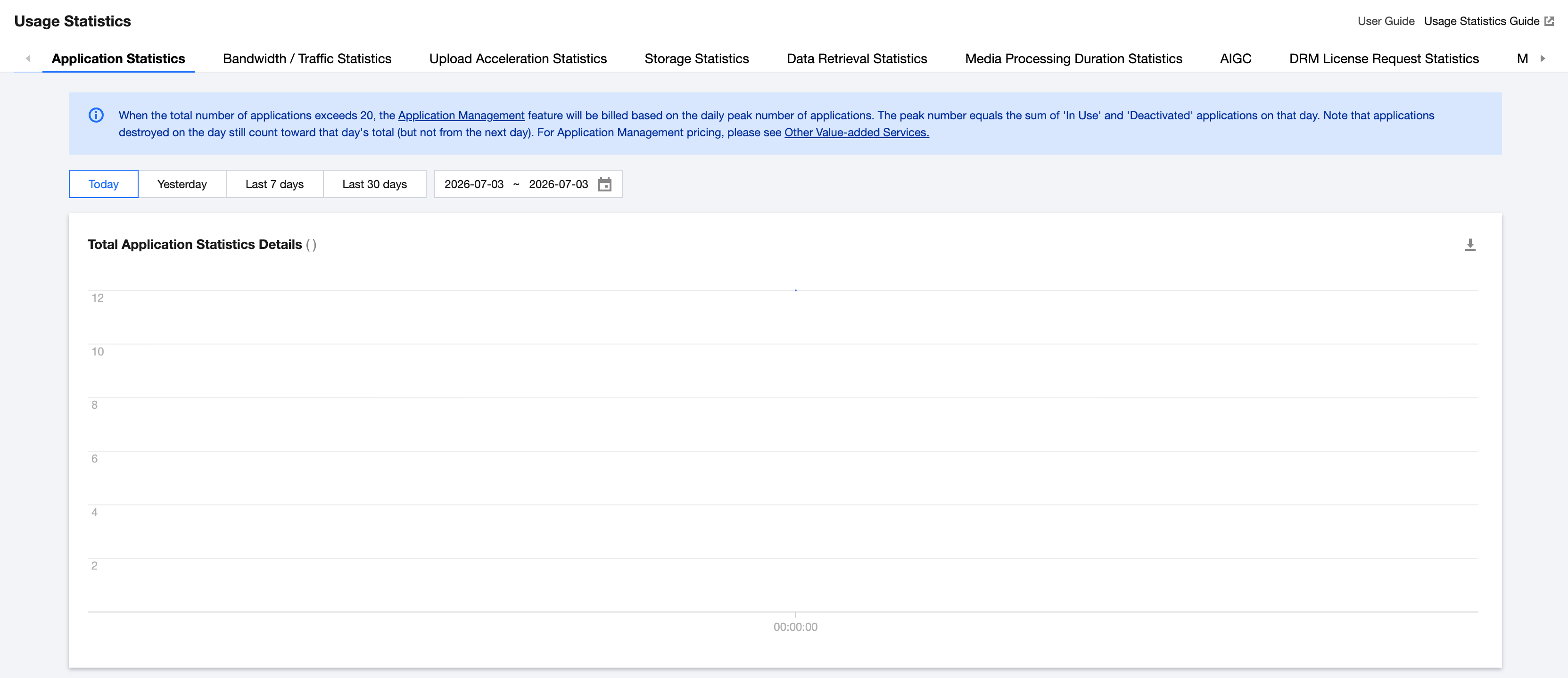
You can view VOD usage data on the Data Center > Usage Statistics page. This feature supports filtering by application (SubAppId) to view core metrics such as storage, traffic, transcoding duration, and AI call volume—ideal for near real-time monitoring.
FAQs
Ajuda e Suporte
Esta página foi útil?
Você também pode entrar em contato com a Equipe de vendas ou Enviar um tíquete em caso de ajuda.
comentários