With Auto Scaling (AS), you can add and remove CVMs to or from a scaling group based on monitoring metrics. You only need to define an alarm-triggered policy, specifying the status of the monitoring metrics that trigger scaling and the related scaling activity.
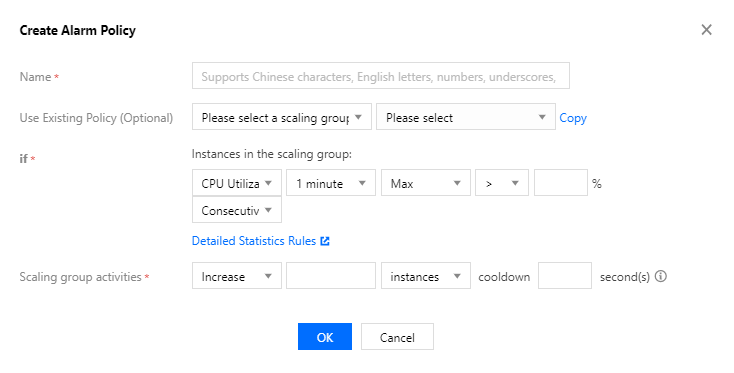
You need to specify the conditions and actions when creating an alarm policy, as shown in the figure below:
Condition format: a metric + threshold + period + number of consecutive periods during which the threshold is reached. This indicates an alarm is triggered when the value of the metric breaches the threshold that you defined for the number of periods that you specified.
Execution actions: sending notification(s) + adding/removing the specified number of CVMs
We recommend you create two policies for each scaling group, one for scale-out and one for scale-in. Once the traffic to your web application reaches the threshold of the alarm policy, AS executes the associated policy to scale your group in (by terminating instances) or out (by launching instances).
Scenarios
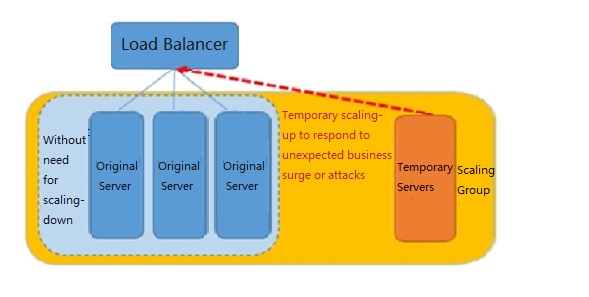
For example, assume you have an e-commerce web application that currently runs on five instances. You plan to carry out a promotional activity and are concerned that the access traffic might be much greater than you expect. In this case, you can configure a scaling group to add two new instances when the load on the current instances reaches 70%, and terminate the extra instances when the load decreases to 40%. This is shown in the figure below:
Directions
1. Log in to the Auto Scaling console and click Scaling group in the left sidebar.
2. Click the ID/Name of the scaling group you want to modify to enter its details page, as shown in the figure below:
3. Select the Alarm Trigger Policy tab and configure the alarm-triggered policy associated with the scaling group on this page, as shown in the figure below:
Click Create to add a new alarm-triggered policy.
Click Delete to delete the alarm-triggered policy.
Preventing Specified CVMs from Being Removed by the Scaling Policy
For the proper running of your existing business, if the CVMs in the cluster are used for the following purposes, you need to prevent them from being removed by the scale-in policy:
Multiple purposes: apart from the tasks specified by the cluster, a CVM in the cluster is also used for other purposes, for example the CVM is used as both a cache server and a file server.
Data storage: the CVM is stateful or stores data that other CVMs do not have. For example, the CVM stores the incremental data of other running CVMs in a cluster.
Image/Snapshot updates: the CVM is used to regularly update images and snapshots.
Configuration:
1. In the scaling group list, click the scaling group to which the CVM belongs to go to the management page.
2. Select the Bind with Instance tab and click Enable Removal Protection for the instance.