tencent cloud

Auto Scaling

Product Introduction
Overview
Strengths
Scenarios
Service Limits
Access Management
Purchase Guide
Getting Started
Creating a Scaling Plan in 5 Minutes
Step 1:Creating a Launch Configuration
Step 2:Creating a Scaling Group
Step 3:Creating a Scaling Policy
Tutorial
Creating Web Services
Creating High-performance Computing Cluster
Creating Servers for Sending Requests
Configuring For High Availability Services
Launch Configuration
Launch Configuration Overview
Creating a Launch Configuration
Viewing Launch Configuration List
Modifying Launch Configurations
Exception Detection
Scaling Groups
Scaling Group Overview
Creating a Scaling Group
Viewing Scaling Group List
Modifying Scaling Groups
Modifying Bound Instances
Adding CLBs
Delete scaling group
Creating Notifications
Creating Scaling Activity Notifications
Specifying Notification Recipients
Expanding and Reducing Capacity
Auto Scaling Lifecycle Hook
Managing Scheduled Actions
Managing an Alarm-triggered Policy
Instance Health Check
Expanding Capacity Manually
Scale-in Process
Viewing Scaling Activities
Suspending and Resuming Scaling
Scale-in Removal Protection
Scaling Activity Cancelled
Scaling Activity Failed
Cooldown Period
Monitoring
Monitor Alarm Metrics
Running Status Check
Scheduled Task
Scheduled Task Execution Time Description
Troubleshooting
Scaling Group Doesn't Work
Scaling Activity Failed
Use Cases
Setting a Fixed Outbound IP Address for Scaling Groups
Deploying Elastic Web Application Service
Enabling Services Upon CVM Start-up
Customer Cases
iCarbonX
API Documentation
History
Introduction
API Category
Making API Requests
Scaling Group APIs
Scaling Group Instances APIs
Launch Configuration APIs
Scheduled Action APIs
Alarm Trigger Policy APIs
Notification APIs
Lifecycle Hook APIs
Instance Refresh APIs
Other APIs
Data Types
Error Codes
FAQs
Contact Us
Glossary

Suspending and Resuming Scaling

PDF
Modo Foco
Tamanho da Fonte
Última atualização: 2024-01-08 17:53:30

Overview

If you need to troubleshoot any problems related to configurations or Web applications (for example, shutdown to reset a password and upgrade services), and you want to modify the applications without triggering the auto scaling process, you can disable the scaling group and recover it after troubleshooting.

Suspending a Scaling Group

Notes

After a scaling group is disabled, the automatically triggered activities will not proceed.
Automatically triggered activities include:
Alarm-based scaling
Scheduled actions
Health checks
Matching the current capacity due to manual operations with the desired capacity
Scaling group restrictions include:
If manual addition causes the current capacity to be more than the max capacity, the addition will not be permitted.
Modifying the min or max capacity of the scaling group does not trigger a scaling action, but the modification takes effect.
Manual removal of instances is not limited by the min capacity.

Directions

1. Log in to the Auto Scaling console and select Scaling group on the left sidebar.
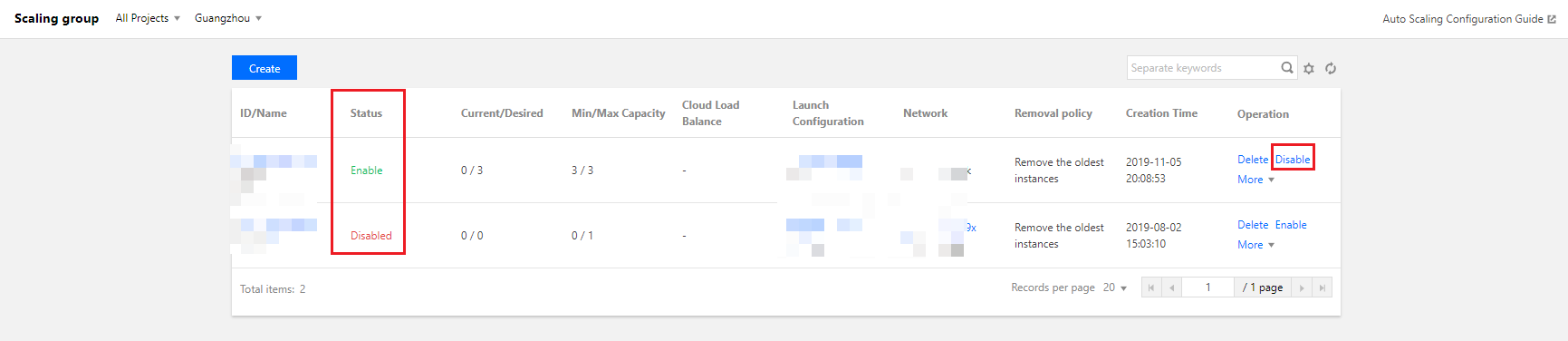
2. On the Scaling group page, locate the scaling group to be disabled, click Disable under the Operation column, and click OK in the pop-up window. Then, you can see that the scaling group is in “Disabled” status, as shown in the following figure:


Recovering a Scaling Group

If you have finished troubleshooting, you can recover the auto scaling configuration.
1. Log in to the Auto Scaling console and select Scaling group on the left sidebar.
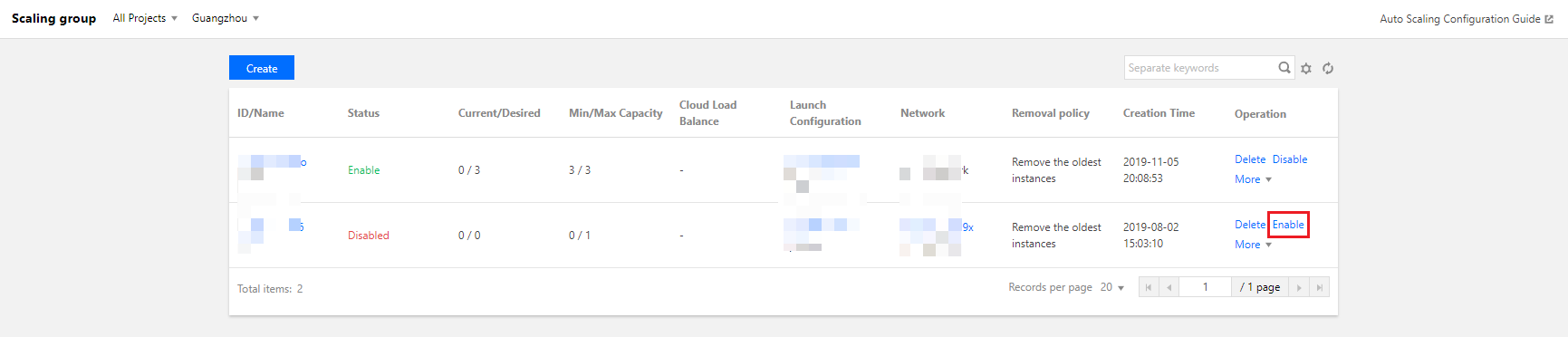
2. On the Scaling group page, locate the scaling group to be enabled, and click Enable under the Operation column, as shown in the following figure:
Ajuda e Suporte

Esta página foi útil?

comentários