TKE Authenticator Component Practice Guide
Baixar
Modo Foco
Tamanho da Fonte
Component Introduction
TkeAuthenticator is a Kubernetes Authentication Webhook and Authorization Webhook service that provides CAM-based Identity Authentication and access control for TKE clusters.This component allows users to access Kubernetes clusters using their Tencent Cloud CAM (Cloud Access Management) identity, without storing any static cluster credentials locally, such as x509 client certificates or static tokens. It also supports integrating Kubernetes RBAC with Tencent Cloud CAM user groups to enable fine-grained access control for sub-accounts.
Use Cases
Capability | Description | Corresponding Kubernetes Stage |
CAM identity authentication (CAM Identity Authentication) | Authenticate users through CAM identities and map CAM users/roles to Kubernetes RBAC users and user groups. Use with tke-cam-tool to build a bridge from CAM identities to Kubernetes RBAC users/groups. | |
CAM user group authorization (CAM User Group Authorization) | Perform Kubernetes RBAC authorization based on CAM user groups, and support batch management of cluster permissions by user group. A CAM user group is a collection of users (sub-accounts) with the same responsibilities, and is suitable for quickly granting the same Kubernetes object access permissions to sub-accounts with the same responsibilities. |
Component Description
Note:
UserGroupAccessControl (CAM user group authentication) was originally a standalone component and has now been merged into TkeAuthenticator for unified deployment.Authentication and authorization are two fully independent functional modules that correspond to the Authentication and Authorization stages in the Kubernetes request processing flow, with no functional dependency between them.
After
TkeAuthenticator is installed, both features are enabled by default and require no additional configuration. You can also use either feature independently.Limits
1. TKE managed cluster with Kubernetes version 1.20 or later.
2. The
TkeAuthenticator component version must be 1.0.0 or later.Installing Components
1. Log in to the TKE console and select Cluster in the left sidebar.
2. On the Cluster Management page, click the target cluster ID to go to the Cluster Details page.
3. Select Component Management in the left sidebar, and click Create on the Component Management page.
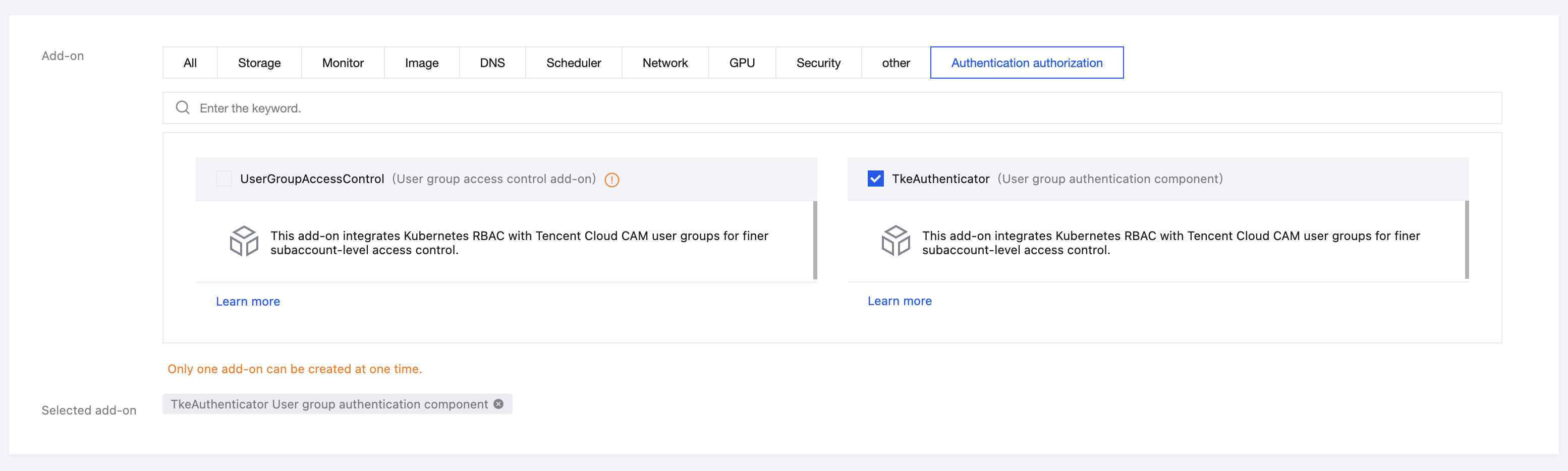
4. On the Create Component page, select the Authentication and Authorization module and check TkeAuthenticator, as shown in the following figure:
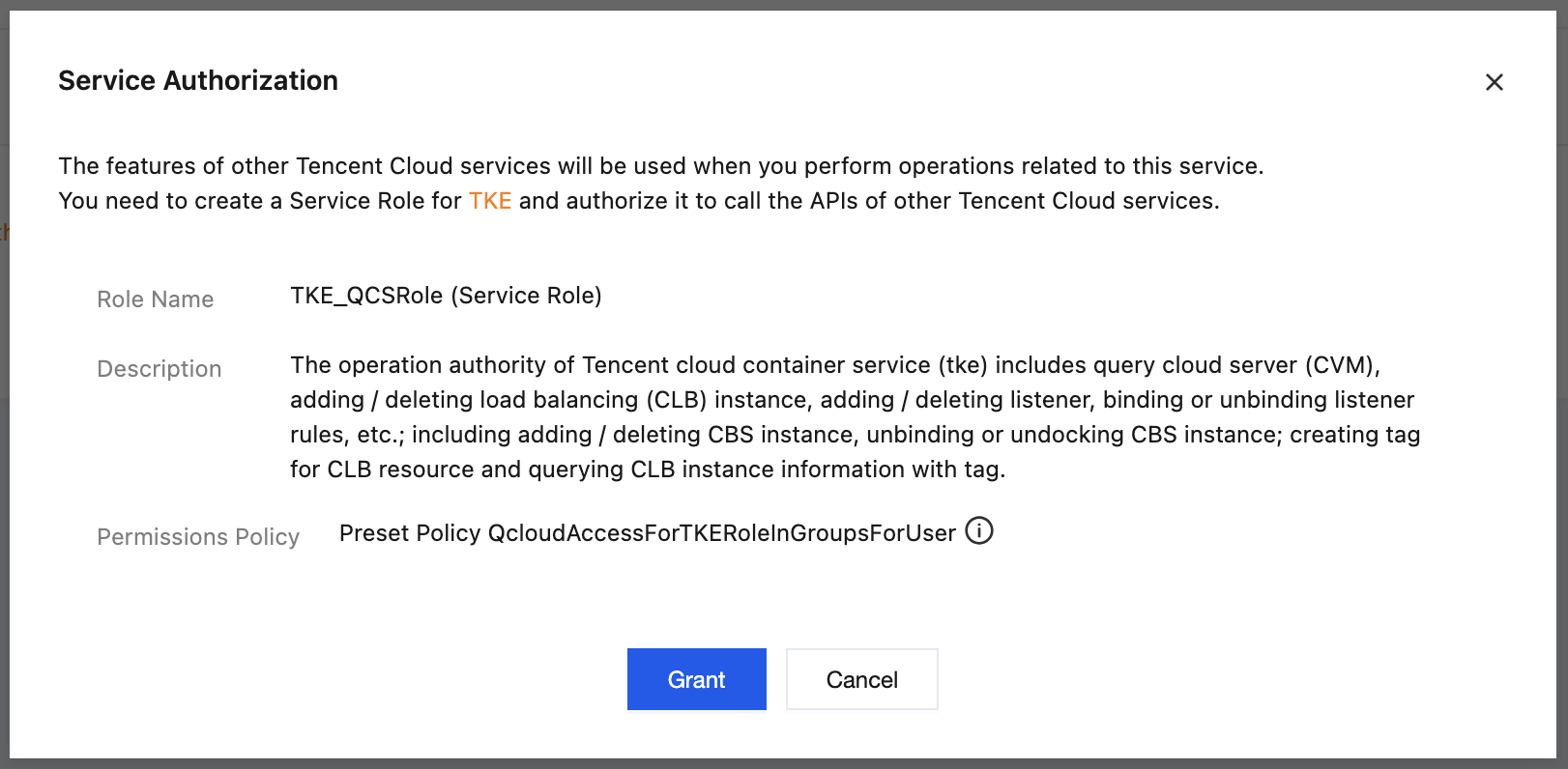
5. Click Service Authorization. To allow TKE to read the user group information under your account, you need to authorize the role
TKE_QCSRole to associate with the preset policy QcloudAccessForTKERoleInGroupsForUser during component installation. as shown in the following figure:
On the Service Authorization page, confirm the role name and authorization policy, and click Agree and Authorize.
6. Go back to the Create Component page and click Done. After the installation is complete, you can view the component status and details on the Component Management page.
CAM Identity Authentication
The CAM identity authentication feature of
TkeAuthenticator is implemented through the Authentication Webhook, which maps Tencent Cloud CAM identities to Kubernetes RBAC users and user groups. When used together with tke-cam-tool, TkeAuthenticator builds a bridge from CAM identities to Kubernetes RBAC users/groups, eliminating the need to store any static cluster credentials locally, such as x509 client certificates or static tokens.This "bridge" is implemented by a Custom Resource Definition (CRD) named CAMIdentityMapping, which defines how CAM identities are mapped to Kubernetes users/groups.
How It Works
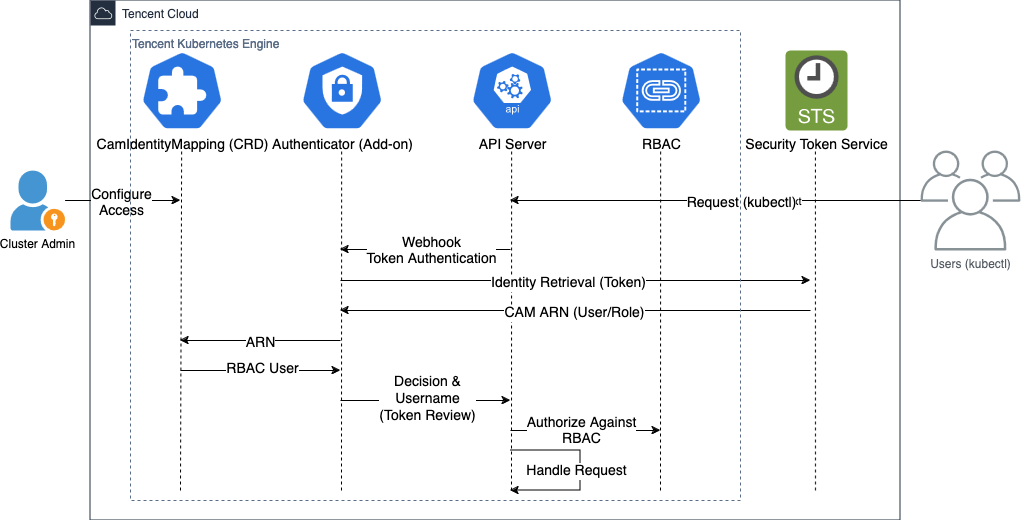
The TkeAuthenticator authentication process is shown in the following figure:
Process description:
1. User request: The user sends a request with a token to the Kubernetes API Server through kubectl.
2. Webhook authentication: The API Server encapsulates the token into a TokenReview request and forwards it to
TkeAuthenticator.3. Authentication:
TkeAuthenticator sends the request in the token to the Tencent Cloud Security Token Service (STS) and calls GetCallerIdentity to obtain the user's CAM identity information (ARN).4. Mapping lookup:
TkeAuthenticator searches all CAMIdentityMapping resources for a mapping rule that matches the ARN, and returns the corresponding Kubernetes RBAC username and user groups to the API Server.5. RBAC authorization: The API Server uses the returned username and user groups to perform standard RBAC authorization by checking RoleBinding / ClusterRoleBinding.
6. Request processing: After authentication succeeds, the API Server processes the user request and returns the result.
Note:
If no match is found for the ARN in any
CAMIdentityMapping, TkeAuthenticator returns a "Not Authenticated" decision, and the user sees an "Unauthorized" error.Token Mechanism
Users need a special token signed by Tencent Cloud credentials to authenticate with the Kubernetes API Server.
This token is essentially a serialized GetCallerIdentity request, which is subsequently sent by
TkeAuthenticator to the STS service to obtain the user's CAM identity. The Tencent Cloud credentials used to sign the request, which generate the signature in the Authorization header, represent the CAM identity that the user wants to be authenticated as. For example, if a token is signed with the Secret ID and Secret Key of a sub-account, the token will be authenticated as that sub-account.Token format:
A Token consists of the fixed prefix
k8s-tke-v1. and a base64-encoded JSON object:k8s-tke-v1.<base64-encoded JSON>
The decoded JSON structure is as follows:
{"clusterId": "cls-*****","header": {"Authorization": ["TC3-HMAC-SHA256 Credential=AKID*****/2024-09-03/sts/tc3_request, SignedHeaders=content-type;host;x-tc-action;x-tc-tke-clusterid, Signature=*****"],"Content-Type": ["application/json; charset=utf-8"],"Host": ["sts.internal.tencentcloudapi.com"],"X-TC-Action": ["GetCallerIdentity"],"X-TC-TKE-ClusterID": ["cls-*****"],"X-TC-Timestamp": ["1725332268"],"X-TC-Token": ["*****"],"X-TC-Version": ["2018-08-13"]}}
Required Header fields:
Field | Description |
Authorization | |
Content-Type | Request content type. |
Host | STS service endpoint address. |
X-TC-Action | Fixed to GetCallerIdentity. |
X-TC-TKE-ClusterID | Cluster ID accessible by the token. |
Header fields that must be signed (must appear in the SignedHeaders of Authorization):
content-typehostx-tc-actionx-tc-tke-clusterid (ensures that the token can only be used to access the specified cluster)Note:
The token is valid for 5 minutes, as determined by the signature validity period in the Authorization header. For details, see Tencent Cloud Common Request Parameters.
Client Tool (tke-cam-tool)
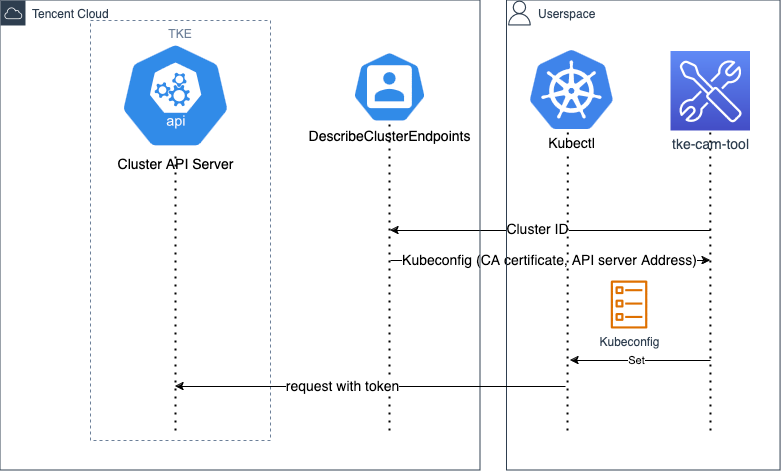
tke-cam-tool is a CLI tool that helps users generate the kubeconfig file and token required to access the Kubernetes API Server.The usage process of tke-cam-tool is shown in the following figure:
Generating a Token
tke-cam-tool generates a token by using the Tencent Cloud credentials provided by the user:tke-cam-tool exec-cred token --cluster-id <CLUSTER_ID> [FLAGS...]
The generated token is encapsulated in an ExecCredential object and output to standard output for kubectl to capture and parse:
{"kind": "ExecCredential","apiVersion": "client.authentication.k8s.io/v1beta1","spec": { "interactive": false },"status": {"expirationTimestamp": "2024-10-12T09:18:05Z","token": "k8s-tke-v1.<base64-encoded content>"}}
Caching mechanism:
The
expirationTimestamp in ExecCredential indicates the expiration time of the token, and tke-cam-tool reuses cached tokens that have not expired.The generated ExecCredential is valid for 4 minutes, which is 1 minute less than the actual token validity of 5 minutes to reserve time for network transmission.
Use the
--no-cache flag to disable caching and force a new token to be generated each time.When a role is assumed with
--role, a cached token is reused only if the same role ARN, external ID, and session name are used.Generating Kubeconfig
Generate a kubeconfig file that can be used directly to access the cluster:
tke-cam-tool exec-cred kubeconfig --cluster-id <CLUSTER_ID> --region <REGION> [FLAGS...]
This command obtains the API Server address and CA certificate of the cluster by calling the DescribeClusterEndpoints API, and then assembles the kubeconfig file.
The generated kubeconfig leverages the ExecCredential plugin capability of
k8s.io/client-go to dynamically run the tke-cam-tool exec-cred token command to generate a token for each kubectl request. Example:apiVersion: v1clusters:- cluster:certificate-authority-data: BASE64_PEM_ENCODED_CA_CERTIFICATEserver: API_SERVER_ADDRESSname: <CLUSTER_ID> # Automatically generated. The value is the cluster ID.contexts:- context:cluster: <CLUSTER_ID>user: <CLUSTER_ID>-exec-cred-pluginname: <CLUSTER_ID>-exec-cred-plugin-context # Automatically generated.current-context: <CLUSTER_ID>-exec-cred-plugin-contextkind: Configpreferences: {}users:- name: <CLUSTER_ID>-exec-cred-plugin # Automatically generated.user:exec:apiVersion: client.authentication.k8s.io/v1beta1args:- exec-cred- token- --cluster-id- <CLUSTER_ID>- --profile- defaultcommand: tke-cam-toolenv: nullinteractiveMode: NeverprovideClusterInfo: false
Mapping Rules (CAMIdentityMapping)
In step 4 of the workflow described above,
TkeAuthenticator needs to convert CAM identities to Kubernetes users through mapping rules. The mapping rule is CAMIdentityMapping, a Kubernetes CRD (Custom Resource) that defines the mapping from a CAM identity ARN to Kubernetes RBAC users and user groups.When a user is authenticated by
TkeAuthenticator, the component searches all CAMIdentityMapping resources for a rule that matches the user's ARN, and returns the corresponding Kubernetes username and user groups to the API Server.Basic Structure
apiVersion: authenticator.tke.cloud.tencent.com/v1kind: CAMIdentityMappingmetadata:name: <MAPPING_NAME> # Custom resource name, for example: my-sub-account-mappingspec:arn: <CAM_IDENTITY_ARN> # CAM identity ARN, for example: qcs::cam::uin/100000000001:uin/100000000002username: <K8S_USERNAME> # Custom Kubernetes username, for example: my-usergroups: # Mapped Kubernetes user groups (optional)- <GROUP_1> # Custom user group name, for example: dev-team- <GROUP_2> # Custom user group name, for example: read-only
Field description:
Field | Required | Description |
metadata.name | Yes | Resource name. You can customize it. It must be unique within the cluster. |
spec.arn | Yes | ARN of the CAM identity, used to match authenticated users. Exact match and wildcards are supported. |
spec.username | Yes | Kubernetes username returned to the API Server after successful authentication. |
spec.groups | No | List of Kubernetes groups returned to the API Server after successful authentication. |
Complete Examples
Map the sub-account to a Kubernetes user, and add it to custom user groups and all CAM user groups that the sub-account belongs to:
apiVersion: authenticator.tke.cloud.tencent.com/v1kind: CAMIdentityMappingmetadata:name: <MAPPING_NAME> # Custom resource name, for example: my-sub-account-mappingspec:arn: qcs::cam::uin/<ROOT_ACCOUNT_ID>:uin/<SUB_ACCOUNT_ID>username: <K8S_USERNAME> # Custom Kubernetes username, for example: my-usergroups:- read-group # Custom user group name- write-group # Custom user group name- {{CAMUserGroupIDs}}
Supported ARN Types
An ARN (Access Resource Name) is a globally unique CAM identity identifier in the format of
qcs::SERVICE:(REGION:)ACCOUNT:RESOURCE.Type | ARN Format | Example |
Root Account | qcs::cam::uin/<ROOT_ACCOUNT_ID>:root | qcs::cam::uin/100000000001:root |
Sub-account. | qcs::cam::uin/<ROOT_ACCOUNT_ID>:uin/<SUB_ACCOUNT_ID> | qcs::cam::uin/100000000001:uin/100000000002 |
CAM Role | qcs::cam::uin/<ROOT_ACCOUNT_ID>:role/<ROLE_ID> | qcs::cam::uin/100000000001:role/4611686018427000001 |
Associating Accounts | qcs::sts::uin/<ROOT_ACCOUNT_ID>:federated-user/<UIN> | qcs::sts::uin/100000000001:federated-user/100000000002 |
Wildcard | qcs::cam::uin/<ROOT_ACCOUNT_ID>:uin/* | Matches all sub-accounts under this root account. |
Note:
A UIN is a user ID. You can view it by clicking the avatar in the upper-right corner of the Tencent Cloud console.
Placeholders
You can use placeholders in
username and groups. They will be automatically replaced with actual values after successful authentication. All placeholders are enclosed in double curly braces {{}}.Common placeholders (available for both username and groups):
Placeholder | Description |
{{AccountID}} | Root account ID to which the CAM identity belongs |
{{SessionName}} | Session name of the CAM identity (valid only for CAM roles) |
{{SecretID}} | Tencent Cloud Secret ID used for Token signing |
Example: Use
{{AccountID}} as the username:apiVersion: authenticator.tke.cloud.tencent.com/v1kind: CAMIdentityMappingmetadata:name: <MAPPING_NAME> # Custom resource name, for example: account-id-mappingspec:arn: qcs::cam::uin/<ROOT_ACCOUNT_ID>:uin/<SUB_ACCOUNT_ID>username: {{AccountID}}
Placeholders available only for groups:
Placeholder | Description |
{{CAMUserGroupIDs}} | IDs of all CAM user groups to which the sub-account belongs (valid only for sub-accounts) |
{{CAMUserGroupIDs}} is automatically expanded to all CAM user group IDs that the sub-account belongs to during authentication. You can add custom prefixes or suffixes before and after the placeholder to control the format of the returned user groups.Example: Use
{{CAMUserGroupIDs}} to associate user groups:apiVersion: authenticator.tke.cloud.tencent.com/v1kind: CAMIdentityMappingmetadata:name: <MAPPING_NAME> # Custom resource name, for example: cam-group-mappingspec:arn: qcs::cam::uin/<ROOT_ACCOUNT_ID>:uin/<SUB_ACCOUNT_ID>username: <K8S_USERNAME> # Custom Kubernetes username, for example: my-usergroups:- cam-group-{{CAMUserGroupIDs}}
Assume that a sub-account belongs to CAM user groups
56789 and 67890. The user groups returned after authentication are:cam-group-56789cam-group-67890Note:
If the sub-account does not belong to any CAM user group, the placeholder does not produce any user groups.
{{CAMUserGroupIDs}} is valid only when the CAM identity is a sub-account. If the CAM identity is a role or federated account, the placeholder does not produce any user groups.Getting Started
The following steps demonstrate how to access a Kubernetes cluster and read Pod resources as a CAM identity.
Before you begin, make sure that:
1.
kubectl is installed locally.2. Public network access has been enabled for the cluster.
Note:
After you enable public network access for the cluster, configure custom public network domain name resolution.
Step 1: Installing tke-cam-tool
Select and download the binary tool that matches your client architecture. Tool download URL: https://mirrors.tencent.com/install/tke-cam-tool/v0.0.9/
Step 2: Obtaining Tencent Cloud Credentials
Based on your credential type, choose one of the following methods:
Method | Scenario | Credential Type |
Existing sub-account Secret ID / Secret Key | Permanent Keys | |
Log in through enterprise SSO or Tencent Cloud account OAuth. | Temporary Keys |
Method 1: Using Tencent Cloud Keys
This applies to scenarios where you already have Tencent Cloud sub-account credentials.
export TENCENTCLOUD_SECRET_ID=<YOUR_SECRET_ID>export TENCENTCLOUD_SECRET_KEY=<YOUR_SECRET_KEY>
Note:
If you do not have Tencent Cloud credentials yet, log in to the Tencent Cloud console as a sub-account and click Access Key on the left side of the CAM page to obtain them.
Make sure that you are using a sub-account credential instead of a root account credential, because the credential represents the CAM identity for accessing the cluster.
See Creating Credentials for Sub-Accounts to learn how to create credentials for a sub-account.
Method 2: Using SSO Login
This applies to scenarios where you log in through enterprise SSO or Tencent Cloud account OAuth, eliminating the need to manually manage credentials. Choose one of the following methods to complete the login:
Enterprise SSO Login (log in through the enterprise unified identity provider IdP):
# Configure the SSO Login URL# Replace <YOUR_SSO_ID> with the enterprise SSO configuration ID (obtain it from the enterprise IdP administrator)tccli sso configure --url https://tencentcloudsso.com/<YOUR_SSO_ID>/login# Perform Logintccli sso login
Tencent Cloud Account OAuth Login (log in directly with a Tencent Cloud account):
tccli auth login
Complete the login in your browser as prompted. After a successful login, the credentials are automatically written to
~/.tccli/default.credential.Step 3: Deploying CAMIdentityMapping
Create a
CAMIdentityMapping to map CAM identities to Kubernetes users. The way to fill in the arn field varies depending on the method selected in step 2:Note:
Hover over the avatar in the upper-right corner of the Tencent Cloud console to view the root account ID and sub-account ID.
Configuration for Method 1 (Key)
When using a sub-account credential, fill in the CAM user ARN of the sub-account in
arn:apiVersion: authenticator.tke.cloud.tencent.com/v1kind: CAMIdentityMappingmetadata:name: <MAPPING_NAME> # Custom resource name, for example: my-cam-mappingspec:arn: qcs::cam::uin/<ROOT_ACCOUNT_ID>:uin/<SUB_ACCOUNT_ID>username: <K8S_USERNAME> # Custom Kubernetes username, for example: my-user. Subsequent RBAC bindings must match this username.
Configuration for Method 2 (SSO)
When you use SSO login, the credentials are temporary keys. You need to assume a CAM role through
--role, and fill in the ARN of that role in arn:apiVersion: authenticator.tke.cloud.tencent.com/v1kind: CAMIdentityMappingmetadata:name: <MAPPING_NAME> # Custom resource name, for example: my-cam-mappingspec:arn: qcs::cam::uin/<ROOT_ACCOUNT_ID>:role/<ROLE_ID>username: <K8S_USERNAME> # Custom Kubernetes username, for example: my-user. Subsequent RBAC bindings must match this username.
Note:
Step 4: Creating RBAC Permission Rules
Grant the mapped user permission to read Pods (
<K8S_USERNAME> must match the username in the CAMIdentityMapping above):apiVersion: rbac.authorization.k8s.io/v1kind: ClusterRolemetadata:name: <CLUSTER_ROLE_NAME> # Custom ClusterRole name, for example: pod-readerrules:- apiGroups: [""]resources: ["pods"]verbs: ["get", "list"]---apiVersion: rbac.authorization.k8s.io/v1kind: ClusterRoleBindingmetadata:name: <BINDING_NAME> # Custom ClusterRoleBinding name, for example: my-bindingroleRef:apiGroup: rbac.authorization.k8s.iokind: ClusterRolename: <CLUSTER_ROLE_NAME> # References the name of the ClusterRole created abovesubjects:- kind: UserapiGroup: rbac.authorization.k8s.ioname: <K8S_USERNAME> # Must match the username in CAMIdentityMapping, for example: my-user
Step 5: Generating kubeconfig
Confirm that public network access is enabled for the cluster, and set the cluster ID and region:
export CLUSTER_ID=<YOUR_CLUSTER_ID> # For example: cls-xxxxxxxxexport REGION=<YOUR_REGION> # For example: ap-guangzhou
Note:
You can view the cluster ID on the Cluster List page in the Tencent Cloud console.
Based on the method selected in step 2, run the corresponding command:
Generating kubeconfig with Method 1 (Key)
tke-cam-tool exec-cred kubeconfig \\--cluster-id ${CLUSTER_ID} \\--region ${REGION} \\-o ${CLUSTER_ID}.kubeconfig
Generating kubeconfig with Method 2 (SSO)
SSO temporary keys cannot be used to directly sign tokens. You need to assume a CAM role through
--role:tke-cam-tool exec-cred kubeconfig \\--cluster-id ${CLUSTER_ID} \\--region ${REGION} \\--profile default \\--token-profile default \\--role qcs::cam::uin/<ROOT_ACCOUNT_ID>:roleName/<ROLE_NAME> \\ # Replace with the actual root account ID and role name-o ${CLUSTER_ID}.kubeconfig
Parameter description:
Parameter | Description |
--profile default | Use the credentials written during SSO login to call TKE APIs to obtain cluster information. |
--token-profile default | Credentials used when kubectl in kubeconfig calls tke-cam-tool |
--role | Assume a CAM role to obtain new temporary credentials in the format qcs::cam::uin/<ROOT_ACCOUNT_ID>:roleName/<ROLE_NAME>. Replace <ROOT_ACCOUNT_ID> with the root account ID (for example, 100000000001) and <ROLE_NAME> with the CAM role name (for example, TKE_QCSRole). |
Step 6: Verifying Access
# Can read pods (authorized)kubectl --kubeconfig ${CLUSTER_ID}.kubeconfig get pod# Cannot read deployments (unauthorized)kubectl --kubeconfig ${CLUSTER_ID}.kubeconfig get deployment# Error from server (Forbidden): deployments.apps is forbidden: User "<K8S_USERNAME>" cannot list resource "deployments" in API group "apps" in the namespace "default"
CAM User Group Authorization
TkeAuthenticator has a built-in authentication feature based on CAM user groups (Authorization Webhook), which integrates the Kubernetes RBAC permission management mechanism with Tencent Cloud CAM user groups to facilitate fine-grained access control over sub-accounts. After the component is installed, this feature is enabled by default.Use Cases
A CAM user group is a collection of users (sub-accounts) with the same responsibilities. It supports features such as batch authorization and subscription message configuration. This feature is suitable for scenarios where you need to quickly configure the same Kubernetes object access permissions for sub-accounts with the same responsibilities in a TKE cluster.
For example:
All members of the development team need read and write permissions on certain namespaces.
The Ops team needs cluster-level administrative permissions.
The testing team only needs read-only permissions on specific namespaces.
You can achieve batch permission management by adding sub-accounts to the corresponding CAM user groups and binding Kubernetes RBAC rules to the user groups, eliminating the need to configure RBAC rules for each user individually.
How It Works
The authentication process is as follows:
1. User request: The user sends a request to the API Server through kubectl (the authentication phase has already been completed at this point).
2. Forward authentication: The API Server encapsulates the request into a
SubjectAccessReview and forwards it to the /authorize endpoint of TkeAuthenticator.3. Query user groups: TkeAuthenticator extracts the user identifier (UIN) from the request, and then queries the cache or calls the Tencent Cloud CAM ListGroupsForUser API to obtain all user groups to which the user belongs.
4. RBAC evaluation: TkeAuthenticator appends the user group IDs to the user's groups, evaluates RBAC rules locally (ClusterRole/Role + ClusterRoleBinding/RoleBinding), and makes an authorization decision.
5. Return result: TkeAuthenticator returns the authorization decision (Allow / Deny / NoOpinion) to the API Server.
Note:
If the user does not belong to any CAM user group, or no matching authorization is found in the RBAC rules,
NoOpinion is returned, and the API Server continues to use other authorizers (such as the built-in RBAC) for authentication.Getting Started
Step 1: Creating a User Group
You need to create a user group in CAM. For detailed operations, see Creating a User Group. If you already have a user group, you can skip this step.
Step 2: Creating RBAC Rules Based on a User Group
You can create RBAC rules for a user group in the following two ways:
Method | Scenario |
Operate through the visual page, suitable for users unfamiliar with YAML. | |
Create resources through YAML files, suitable for users familiar with Kubernetes. |
Method 1: Using the TKE Console
1. Choose Authorization Management > ClusterRole in the left sidebar, and click RBAC Policy Generator on the ClusterRole page.
2. In Create ClusterRole, select User Group as the account type and select the user group, as shown in the following figure:
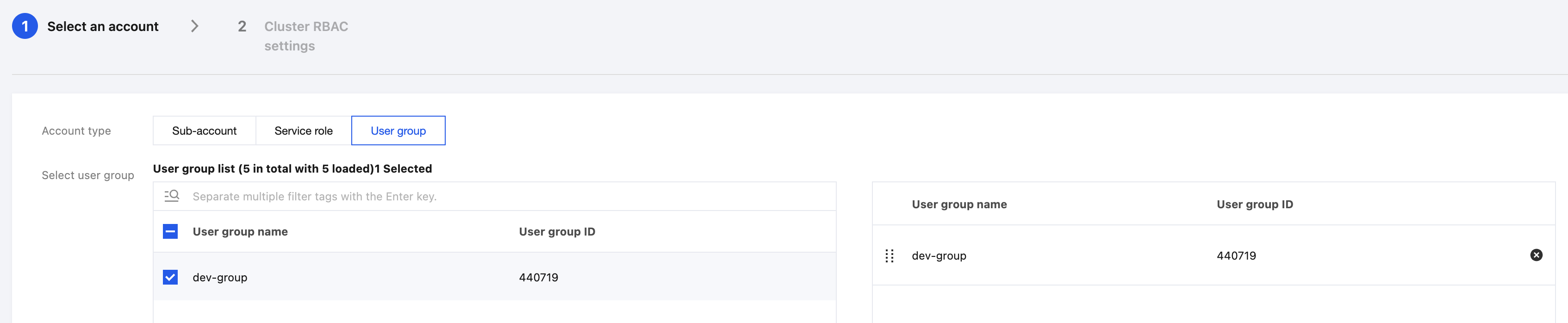
3. Click Next. In Cluster RBAC Settings, configure Kubernetes object resource permissions for the specified user group.
4. Click Complete.
View role binding policies:
Choose Authorization Management > ClusterRoleBinding in the left sidebar, and view the permission policy information whose name starts with the user group ID in ClusterRoleBinding.
Note:
If you need to change operation permissions for Tencent Cloud resources, such as migrating sub-accounts within a group or adding/removing operation permissions for cloud products, you only need to make modifications in the user group on the CAM side. The permission changes take effect immediately in the role binding policies you created. For detailed operations, see Adding/Removing Users to/from a User Group.
Method 2: Using the kubectl Command Line
Assuming the CAM user group ID is
<CAM_USER_GROUP_ID> (for example, 12345), create the following RBAC rule to allow members of this user group to read all Pods:apiVersion: rbac.authorization.k8s.io/v1kind: ClusterRolemetadata:name: <CLUSTER_ROLE_NAME> # Custom ClusterRole name, for example: pod-readerrules:- apiGroups: [""]resources: ["pods"]verbs: ["get", "list", "watch"]---apiVersion: rbac.authorization.k8s.io/v1kind: ClusterRoleBindingmetadata:name: <BINDING_NAME> # Custom ClusterRoleBinding name, for example: cam-group-bindingroleRef:apiGroup: rbac.authorization.k8s.iokind: ClusterRolename: <CLUSTER_ROLE_NAME> # References the name of the ClusterRole created abovesubjects:- kind: GroupapiGroup: rbac.authorization.k8s.ioname: <CAM_USER_GROUP_ID> # Replace with the CAM user group ID, for example: 12345
Step 3: Verifying Access
Obtain the kubeconfig file of the cluster (which can be downloaded from the TKE console or generated using tke-cam-tool), and then use the credentials of this CAM user to verify access:
# Replace ${KUBECONFIG_PATH} with the actual kubeconfig file path# Verify that pods can be read (the user group is authorized)kubectl --kubeconfig ${KUBECONFIG_PATH} get pods# Verify that unauthorized operations cannot be performedkubectl --kubeconfig ${KUBECONFIG_PATH} delete pod some-pod# Expected: A Forbidden error is returned
Use Case: Dividing Permissions by Team
Create CAM user groups for different teams, and then configure different RBAC permissions for each user group in the cluster:
# Development team - Can read and write the dev namespaceapiVersion: rbac.authorization.k8s.io/v1kind: RoleBindingmetadata:name: <BINDING_NAME> # Custom RoleBinding name, for example: dev-team-bindingnamespace: devroleRef:apiGroup: rbac.authorization.k8s.iokind: ClusterRolename: edit # Built-in ClusterRole of Kubernetessubjects:- kind: GroupapiGroup: rbac.authorization.k8s.ioname: <DEV_GROUP_ID> # Replace with the CAM user group ID of the development team, for example: 56789---# Ops team - Cluster administrator permissionsapiVersion: rbac.authorization.k8s.io/v1kind: ClusterRoleBindingmetadata:name: <BINDING_NAME> # Custom ClusterRoleBinding name, for example: ops-team-adminroleRef:apiGroup: rbac.authorization.k8s.iokind: ClusterRolename: cluster-admin # Built-in ClusterRole of Kubernetessubjects:- kind: GroupapiGroup: rbac.authorization.k8s.ioname: <OPS_GROUP_ID> # Replace with the CAM user group ID of the Ops team, for example: 67890
Cache management
The authentication module of
TkeAuthenticator has a built-in user group cache mechanism to reduce the frequency of calls to the CAM API.Cache Behavior
Cache TTL: 10 minutes by default.
Cache key: The user UIN is used as the key.
Cache update: After the TTL expires, the CAM API is queried again on the next authentication request.
Migrating from the UserGroupAccessControl Component
If you previously used the standalone
UserGroupAccessControl component, migrate by following these steps:1. Uninstall the old component: Uninstall the standalone
UserGroupAccessControl component on the component management page.2. Install or upgrade TkeAuthenticator: Ensure that the
TkeAuthenticator version installed in the cluster is 1.0.0 or later.3. Keep existing RBAC rules: The ClusterRole/Role and ClusterRoleBinding/RoleBinding previously created for the CAM user group do not need to be modified and can be reused directly.
4. Verify that the feature works properly: Use CAM user credentials to access the cluster and confirm that user group-based permission control works properly.
FAQs
Do I Need to Manually Enable CAM User Group Authentication After Installing TkeAuthenticator?
No. After
TkeAuthenticator is installed, all features (authentication + authorization) are enabled by default and require no additional configuration.How Long Does It Take for User Group Changes to Take Effect?
By default, user group information is cached for 10 minutes. After the cache expires, the next authentication request queries the CAM API again to obtain the latest user group information.
What Happens If a User Does Not Belong to Any CAM User Group?
If the user does not belong to any CAM user group, the authorization webhook returns
NoOpinion (no decision), and the API Server then continues to use other authorizers (such as the built-in RBAC) for authentication.What Is the Relationship Between Authentication Webhook and Authorization Webhook?
Both are provided by
TkeAuthenticator, but they are two completely independent feature modules with no functional dependency on each other:Authentication Webhook (
/authenticate): Responsible for CAM identity authentication, verifying the user's CAM identity and mapping it to Kubernetes users/groups.Authorization Webhook (
/authorize): Responsible for authorization, determining whether a user has permission to perform an operation based on CAM user groups and RBAC rules.In Kubernetes, request processing follows the order of authentication first and authorization second, which is the standard Kubernetes flow. Within the
TkeAuthenticator component, authentication and authorization are implemented independently and are merely deployed together in the same service. You can use either feature alone or both at the same time.Is Namespace-Level Permission Control Supported?
A: Yes. The Authorization Webhook supports evaluating RBAC rules for ClusterRole/ClusterRoleBinding (cluster-level) and Role/RoleBinding (namespace-level). You can configure different permissions for different CAM user groups in different namespaces.
Is the {{CAMUserGroupIDs}} Placeholder Valid for Non-Sub-Account Identities?
Invalid.
{{CAMUserGroupIDs}} is valid only when the CAM identity is a sub-account. If the CAM identity is a role or federated account, the placeholder does not produce any user groups.
Ajuda e Suporte
Esta página foi útil?
Você também pode entrar em contato com a Equipe de vendas ou Enviar um tíquete em caso de ajuda.
comentários