tencent cloud

Serverless Cloud Function

Release Notes and Announcements
Release Notes
Announcements
User Guide
Product Introduction
Overview
Related Concepts
How It Works
Strengths
Scenarios
Related Products
Purchase Guide
Billing Overview
Billing Mode
Billable Items and Billing Modes
Function Computing Power Support
Free Tier
SCF Pricing
Billing Example
Payment Overdue
Getting Started
Creating Event Function in Console
User Guide
Quota Management
Managing Functions
Web Function Management
Log Management
Concurrence Management
Trigger Management
Function URL
A Custom Domain Name
Version Management
Alias Management
Permission Management
Running Instance Management
Plugin Management
Managing Monitors and Alarms
Network Configuration
Layer Management
Execution Configuration
Extended Storage Management
DNS Caching Configuration
Resource Managed Mode Management
Near-Offline Resource Hosting Model
Workflow
Triggers
Trigger Overview
Trigger Event Message Structure Summary
API Gateway Trigger
COS Trigger
CLS Trigger
Timer Trigger
CKafka Trigger
Apache Kafka Trigger
MQTT Trigger
Trigger Configuration Description
MPS Trigger
CLB Trigger Description
TencentCloud API Trigger
Development Guide
Basic Concepts
Testing a Function
Environment Variables
Dependency Installation
Using Container Image
Error Types and Retry Policies
Dead Letter Queue
Connecting SCF to Database
Automated Deployment
Cloud Function Status Code
Common Errors and Solutions
Developer Tools
Serverless Web IDE
Calling SDK Across Functions
Third-Party Tools
Code Development
Python
Node.js
Golang
PHP
Java
Custom Runtime
Deploying Image as Function
Web Framework Development
Deploying Framework on Command Line
Quickly Deploying Egg Framework
Quickly Deploying Express Framework
Quickly Deploying Flask Framework
Quickly Deploying Koa Framework
Quickly Deploying Laravel Framework
Quickly Deploying Nest.js Framework
Quickly Deploying Next.js Framework
Quickly Deploying Nuxt.js Framework
Quickly Deploying Django Framework
Use Cases
Overview
Solutions with Tencent Cloud Services
Business Development
TRTC Practices
COS Practices
CKafka Practice
CLS
CLB Practice
MPS
CDN
CDWPG
VOD
SMS
ES
Scheduled Task
Video Processing
Success Stories
Tencent Online Education
Online Video Industry
Tencent Online Education
Best Practice of Tencent IEG Going Global
API Documentation
History
Introduction
API Category
Making API Requests
Other APIs
Namespace APIs
Layer Management APIs
Async Event Management APIs
Trigger APIs
Function APIs
Function and Layer Status Description
Data Types
Error Codes
SDK Documentation
FAQs
General
Web Function
Billing FAQs
Network FAQs
Log FAQs
SCF utility class
Event Handling FAQs
API Gateway Trigger FAQs
Related Agreement
Service Level Agreement
Contact Us
Glossary

Debugging Function

PDF
Modo Foco
Tamanho da Fonte
Última atualização: 2024-12-02 20:07:18
Online debugging is now supported in the SCF Console, so you can debug and locate problems in the console easily.
Note:
Currently, online debugging can only be performed in Chrome and only supports Node.js 10.15 and Node.js 12.16.

Enabling Debugging Mode


Note
:
Before using the online debugging feature, you need to manually enable the debugging mode for the function. Doing so will change part of the function's original configuration, which will be restored after the debugging mode is disabled. This may affect your business; therefore, please be sure to understand the following:
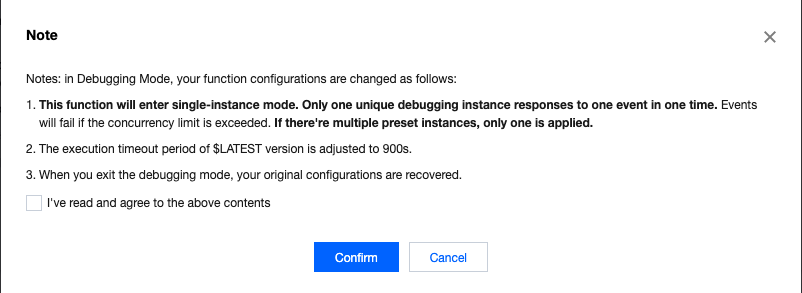
The function will enter the single-instance mode. All its versions can respond to only one event at a time, and if the concurrency limit is exceeded, events will fail.
The execution timeout period is adjusted to 900s and cannot be set during debugging.
Multiple preset instances will be reduced to one single instance.
The execution performance of the function will be reduced after the debugging mode is enabled.
1. Log in to the SCF Console and select "Function Service" on the left sidebar.
2. At the top of the "Function Service" page, select the region of the function for which you want to enable the debugging mode and click the function name to enter the function details page.
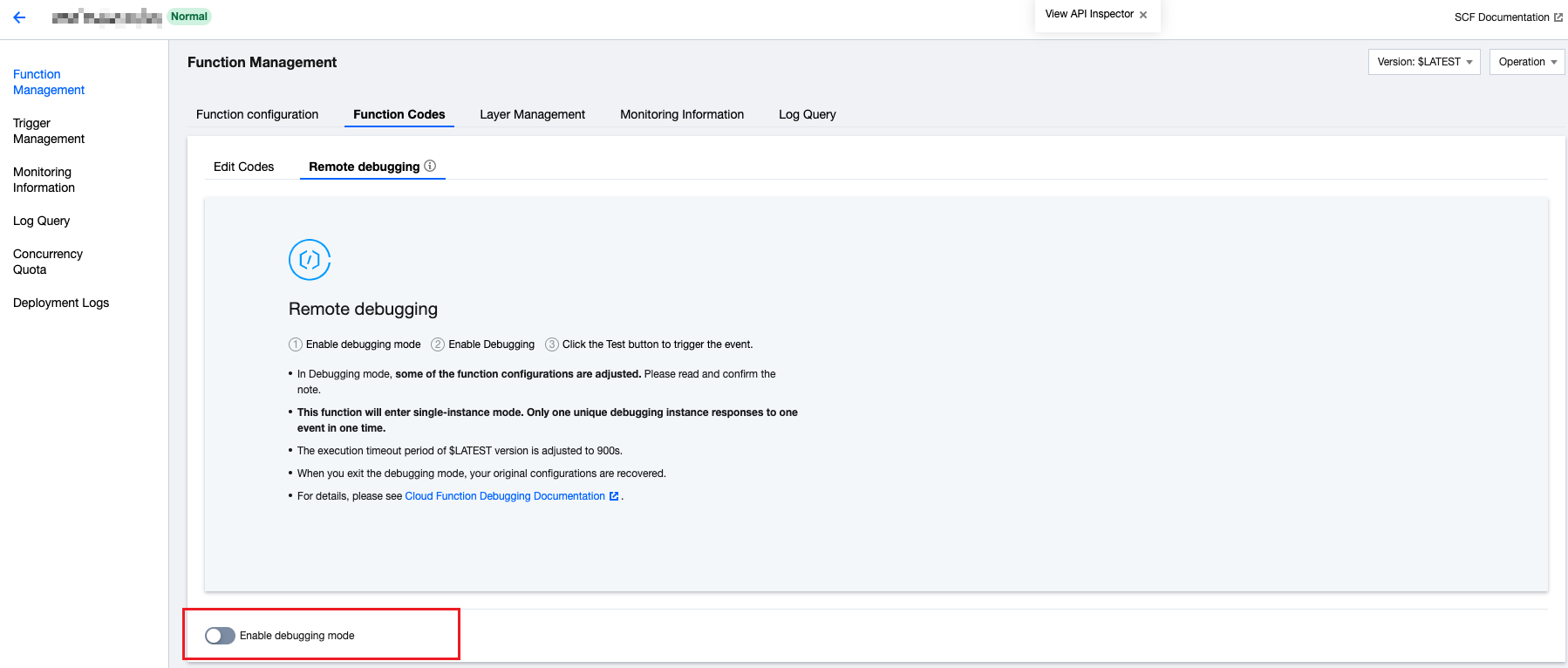
3. Select Function Code > Remote debugging on the "Function Management" page and click Enable debugging mode as shown below:


4. Click Confirm in the pop-up window to enable the debugging mode as shown below:


Debugging

1. After the debugging mode is enabled, debugging will start automatically once the function is updated.
Note:
After the debugging mode is enabled, when you enter the debugging page again, you need to manually select Start debugging.
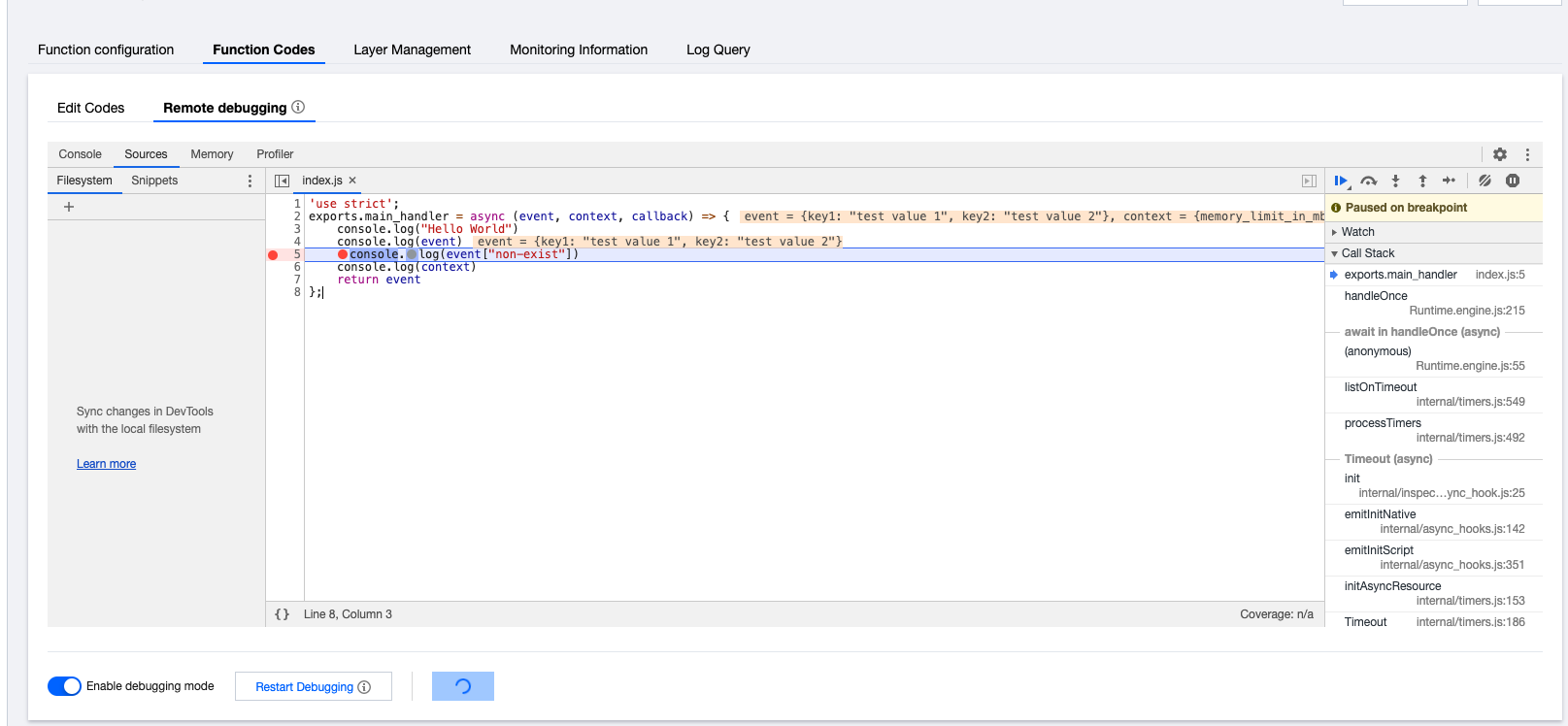
2. After the loading is completed, the page will automatically display the entry file. To open any file you want, use the keyboard shortcut Cmd + P (macOS) or Ctrl + P (Windows).
3. You can set breakpoints as needed and click Test to trigger the test based on the test template as shown below:


Note:
For more information on debugging tools, please see Chrome DevTools.

Disabling Debugging Mode

1. Select Function Code > Remote debugging on the "Function Management" page.
2. Toggle off Enable debugging mode to disable the debugging mode, and the original function configuration will be restored.
Note:
Code changes made on the debugging page will not be synced to the cloud. If you want to save the changed code, please save the changes and use the online code editing feature.

FAQs

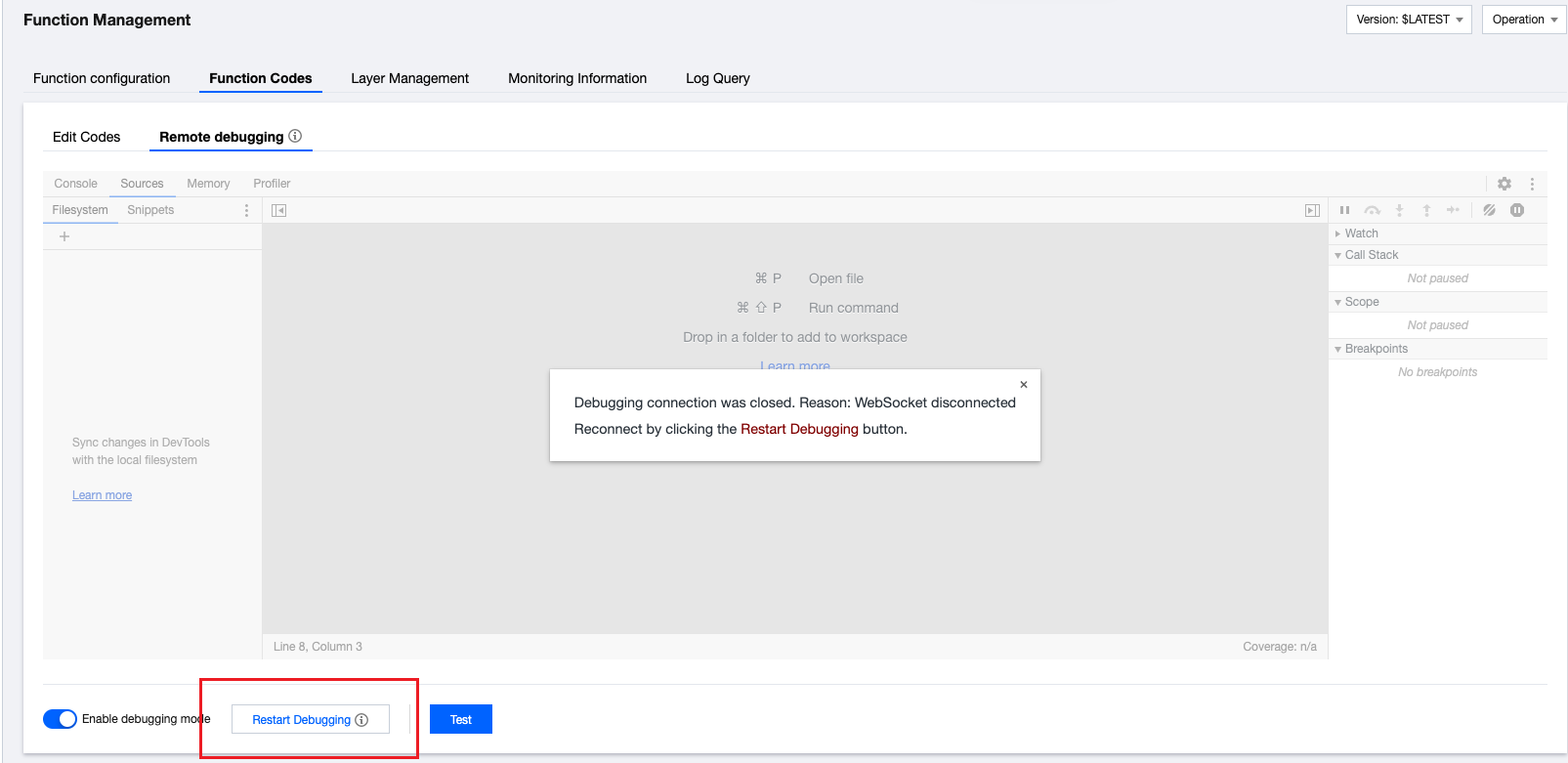
Due to network and code exceptions, the inspector may be disconnected. When an error like the one in the following figure occurs, you need to click Restart debugging to reconnect.


If your function runs normally, but you encounter an OOM error in the debugging mode, you need to increase the memory configured for the function. This way, you can solve the problem of insufficient memory caused by the fact that the function requires more memory in the debugging mode.
Ajuda e Suporte

Esta página foi útil?

comentários