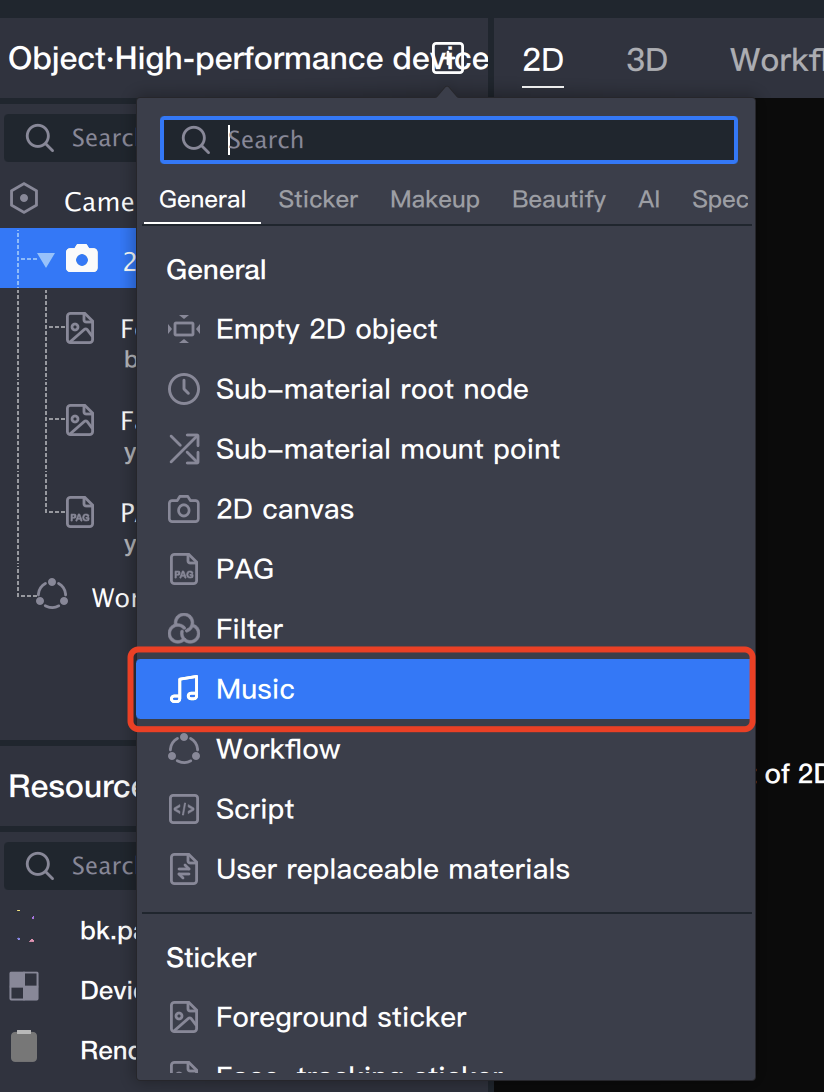
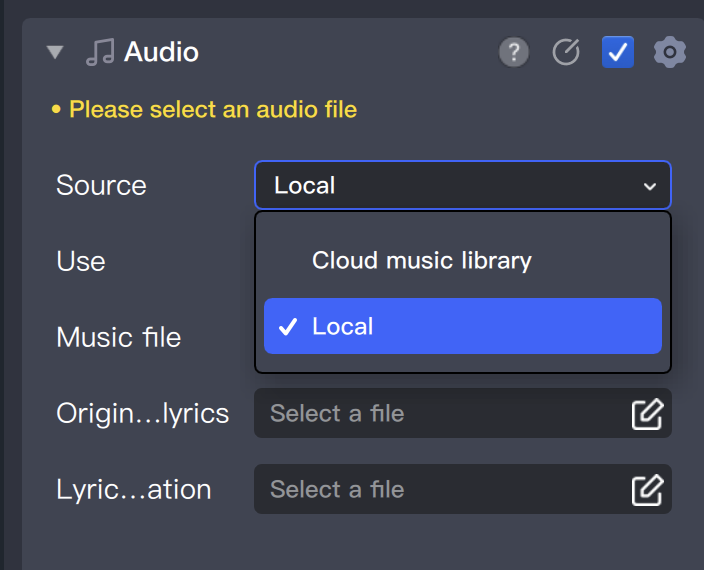
If it is a self-adapted Remix audio (such as adding dialogue/sound effects, etc.), you can directly use local upload.
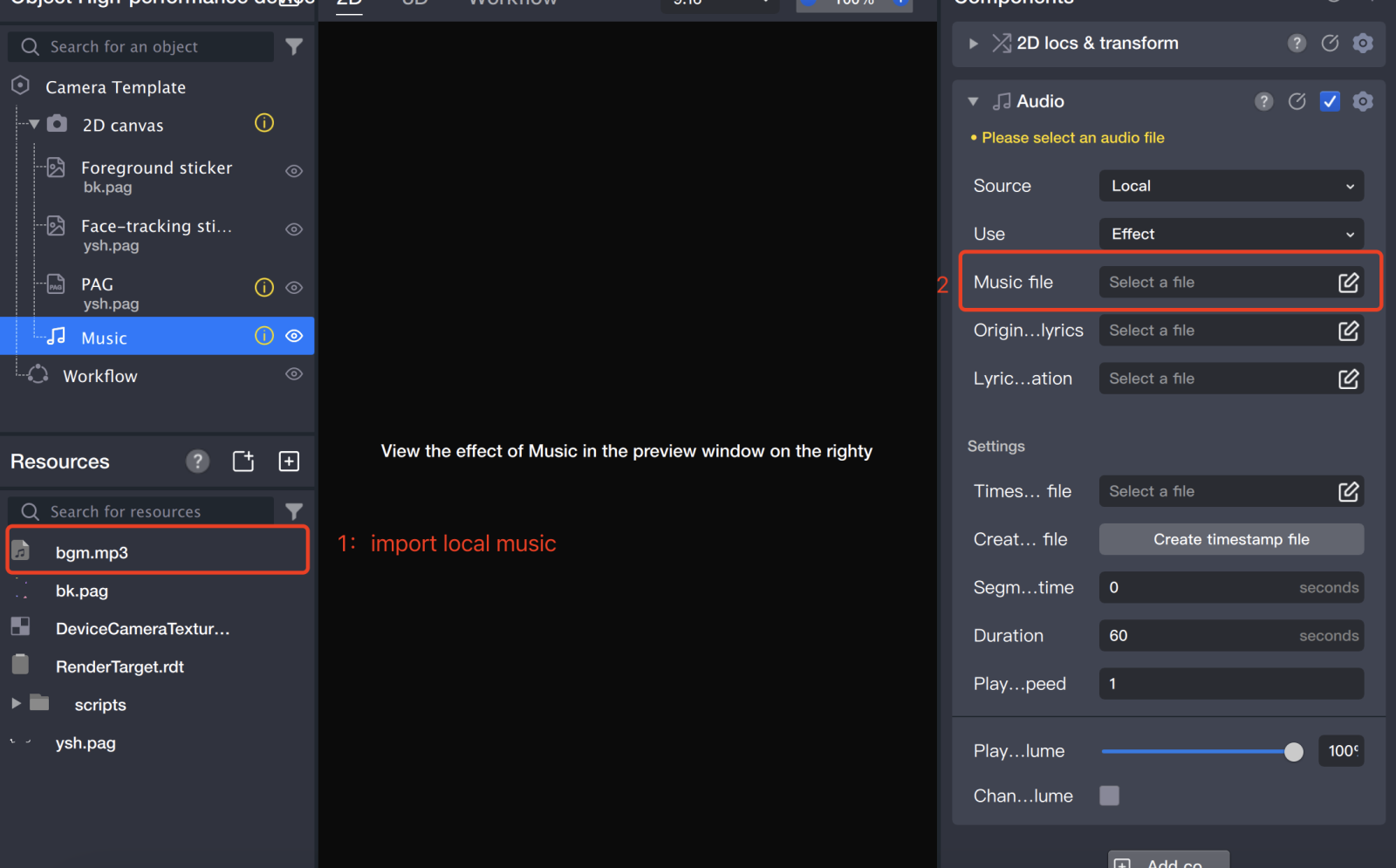
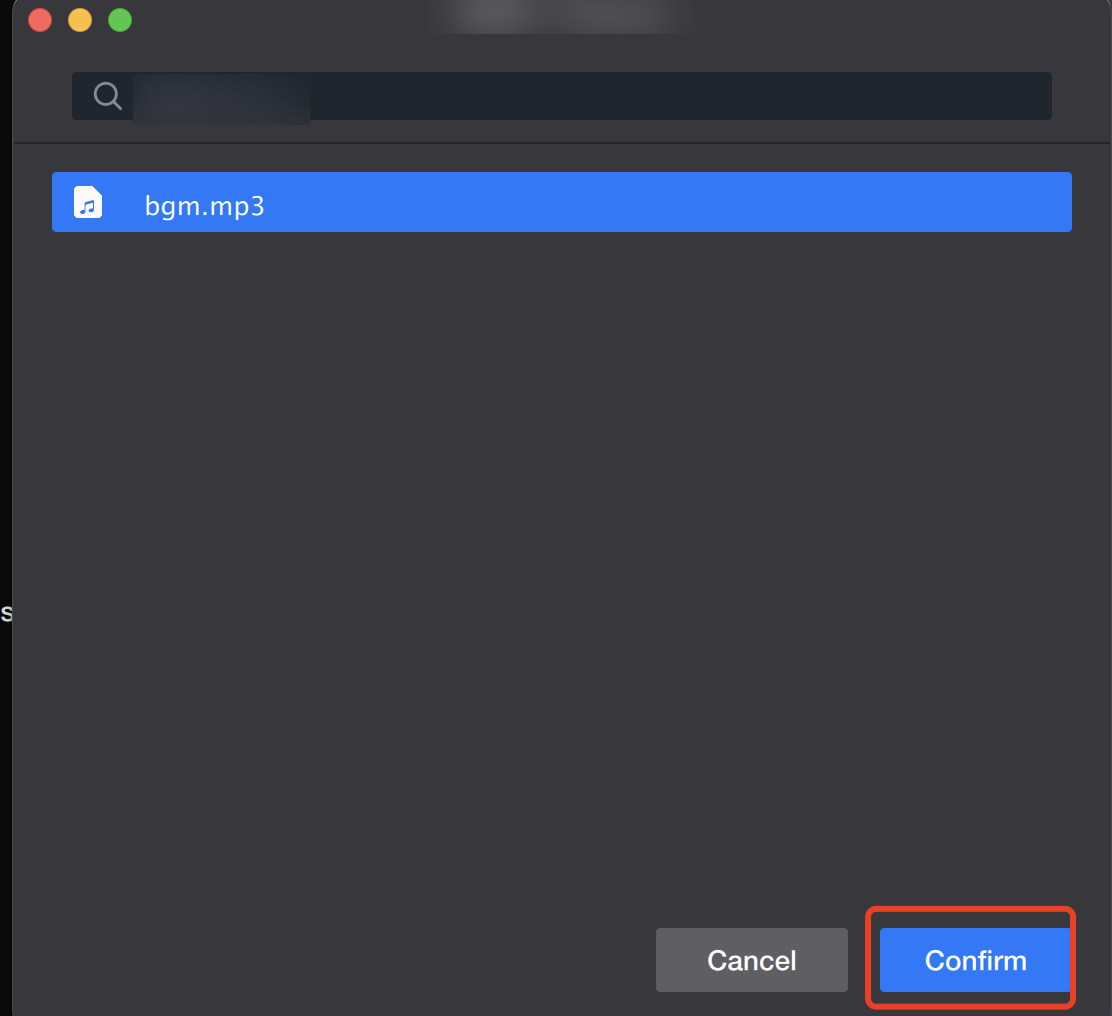
How to add local music.
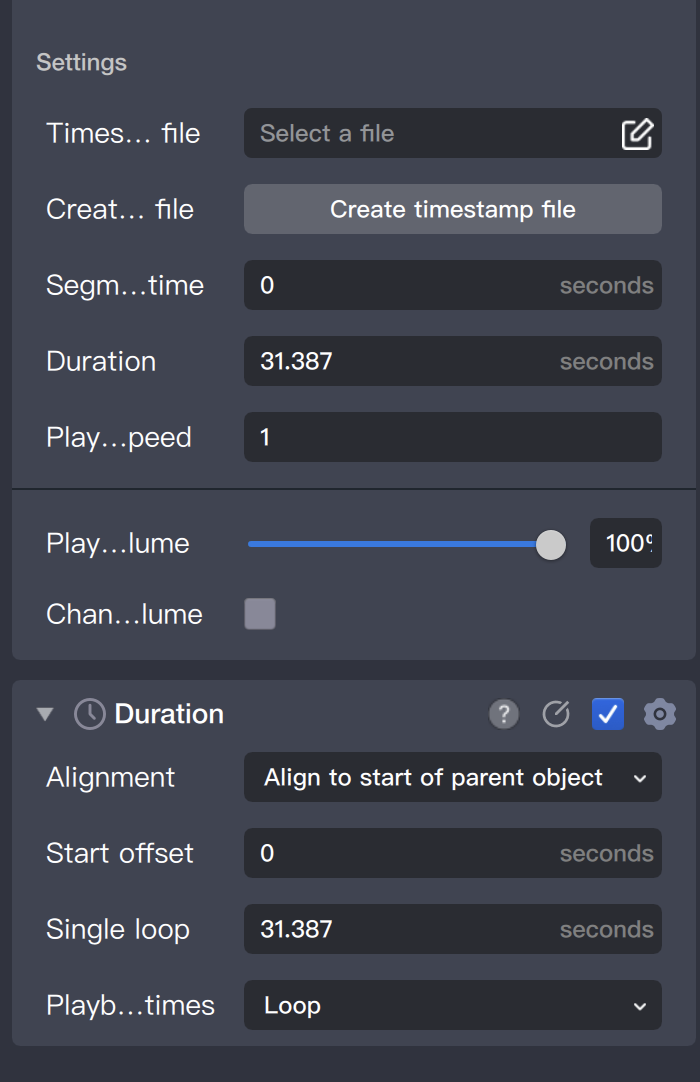
Choose the appropriate starting point, duration & number of loops.
Timestamp file: Upload if available, otherwise no need to worry.
Segment start time: Music start time (accurate to 1 decimal place, default is 0, adjust as needed).
Duration: Music playback duration (default is 60 seconds or the maximum audio length less than 60 seconds).
Playback speed: Default normal speed 1, adjust as needed.
Playback volume: Default value 20% is equal to normal 100% volume, adjust as needed.
Change volume : Set fade in and out effects, adjust as needed.
Playback times: Choose 1 time, multiple times, or infinite loop (if the selected music playback duration is 60 seconds+, choose 1 time; if less than 60 seconds, choose multiple loops).
Note:
Maximum shooting time is 60 seconds.
Selecting Music Usage
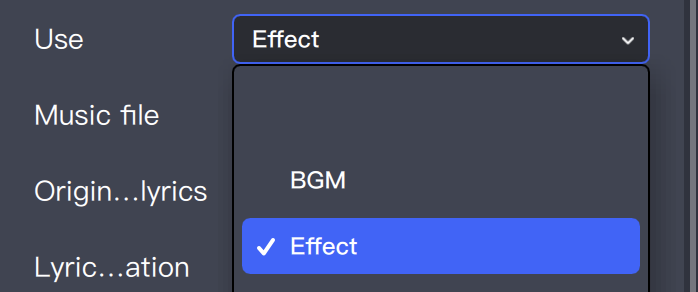
You can choose between BGM / Effect for two purposes.
Two Different Settings' Functions and Displays
Effect: Can record, poor bgm quality.
BGM: Cannot record, normal bgm quality.
Select Music Usage Based on Project
Shooting projects can choose the appropriate audio usage according to the designed prop type. The default choice is BGM. If the prop requires users to record their own audio, such as Olympic Cheering Station pendants, choose Effect.
For ordinary template projects, choose BGM uniformly.
How to Control Music in the Process
Depending on the designed prop requirements, you can use the process panel's node to control the music's play/stop.
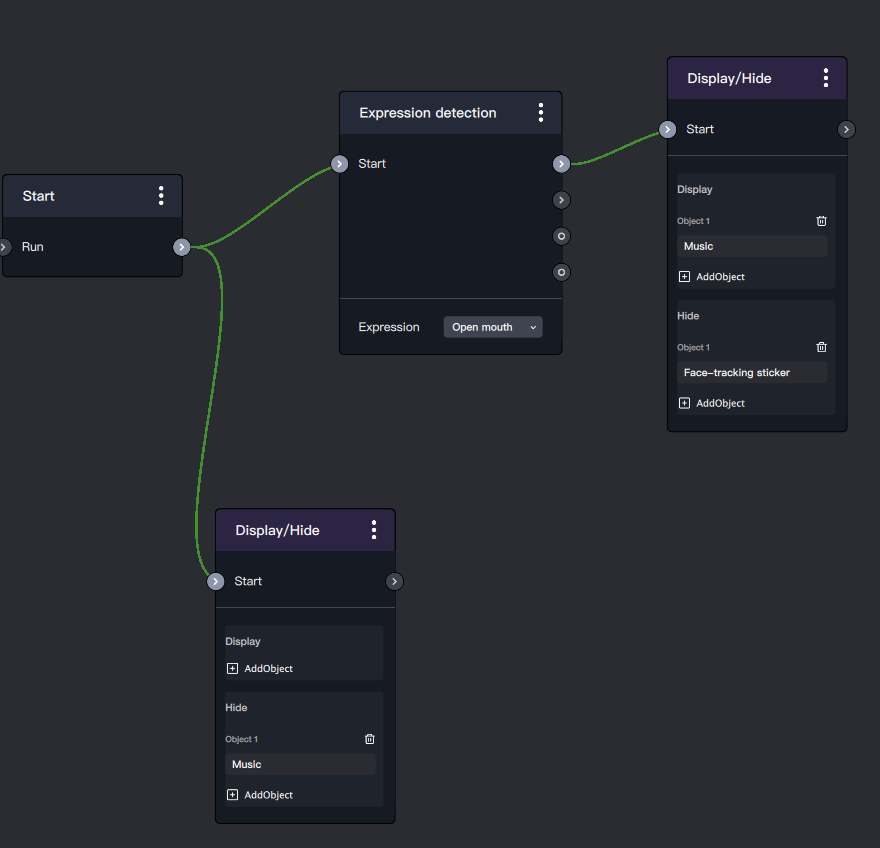
Use AI detection capability to control music playback.
Facial expression detection of mouth opening triggers music playback, with the following process settings: