Policy Management
Download
Focus Mode
Font Size
Alarm Policy
1. Log in to the CSC console, click Cloud API Exception Monitoring in the left navigation.
2. Click Policy management in the upper right corner to enter the Alarm Policy page and manage alarm policies. Currently, you can enable/disable specific alarm policies, add alarm policies, and quickly locate alarms that hit policies.
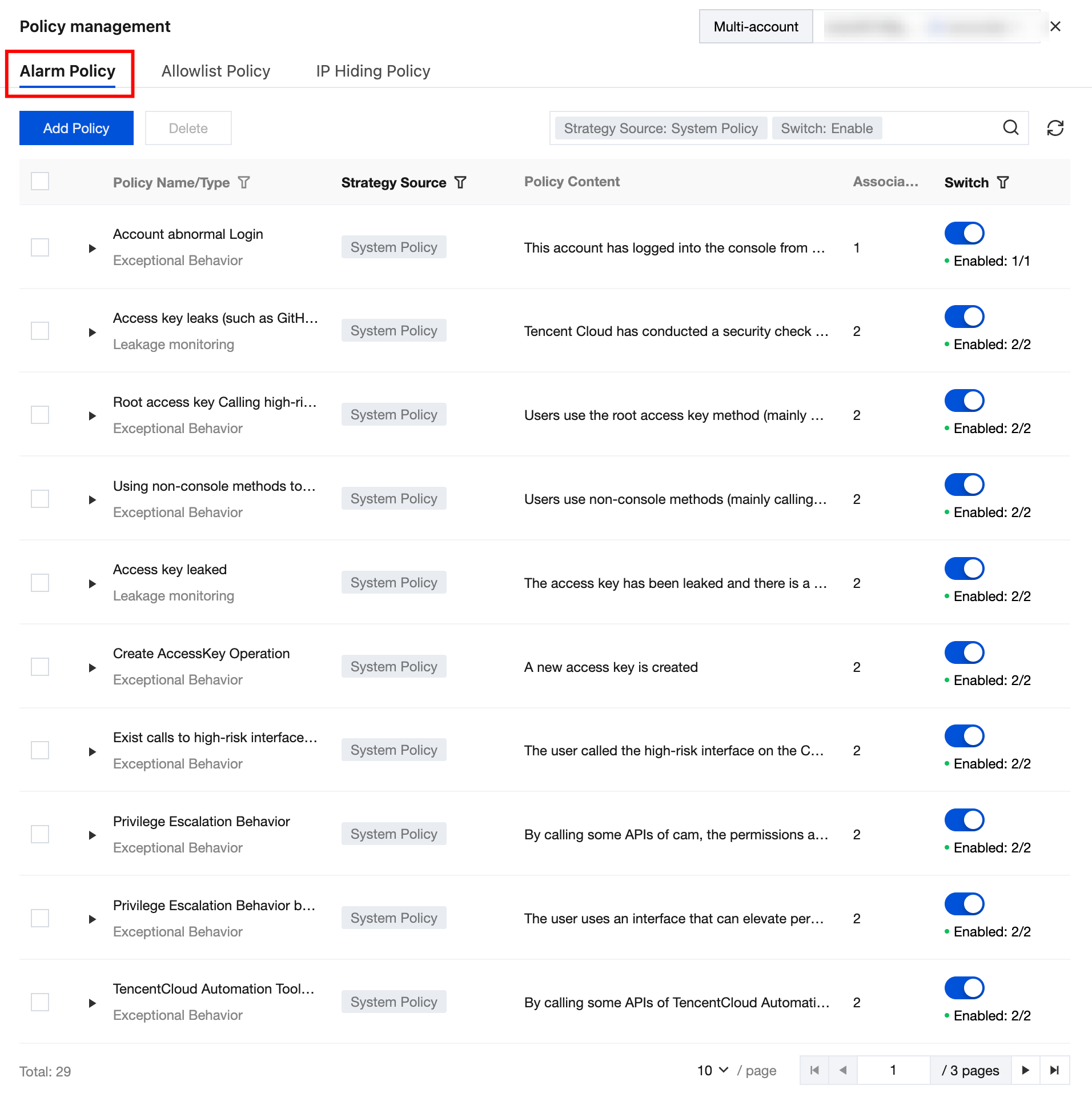
3. Click Add Policy, configure related parameters, and click Save.
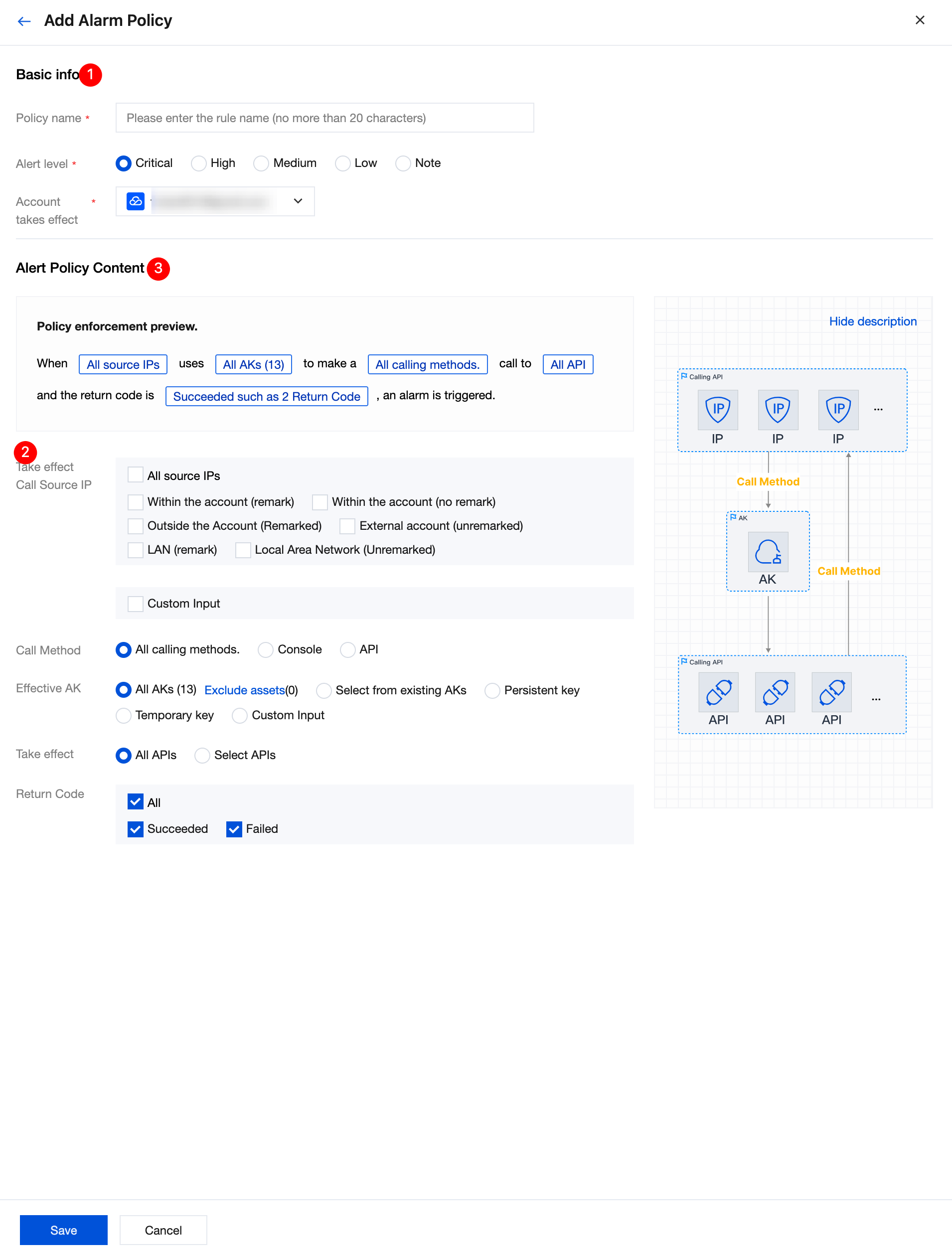
Content Name | Description | Example |
Take effect Call Source IP | Support selecting all source IPs, or filtering by type such as within the account, LAN, remark status. It also supports manual input of IPs or ranges. Multiple IPs or types should be entered on different lines, up to 1000 lines. | 1.x.x.1 x.x.x.x/24 |
Call Method | Selectable ALL calling methods, console or API. If no command is selected, it takes effect on all calling methods by default. | - |
Effective AK | Selectable ALL AKs, or select from existing AKs, persistent keys, or temporary keys. Manual input of AKs is also supported. Enter multiple AKs on different lines, up to 1000 lines. | AK1 AK2 |
Take effect | Selectable ALL APIs, or manually select the specified API. If no command is selected, it takes effect on all APIs by default. | - |
Return Code | Select ALL status codes, or only select successful or failed return codes. If no command is selected, it takes effect on all status codes by default. | - |
Allowlist Policy
1. Log in to the CSC console, click Cloud API Exception Monitoring in the left navigation.
2. Click in the upper right corner Policy management > Allowlist Policy to manage the allowlist policy. It is supported based on source IP, API call method, AK, API, and status code for allowlisting, and designate the effective scope.
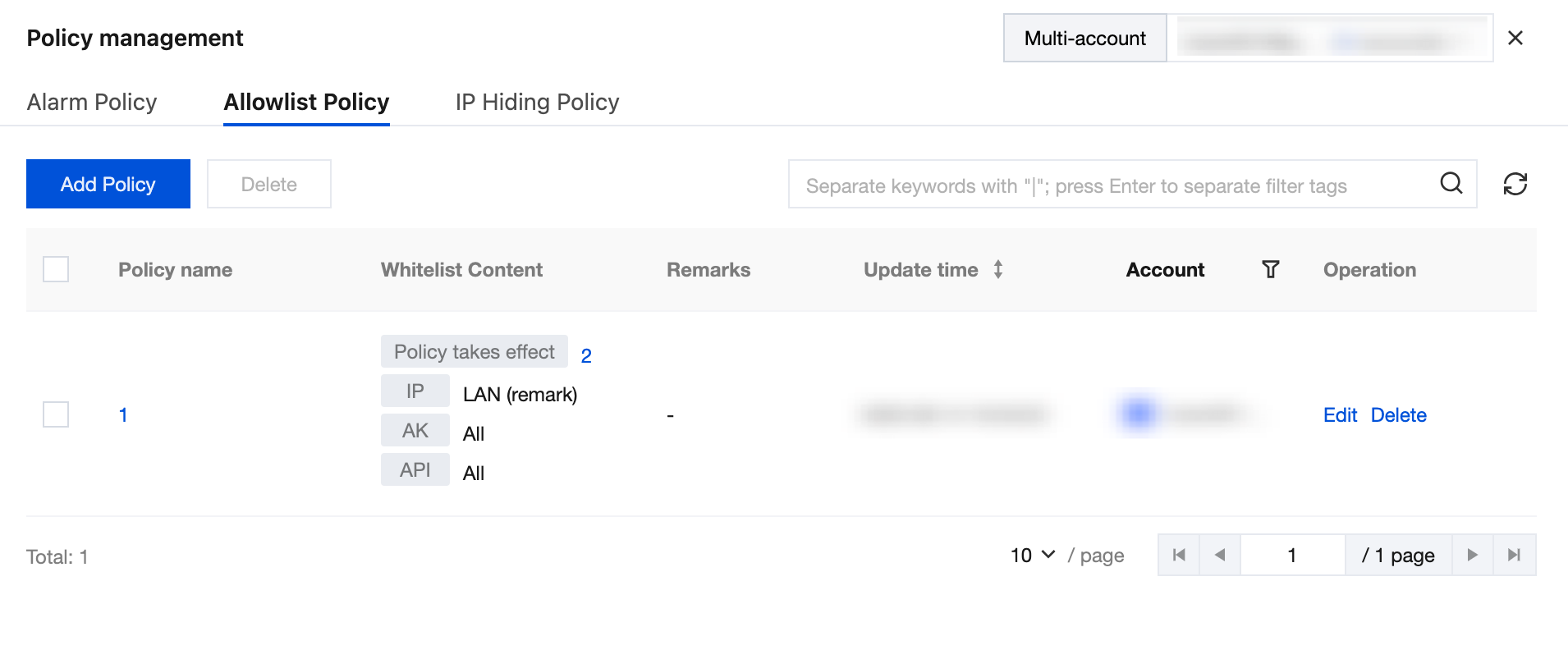
3. Click Add Policy, configure related parameters, and click Save.
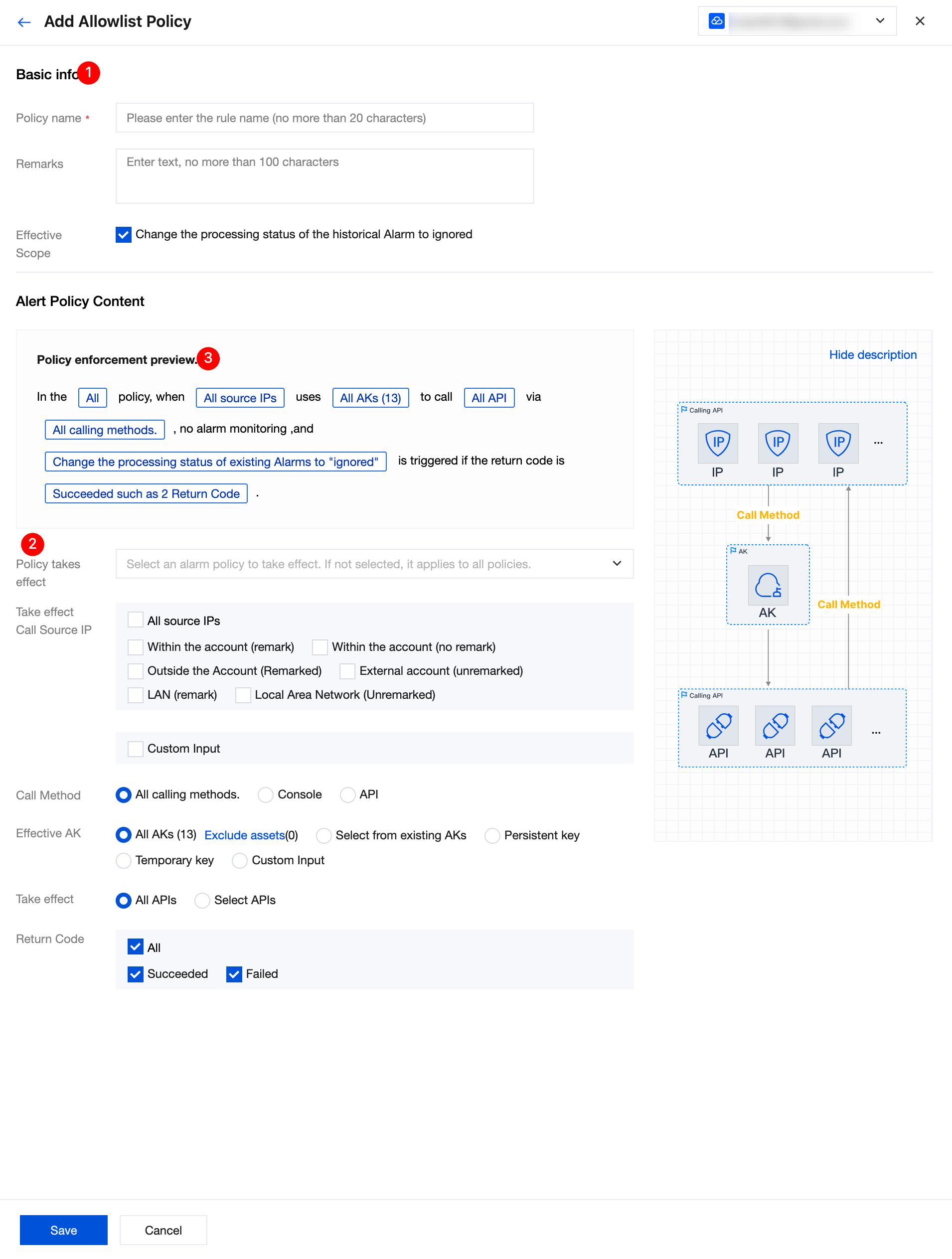
Content Name | Description | Example |
Policy takes effect | Select the alarm policy to allowlist, support multiple selections. If not select any policy, by default it applies to all policies. | - |
Take effect Call Source IP | Support selecting all source IPs, or filtering by type such as within the account, LAN, remark status. It also supports manual input of IPs or ranges. Multiple IPs or types should be entered on different lines, up to 1000 lines. | 1.x.x.1 x.x.x.x/24 |
Call Method | Selectable ALL calling methods, console or API. If no command is selected, it takes effect on all calling methods by default. | - |
Effective AK | Selectable ALL AKs, or select from existing AKs, persistent keys, or temporary keys. Manual input of AKs is also supported. Enter multiple AKs on different lines, up to 1000 lines. | AK1 AK2 |
Take effect | Selectable ALL APIs, or manually select the specified API. If no command is selected, it takes effect on all APIs by default. | - |
Return Code | Select ALL status codes, or only select successful or failed return codes. If no command is selected, it takes effect on all status codes by default. | - |
IP Hiding Policy
1. Log in to the CSC console, click Cloud API Exception Monitoring in the left navigation.
2. Click in the upper right corner Policy Management > IP Hiding Policy, where you can configure IP hiding rules. Once it takes effect, specified IP addresses will no longer appear in the list of calling source IPs.
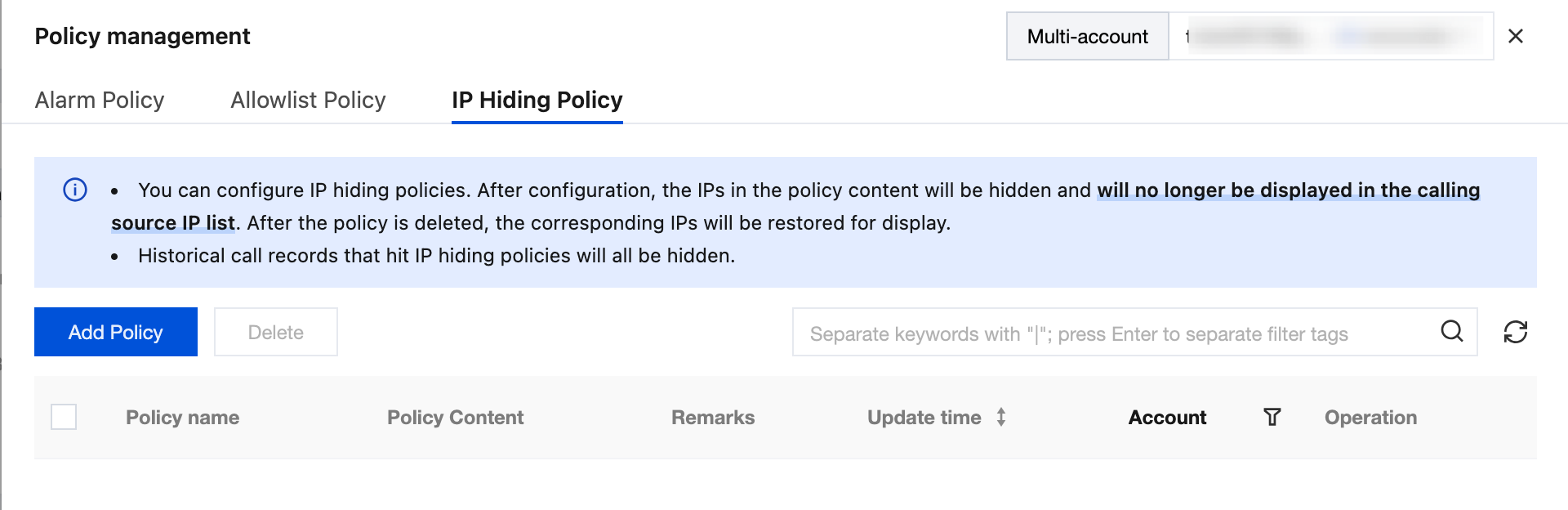
3. Click Add Policy, configure related parameters, and click Save.
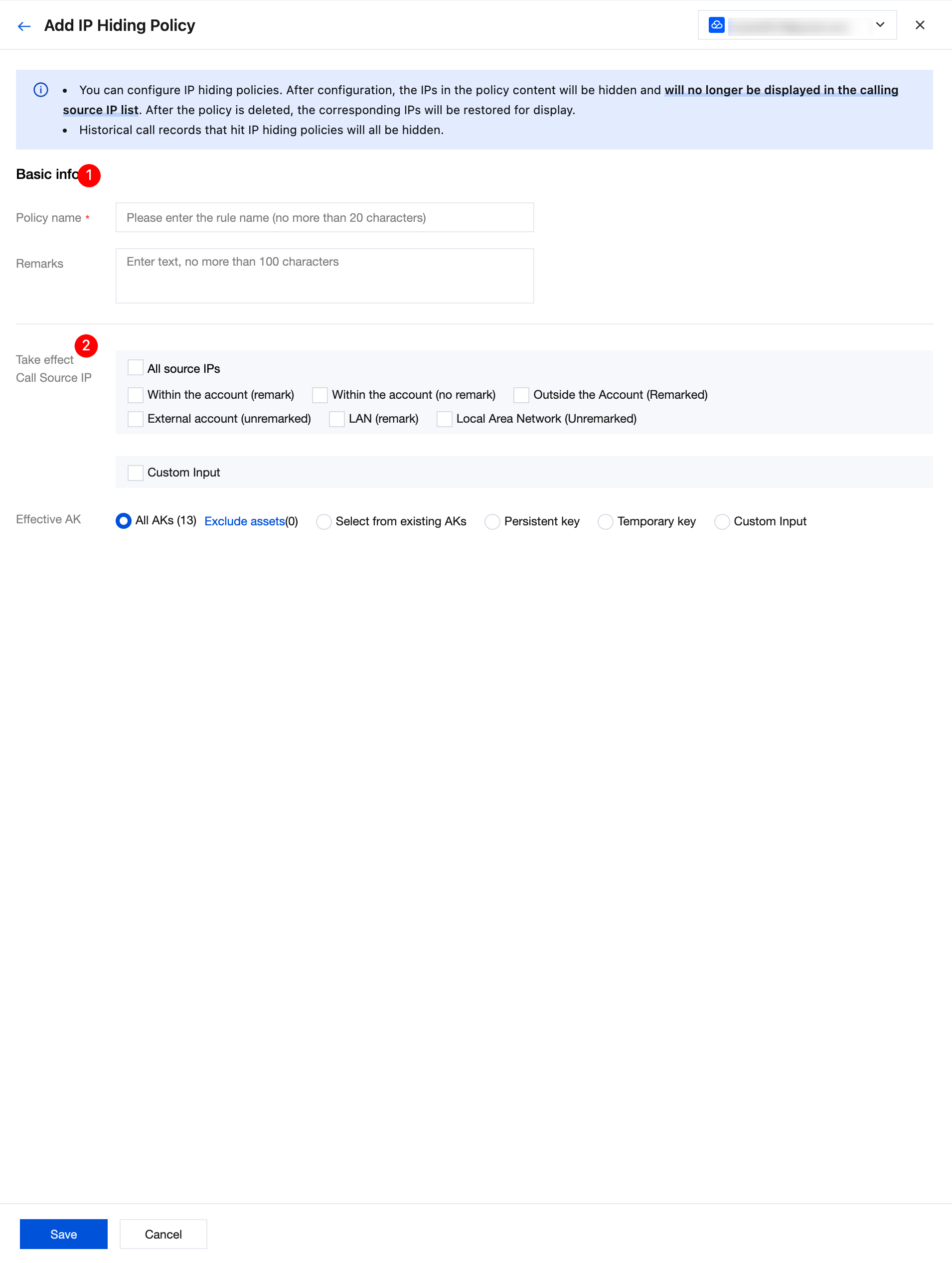
Content Name | Description | Example |
Take effect Call Source IP | Support selecting all source IPs, or filtering by type such as within the account, LAN, remark status. It also supports manual input of IPs or ranges. Multiple IPs or types should be entered on different lines, up to 1000 lines. | 1.x.x.1 x.x.x.x/24 |
Effective AK | Selectable ALL AKs, or select from existing AKs, persistent keys, or temporary keys. Manual input of AKs is also supported. Enter multiple AKs on different lines, up to 1000 lines. | AK1 AK2 |
Help and Support
Was this page helpful?
You can also Contact sales or Submit a Ticket for help.
Help us improve! Rate your documentation experience in 5 mins.
Feedback