tencent cloud

Chat

News and Announcements
Release Notes
Announcements
Product Introduction
Overview
Basic Concepts
Scenarios
Features
Account System
User Profile and Relationship Chain
Message Management
Group Related
Official Account
Audio/Video Call
Use Limits
Purchase Guide
Billing Overview
Pricing
Purchase Instructions
Renewal Guide
Service Suspension Explanation
Refund Policy
Development Guidelines
Demo Zone
Activate Service
Free Demos
Quick Run
Download
SDK and Demo Source Code
Update Log
Chat Interaction (UI Included)
TUIKit Introduction
Getting Started
Full-feature Integration
Single-function Integration
Build with AI
Build Basic Interfaces
More Features
Customizing Appearance
Internationalization
Push Service
Overview
Noun explanation
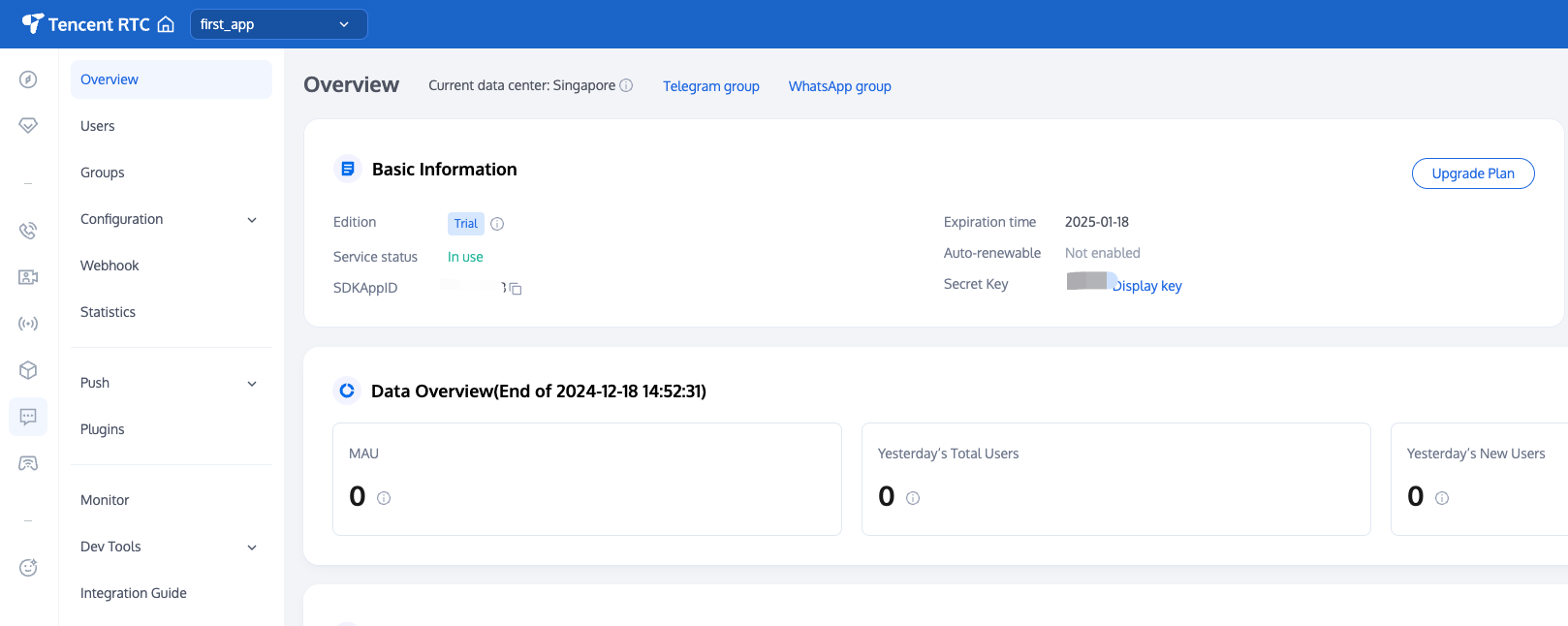
Activate the Service
Quick Start
Manufacturer Channel
Statistics
Troubleshooting Tool
Client APIs
REST API
Push Callback
Advanced Features
Release Notes
Error Codes
FAQS
Desk
Overview
Quick Start
Integration Guide
Admin Operation Manual
Agent Manual
More Practices
Live Streaming Setup Guide
AI Chatbot
Super Large Entertainment and Collaboration Community
Discord Implementation Guide
How to Integrate Chat into Games
WhatsApp Channel-style Official Account Integration Solution
Send Red Packet
Firewall Restrictions
No UI Integration
Quick Start
SDK Integration
Initialization
Login and Logout
Message
Conversation
Group
Community Topic
User Profile and Relationship Chain
Offline Push
Cloud Search
Local Search
Official Channel Management
Client APIs
JavaScript
Android
iOS & macOS
Swift
Flutter
Electron
Unity
React Native
C APIs
C++
Server APIs
Secure authentication with UserSig
RESTful APIs
Webhooks
Console Guide
New Console Introduction
Creating and Upgrading an Application
Basic Configuration
Feature Configuration
Account Management
Group Management
Official Channel Management
Webhook Configuration
Usage
Viewing Guide for Resource Packages
Real-Time Monitor
Auxiliary Development Tools
Access Management
Advanced Features
FAQs
uni-app FAQs
Purchase
SDK
Account Authentication
User Profile and Relationship Chain
Message
Group
Audio-Video Group
Nickname and Profile Photo
Security Compliance Certification
Service Level Agreement
Security Compliance Certification
Chat Policies
Privacy Policy
Data Privacy and Security Agreement
Migration
Migration Solutions
Migration Solutions Lite
Error Codes
Contact Us

React Native

PDF
Focus Mode
Font Size
Last updated: 2025-02-28 17:49:00

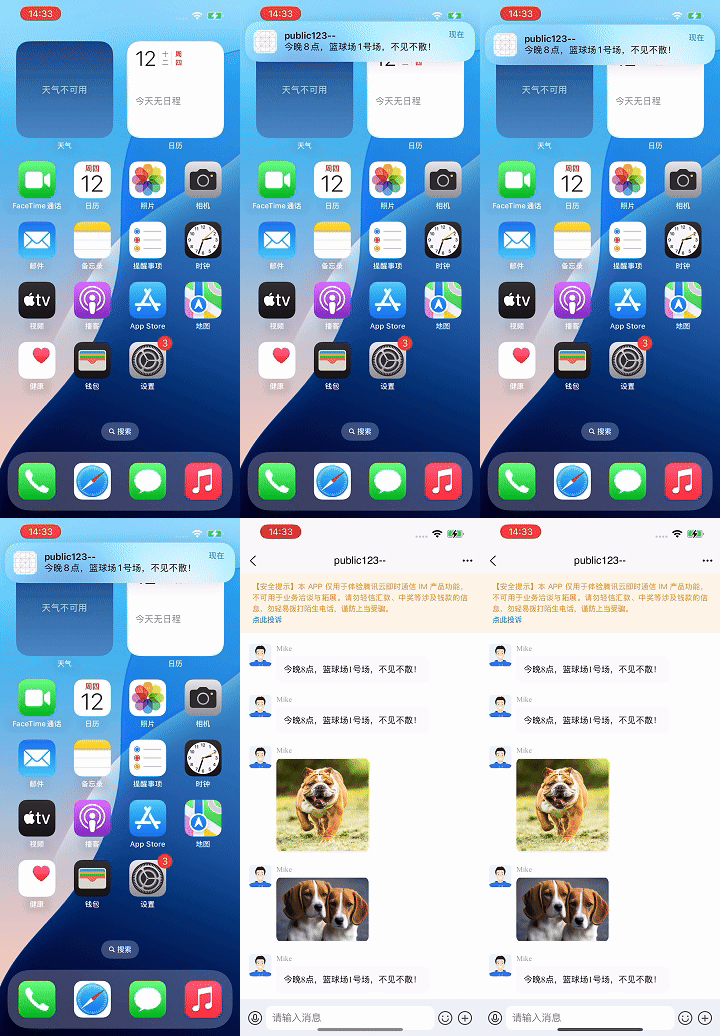
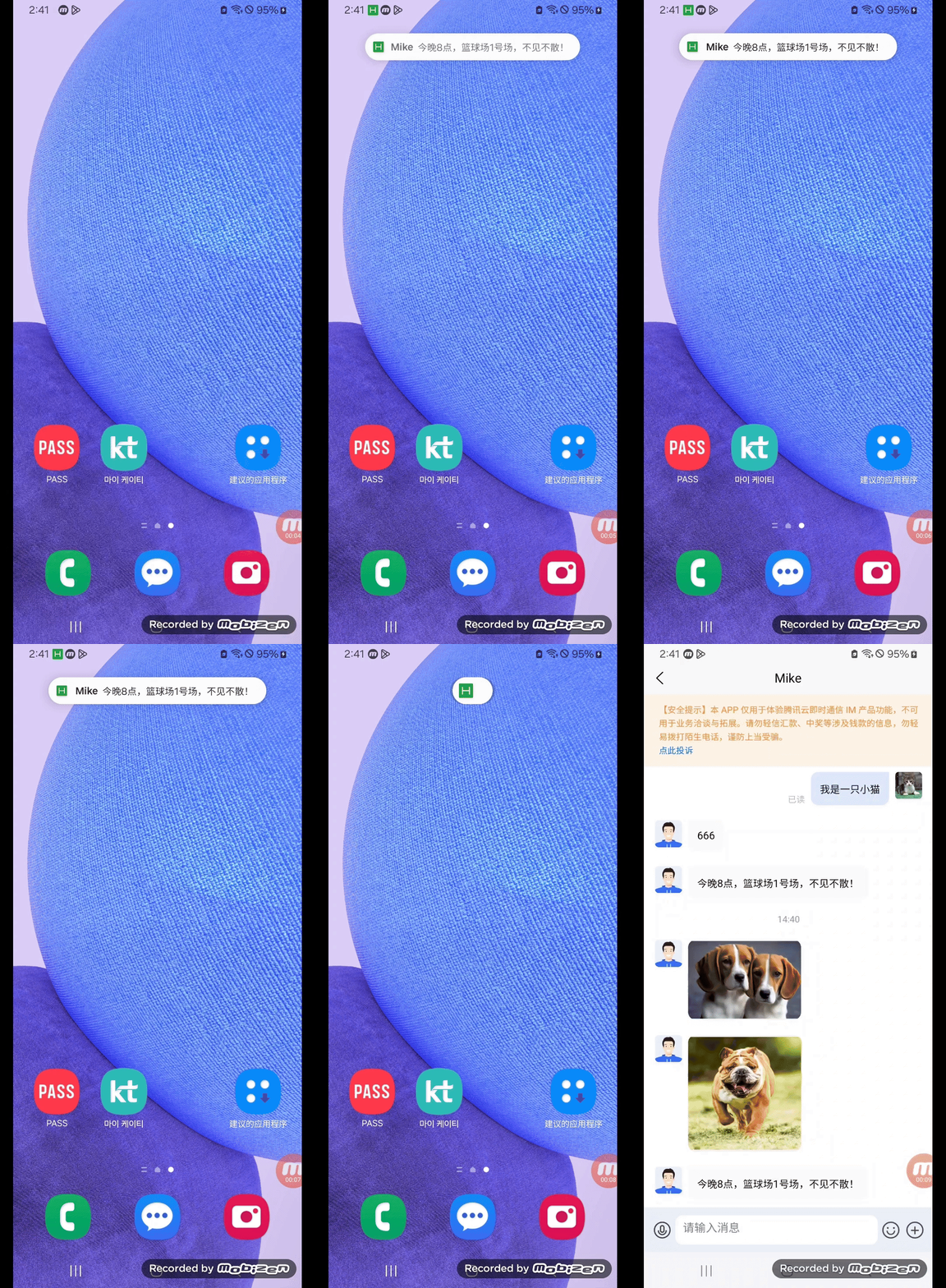
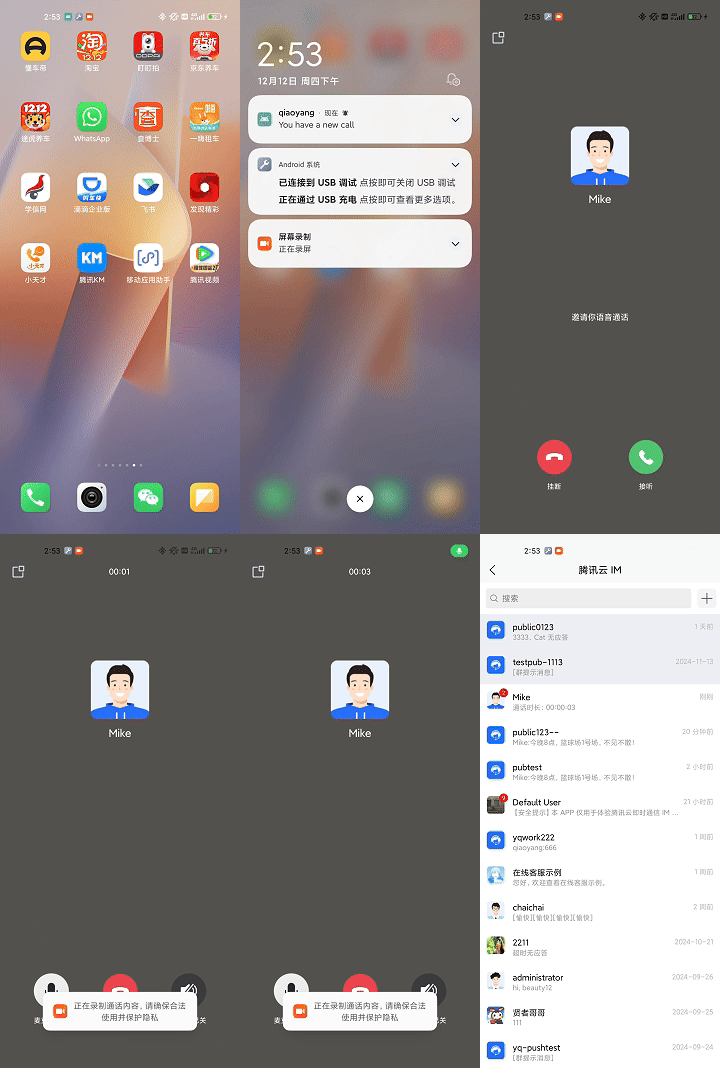
Effect Showcase

Xiaomi 11 Pro (Integrated with CallKit)


iPhone 13


Samsung Galaxy A23 Overseas Version (Google FCM Push)


Step 1: Create a React Native project (skip this step if you already have one)

npx @react-native-community/cli@latest init MyReactNativeApp --version 0.75.0

Step 2: Entering the MyReactNativeApp Directory, Integrating @tencentcloud/react-native-push

npm
yarn
npm install @tencentcloud/react-native-push --save
yarn add @tencentcloud/react-native-push

Step 3:Register for Push Notifications

Copy the following code to App.tsx and replace SDKAppID and appKey with your application's information.
Note:
After successfully registering the push service with registerPush, you can obtain the push ID, namely RegistrationID, through getRegistrationID. You can push messages to the specified RegistrationID.


import Push from '@tencentcloud/react-native-push';

const SDKAppID = 0; // Your SDKAppID
const appKey = ''; // Client Key

if (Push) {
// If you need to connect with the Chat login userID (i.e., push messages to this userID),
// please use the setRegistrationID API
// Push.setRegistrationID(userID, () => {
// console.log('setRegistrationID ok', userID);
// });

Push.registerPush(SDKAppID, appKey, (data) => {
console.log('registerPush ok', data);
Push.getRegistrationID((registrationID) => {
console.log('getRegistrationID ok', registrationID);
});
}, (errCode, errMsg) => {
console.error('registerPush failed', errCode, errMsg);
}
);
// Listen for notification bar click events to get push extension information
Push.addPushListener(Push.EVENT.NOTIFICATION_CLICKED, (res) => {
// res is the push extension information
console.log('notification clicked', res);
});
// Listen for online push
Push.addPushListener(Push.EVENT.MESSAGE_RECEIVED, (res) => {
// res is the message content
console.log('message received', res);
});

// Listen for online push recall
Push.addPushListener(Push.EVENT.MESSAGE_REVOKED, (res) => {
// res is the ID of the recalled message
console.log('message revoked', res);
});
}

Step 4: Configuring Vendor Push

Android
iOS
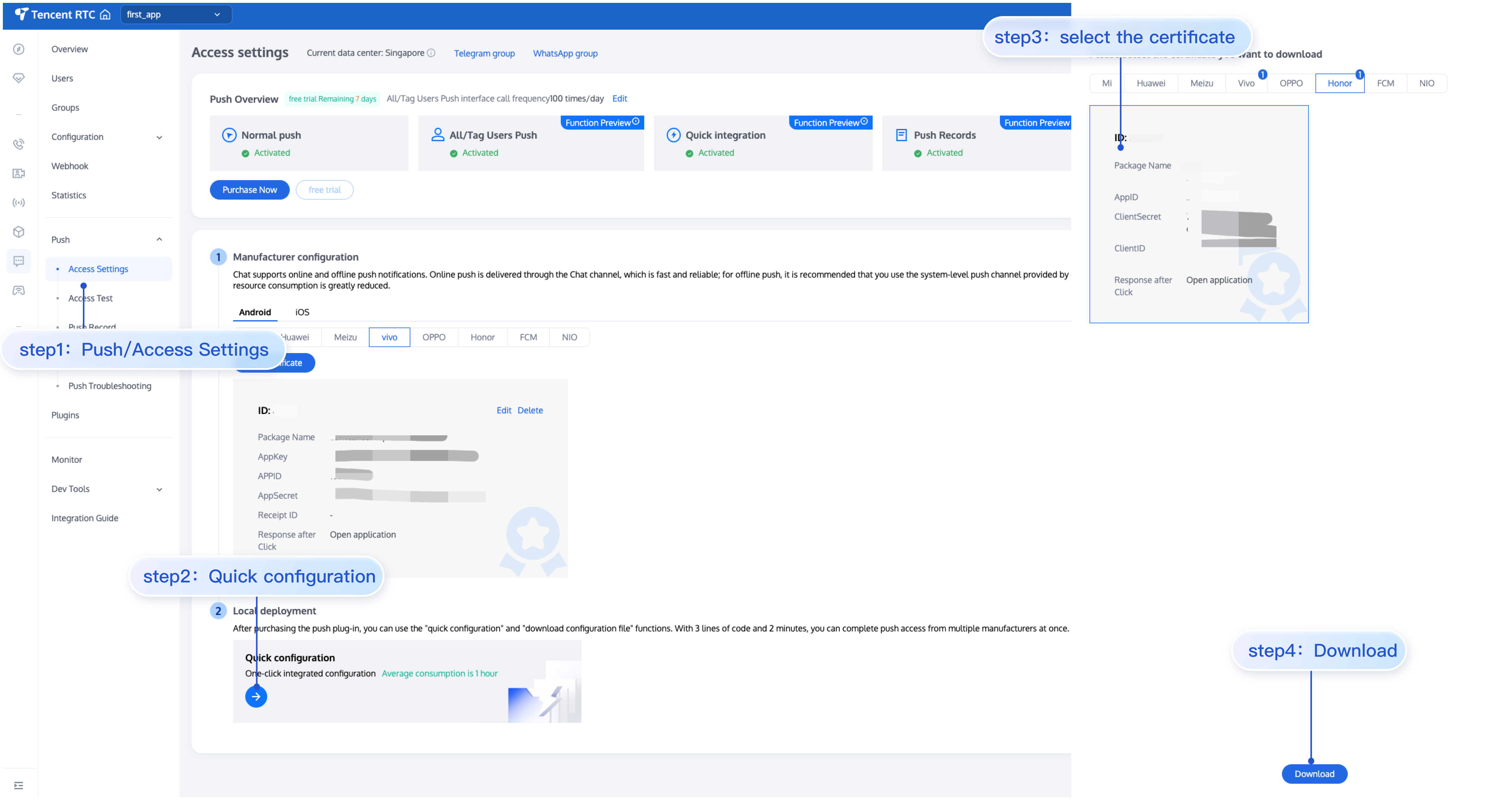
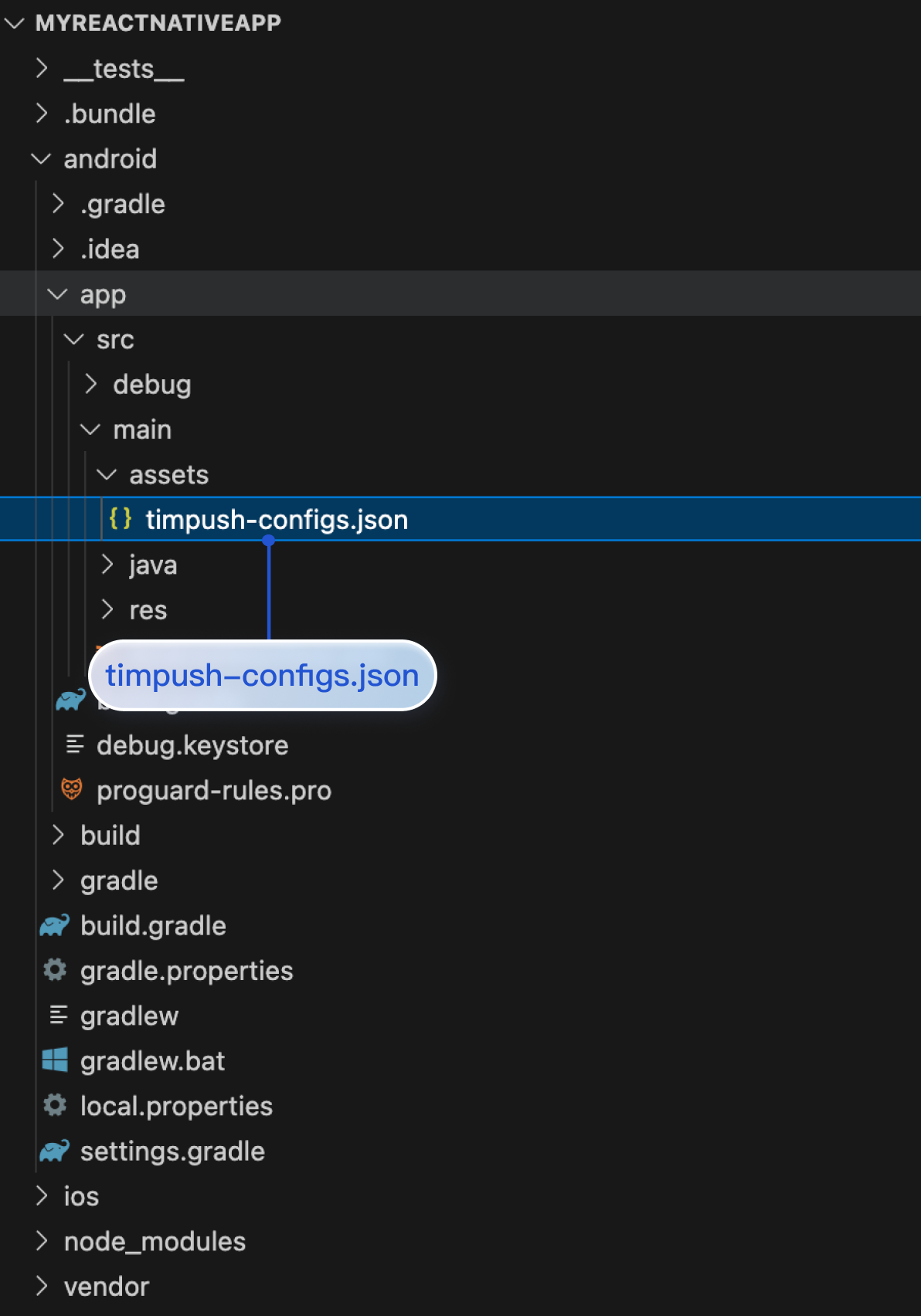
1. After completing the vendor push information in the console, download the timpush-configs.json file from the console and add it to the MyReactNativeApp/android/app/src/main/assets directory of the project. If this directory does not exist, please create it manually. As shown in the figure:


2. Huawei, HONOR, vivo, FCM.
FCM
Huawei
HONOR
vivo
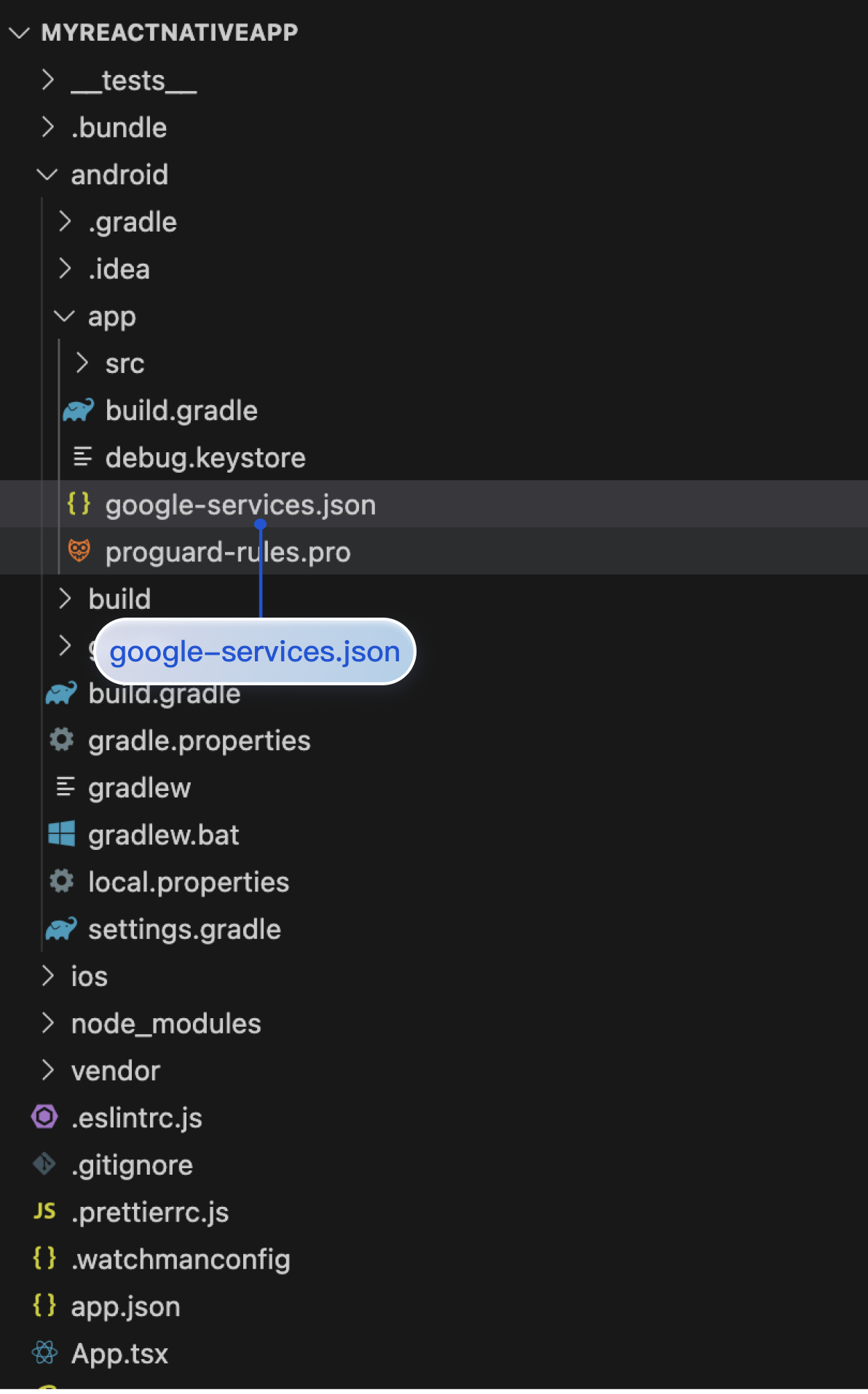
When you need to support FCM push, you must configure the google-services.json file in the MyReactNativeApp/android/app directory (Please note! Not in the MyReactNativeApp/android/app/src/main/assets directory). As shown in the picture:

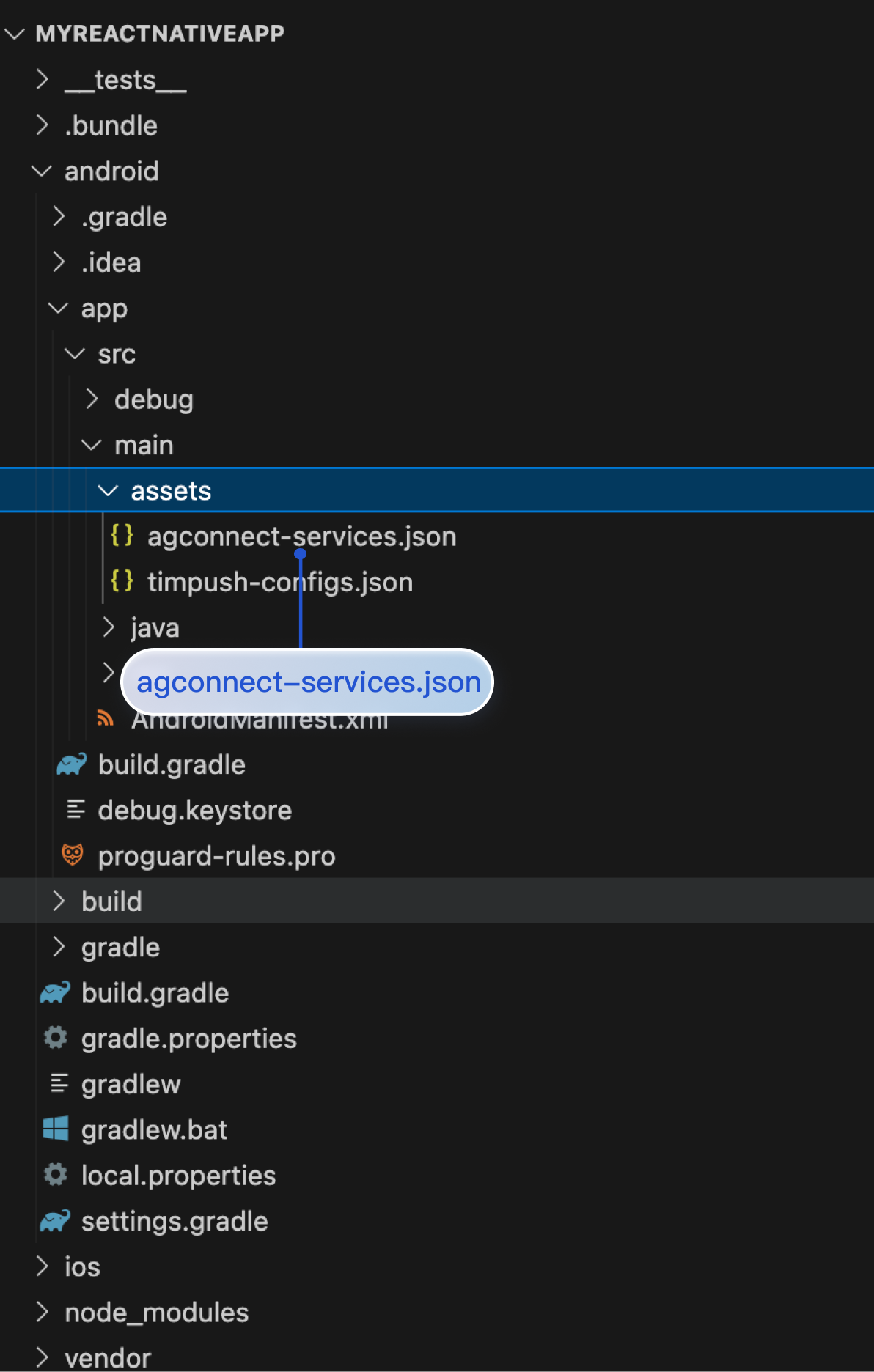
To support Huawei push, you need to configure the agconnect-services.json file in the MyReactNativeApp/android/app/src/main/assets/ directory. As shown in the figure:

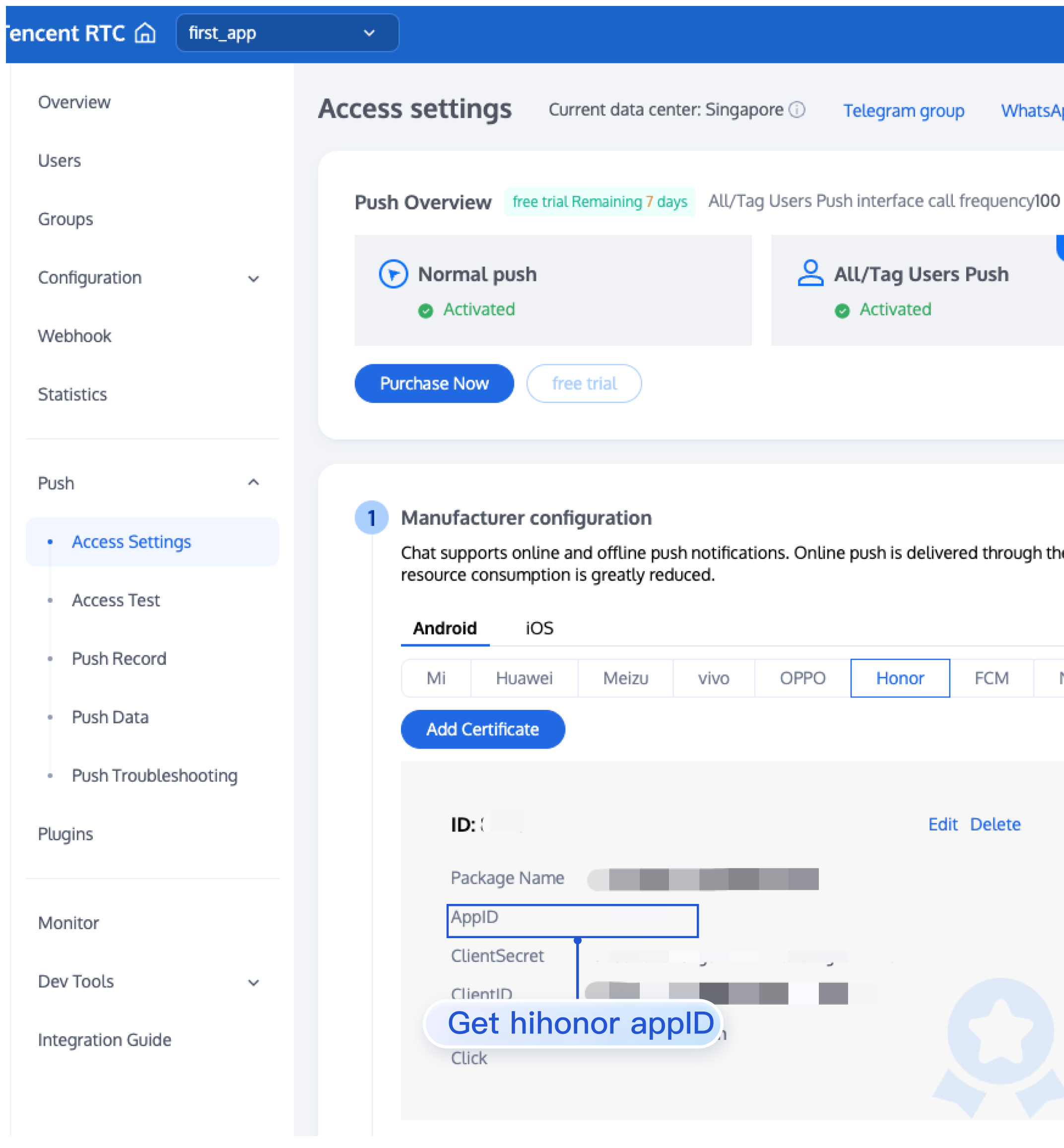
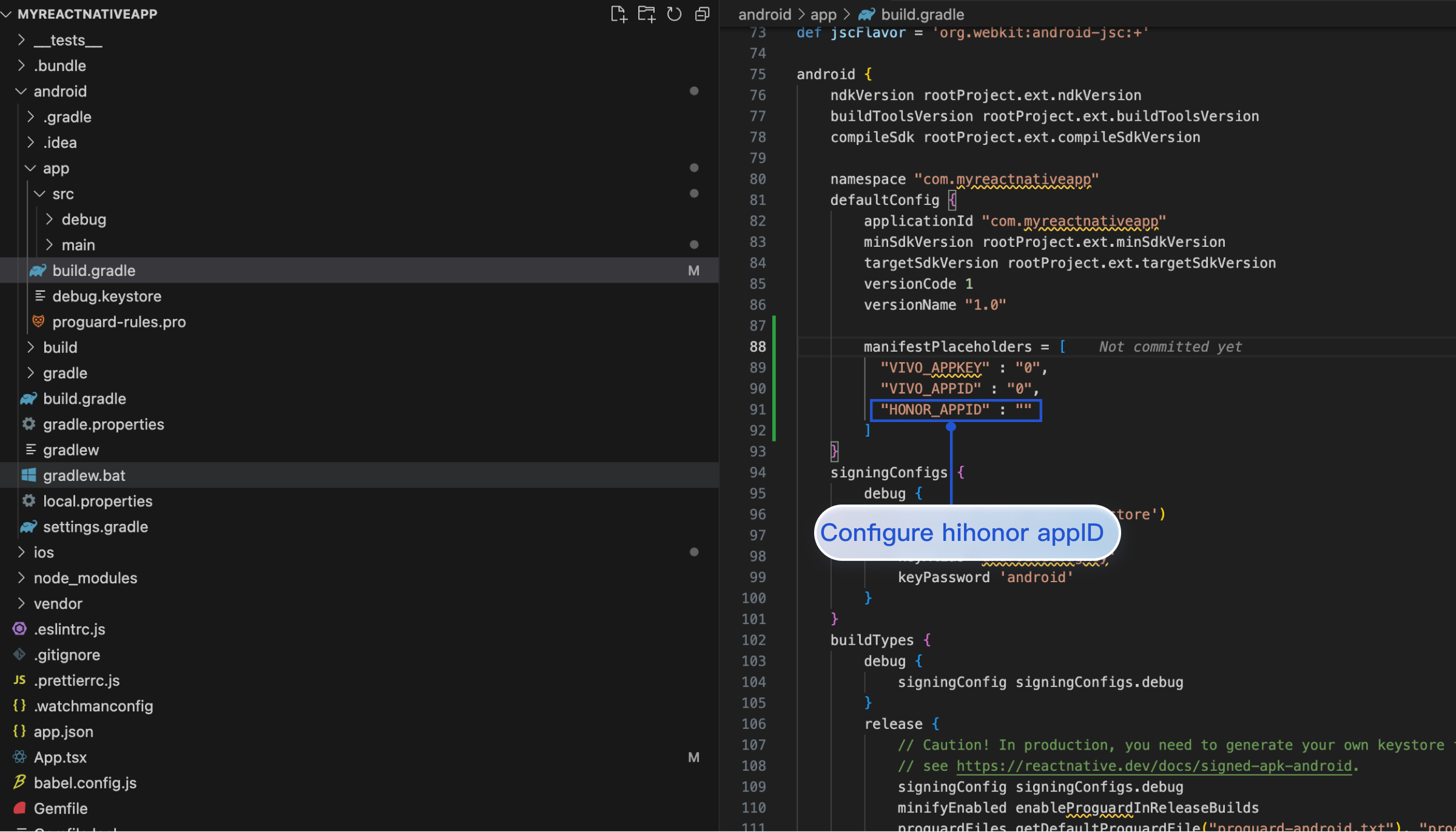
1. To support HONOR Push, you need to configure appID in the MyReactNativeApp/android/app/build.gradle file. As shown in the figure:
......
android {
......
defaultConfig {
......
manifestPlaceholders = [
"HONOR_APPID" : ""
]
}
}
Obtain HONOR appID
Configure HONOR appID


2. Download the mcs-services.json file from the Honor Developer Management Center, and configure it in the MyReactNativeApp/android/app directory (Please note! Not in the MyReactNativeApp/android/app/src/main/assets directory directory).
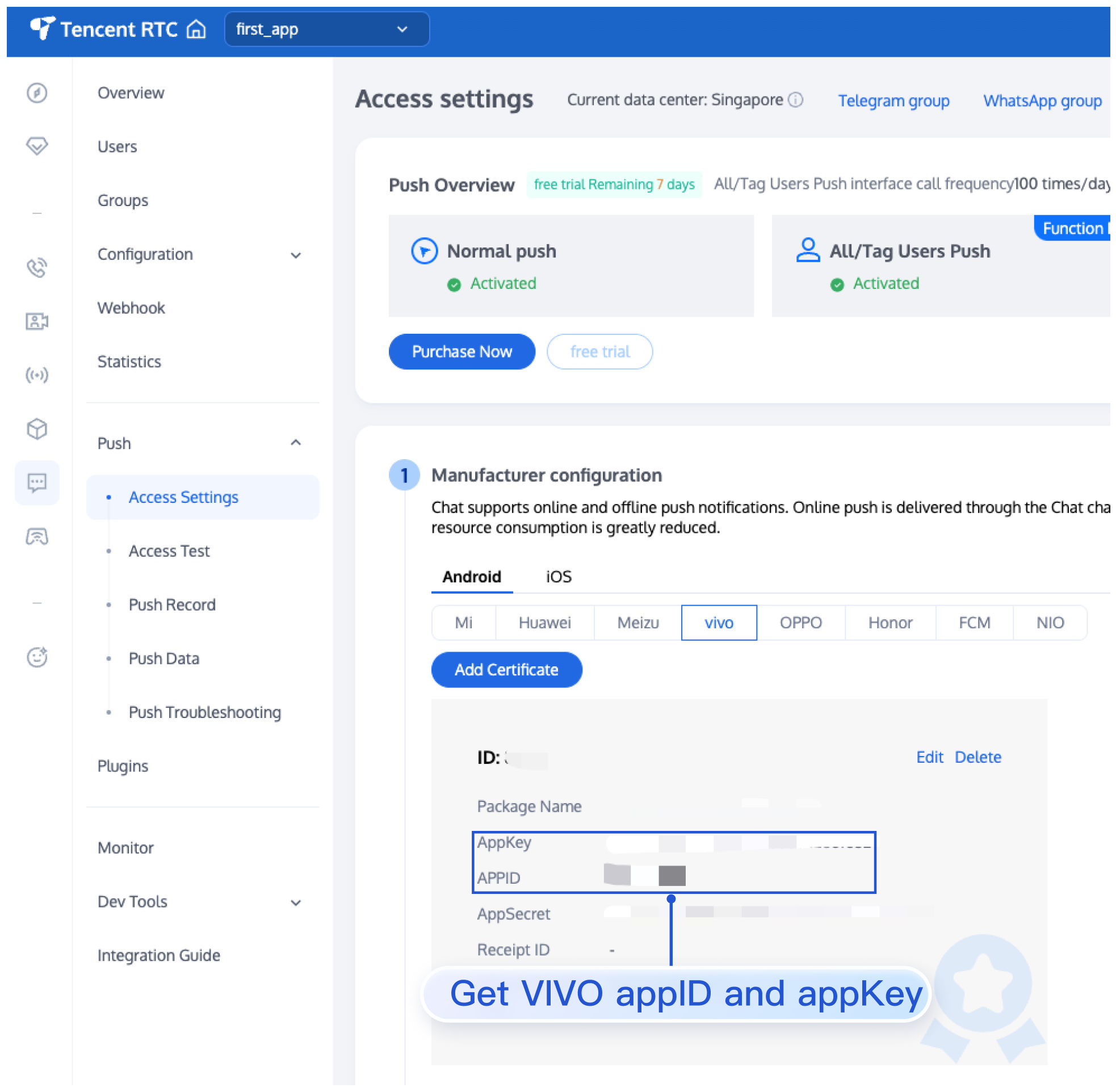
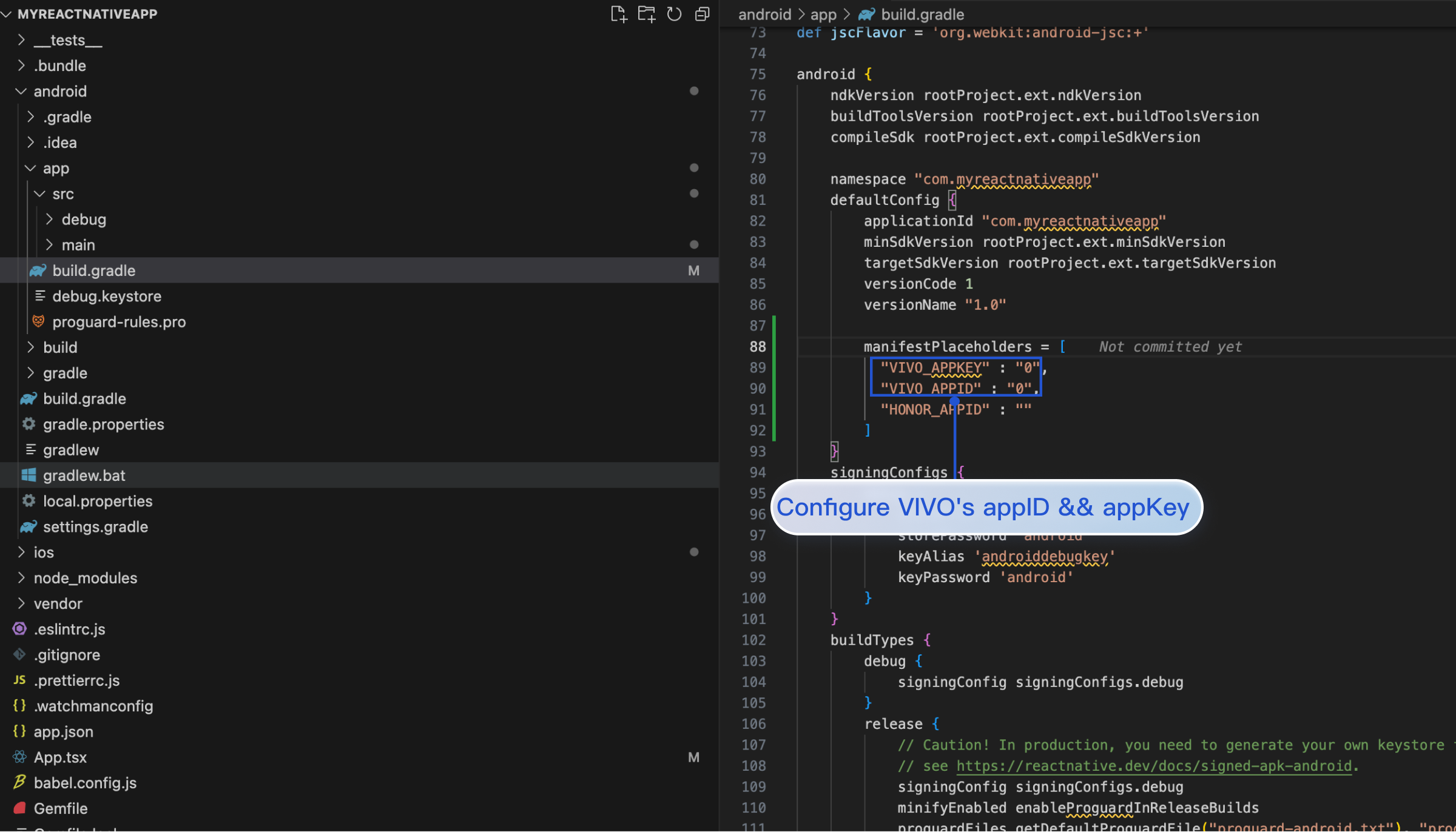
To support vivo Push, you need to configure appID and appKey in the MyReactNativeApp/android/app/build.gradle file. As shown in the figure:
......
android {
......
defaultConfig {
......
manifestPlaceholders = [
"VIVO_APPKEY" : "0",
"VIVO_APPID" : "0",
]
}
}
Obtain vivo appID && appKey
Configure vivo appID && appKey


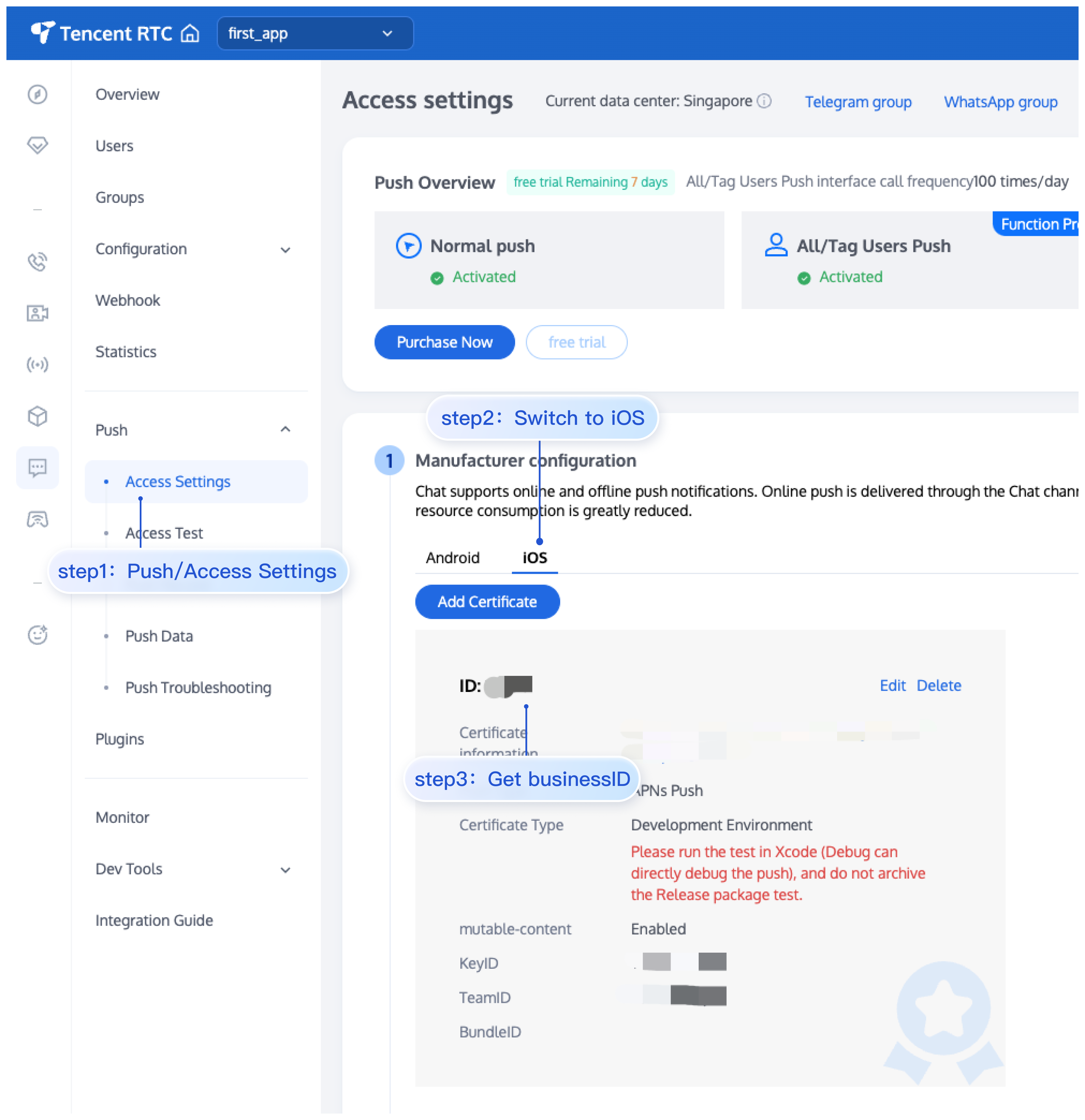
1. Please upload the iOS APNs Push Certificate obtained in the manufacturer configuration step to the Chat Console. The Chat Console will assign a Certificate ID to you, as shown in the figure:


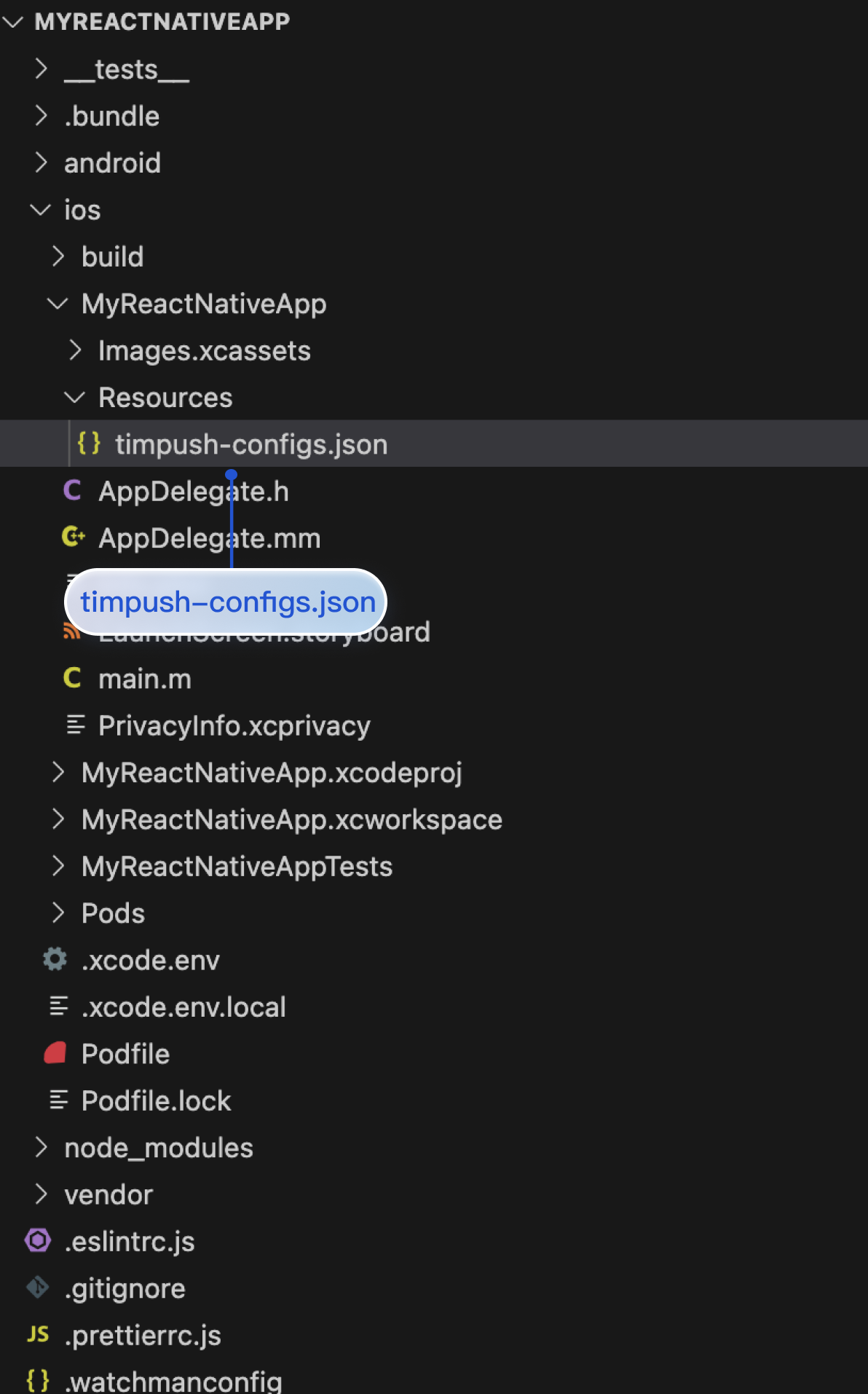
2. In the MyReactNativeApp/ios/MyReactNativeApp directory, create a new Resources folder and a new timpush-configs.json file. Edit timpush-configs.json and enter the certificate ID obtained from the console, as shown below:
{
"businessID": "Your Certificate ID"
}

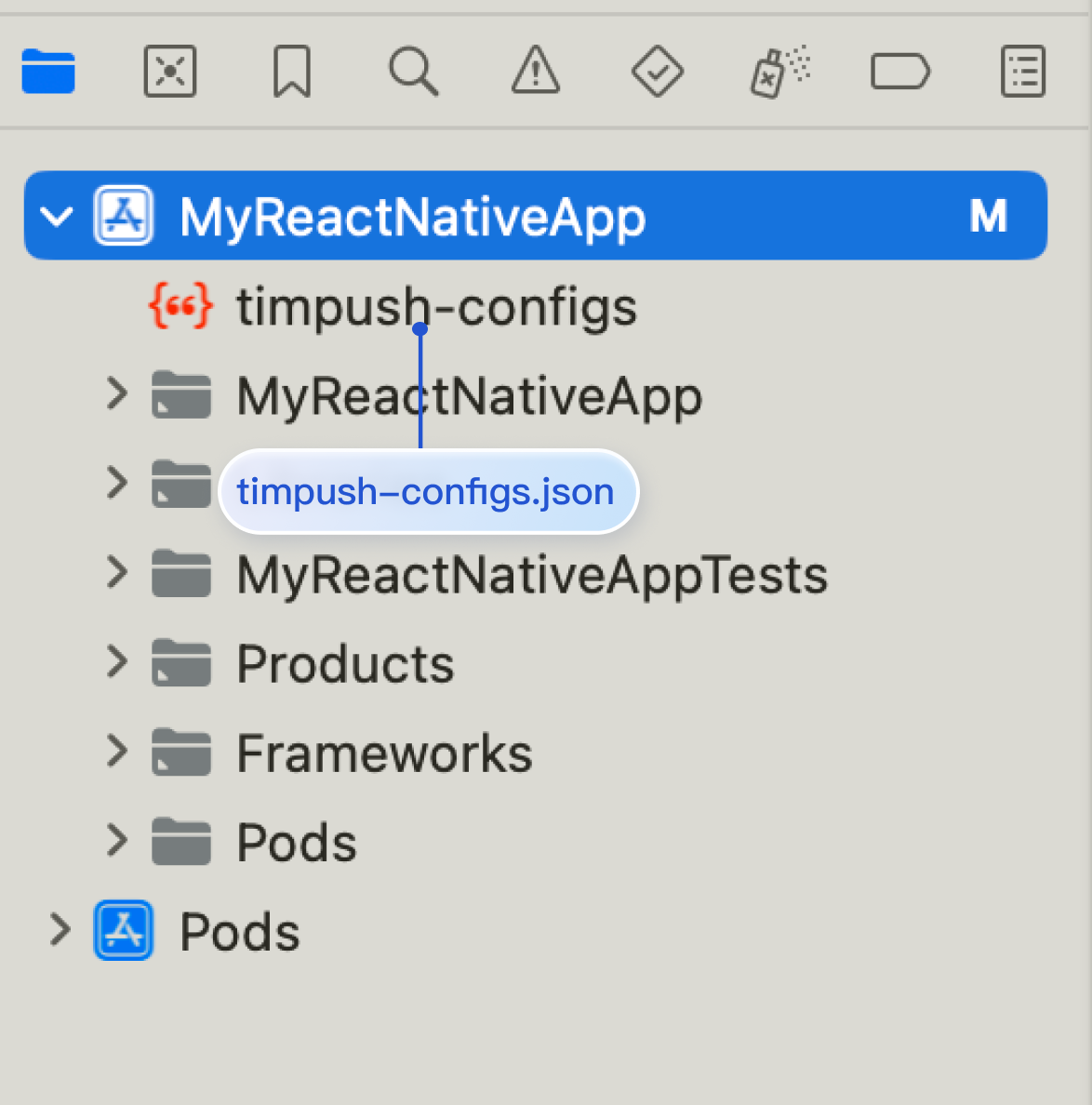
3. Open the MyReactNativeApp project in XCode, right-click the project > Add Files to "MyReactNativeApp", and add the timpush-configs.json directory to the project. As shown in the figure:


Step 5: Configuring Native Modules and Dependencies

Android
iOS
Note:
Please ensure the package name in timpush-configs.json matches the applicationId value in MyReactNativeApp/android/app/build.gradle. Inconsistency will result in offline push notifications being unavailable.
1. Open the MyReactNativeApp/android directory with Android Studio.
2. Modify the project entry file.
The project entry file is: MainApplication.kt
The project entry file is: MainApplication.java
...
import com.tencent.qcloud.rntimpush.TencentCloudPushApplication

// Replace Application with TencentCloudPushApplication
class MainApplication : TencentCloudPushApplication(), ReactApplication {
...
// add TencentCloudPushPackage to the list of packages returned in ReactNativeHost's getPackages() method
override fun getPackages(): List<ReactPackage> =
PackageList(this).packages.apply {
// Packages that cannot be autolinked yet can be added manually here, for example:
// add(MyReactNativePackage())
}
}
...
import com.tencent.qcloud.rntimpush.TencentCloudPushApplication;

// Replace Application with TencentCloudPushApplication
public class MainApplication extends TencentCloudPushApplication implements ReactApplication {
...
// add TencentCloudPushPackage to the list of packages returned in ReactNativeHost's getPackages() method
@Override
protected List<ReactPackage> getPackages() {
List<ReactPackage> packages = new PackageList(this).getPackages();
// Packages that cannot be autolinked yet can be added manually here, for example:
// packages.add(new MyReactNativePackage());
return packages;
}
...
3. Edit the android/build.gradle file to update repositories, dependencies, and allprojects.
buildscript {
...
repositories {
...
google()
mavenCentral()
maven { url 'https://mirrors.tencent.com/nexus/repository/maven-public/' }
// Configure the Maven repository address for HMS Core SDK.
maven { url 'https://developer.huawei.com/repo/' }
maven { url 'https://developer.hihonor.com/repo' }
}
dependencies {
...
// If the com.android.tools.build:gradle in your created project does not have a version number, set it to 8.5.0
// classpath("com.android.tools.build:gradle:8.5.0")
classpath 'com.google.gms:google-services:4.3.15'
classpath 'com.huawei.agconnect:agcp:1.9.1.301'
classpath 'com.hihonor.mcs:asplugin:2.0.1.300'
}
}
allprojects {
repositories {
mavenCentral()
maven { url 'https://mirrors.tencent.com/nexus/repository/maven-public/' }
// Configure the Maven repository address for HMS Core SDK.
maven { url 'https://developer.huawei.com/repo/' }
maven { url 'https://developer.hihonor.com/repo' }
}
}
...
4. Edit the android/app/build.gradle file, configure the vendor's push package as needed, and apply the plugin.
...
// If your APP requires FCM push notifications, uncomment the following line
// apply plugin: 'com.google.gms.google-services'
// If your APP requires Huawei push notifications, uncomment the following line
// apply plugin: 'com.huawei.agconnect'
// If your APP requires HONOR push notifications, uncomment the following line
// apply plugin: 'com.hihonor.mcs.asplugin'
...
android {
...
defaultConfig {
...
manifestPlaceholders = [
"VIVO_APPKEY" : "0", // If your App requires vivo push notifications, please configure 'VIVO_APPKEY' and 'VIVO_APPID'
"VIVO_APPID" : "0",
"HONOR_APPID" : "" // If your APP requires HONOR push notifications, please configure 'HONOR_APPID'
]
}
}

dependencies {
...
// Please import all or part of the following vendor push packages as needed.
// Only by importing the push package of the corresponding vendor
// can you enable the native push capability of that vendor.
implementation 'com.tencent.timpush:huawei:8.3.6498'
implementation 'com.tencent.timpush:xiaomi:8.3.6498'
implementation 'com.tencent.timpush:oppo:8.3.6498'
implementation 'com.tencent.timpush:vivo:8.3.6498'
implementation 'com.tencent.timpush:honor:8.3.6498'
implementation 'com.tencent.timpush:meizu:8.3.6498'
implementation 'com.tencent.timpush:fcm:8.3.6498'
}
5. After completing the above steps, select File > Sync Project with Gradle Files.
1. Open MyReactNativeApp/ios/MyReactNativeApp.xcworkspace with XCode.
2. Go to the MyReactNativeApp/ios directory and install TIMPush.
pod install
# If you cannot install the latest version, run the following command to update your local CocoaPods repository list
pod repo update
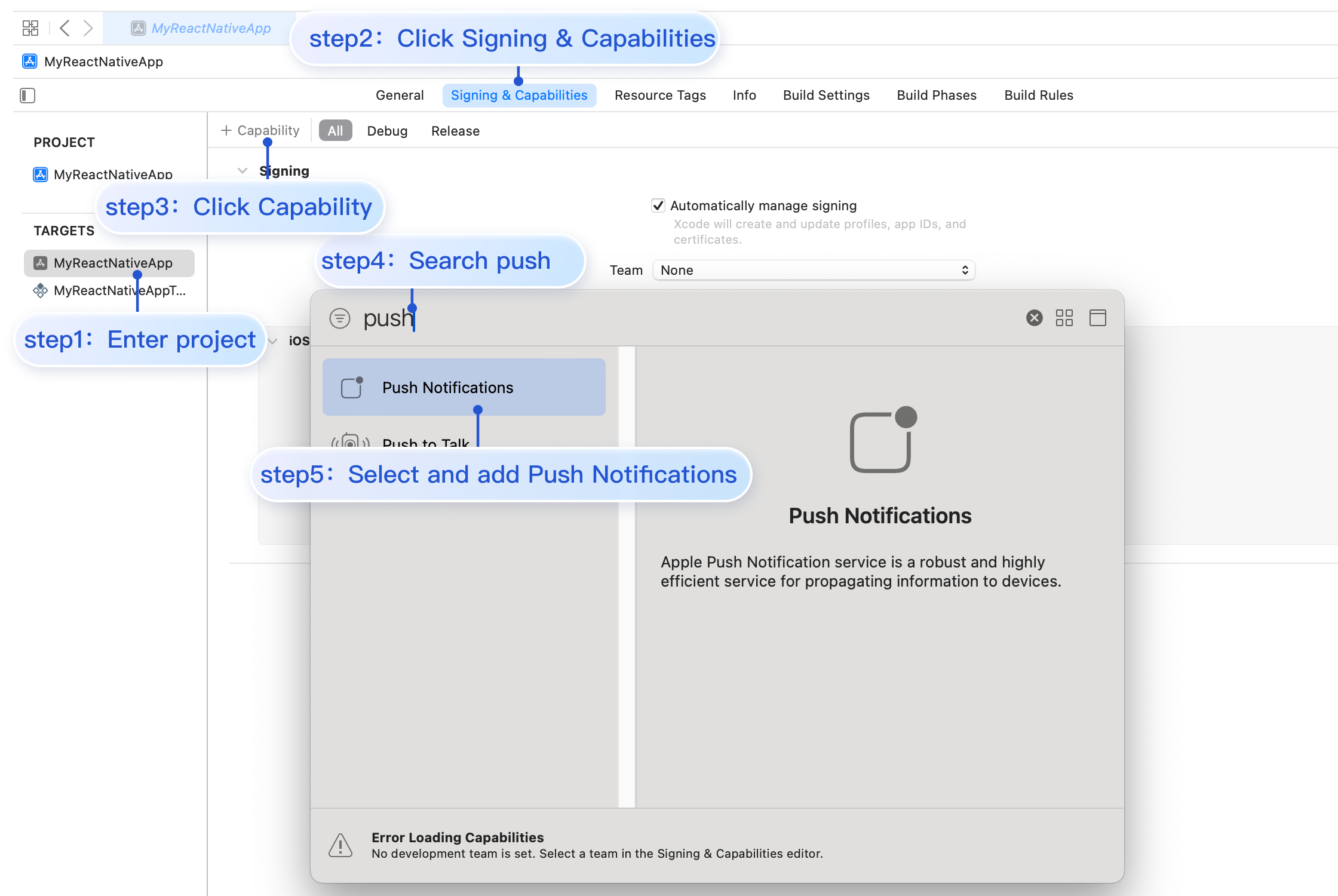
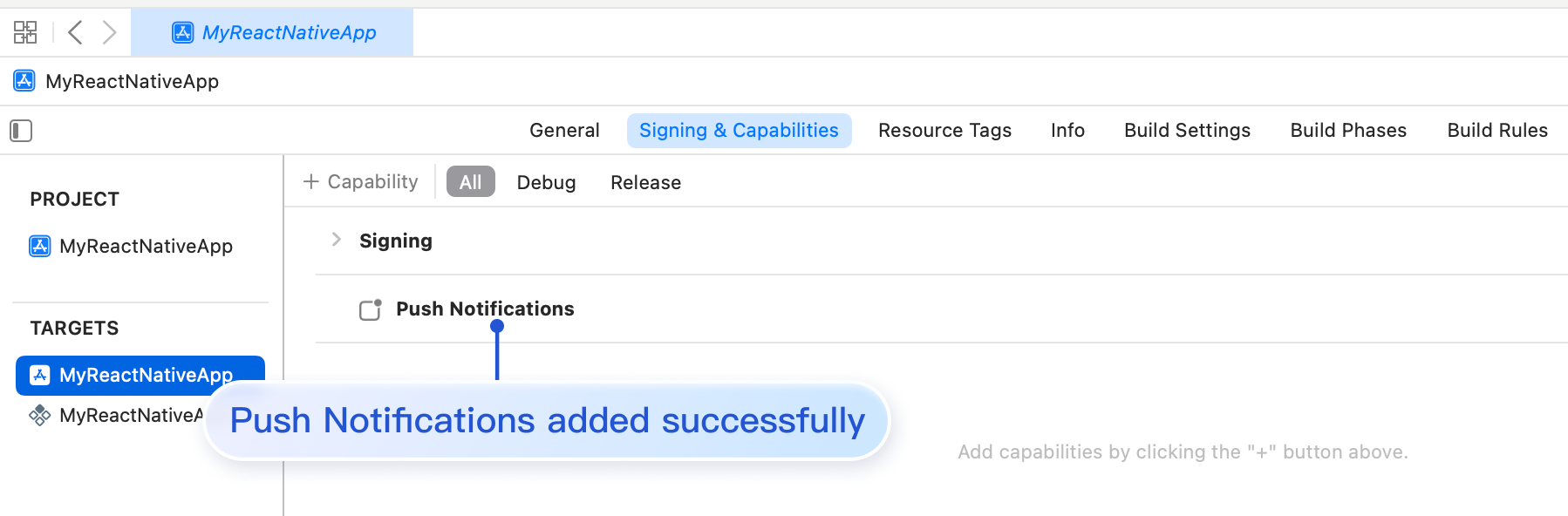
3. Enable push notification feature in the app. Open the Xcode project, and select and add Push Notifications on the Project > Target > Capabilities page.


Step 6: Running on a Real Device (Make sure to enable notification permissions on your phone before testing, allowing the app to send notifications.)

Starting from the project's root directory, run the following command in the command prompt to install and launch your app on the device:
Android
iOS
npm run android
npm run ios

Step 7: Message Push Reach Statistics

If you need to collect data on delivery, please complete the setup as follows:
Huawei
HONOR
vivo
Meizu
iOS

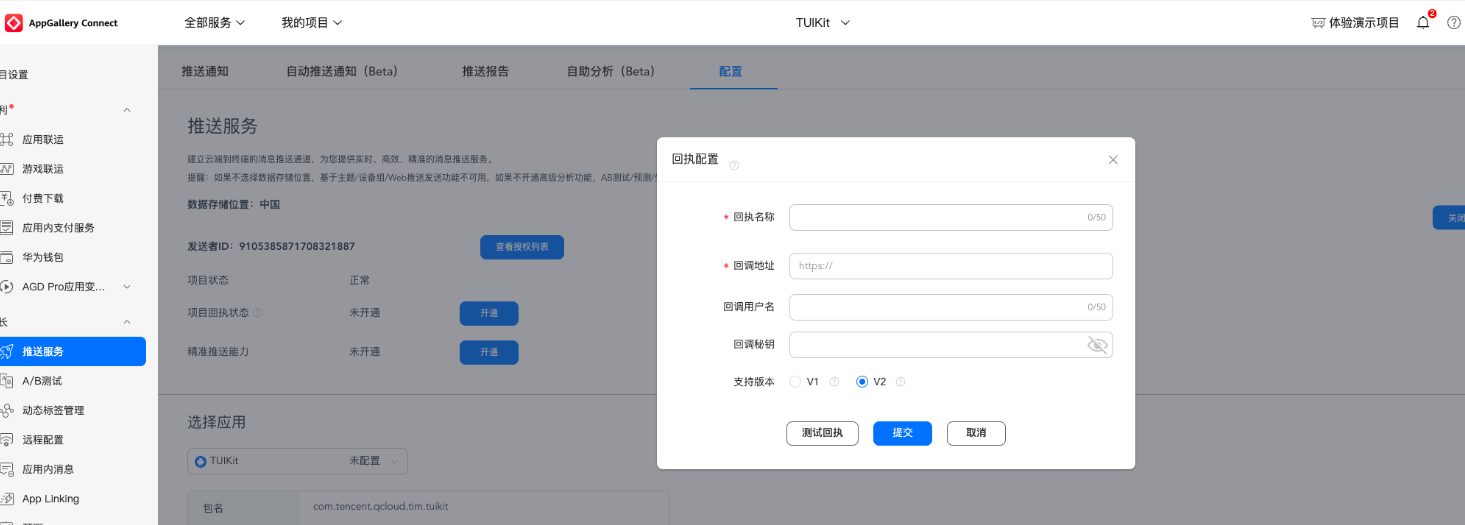
Receipt Address:
Singapore : https://apisgp.im.qcloud.com/v3/offline_push_report/huawei
Korea: https://apikr.im.qcloud.com/v3/offline_push_report/huawei
USA: https://apiusa.im.qcloud.com/v3/offline_push_report/huawei
Germany: https://apiger.im.qcloud.com/v3/offline_push_report/huawei
Indonesia: https://apiidn.im.qcloud.com/v3/offline_push_report/huawei
China: https://api.im.qcloud.com/v3/offline_push_report/huawei
Note:
Huawei Push Certificate ID <= 11344, using Huawei Push v2 version interface does not support reach and click receipt, please regenerate and update the certificate ID.

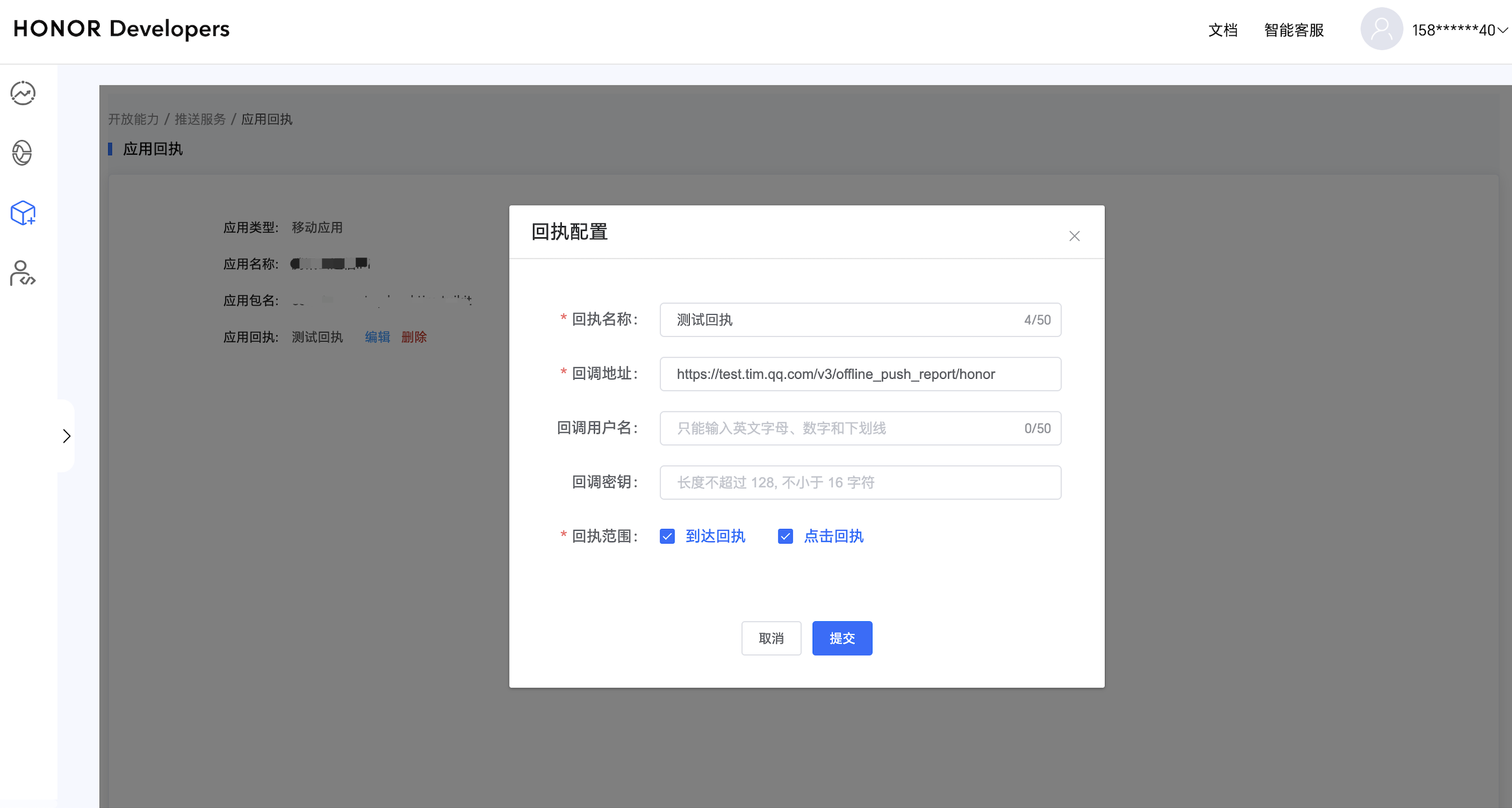
Receipt Address:
Singapore : https://apisgp.im.qcloud.com/v3/offline_push_report/honor
Korea: https://apikr.im.qcloud.com/v3/offline_push_report/honor
USA: https://apiusa.im.qcloud.com/v3/offline_push_report/honor
Germany: https://apiger.im.qcloud.com/v3/offline_push_report/honor
Indonesia: https://apiidn.im.qcloud.com/v3/offline_push_report/honor
China: https://api.im.qcloud.com/v3/offline_push_report/honor
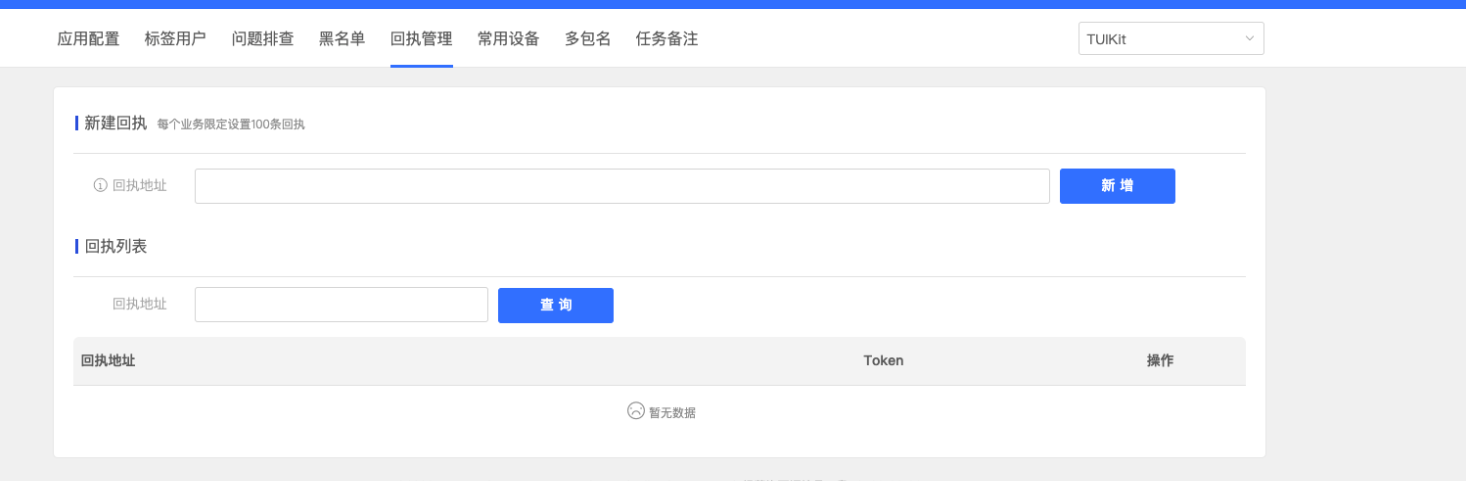
Callback Address Configuration
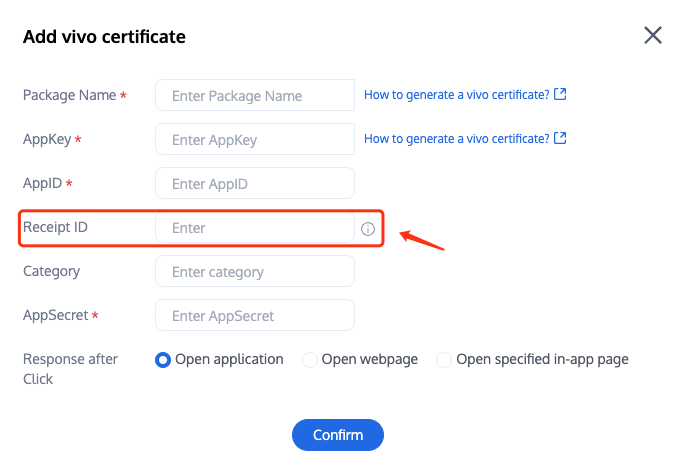
Receipt ID Configuration in the Chat Console


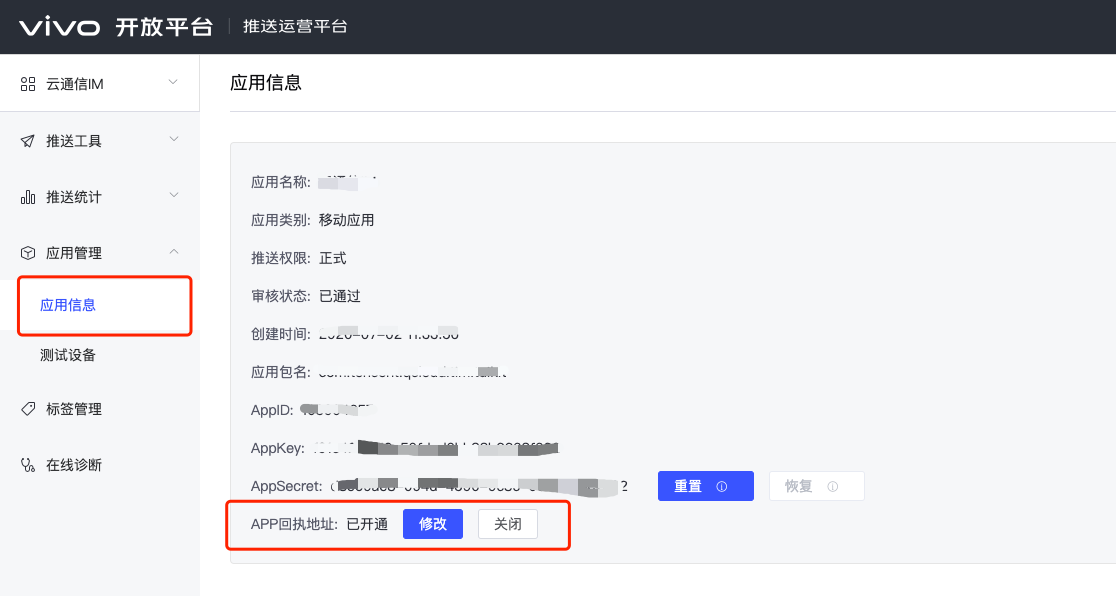
Receipt Address:
Singapore :https://apisgp.im.qcloud.com/v3/offline_push_report/vivo
Korea:https://apikr.im.qcloud.com/v3/offline_push_report/vivo
USA: https://apiusa.im.qcloud.com/v3/offline_push_report/vivo
Germany: https://apiger.im.qcloud.com/v3/offline_push_report/vivo
Indonesia: https://apiidn.im.qcloud.com/v3/offline_push_report/vivo
China: https://api.im.qcloud.com/v3/offline_push_report/vivo


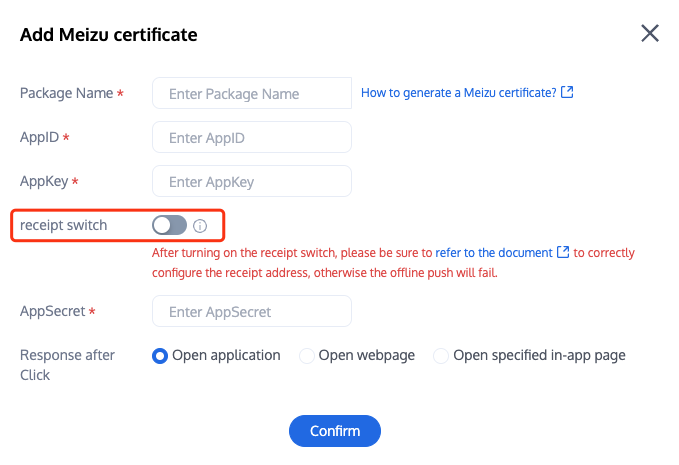
Enable Receipt Switch
Configure Receipt Address


Receipt Address:
Singapore : https://apisgp.im.qcloud.com/v3/offline_push_report/meizu
Korea: https://apikr.im.qcloud.com/v3/offline_push_report/meizu
USA: https://apiusa.im.qcloud.com/v3/offline_push_report/meizu
Germany: https://apiger.im.qcloud.com/v3/offline_push_report/meizu
Indonesia: https://apiidn.im.qcloud.com/v3/offline_push_report/meizu
China: https://api.im.qcloud.com/v3/offline_push_report/meizu
Note:
After enabling the Receipt Switch, please make sure the Receipt Address is configured correctly. Failing to configure or configuring the wrong address will affect the push feature.
For iOS push reach statistics configuration, see Statistics of Push Arrival Rate.
No configuration is needed for other supported manufacturers; FCM does not support the push notification statistics feature.


Help and Support

Was this page helpful?

Help us improve! Rate your documentation experience in 5 mins.

Feedback