Submit an application in the eKYC console - Self-service Access - APP SDK Access section. After approval, obtain the latest SDK and License.
Security Mode Selection and Preparation
Selfie Verification (App SDK) offers three security-level modes. You can select the appropriate mode based on your business security requirements:
Security Mode
Security Level
Capability Description
Scenarios
Required License
Basic Edition
Standard
Basic liveness detection and face verification capabilities.
General business scenarios, scenarios with standard security requirements
YTFaceSDK.license
(Basic Authorization)
Enhanced Edition
(Enhance Mode)
High
Adds device risk control capabilities on top of the Basic Edition, enhancing device security and liveness detection accuracy.
Scenarios with high security requirements, such as financial account opening and critical account verification
YTFaceSDK.license (Basic Authorization)
Plus Edition
(Plus Mode)
Extremely high
Liveness detection + face 1:1 recognition + device risk control + AI protection shield
Scenarios with extremely high security requirements, such as large-amount transactions and sensitive information modification.
YTFaceSDK.license (Basic Authorization)
Quick Selection Guide
Recommended selection flow:
Step 1: Assess your business security requirements.
For standard security requirements, select the Basic edition.
For higher security requirements, select the Enhanced edition.
For extremely high security requirements, select the Plus edition.
Step 2: Confirm the access time.
If you need to launch quickly, start with the Basic edition and upgrade later.
If you have sufficient preparation time, apply directly for the Enhanced/Plus edition.
Step 3: Contact customer service for confirmation.
Basic Edition: Obtain the basic SDK and License from the console to start integration.
Enhanced/Plus Edition: Contact customer service to specify your requirements, and apply for the License and request access in the console.
Overall Architecture Diagram
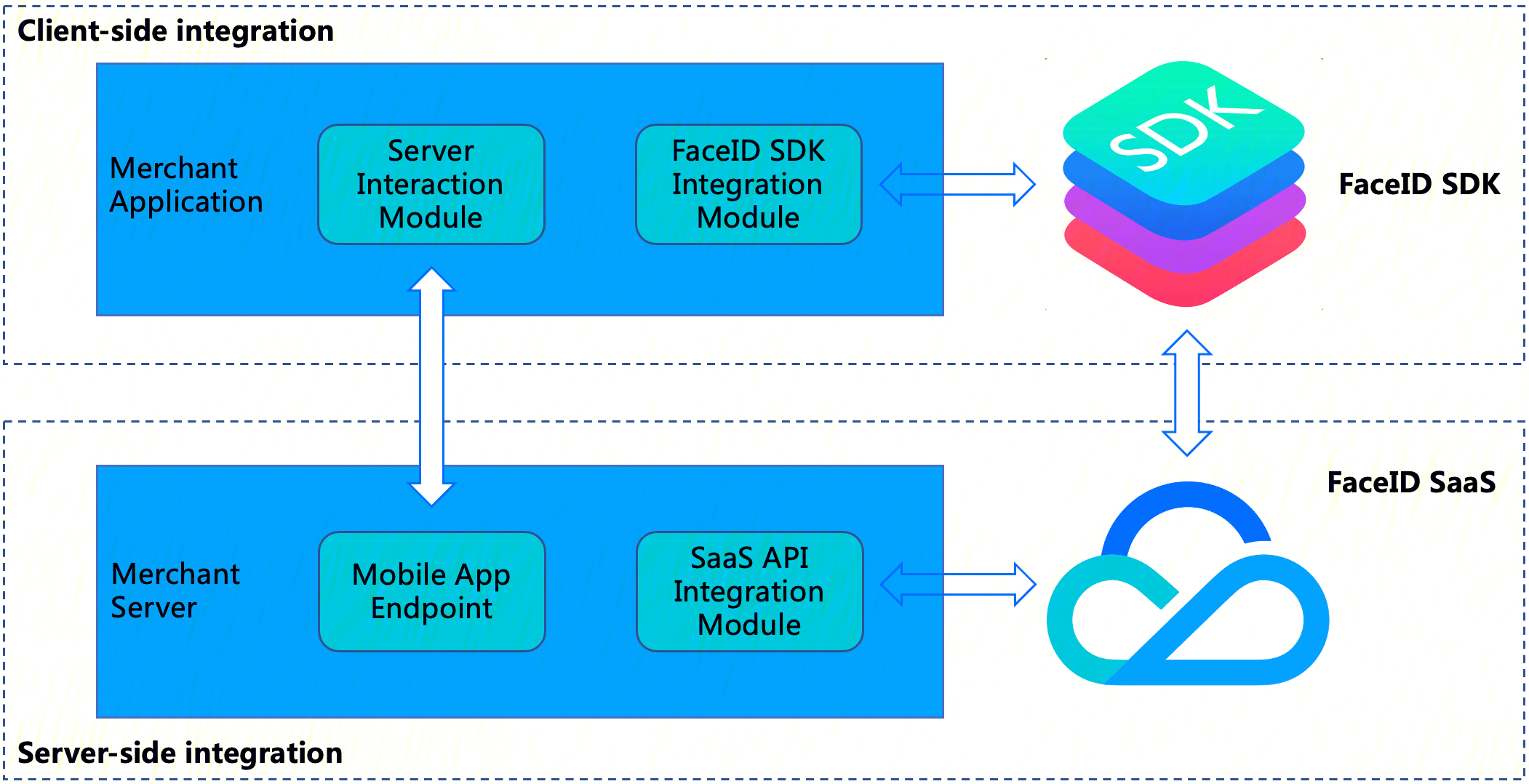
The following diagram illustrates the architecture for integrating the selfie SDK:
eKYC SDK integration includes two parts:
Client-side integration: Integrate the eKYC SDK into the client's end business App.
Server-side integration: Expose your (merchant) application's endpoints on your (merchant) server so that the merchant application can interact with the merchant server, and then access the FaceId SaaS API to obtain the Token for orchestrating the selfie verification process and use the Token to obtain the final verification result.
Overall Interaction Flow
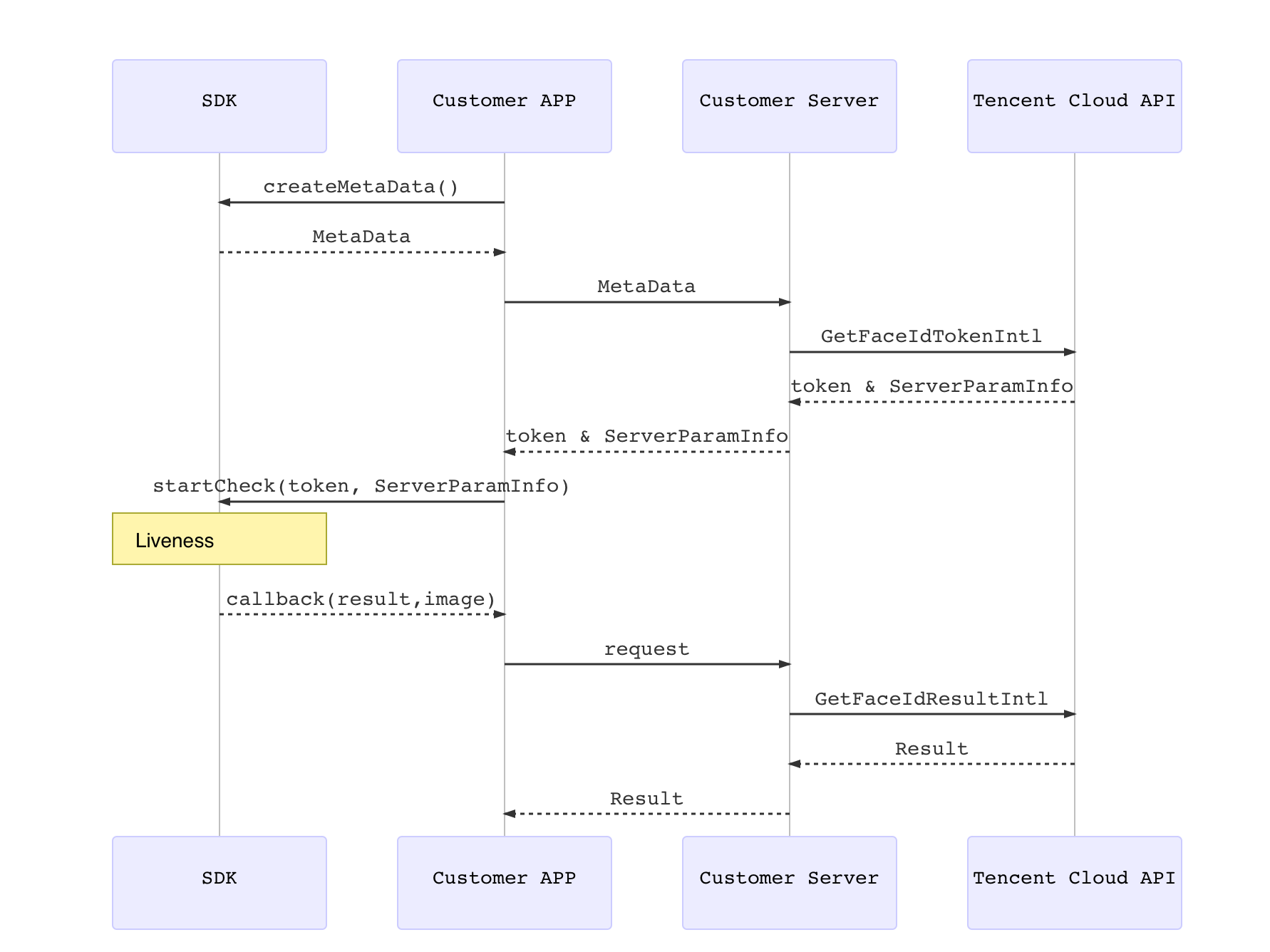
The integrator only needs to pass in the Token and invoke the corresponding eKYC SDK's liveness detection method. This completes the liveness detection and returns the liveness result.
1. To obtain a Token, refer to the TencentCloud API: GetFaceIdTokenIntl.
2. The TencentCloud API for users to actively pull liveness results: GetFaceIdResultIntl
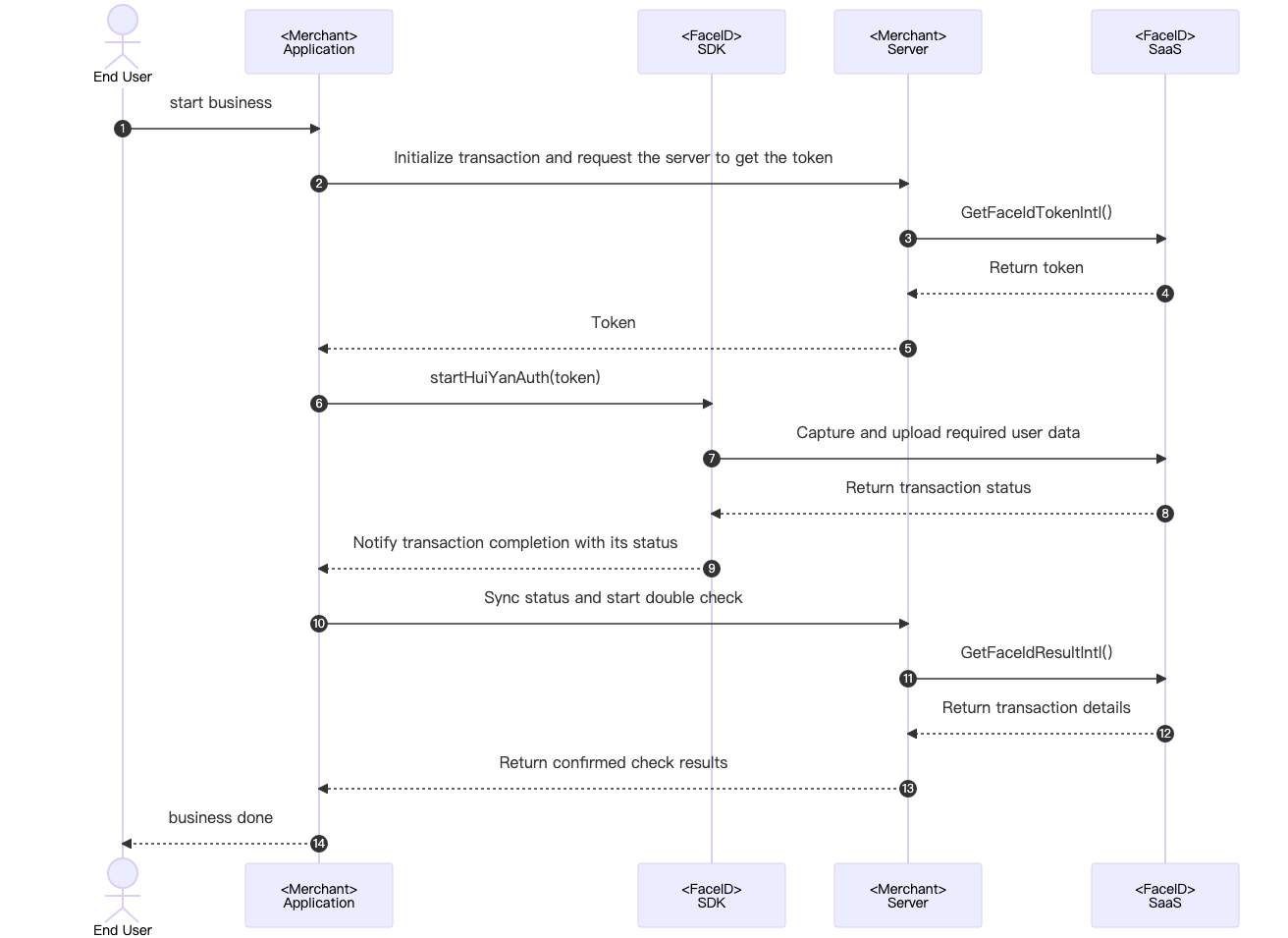
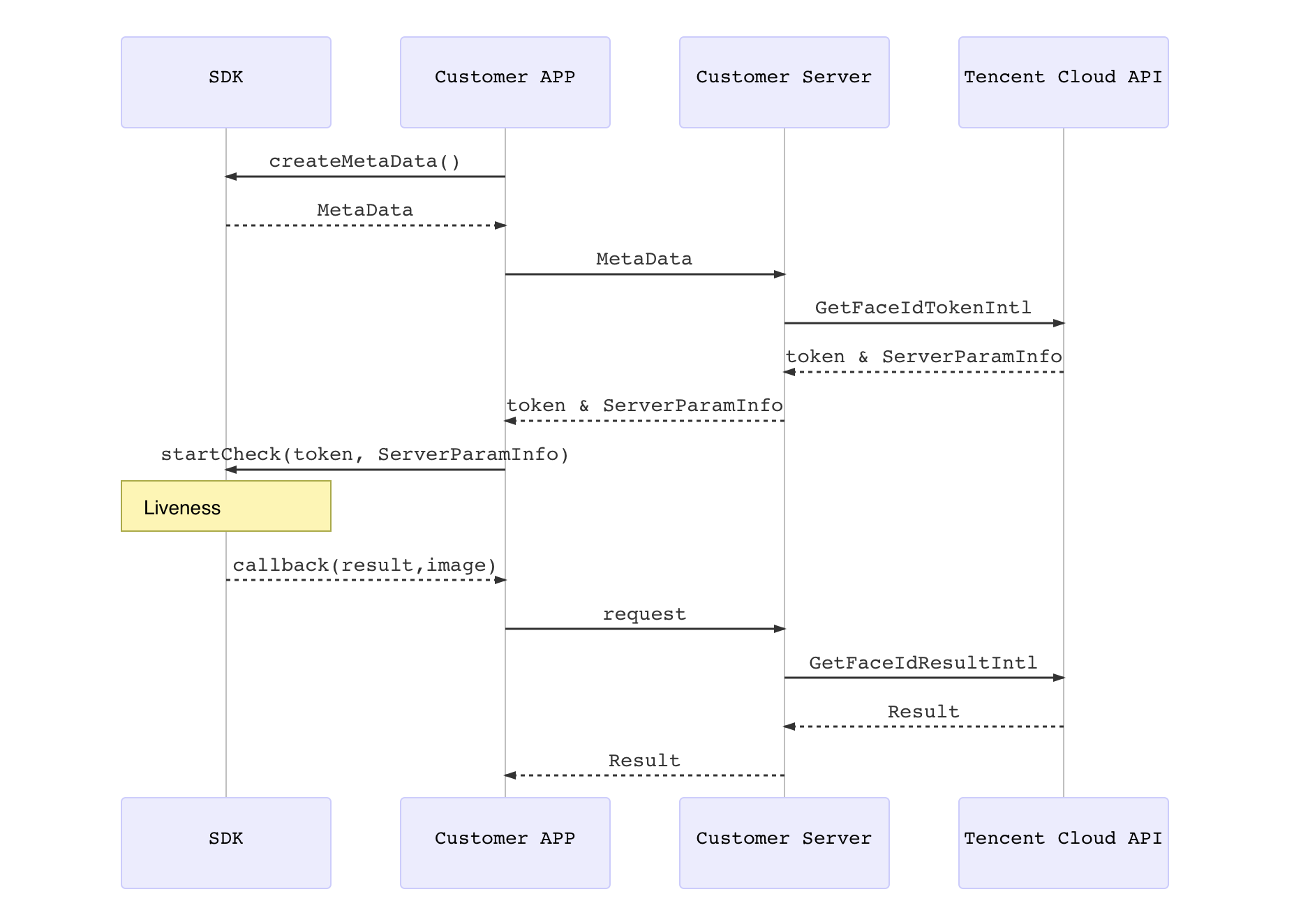
The following diagram illustrates the overall interaction logic between the SDK client and the server. The modules responsible for each part in the diagram are explained below:
The specific recommended interaction flow is as follows:
1. The user triggers the terminal Merchant Application to prepare for invoking the selfie verification business scenario.
2. The Merchant Application sends a request to the Merchant Server, notifying it that initiating an selfie verification session requires a liveness service Token.
3. The Merchant Server passes in the relevant parameters to call the TencentCloud API GetFaceIdTokenIntl.
4. After receiving the GetFaceIdTokenIntl call, FaceID SaaS issues the token for this session to the Merchant Server.
5. The Merchant Server can deliver the obtained service Token to the customer's Merchant Application.
6. The Merchant Application initiates selfie verification by calling the eKYC SDK startup API startHuiYanAuth and passing in the token and configuration information.
7. The FaceID SDK captures and uploads the required user data, including liveness data, to FaceID SaaS.
8. After completing the selfie verification process (including liveness and comparison), FaceID SaaS returns the result to the FaceID SDK.
9. The FaceID SDK actively triggers a callback to the Merchant Application to notify it of the verification completion and status.
10. After receiving the callback, the Merchant Application can send a request to notify the Merchant Server to proactively obtain the result of this selfie verification session for confirmation.
11. The Merchant Server proactively calls the FaceID SaaS API GetFaceIdResultIntl by passing in the relevant parameters and the Token for this session to obtain the result of this selfie verification.
12. Upon receiving the GetFaceIdResultIntl call, FaceID SaaS returns the result of this selfie verification to the Merchant Server.
13. After the result of this selfie verification is received, the Merchant Server can deliver the required information to the Merchant Application.
14. The Merchant Application displays the final result on the UI page, informing the user of the selfie verification outcome.
Access Process
Server-Side Integration
1. Integration Preparation
Before server-side integration, you need to follow the instructions in Obtain API Key Guide to activate Tencent Cloud eKYC service and obtain the TencentCloud API access keys SecretId and SecretKey. Additionally, you need to follow the procedure in Connect to TencentCloud API to import the SDK package for your preferred programming language into your server-side module, ensuring successful calls to TencentCloud API and proper handling of API requests and responses.
2. Starting the Integration
To ensure your (merchant) client application can interact properly with your (merchant) server, the merchant server needs to call the API GetFaceIdTokenIntl provided by eKYC to obtain the SdkToken for orchestrating the entire selfie verification process, and call the GetFaceIdResultIntl API to obtain the selfie verification result. The merchant server also needs to provide corresponding endpoints for the merchant client to call. The following sample code uses the Go language as an example to demonstrate how to call TencentCloud API on the server side and obtain the correct response.
Note:
This example only demonstrates the processing logic required for the merchant server to interact with TencentCloud API. If needed, you must implement your own business logic, such as:
After you obtain the SdkToken for liveness verification through the GetFaceIdTokenIntl API, you can return other responses required by the client application to the client together with the SdkToken.
After you obtain the liveness verification result via the GetFaceIdResultIntl API, you can save the returned best-frame photo for use in subsequent business logic.
After completing the integration, you can test whether the integration is correct using Postman or curl commands. Access the http://IP address:port/api/v1/get-token API to check whether the SdkToken is returned normally. Access the http://IP address:port/api/v1/get-result API to check whether the response of the Result field is 0, thereby determining whether the server-side integration is successful. For detailed response results, refer to the API section.
Android-Side Integration
1. Prerequisites
The current Android eKYC SDK supports API 19 (Android 4.4) and later versions.
2. SDK Integration Steps
2.1 Add huiyansdk_android_overseas_1.x.x.x_release.aar (for the specific version, refer to the official website download), tencent-ai-sdk-youtu-base-1.x.x.x-release.aar, tencent-ai-sdk-common-1.x.x.x-release.aar, and tencent-ai-sdk-aicamera-1.x.x.x-release.aar, tencent-ai-sdk-network-1.x.x.x-release.aar, tencent-ai-sdk-risk-oversea-1.x.x.x-release.aar (for the specific versions, refer to the final provided versions) to the libs directory of your project.
// Optional: Voice broadcast resource package (only required when voice broadcast is enabled, that is, when HuiYanOsConfig.setOpenAudio(true) is called)
For users who need to support Android 6.0 and later, in addition to declaring the above permissions in the AndroidManifest.xml file, you must also request the permissions dynamically in code.
3. SDK API Usage Instructions
Initialize the API.
Call this during your app's initialization. It is recommended to call it within the Application class, primarily to perform some SDK initialization operations.
@Override
publicvoidonCreate(){
super.onCreate();
instance =this;
// The SDK must be initialized when the Application initializes.
HuiYanOsApi.init(getApp());
}
Main SDK Workflow
The integrator only needs to pass in the Token and invoke the corresponding liveness detection method. This completes the liveness detection and returns the liveness result.
HuiYanOsAuthResult is the return result for successful selfie verification.
Note:
● License File Naming: The YTFaceSDK.license in the code is only an example file name. The actual license file name you apply for typically includes prefixes such as the customer name and date (for example: CompanyName_20260101_YTFaceSDK.license or CompanyName_20260101_turing.lic). Use the actual file name you obtained from the application in your code.
● License Application: The current "YTFaceSDK.license" and "turing.lic" files require you to apply for them. Please contact customer service to apply for a license.
● File Placement: Place the license file obtained after application under the assets directory.
├── codedemo
│ ├── build.gradle
│ ├── libs
│ ├── proguard-rules.pro
│ └── src
│ └── main
│ └── assets
│ └── YTFaceSDK.license
SDK Resource Release
When your App exits, you can call the SDK resource release API.
@Override
protectedvoidonDestroy(){
super.onDestroy();
// Release resources upon exit
HuiYanOsApi.release();
}
Obfuscation Rule Configuration
If your app has enabled obfuscation, add the following sections to your obfuscation file to ensure the SDK works properly.
#SDKObfuscationIncludes
-keep class com.tencent.could.huiyansdk.**{*;}
-keep class com.tencent.could.aicamera.**{*;}
-keep class com.tencent.could.component.**{*;}
-keep class com.tencent.youtu.**{*;}
-keep classcom.tenpay.utils.SMUtils{*;}
-keep class com.tencent.turingface.**{*;}
-keep class com.turingface.sdk.**{*;}
-keep class com.tencent.cloud.ai.network.**{*;}
Enhanced Mode / Plus Mode
Selfie Verification provides two advanced security levels: Enhanced Mode and Plus Mode, which further improve the security of liveness detection by incorporating device risk control technology. To enable these modes, you must configure the SDK and obtain the Token accordingly.
1. Token Acquisition Configuration
When calling the GetFaceIdTokenIntl API to obtain a business Token, you must specify Enhanced Mode or Plus Mode by setting the SdkVersion parameter:
Enhanced Mode: Set the corresponding SdkVersion value.
Plus mode: Set the corresponding SdkVersion value.
2.1 Set the corresponding SdkVersion parameter when obtaining the Token.
2.2 Pass the configured Token when calling the startHuiYanAuth method.
2.3 The SDK automatically enables the corresponding security level based on the mode information in the Token.
Warning:
The device risk control license is an independent file different from the identity verification authorization license and requires separate application.
iOS-Side Integration
1. Prerequisites
Development environment: Xcode 27.0 or later.
The eKYC iOS SDK is compatible with iOS 15.0 and later on mobile devices.
The eKYC iOS SDK supports the ARM64 architecture on real devices, as well as the ARM64 and X86_64 architectures on simulators.
Note: The ARM64 architecture on real devices includes full functionality. Compilation can pass under the simulator architecture, but full capabilities cannot be used.
2. SDK Integration Steps
Manual Integration Method
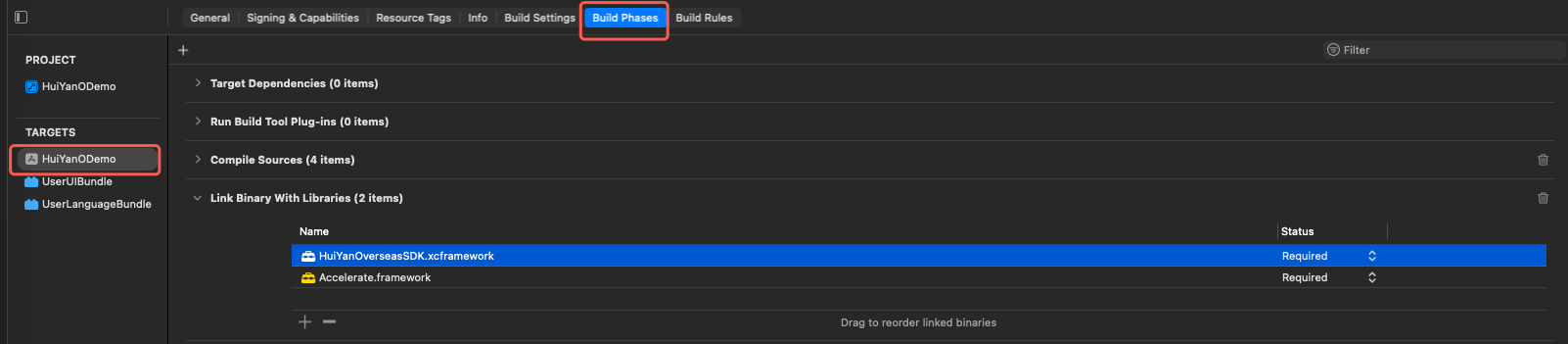
1. Import the required libraries and files, and import the relevant frameworks in Link Binary With Libraries.
├──Accelerate.framework
└──HuiYanOverseasSDK.xcframework
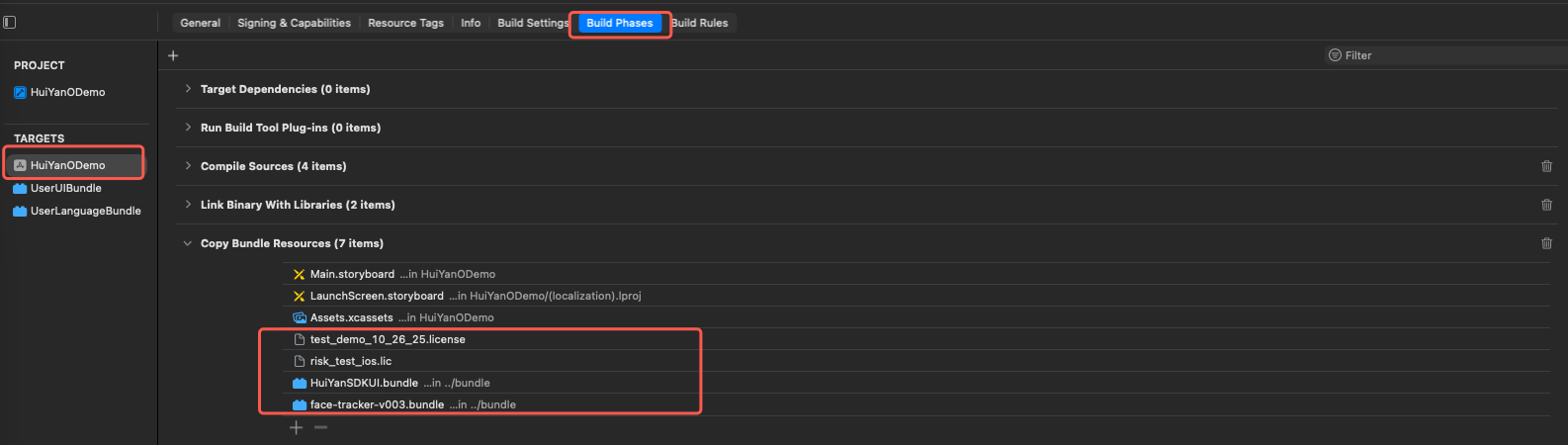
2. In the Copy Bundle Resources section, import the authorization file and model resource files.
├──YTFaceSDK.license
├──face-tracker-v003.bundle
├──HuiYanSDKUI.bundle
└──HuiYanAudioBundle.bundle (Optional)
Note: `HuiYanAudioBundle.bundle` is the resource bundle for voice broadcasting. It must be imported when voice broadcasting is enabled (`isOpenAudio=YES`, enabled by default), and can be omitted when voice broadcasting is disabled.
Integrating Using Pods
1. Create a CloudHuiYanSDK_FW folder in the project's root directory. Within this folder, create Frameworks and Resources subfolders, and then move the SDK package into the CloudHuiYanSDK_FW directory. The structure is as follows:
├──YourProject.xcodeproj
├──Podfile
├──CloudHuiYanSDK_FW
├───────CloudHuiYanSDK_FW.podspec
├───────Frameworks
├────────────HuiYanOverseasSDK.xcframework
├───────Resources
├────────────HuiYanSDKUI.bundle
├────────────HuiYanAudioBundle.bundle
└────────────face-tracker-v003.bundle
2. Create a podspec file in the CloudHuiYanSDK_FW directory:
Pod::Spec.newdo|s|
s.name ="CloudHuiYanSDK_FW"
s.version ="1.0.0"
s.platform =:ios,"15.0"
s.summary ='frameworks and bundle resources for youtu mobile hdr'
pod 'CloudHuiYanSDK_FW',:path => './CloudHuiYanSDK_FW'
end
4. Check the project configuration.
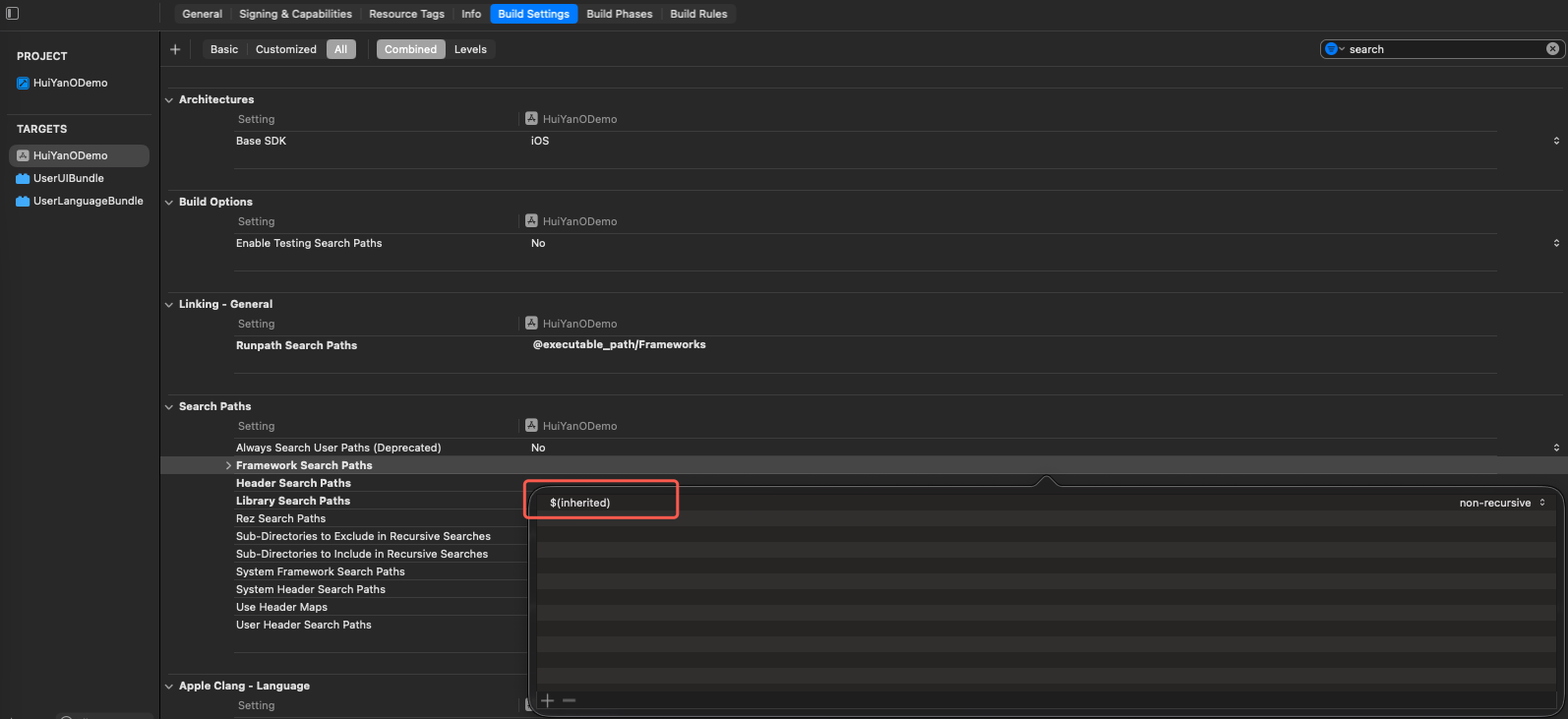
4.1 In the project's Build Settings, add $(inherited) to Framework Search Paths.
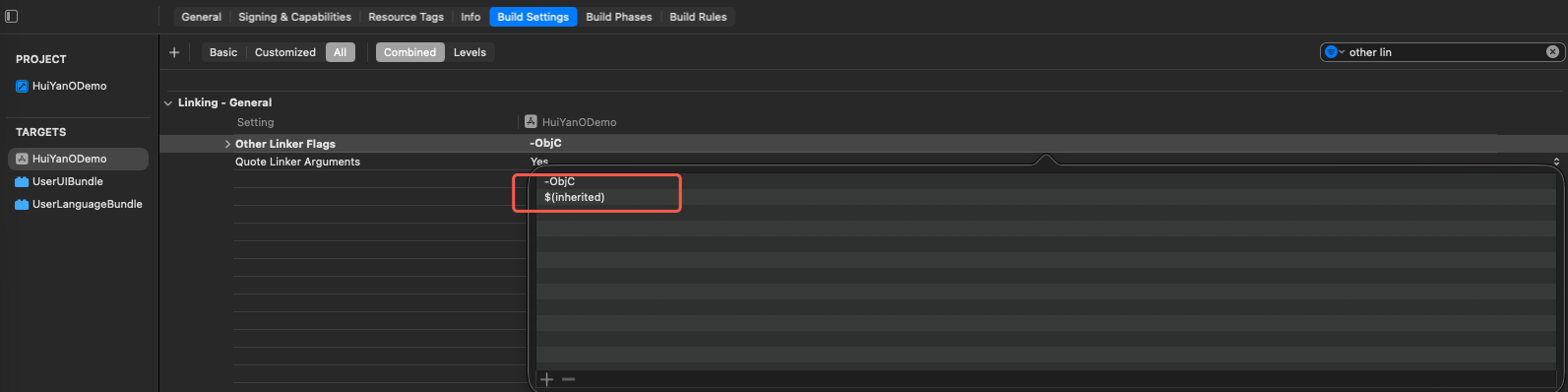
4.2 In the project's Build Settings, add $(inherited) to Other Linker Flags.
5. Run pod install to update.
Permission Settings
The SDK requires permissions for mobile network and camera access. Add the corresponding permission declarations. In the main project's info.plist configuration, add the following key-value pairs.
<key>Privacy - Camera Usage Description</key>
<string>Face Identity Verification requires enabling your camera permission for Face Recognition.</string>
3.1 SDK API Usage Instructions
Main SDK Workflow
The integrator only needs to pass in the Token and invoke the corresponding liveness detection method. This completes the liveness detection and returns the liveness result.
● License File Naming: The YTFaceSDK.license in the code is only an example file name. The actual license file name you apply for typically includes prefixes such as the customer name and date (for example: CompanyName_20260101_YTFaceSDK.license). Use the actual file name you obtained from the application in your code.
● License Application: Contact customer service to apply for a license.
● File Placement: Place the license file obtained after application in the current project directory and add it to the resource files (Copy Bundle Resources).
Start Enhanced Mode / Plus Mode.
Selfie Verification provides two advanced security levels: Enhanced Mode and Plus Mode. These modes further improve the security of liveness detection by incorporating device risk control technology. To enable these modes, you must configure the SDK and obtain the Token accordingly.
1. SDK Configuration Requirements
Whether you enable Enhanced Mode or Plus Mode, you must configure the license file in the SDK:
When calling the GetFaceIdTokenIntl or ApplySdkVerificationToken API to obtain a business Token, you must specify Enhanced Mode or Plus Mode by setting the SdkVersion parameter:
Enhanced Mode: Set the corresponding SdkVersion value.
Plus Mode: Set the corresponding SdkVersion value.