Managing Secondary Clusters
다운로드
포커스 모드
폰트 크기
This document introduces how to manage clusters in the global database (GD) and adjust their configurations after a GD is created.
Prerequisites
Note
A GD contains one primary cluster and up to three secondary clusters.
The database versions of the primary cluster and secondary cluster should be the same, both using TDSQL-C for MySQL 8.0.
A cluster can only belong to one GD.
A secondary cluster can only be created. The existing created clusters cannot be added as secondary clusters.
The instance mode for the secondary clusters only supports provisioned resource by default.
The specifications for the compute instances (read-write) in the secondary clusters of the GD should be at least 4 cores or higher, while there is no core limit for the compute instances (read-only).
If the storage billing mode for the primary cluster in the GD is yearly/monthly subscription, the storage billing mode for the secondary cluster supports either yearly/monthly subscription or pay-as-you-go; if the billing mode for the primary cluster is pay-as-you-go, the billing mode for the secondary cluster only supports pay-as-you-go.
Billing Instructions for Secondary Clusters
Currently, the cross-region traffic transmission for the GD feature is free of charge. You only need to pay for the fees associated with each cluster. For details on cluster pricing, see Product Pricing.
Configuration Adjustment Introduction
Due to data synchronization between clusters in the GD, to ensure the integrity and consistency of data synchronization in the secondary cluster, the storage space of the secondary cluster in the same GD cannot be less than that of the primary cluster. Therefore, there are several operational precautions when you perform configuration adjustments on clusters in the GD. For detailed operations and instructions, see Configuration Adjustments.
Adding Secondary Clusters
Method 1: Adding Secondary Clusters on the Primary Cluster Management Page
1. Log in to the TDSQL-C for MySQL console.
2. Perform corresponding operations based on your actual console view mode.
Click the target primary cluster in the cluster list on the left to enter the cluster management page.
Find the target primary cluster in the cluster list on the left, and click Cluster ID or Manage in the Operation column to enter the cluster management page.
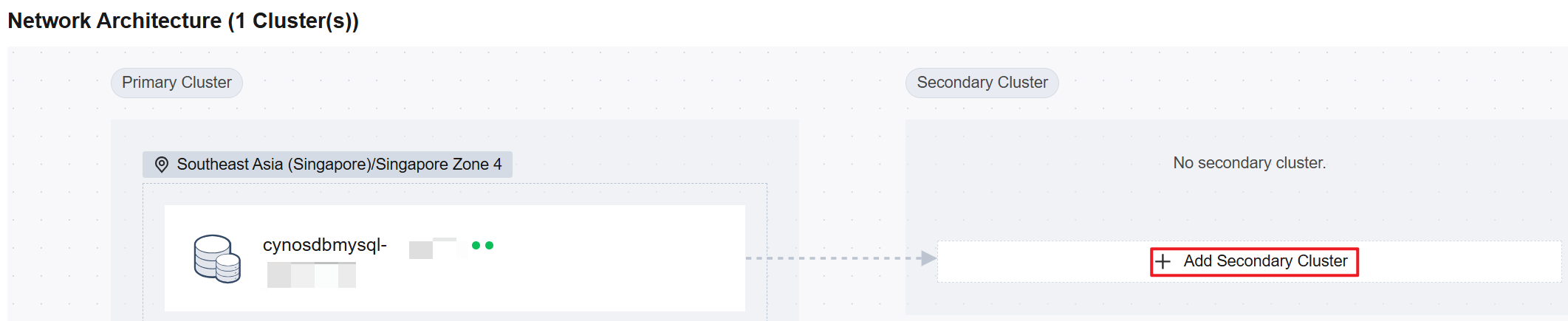
3. On the cluster management page, select global database, and then click Add Secondary Cluster under the network architecture.
4. On the redirected Create Global Database Secondary Cluster page, select the secondary cluster configuration as needed, and then click Purchase Now.
Note:
Note: For detailed steps on the Create Global Database Secondary Cluster page, see Creating a Cluster. The available regions and AZs are subject to the actual page.
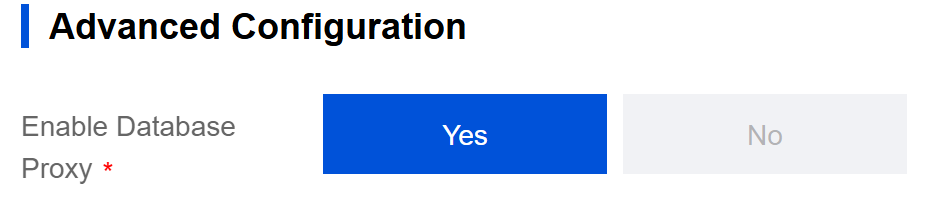
When a secondary cluster is created, the database proxy should be enabled.
5. After the secondary cluster is delivered, the operation of adding the secondary cluster is completed.
Method 2: Adding Secondary Clusters Under the GD
1. Log in to the TDSQL-C for MySQL console.
2. Click GD in the left sidebar.
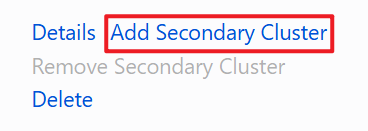
3. Find the target GD, and then click Add Secondary Cluster in the operation column.
Note:
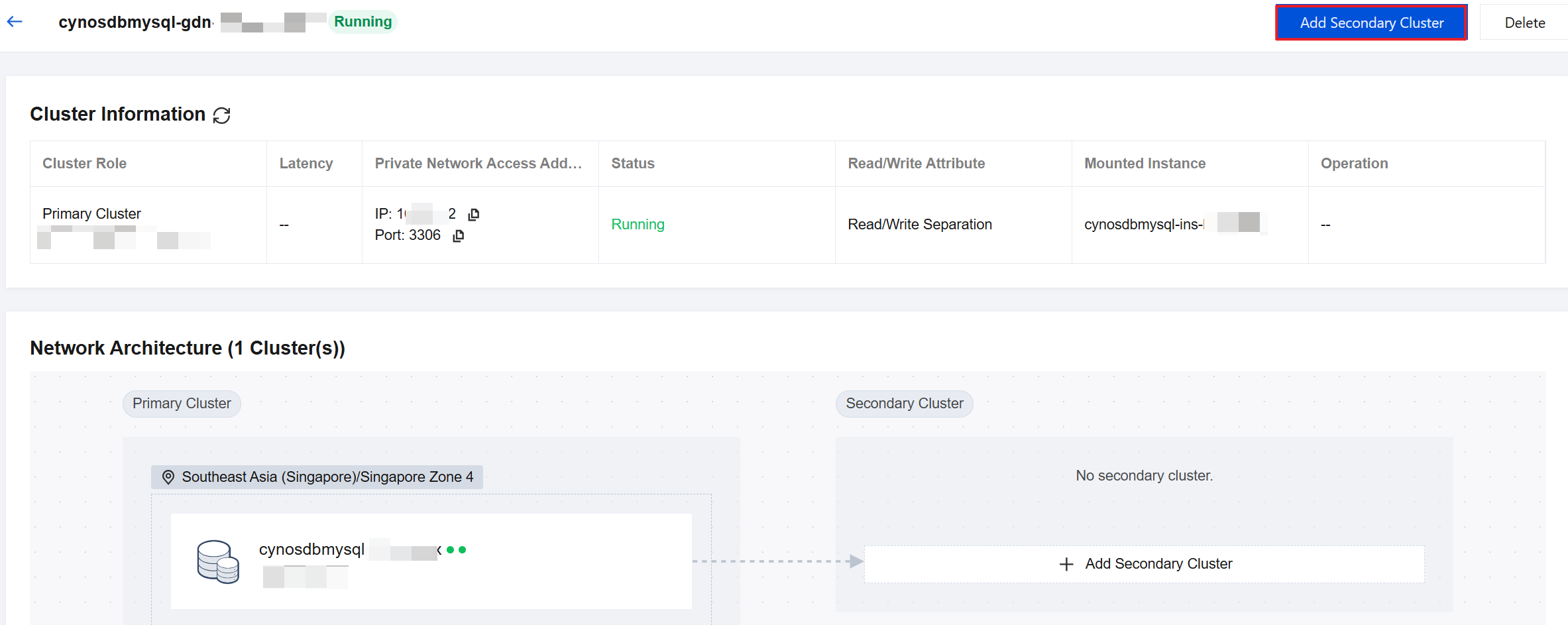
On the details page of the GD, there is also an entry for Add Secondary Cluster.
4. On the redirected Create Global Database Secondary Cluster page, select the secondary cluster configuration as needed, and then click Purchase Now.
Note:
Note: For detailed steps on the Create Global Database Secondary Cluster page, see Creating a Cluster. The available regions and AZs are subject to the actual page.
When a secondary cluster is created, the database proxy should be enabled.
5. After the secondary cluster is delivered, the operation of adding the secondary cluster is completed.
Removing Secondary Clusters
Attention:
Removing a secondary cluster is only supported when there are secondary clusters under the GD.
During the removal process of the secondary cluster, the connection addresses of all GD clusters (including the secondary cluster under removal) remain available. You can still access the database normally through the connection addresses of the clusters.
The primary cluster cannot be removed from the GD.
After the secondary cluster is removed, it is not deleted, but its data synchronization with the primary cluster is interrupted. The system will set the cluster as an independent cluster simultaneously.
After being removed from the GD, the cluster cannot be added to the GD as a secondary cluster. Proceed with caution.
1. Log in to the TDSQL-C for MySQL console.
2. Click GD in the left sidebar.
3. Find the target GD, and then click Remove Secondary Cluster in the operation column.
Note:
If you are on the GD page under the primary cluster or secondary cluster management page, you can click Remove under the corresponding secondary cluster of the network architecture to remove it.
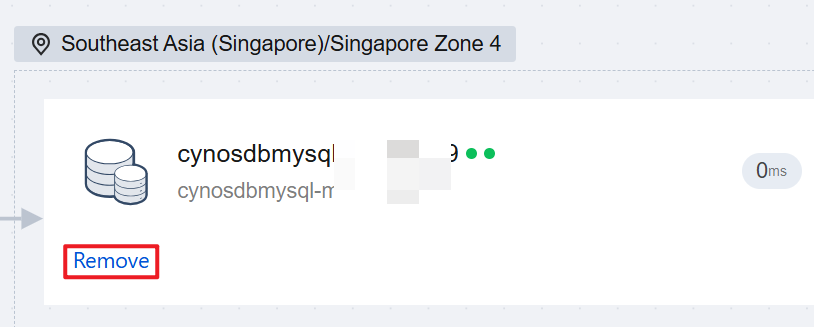
4. In the pop-up window, click Confirm to complete the removal.
피드백