Installing Cloudbase-Init on Windows
Download
Focus Mode
Font Size
Scenarios
This document describes how to install Cloudbase-Init on the Windows Server 2012 R2 64-bit operating system.
Preparing the Software
The following table describes the software required for installing Cloudbase-Init.
Software | Download Link | Description |
CloudbaseInitSetup_X_X_XX_xXX.msi | Download the corresponding Cloudbase-Init installation package according to the bits of the operating systems actually used: Stable version: Use this edition of the installation package. For Windows 64-bit operating systems, click here to obtain it. Beta version: For details, see the Cloudbase-Init official website. | Used to install Cloudbase-Init. |
TencentCloudRun.ps1 | - | |
localscripts.py | Used to ensure that Cloudbase-Init can start normally. |
Operation Steps
Installing Cloudbase-Init
1. Refer to Connecting to a Windows Instance Using VNC to log in to the Lighthouse instance.
2. On the desktop, double-click the Cloudbase-Init installation package.
3. In the dialog box, click Run to enter the Cloudbase-Init setup wizard, as shown below:
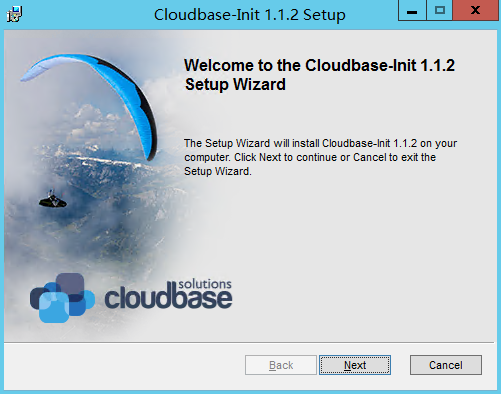
4. Click Next.
5. Check I accept the terms in the License Agreement and click Next for the following two operations.
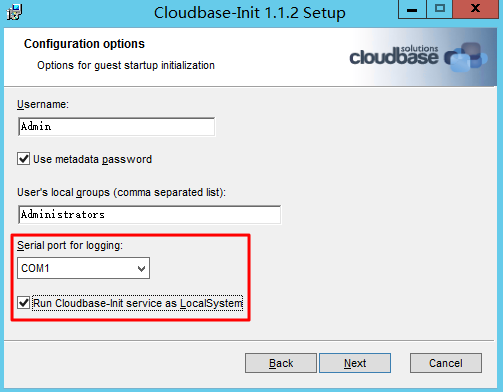
6. On the Configuration options page, set Serial port for logging to COM1, select Run Cloudbase-Init service as LocalSystem and click Next, as shown below:
7. Click Install to install Cloudbase-Init.
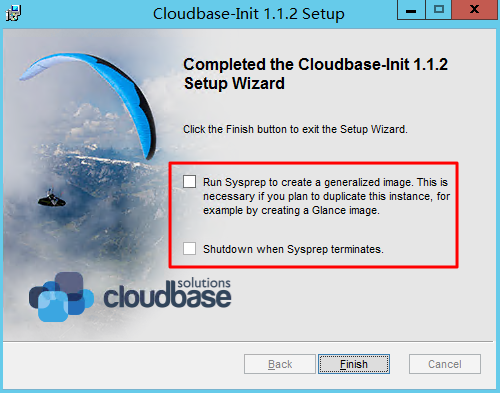
8. When the installation is completed, click Finish to close the Cloudbase-Init installation page. The following figure shows the interface:
Note:
When closing the Cloudbase-Init setup wizard, do not check any checkbox or run Sysprep.
Modifying the Cloudbase-Init configuration file
1. Open the
cloudbase-init.conf configuration file.The default path of the
cloudbase-init.conf configuration file is: C:\\Program Files\\Cloudbase Solutions\\Cloudbase-Init\\conf2. Replace the
cloudbase-init.conf configuration file with the following:[DEFAULT]username=Administratorgroups=Administratorsinject_user_password=trueconfig_drive_raw_hhd=trueconfig_drive_cdrom=trueconfig_drive_vfat=truebsdtar_path=C:\\Program Files\\Cloudbase Solutions\\Cloudbase-Init\\bin\\bsdtar.exemtools_path=C:\\Program Files\\Cloudbase Solutions\\Cloudbase-Init\\bin\\san_policy=OnlineAllmetadata_services=cloudbaseinit.metadata.services.configdrive.ConfigDriveService,cloudbaseinit.metadata.services.ec2service.EC2Service#,cloudbaseinit.metadata.services.httpservice.HttpService#,cloudbaseinit.metadata.services.maasservice.MaaSHttpServicemetadata_base_url=http://169.254.0.23/ec2_metadata_base_url=http://169.254.0.23/retry_count=2retry_count_interval=5plugins=cloudbaseinit.plugins.windows.extendvolumes.ExtendVolumesPlugin,cloudbaseinit.plugins.common.networkconfig.NetworkConfigPlugin,cloudbaseinit.plugins.common.sethostname.SetHostNamePlugin,cloudbaseinit.plugins.common.setuserpassword.SetUserPasswordPlugin,cloudbaseinit.plugins.common.localscripts.LocalScriptsPlugin,cloudbaseinit.plugins.common.userdata.UserDataPluginverbose=truedebug=truelogdir=C:\\Program Files\\Cloudbase Solutions\\Cloudbase-Init\\log\\logfile=cloudbase-init.logdefault_log_levels=comtypes=INFO,suds=INFO,iso8601=WARN,requests=WARN#logging_serial_port_settings=COM1,115200,N,8mtu_use_dhcp_config=truentp_use_dhcp_config=truefirst_logon_behaviour=nonetbios_host_name_compatibility=falseallow_reboot=trueactivate_windows=truekms_host="kms.tencentyun.com"local_scripts_path=C:\\Program Files\\Cloudbase Solutions\\Cloudbase-Init\\LocalScripts\\C:\\powershellPS C:\\Set-ExecutionPolicy Unrestrictedvolumes_to_extend=1,2
3. Copy the
TencentCloudRun.ps1 script to C:\\Program Files\\Cloudbase Solutions\\Cloudbase-Init\\LocalScripts.4. Right-click the
TencentCloudRun.ps1 script, select Properties, and check for its executable permission in the pop-up window, as shown below: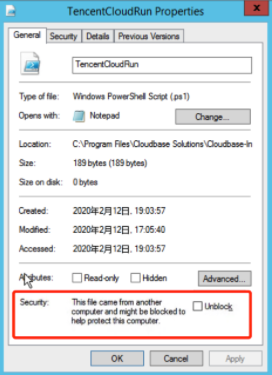
If an Unblock option is present, select Unblock and click OK to exit.
If the Unblock option is not present, skip this step.
5. Replace the
localscripts.py file under the C:\\Program Files\\Cloudbase Solutions\\Cloudbase-Init\\Python\\Lib\\site-packages\\cloudbaseinit\\plugins\\common path with the localscripts.py file from the preparation software.Subsequent Operation Steps
You can refer to How do I check whether the Cloudbase-Init service inside a Windows instance is working properly to check whether Cloudbase-Init is running properly.
Help and Support
Was this page helpful?
You can also Contact sales or Submit a Ticket for help.
Help us improve! Rate your documentation experience in 5 mins.
Feedback