TI-ONE platform manages user-purchased CVM nodes in the form of resource groups and performs resource scheduling.
You can add CVMs in a region to the same resource group for management and then use the node resources in this resource group to start training and inference tasks.
2. Log in to the TI-ONE console with your Tencent Cloud account and go to the resource group management page.
3. Select the region according to your business needs at the top of the page.
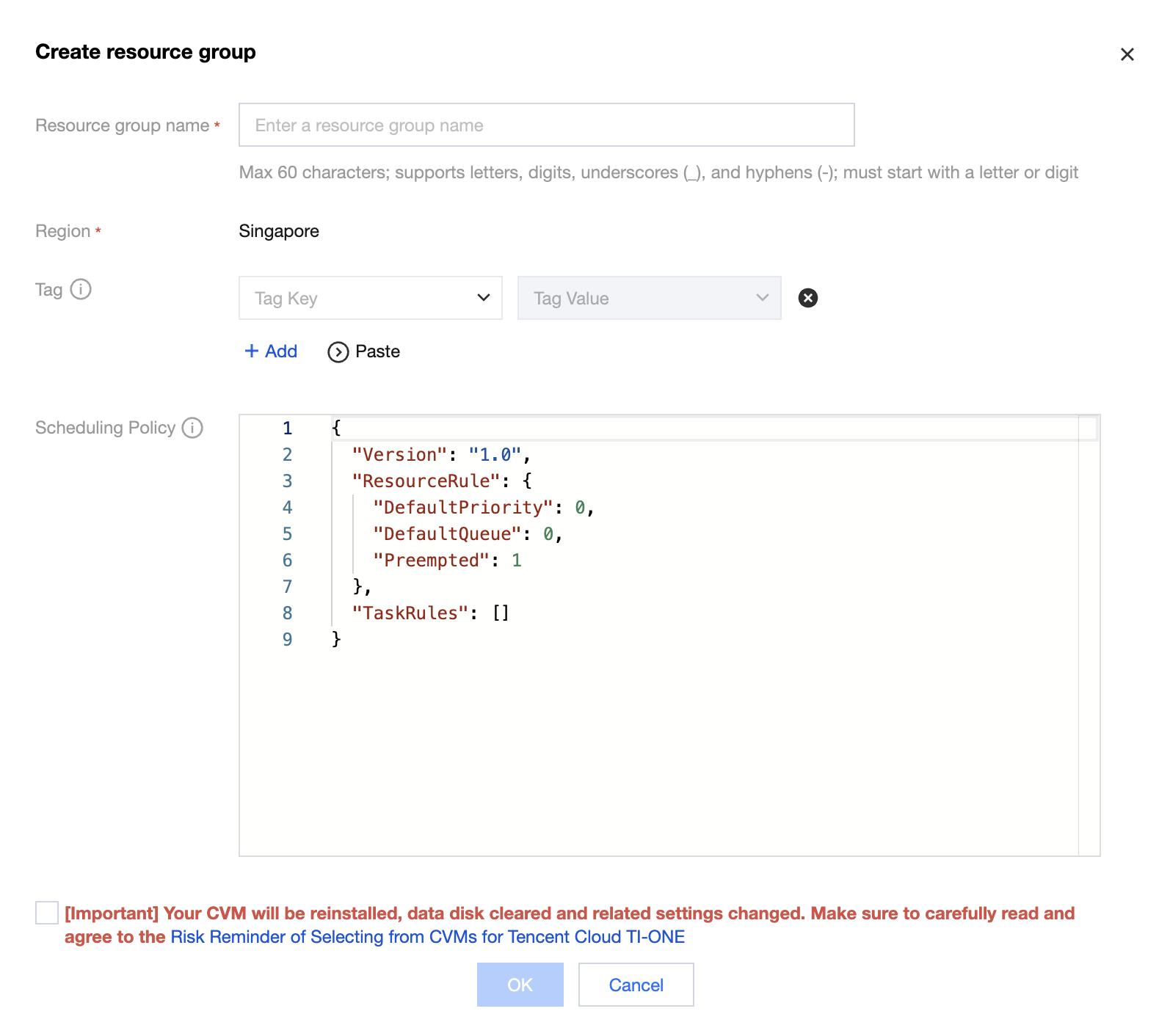
4. Click Create Resource Group to display the pop-up window for creating a resource group.
5. Enter a resource group name, select the risk warning, and click OK to complete your creation.
Viewing a Task List
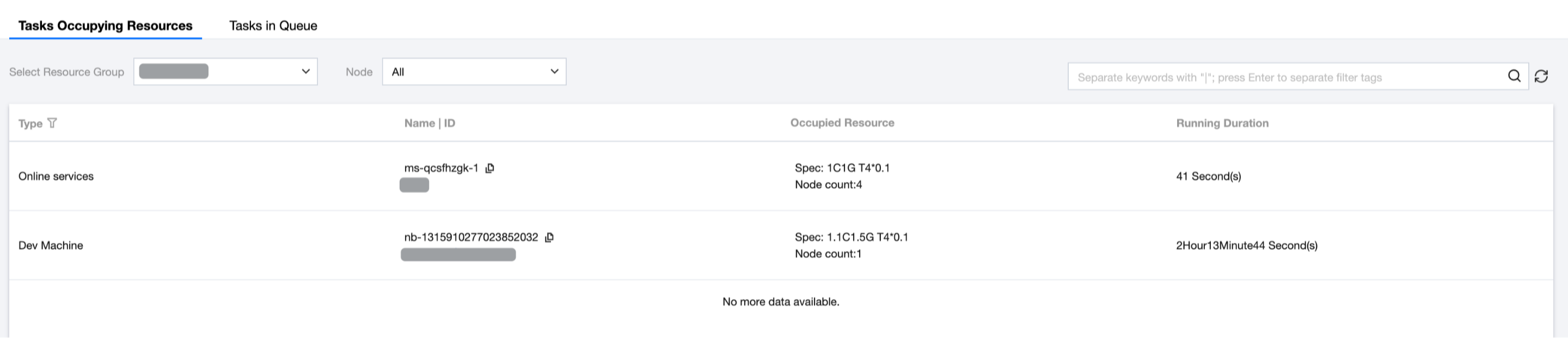
Click View Task List on the resource group list page to view the tasks that use resources and the tasks in queue under this resource group.
By going to the Occupied Resources Tasks tab page, you can view all the tasks that are currently using resources under this resource group. At the same time, you can switch resource groups on this page and select a specific node to view details.
By going to the Queuing Tasks tab page, you can view the training tasks in queue under this resource group. Please note that when the queuing policy of a resource group is strict FIFO, the serial number is the scheduling sequence of the task, and when the queuing policy is non-strict FIFO, the serial number does not represent an actual scheduling sequence. For more information about the rules, see Description of Scheduling Rules for Training Tasks.
Supported regions of TIONE: Singapore. Please purchase your instance in a region supported by TIONE.
For supported device types and software fees of TI-ONE, refer to Billing Overview.
Notes:
[Special Reminder] After purchasing a CVM, please add the VPC CIDR block of the CVM to a security group and configure inbound and outbound rules to ensure normal communication during training and inference. The following shows the operation procedure:
Purchase a CVM and get the network information on the instance details page.
On the "Security Group Details > Security Group Rules" tab page, add one inbound rule and one outbound rule respectively. Configure "Source" as the VPC CIDR block of the "network" obtained in the previous step and "Protocol Port" as "All."
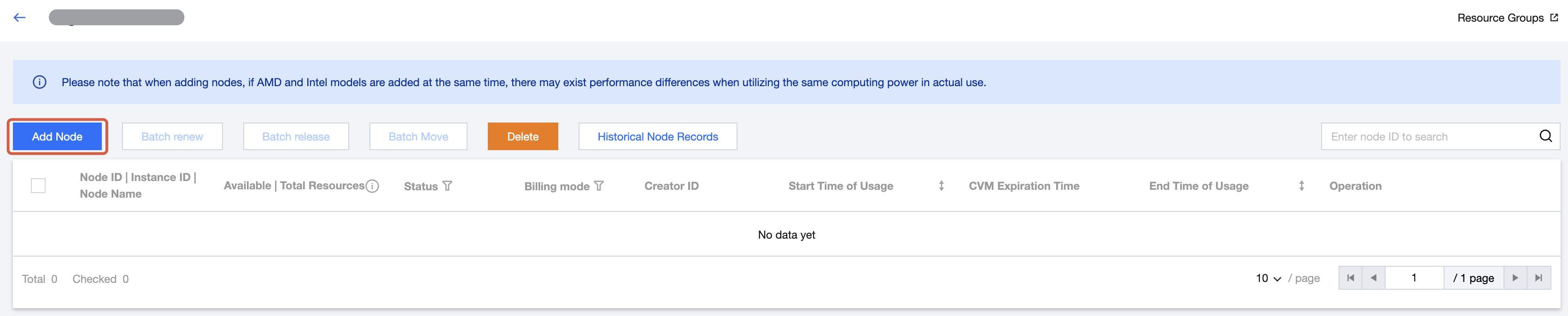
2. Click a resource group name "selected from CVMs", and then click Add Node to go to the purchase page.
Note:
The machine resources you purchased from the CVM console will all be added to a resource group in the form of nodes for unified management.
If a node in a resource group is released, the resource group still exists, and you can add other nodes to it. Nodes released from resource group A can also be re-added to resource group B.
At the same time, you can also move nodes, that is, moving nodes from resource group A to resource group B.
3. On the purchase page, configure the following information as instructed.
Field
Description
Billing Mode
Yearly/Monthly subscription and pay-as-you-go
Region
The region where this resource group resides is displayed by default.
Nodes
Under this region, select a CVM to be used on TI-ONE. You can select multiple CVMs. For all supported specifications and software fees, see billing overview.
When the billing mode is selected as "Yearly/Monthly Subscription," you can only select a CVM in yearly/monthly subscription billing mode, and the TI-ONE software is prepaid monthly.
When the billing mode is selected as "Pay-As-You-Go," you can only select a CVM in pay-as-you-go billing mode, and the TI-ONE software is postpaid hourly.
Purchase Period
This option becomes available only when the billing mode is selected as "Yearly/Monthly Subscription."
It means the service duration of CVMs on TI-ONE.
Automatic Renewal
This option becomes available only when the billing mode is selected as "Yearly/Monthly Subscription."
This field is not selected by default.
Notes:
1. Operation instructions before CVMs are managed in TI-ONE:
Data
Be sure to back up data before the CVMs under your account are selected on TI-ONE.
The CVMs you selected must have a system disk space of at least 100 GB if no data disk is available. If a data disk is available, the space of the data disk must be at least 100 GB. Therefore, we recommend that you mount a data disk first and then manage the CVMs on TI-ONE.
Network
Make sure that the CVM you selected is interconnected with its storage network, for example, CFS.
CVMs in different VPCs can be managed and used in TI-ONE, but you must ensure that the CIDR blocks of the VPCs are not in conflict. Otherwise, deployment will fail.
2. Impacts of CVMs after being managed in TI-ONE:
Data
TI-ONE will reinstall a system for the CVM you selected, and the original data on the CVM and the mounted data disk will be cleared.
You no longer have permission to log in to the CVM you selected, nor can you use Tencent Cloud Automation Tools (TAT). If you log in to and operate the instance, you shall accept all consequences, such as TI-ONE service exception or termination of service.
Network
TI-ONE will allow access to CIDR blocks 9.0.0.0/8 and 100.127.0.0/16 for the security group where the CVMs you selected reside. At the same time, add outbound and inbound rules for the CVMs you purchased in the security group by configuring Source as the VPC CIDR block of the machine network and Protocol Port as "All." Do not delete the rules of these two CIDR blocks when the CVMs are being used on TI-ONE. Otherwise, the CVMs may function improperly.
You can add up to 100 rules in a security group by default. Please reserve 2 rules for use by TI-ONE.
4. Verify your purchase information, submit your order, select a payment method, and make the payment.
5. Go to the console to check nodes after the purchase.
Nodes have the following 9 statuses:
Node Status
Status Description
Deploying
CVM resources are initializing on TI-ONE.
Failed to deploy
CVM resource deployment fails on TI-ONE.
Running
CVM resources are put into use after successful deployment on TI-ONE.
Releasing
CVM resources are automatically released on TI-ONE upon expiration or are actively released by users.
Released
CVM resources are being automatically released on TI-ONE upon expiration or are actively being released by users.
Exception
CVM resources are abnormal on TI-ONE.
Unused
CVM resources are no longer used on TI-ONE.
Mounting
CVM resources manage and use the mounted data disk on TI-ONE.
Fixing
CVM resources are automatically maintained upon failure.
Note
The No Charge when Shut Down feature is supported by some CVM models. When a CVM shuts down, the corresponding TI-ONE software stops billing, and the node status changes to "Exception." When the CVM restarts, the node is expected to automatically change to "Running" a few minutes later, and billing starts.
Please be aware that the CVM may fail to restart due to insufficient resources.
Operations on a Resource Group
Bulk Renewal
By entering a resource group whose machine source is "select from CVMs" and clicking Batch Renewal, you can renew the software fees of multiple selected nodes for the same subscription duration.
Bulk Release
By entering a resource group whose machine source is "select from CVMs" and clicking Batch Release, you can release multiple selected nodes. The software fees will be automatically refunded for nodes that are released, and at the same time, the CVM can no longer work on TI-ONE.
Delete
By entering a resource group whose machine source is "select from CVMs" and clicking Delete, you can delete the entire resource group. The deletion cannot be undone.
Notes:
A resource group can be deleted only when no nodes are in use. Node statuses include "Running," "Deploying," "Exception," "Releasing," "Fixing," and "Mounting."
Operations on Nodes
Mounting a Data Disk
1. A node running in the TI-ONE console has no data disk. When you mount a new data disk for that node on the CVM side for the first time, the Mount Data Disk button appears.
2. When you click Mount Data Disk, a double-check pop-up window appears. When you mount a data disk, the running tasks and services on the node terminate.
3. When you click Confirm, the node status changes to "Mounting". The mounting process is expected to take 1 or 2 minutes. Later, the Mount Data Disk button disappears.
If your CVM already has a data disk but the hard disk space is insufficient, you can Scale Out Cloud Disk. After scaling out according to the documentation, TI-ONE can automatically use the hard disk.
Renew
By entering a resource group whose machine source is "select from CVMs," you can click Renew and select a renewal duration for nodes in yearly/monthly subscription billing mode, and click Confirm Renewal to deduct fees from your account balance.
Notes:
1. In this case, the software fee is renewed rather than the resource fee for instances. That is, a renewal duration is the service time of CVMs on TI-ONE.
2. Nodes in pay-as-you-go billing mode cannot be renewed.
Enable/Disable Automatic Renewal
1. By entering a resource group whose machine source is "select from CVMs," you can click Automatic Renewal for nodes in yearly/monthly subscription billing mode. Fees will be automatically deducted, and the software fee will be renewed for one month after the nodes expire.
Notes:
1. In this case, the software fee is automatically renewed rather than the resource fee for CVMs. That is, a renewal duration is the service time of CVMs on TI-ONE.
2. Nodes in pay-as-you-go billing mode cannot be renewed.
2. Click Cancel Automatic Renewal in the node list. Automatic deduction stops, and an expiration reminder is given when nodes expire.
Release
By entering a resource group whose machine source is "select from CVMs," you can click Release to make nodes in "Running" or "Exception" status no longer used by TI-ONE. The remaining software fees will be automatically refunded after release.
Notes:
In this case, releasing means that CVMs are no longer managed and used on TI-ONE rather than destroying machine resources.
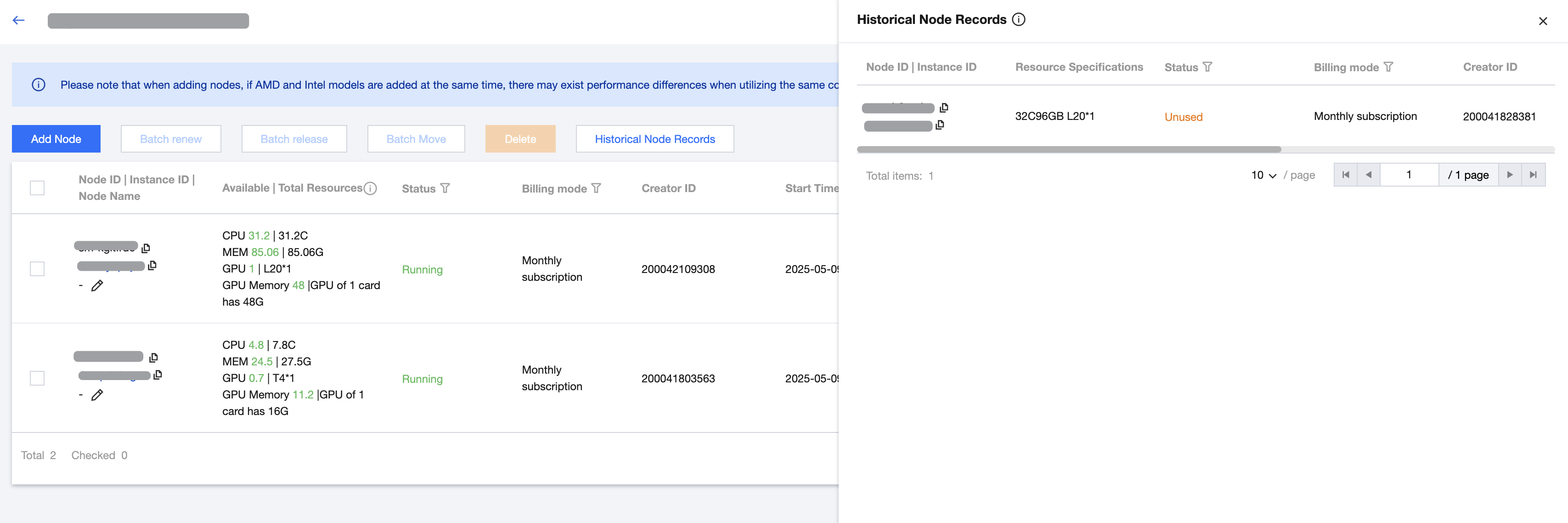
Historical Node Records
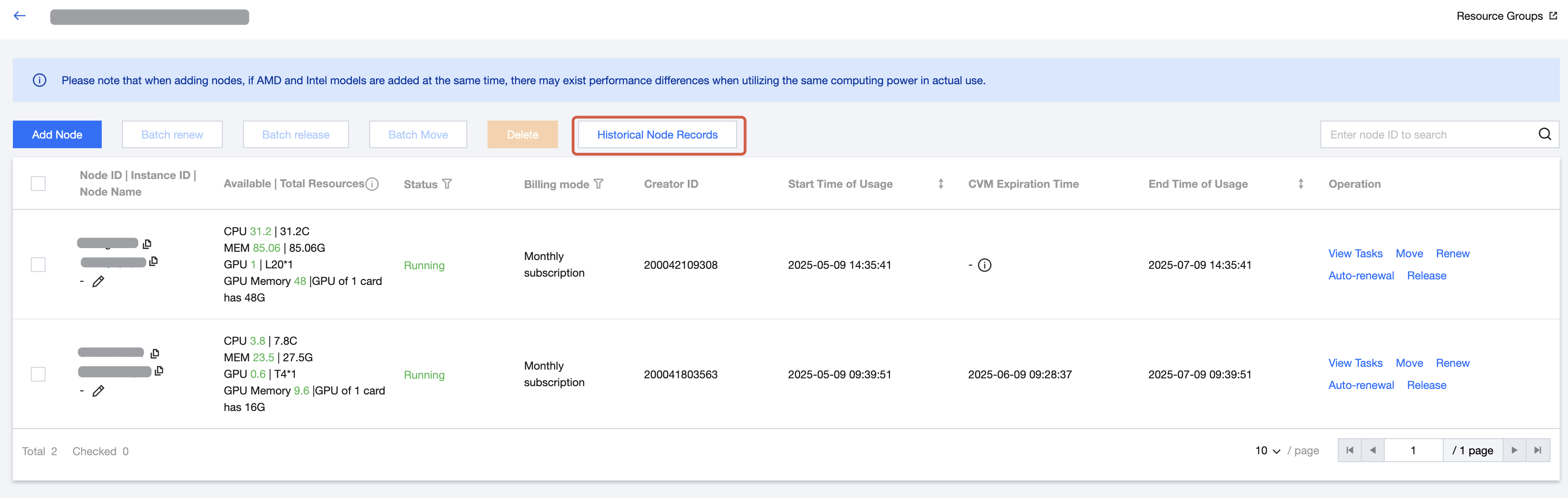
By entering a resource group, you can click Historical Node Records to view the list of nodes in "Failed to deploy" and "Unused" statuses.
Appendix
Risk Warnings
1. Operation instructions before CVMs are managed in TI-ONE:
Data
Be sure to back up data before the CVMs under your account are selected on TI-ONE.
Please ensure that the CVMs you selected must have a system disk space of at least 100 GB if no data disk is available. If a data disk is available, the space of the data disk must be at least 100 GB. Failure to meet these requirements will result in the inability to pull the TI-ACC and LLM images, preventing the CVMs from being selected for deployment. Therefore, we recommend that you mount a data disk first and then manage the CVMs on TI-ONE.
Please ensure that the CVM you selected has the highest priority security group rules (up to 100 inbound rules and 100 outbound rules), with 5 inbound and outbound rules reserved for TI-ONE to add new rules. Otherwise, this CVM cannot be selected for deployment.
Network
Make sure that the selected CVMs and their own storage (such as CFS) networks are interoperable.
CVMs in different VPCs can be managed and used in TI-ONE, but you must ensure that the CIDR blocks of the VPCs are not in conflict. Otherwise, deployment will fail.
If your image has content to access the public network, please enable your CVMs to access public network (configure your CVMs with an Elastic IP or ensure the corresponding subnet has a NAT gateway).
Support for Feature Menus
Select CVM machines on the TIONE platform for management and use. Supported product capabilities include: Task-Based Modeling, Dev Machine, and Online Services.
2. Impacts of CVMs after being managed in TI-ONE:
Data
TI-ONE will reinstall a system for the CVM you selected, and the original data on the CVM and the mounted data disk will be cleared.
You no longer have permission to log in to the CVM you selected, nor can you use Tencent Cloud Automation Tools (TAT). If you log in to and operate the CVM, you shall accept all consequences, such as TI-ONE service exception or termination of service.
Network
TI-ONE will allow access to CIDR blocks 9.0.0.0/8 and 100.127.0.0/16 for the security group where the CVMs you selected reside. At the same time, add outbound and inbound rules for the CVMs you purchased in the security group by configuring Source as the VPC CIDR block of the machine network and Protocol Port as "All." Do not delete the rules of these two CIDR blocks when the CVMs are being used on TI-ONE. Otherwise, the CVMs may function improperly.
You can add up to 100 rules in a security group by default. Please reserve 2 rules for use by TI-ONE.
Finance
The CVMs you selected for use on TI-ONE under your account are still operated in your account, such as renewal, payment, contracting, invoicing, refunding, and configuration downgrading.