Overview
Users access and operate hosts through the BH. This document provides detailed instructions on accessing hosts via the H5 method.
Prerequisites
The administrator has informed the Ops personnel of the login address.
The administrator has granted host access permissions to the Ops personnel.
Directions
Note
All operations performed to access hosts through the BH will be recorded.
The H5 method supports access to Linux and Windows hosts only.
Accessing and Managing Linux Systems via H5
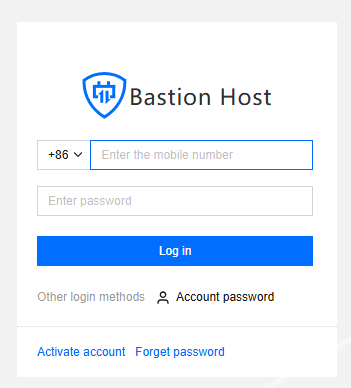
1. Enter the Ops page login address in a browser to open the BH Ops page. Enter your phone number and password to log in to the BH. Alternatively, click Account password to switch to login with account name and password.
2. After entering the BH, choose Services > Asset list in the left sidebar.
3. On the Asset List page, click Access on the right side of the corresponding host.
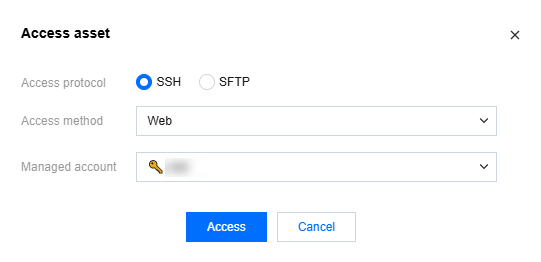
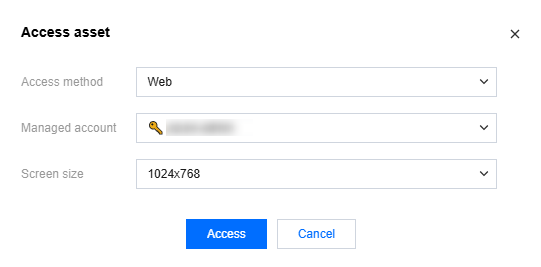
4. In the Access Host popup, select the SSH access protocol, choose the Web access method, specify the asset account and password to access, and click Access to access the Linux host via H5.
Note
If the selected account has a managed password, you do not need to enter the password again.
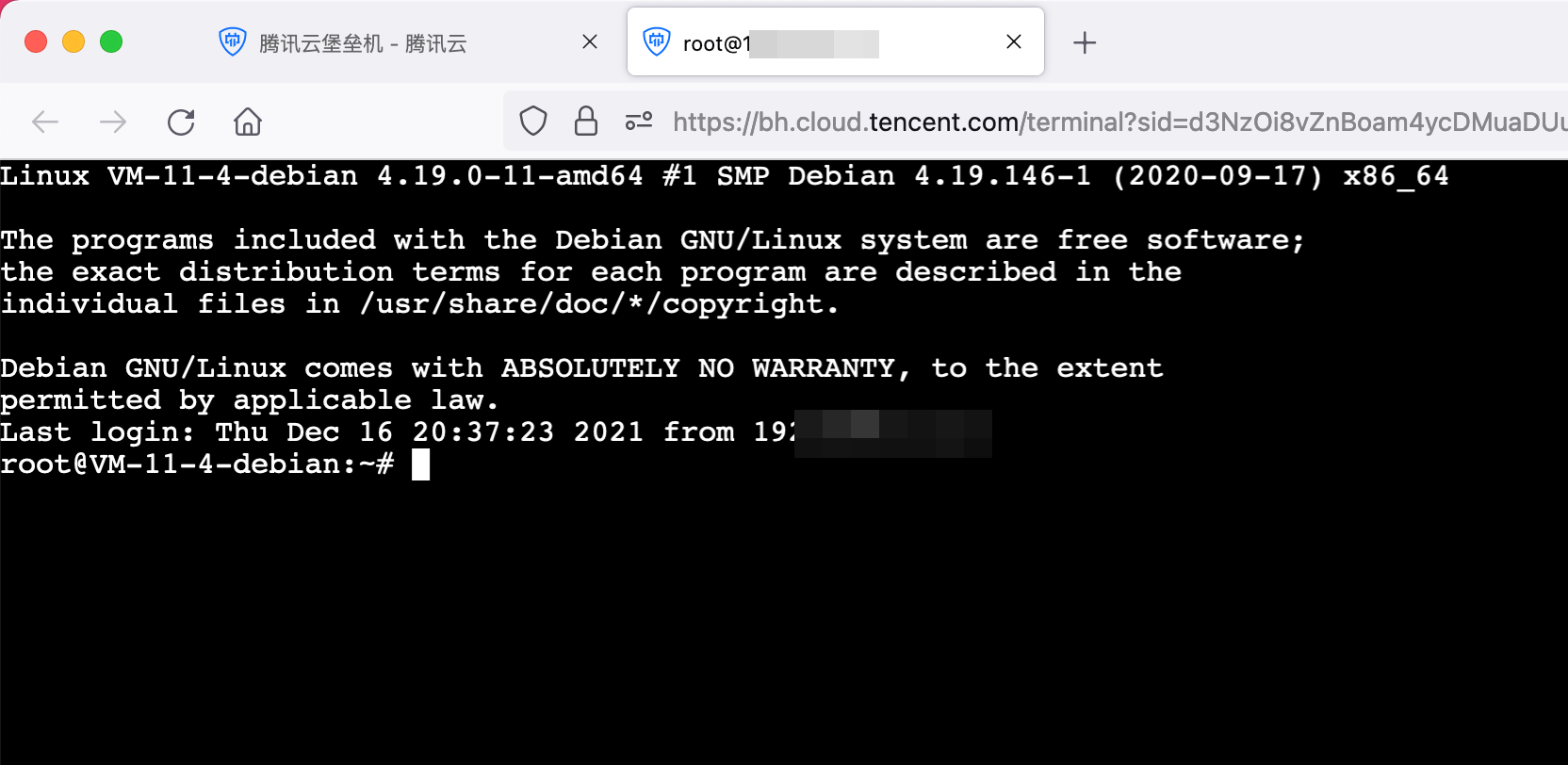
5. On the H5 Ops page, users can directly enter operation commands.
Accessing and Managing Windows Systems via H5
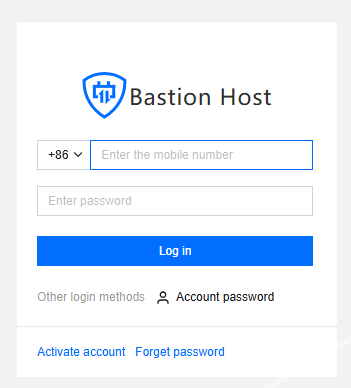
1. Enter the Ops page login address in a browser to open the BH Ops page. Enter your phone number and password to log in to the BH. Alternatively, click Account password to switch to login with account name and password.
2. After entering the BH, choose Services > Asset list in the left sidebar.
3. On the Asset List page, click Access on the right side of the corresponding host.
4. In the Access Host popup, choose the Web access method, specify the asset account and password to access, and click Access to access the Windows host via H5.
Note
If the selected account has a managed password, you do not need to enter the password again.
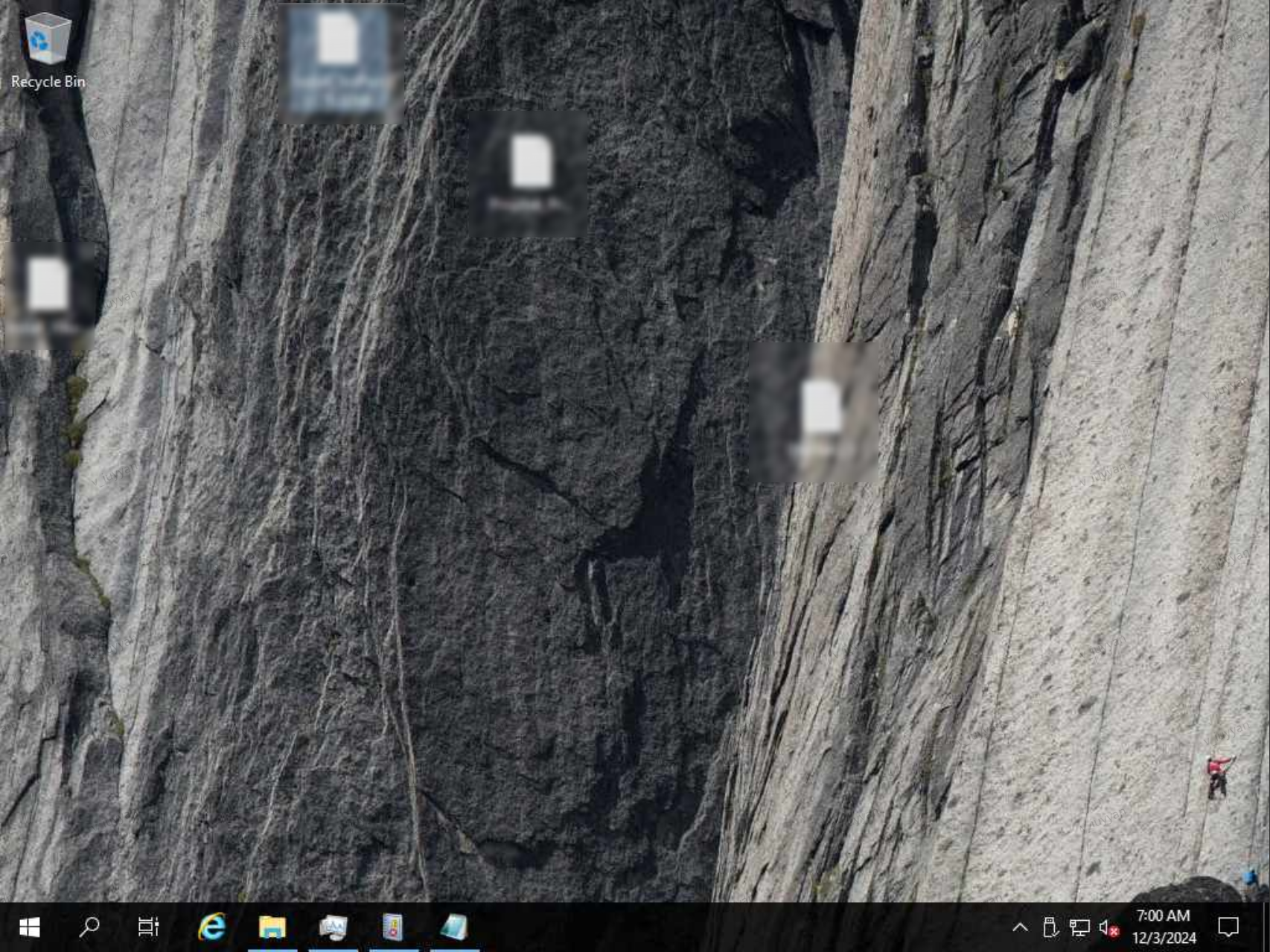
5. On the H5 Ops page, users can operate the Windows system graphically, just as they would on a local machine.