Encrypted Traffic Detection
Download
Focus Mode
Font Size
Overview
NDR now features encrypted traffic detection capability. It supports parsing and detecting encrypted traffic (such as HTTPS/TLS) for CVM assets, container assets, and public network traffic GAAP assets, comprehensively enhancing full traffic visibility and threat detection capability. You can refer to this document to learn how to configure and use this feature.
Note:
Currently in public beta version, only available to invited users. Non-invited users who wish to experience this feature can submit a ticket to apply for access.
Prerequisites
You need to configure security group rules to grant the probe permission to collect network traffic, meeting the data input requirements for NDR.
The target asset must have TAT or CWPP Agent installed and enabled. This ensures that the system can automatically deploy the endpoint probe through available channels.
Note:
The system first attempts to deploy the endpoint probe through the TAT channel. If TAT is unavailable, it automatically falls back to the host channel to complete the installation. If both channels are unavailable, the page will display a banner notification, indicating that the current instance does not meet the Agent installation requirements.
Method 1: Configuration of the Enterprise Security Group
1. Log in to the Cloud Firewall console, choose Access Control > Enterprise Security Group (New).
2. On the Enterprise Security Group page, click Add Rule, and enter the rule information as required in the table.
Configuration Item | Set Value |
Access source IP address | 0.0.0.0/0 |
Access destination IP address | 9.9.9.199 |
Destination port | 47891,47892,47893 |
Protocol | UDP |
Policy | Allow |
Description | NDR allow rule |
3. Click Save, and the rule will be deployed to associated instances.
Method 2: Configuration of the Single Instance
1. Log in to the CVM console, and select Instances.
2. On the instance page, click the instance name that requires detection of encrypted traffic to be enabled.
3. On the instance details page, select Security Group, and click the Security Group ID/Name of the bound security group.
4. Click Add Rule, and fill in the rule information according to the requirements in the table.
Configuration Item | Set Value |
Type | Custom |
Target | 9.9.9.199 |
Protocol Port | UDP: 47891,47892,47893 |
Policy | Allow |
Remark | NDR allow rule |
5. Click OK, and the rule will be deployed to associated instances.
Specification Description
Note:
CVM assets and container assets specifications primarily refer to host and cluster resources; GAAP assets specifications refer to the performance metrics of their acceleration instances.
Viewing Specifications
Specifications include the applicable scope and capabilities of encrypted traffic detection, as well as resource consumption.
1. Log in to the CFW console, in the left sidebar, click Network Detection and Response.
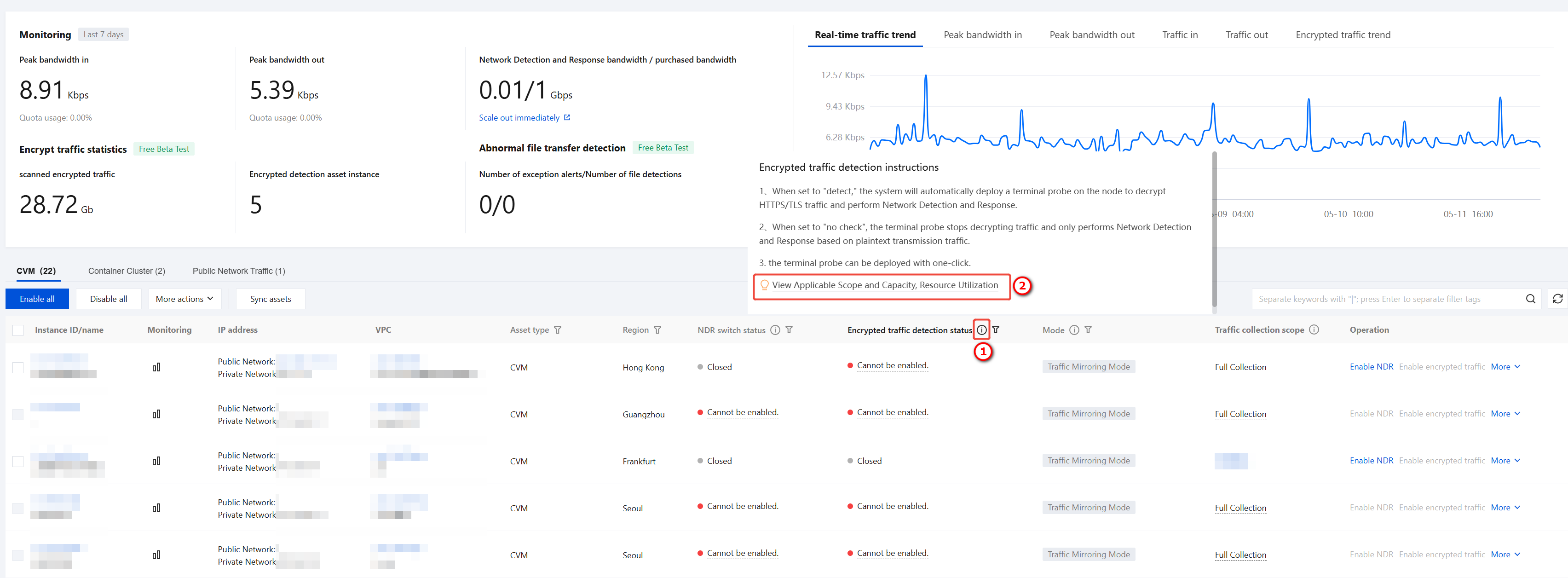
2. On the NDR page, click View Applicable Scope and Capabilities, Resource Occupancy to view the detailed applicable scope and capabilities, and resource occupancy in the side panel.
Kernel Version Compatibility
Linux kernel version | Applicable | Not applicable |
Below 4.18 | Curl command Python version 3.8.15 and above | OpenSSL dynamic library Java program Golang program |
Greater than or equal to 4.18 | OpenSSL dynamic library Curl command Python version 3.8.15 and above GnuTLS dynamic library | Java program Golang program |
Specific Decryption Capability
Protocol compatibility: HTTPS, SMTPS, FTPS.
Algorithm support: TLS 1.2/1.3 (RSA, ECDHE, DHE).
Length: The maximum length of a single encrypted traffic packet supporting decryption is 64K.
Performance: 10Gbps (supports dynamic scaling).
Resource consumption
CVM Encrypted Traffic Detection
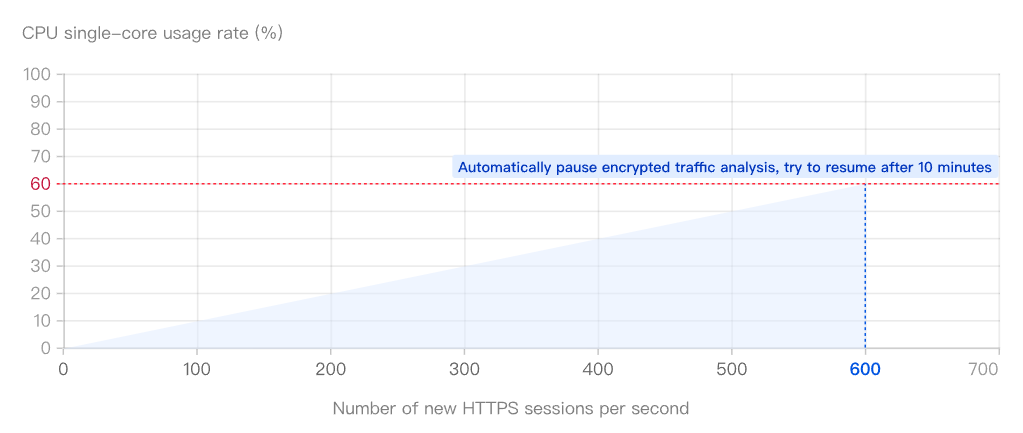
Resource occupancy: Under the traffic pressure of establishing 100 new HTTPS sessions per second, the resource utilization of the encrypted traffic detection Agent is as follows.
CPU occupancy: When continuously establishing new HTTPS sessions at a rate of 100 per second in the runtime environment, the single-core CPU utilization is approximately 10%. It supports up to 60% occupancy rate, corresponding to about 600 new HTTPS sessions per second.
Memory usage: Initialization occupies 100 MB, which increases as the number of new HTTPS sessions grows, with a maximum occupancy of 500 MB.
Exceeding Limits and Suspension:
Trigger condition: When CPU or memory usage exceeds the limit, the Agent automatically pauses the encrypted traffic analysis feature.
Scope of impact: Other basic features remain unaffected, and the Agent will not disrupt existing service connections. However, it will not generate new encrypted traffic analysis results.
Recovery mechanism: The system automatically attempts to resume analysis every 10 minutes. If the limit is still exceeded after resumption, the pause will continue until resource usage falls within the threshold.
Container Encrypted Traffic Detection
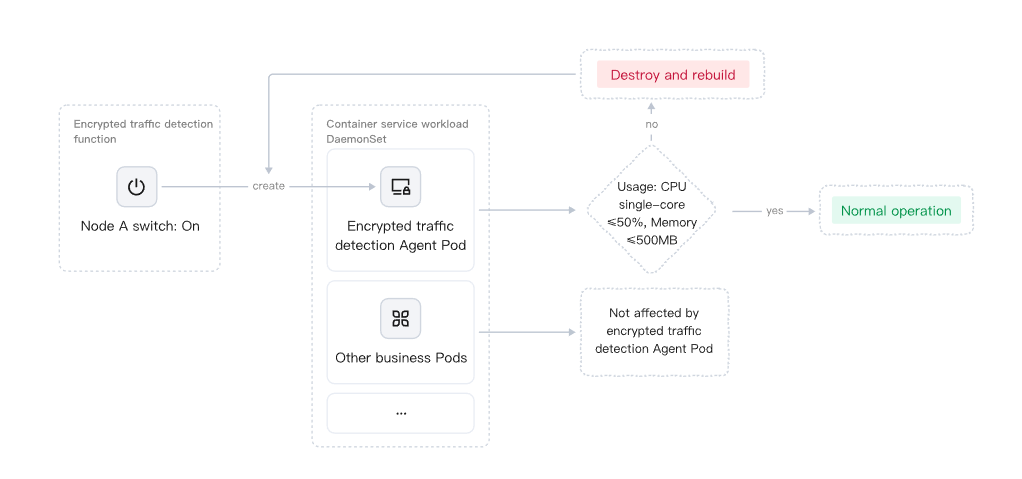
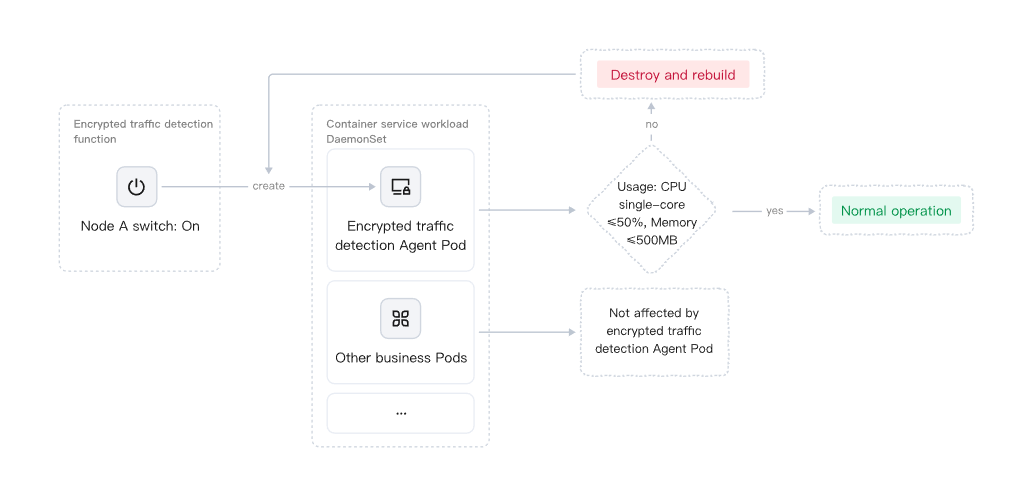
After you enable the container decryption feature, the system creates an Agent Pod for encrypted traffic detection in the Workload > DaemonSet of the corresponding TKE. Its resource usage limits are as follows:
Overall limit: A single Agent Pod can occupy up to 50% of a single-core CPU and 500 MB of memory.
CPU occupancy:
Each node with encrypted traffic detection enabled will independently create a corresponding Agent Pod. The functioning of this Pod will not affect the normal operation of other business Pods on the same node.
The TKE platform enforces mandatory limits on the CPU and memory usage of DaemonSet Pods. If a Pod's resource usage still exceeds the limit (e.g., due to anomalies breaking through 50% CPU or 500MB memory), the platform will automatically destroy the Pod and rebuild a new instance. This process will not affect other business Pods on the same node.
Enable Detection of Encrypted Traffic
Note:
This section uses CVM assets as an example to describe the relevant operations. The operations for other assets are similar.
You must enable the NDR switch before you can enable encrypted traffic detection. When the NDR switch is not enabled, hovering the mouse over the encrypted traffic detection switch prompts the message "Enable NDR collection first, then enable encrypted traffic detection". For details on enabling the NDR switch, see Network Detection and Response Switch.
Pre-checks
Before encrypted traffic detection is enabled, the system automatically fetches and verifies the status of the account, region, instance, network, quota, bandwidth, Agent, and container permissions. Based on the verification results, it then categorizes the assets into the following three statuses:
Ready to enable: All checks have passed, and encrypted traffic detection can be enabled normally.
Ready to Enable (with risk): There are certain risks (such as insufficient bandwidth margin), but it can still be enabled. The system will display risk prompt information.
Cannot Enable: There are blocking issues (such as region not supported, OS incompatible, insufficient quota, and so on). You must resolve all issues according to the guidance before enabling.
The system performs checks from the following dimensions. If the pre-check fails, the encrypted traffic toggle status of the asset will be displayed as Cannot Enable or Ready to Enable (with risk). For details on the specific exception causes and solutions, see Asset Status Description.
Check Dimension | Check Method | Check Content |
Region and Product Availability | Pre-check | Whether the region supports the traffic analysis service. |
Resource Existence and Basic Information | Pre-check / Triggered check | Valid subnet ID of the instance, and no conflicting image binding on the instance. |
Instance and OS Compatibility | Pre-check | Whether the instance type supports mirroring mode, and whether the operating system is on the supported list. |
Network and Bandwidth Health | Triggered check | Real-time bandwidth of the instance and the threshold; purchased bandwidth limit of the account. |
Quotas and Resource Limits | Pre-check | Upper limit on the number of enabled instances. |
Container Scenarios and Permissions | Pre-check | Access permissions for the container cluster KubeConfig; DaemonSet status and Pod health. |
Account and Allowlist | Pre-check | Whether the VPC traffic mirroring allowlist has been enabled. |
Instance TAT / Agent Status | Pre-check | Whether TAT has been installed. |
Note:
Pre-check: The system automatically checks every 5 minutes whether the assets meet the enabling conditions.
Triggered Check: The system triggers verification when a user selects an asset and enables the NDR toggle or the encrypted traffic detection toggle. After the verification is complete, the system synchronously updates the pre-check status.
Single CVM Asset
On the NDR page, click Enable encrypted traffic in the operation column. The system will then enable the encrypted traffic detection feature for that CVM asset and automatically deploy the endpoint probe. During deployment, installation commands are preferentially delivered via the TAT channel. If the TAT channel is unavailable, the system automatically falls back to the host channel to complete the installation, requiring no manual intervention. After enabling, the real-time detection status is displayed on the page. For details on the status description, see Asset Status Description.
Note:
To stop encrypted traffic detection for the CVM asset, disable the corresponding toggle in the Operation column. The system will then cease performing encrypted traffic decryption for that asset and will only conduct regular detection based on plaintext traffic.

Multiple Assets of CVM
On the NDR > CVM page, click More actions > Detect all encrypted traffic or More Actions > Detect not detect any encrypted traffic to enable or disable encrypted traffic detection for all CVM assets.
Note:
When all are enabled, the system performs a pre-check on each asset. Assets whose pre-check status is "Cannot Enable" are skipped, and the system prompts the reason for skipping.

If you only need to enable or disable encrypted traffic detection for some CVM assets, follow these steps:
1.1 Select the CVM assets that require configuration.
Note:
Assets with NDR disabled or in an abnormal state cannot be selected. For details on the asset status description, see Asset Status Description.
1.2 Click More actions and select Detect selected encrypted traffic or Do not detect selected encrypted traffic.

If you need to configure encrypted traffic detection for new assets, see Network Detection and Response Switch - Basic Settings.
Asset Status Description
In the CVM asset list, the system displays the real-time operational status of assets in the Encrypted Traffic Detection Status column:
Status Column | Possible Values | Description |
Encrypted Traffic Detection Status | Enabled, Disabled, Automatically disabled, Disabling, Enabling, Enable failed, Enableable - with risk, Not enableable, Endpoint Agent loading abnormal, Endpoint Agent abnormal | Displays the enabled status and abnormal conditions of encrypted traffic detection. |
When the status is abnormal (for example, enabling fails, cannot be enabled, or the terminal Agent is abnormal), the page displays a red warning icon and exception information, indicating that the current detection is unavailable. Hover over the status to view the specific cause and operation instructions. The exception information and instructions include:
Failure Reason Categories | Solution |
The instance does not have the Terminal Automation Tool (TAT) installed. | The instance does not have Endpoint TAT installed. Please see TAT Deployment Guide and retry after completing the installation. |
Automatic NDR-Agent installation not supported on the current instance. | The TAT channel and host channel of the current instance are unavailable, preventing automatic installation of NDR-Agent. Confirm that the instance has TAT Agent or CWPP Agent installed and enabled, then retry. If installation still fails, submit a ticket to contact technical support. |
The current operating system type is not supported. | The current operating system is not supported. Please visit the NDR-Technical Solution to confirm compatibility. |
The server is temporarily unavailable. Please try again later. | Temporary unavailability of the server has been detected. Please wait 5 minutes and try again. If the issue persists, please submit a ticket to contact technical support. |
Permission exception when container cluster access is obtained | An exception occurred while obtaining container cluster permissions and creating the Agent DaemonSet Pod. Please submit a ticket to apply. |
Terminal Agent abnormal | 1. The Agent network may be abnormal. Please check whether security groups allow access. 2. Operation of the Agent process may be abnormal. Please verify the operating system status. 3. If no abnormalities are detected, submit a ticket to contact technical support. |
Terminal Agent loading exception | A loading exception occurred during the Agent deployment process. Please try again later. If the exception persists, please submit a ticket to contact technical support. |
Region not supported | The current region does not support the traffic analysis service. Please submit a ticket to apply for enabling the service or view the list of supported regions. |
Instance with conflicting traffic mirror binding. | The current instance already has a traffic mirroring binding. Go to Traffic Mirroring Console to unbind it and retry. |
Instance type not supported | The current instance model does not support mirroring mode. See the list of supported models or submit a ticket to request adaptation. |
Number of enabled instances exceeds the limit. | |
VPC traffic mirroring allowlist not enabled. | The current account has not been added to the allowlist for VPC traffic mirroring. Please submit a ticket to apply for enabling the service. Provide the VPCID and region information. |
Status Monitoring
The system has added a dedicated encrypted traffic statistics panel in the Status Monitoring module to help you monitor the operational status and overall scale of encrypted traffic detection in real time. The core monitoring metrics include the following three items:
Statistics on cumulative parsed volume of encrypted traffic: Shows the total volume of encrypted traffic that has been parsed.
Number of Encrypted Detection Asset Instances: Shows the number of CVM assets for which encrypted traffic detection is currently enabled.
Trend Chart of Cumulative Encrypted Traffic: Illustrates the dynamic changes in encrypted traffic parsing volume over the last seven days.

Encrypted Protocol Traffic Log
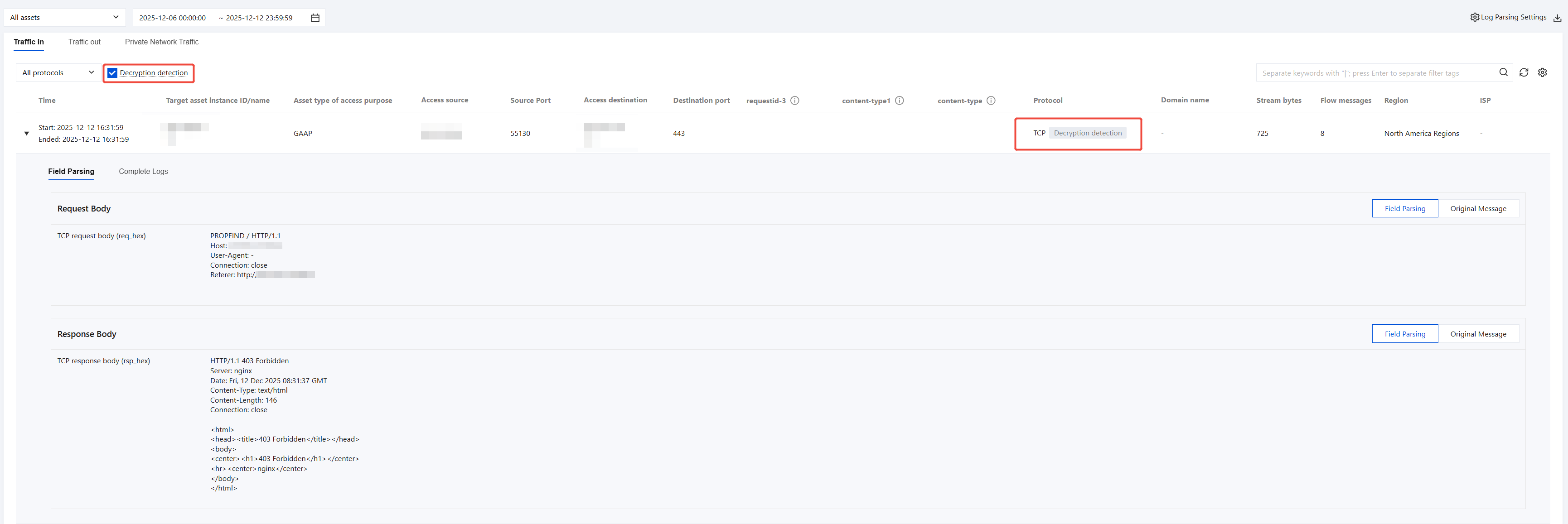
On the Log Auditing > NDR Logs > Traffic Analysis Logs or Traffic Alarm Logs page, for traffic logs of encrypted protocols such as HTTPS, SMTPS, and FTPS, the system first restores the plaintext content (such as request headers, response bodies, and other fields) and marks it with Decryption Detection. You can also quickly filter and view all logs related to encrypted traffic detection by selecting the Show Only Decryption Detection option.
Help and Support
Was this page helpful?
You can also Contact sales or Submit a Ticket for help.
Help us improve! Rate your documentation experience in 5 mins.
Feedback