Voice Clone Recording Guide - Ultra-Fast Version (Minority Language)
Baixar
Modo Foco
Tamanho da Fonte
Preparations (Purchase Quota and Training Material)
After purchasing quotas, you can use the Digital Human Platform to directly record material for multilingual voice clone.
Access path: homepage > image settings > custom asset management > add custom task > voice clone (ultra-fast version - minority language), as shown below.
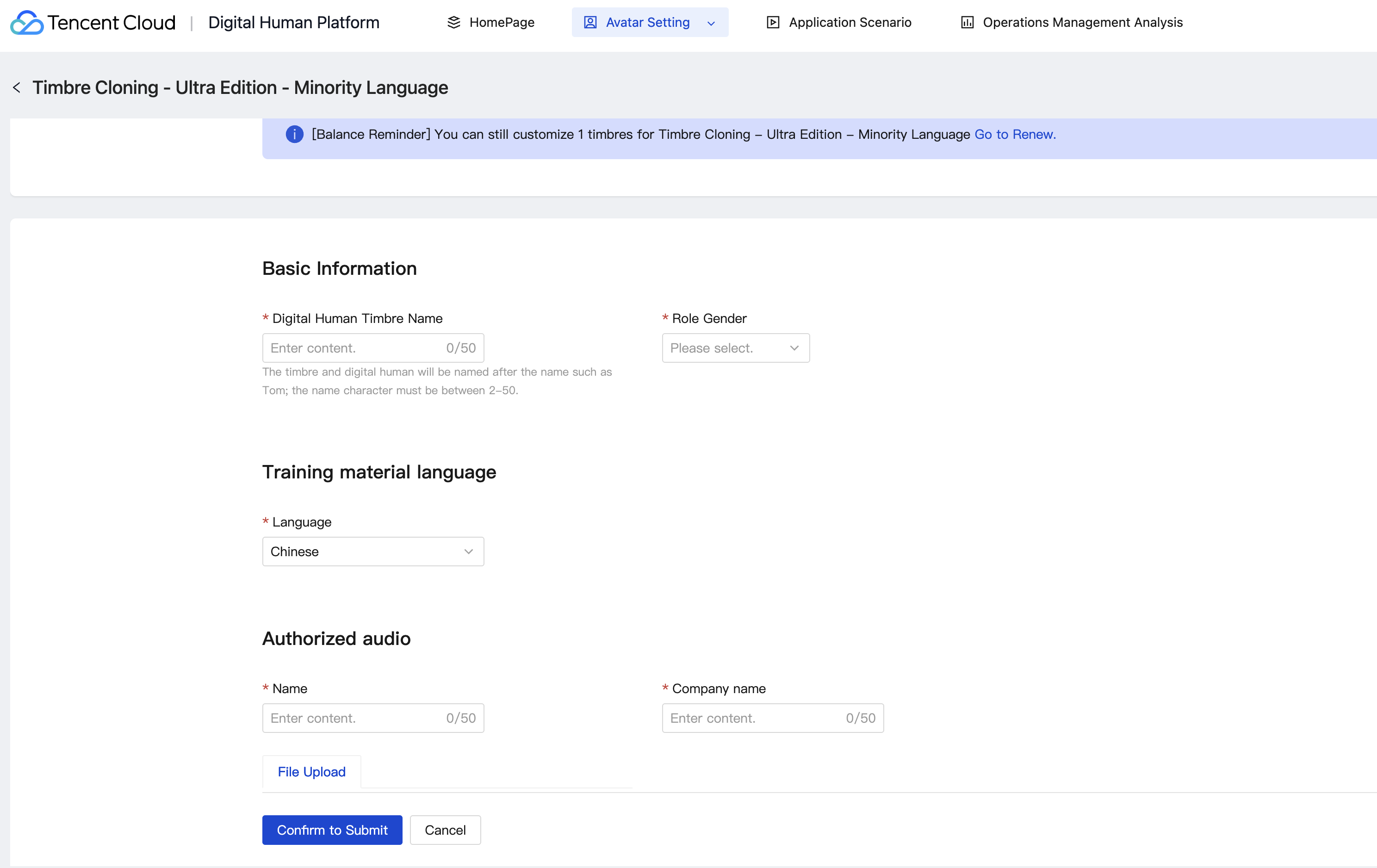
You can also submit the material for customization through APIs: see Interface Call Logic Diagram for details.
The main information to fill in includes: defining the timbre name, determining the gender of the timbre, and selecting the language for training.
The mainly uploaded materials include: authorized audio (upload after recording according to the specified content. Note that you need to strictly abide by the requirements here. There will be related prompts on the page) and audio materials that need to be trained.
The audio requirements are as follows:
1. Supports uploading 1 audio file for customization. The recommended audio duration is 10 - 90 s, no more than 20 M;
2. Audio format support: wav, mp3, aac, m4a, wma, asf; Sampling rate support: 16K, 24K, 48K; For compression format, bitrate higher than 128 kbps is recommended;
3. The audio name should be 2 - 50 characters long. Only Chinese characters, letters, digits, underscores and hyphens are allowed.
Submit Materials, Enter Training
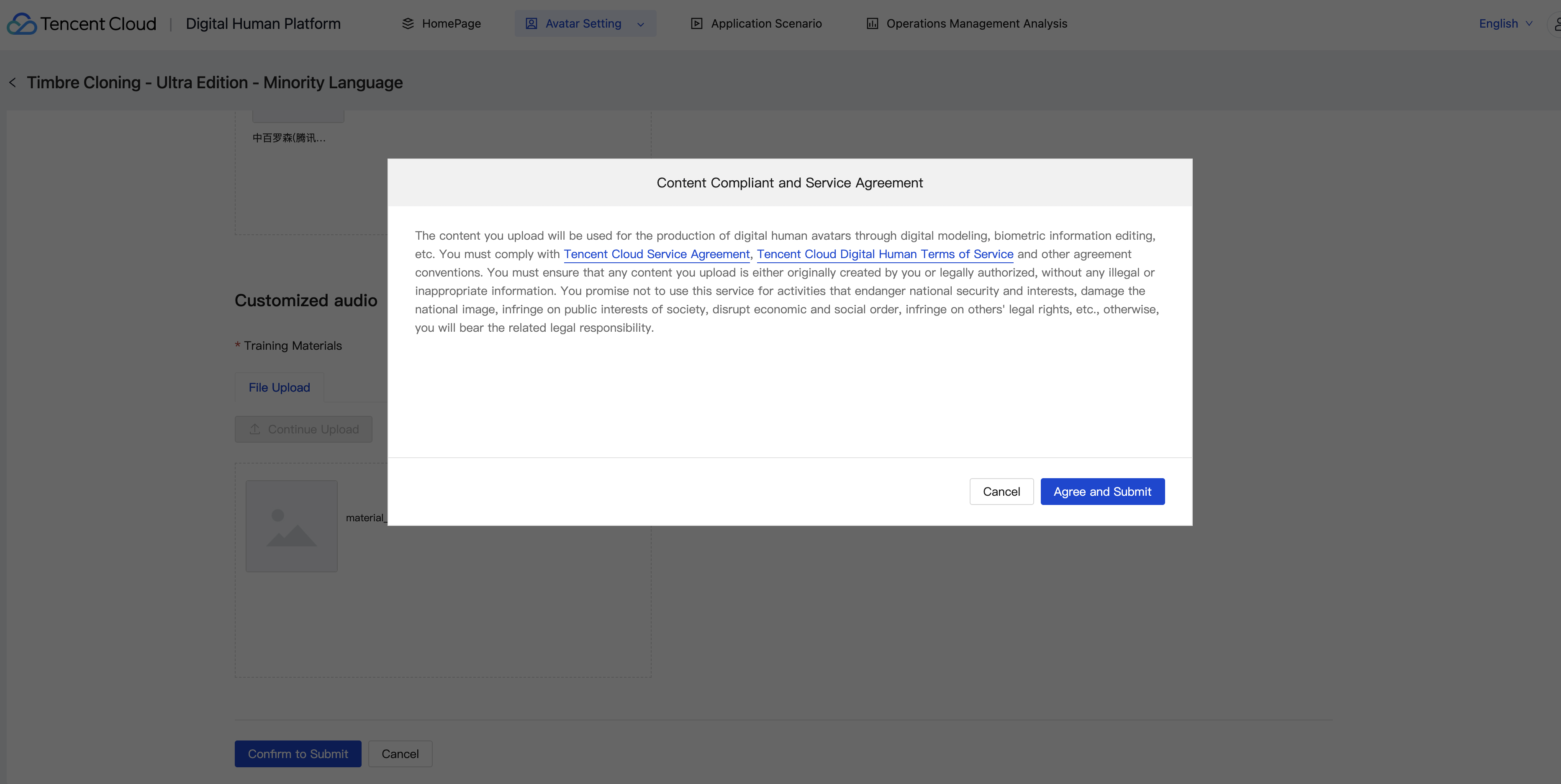
After all materials have been transmitted, click "Confirm Submission". The following pop-up will appear. Select "Agree and Submit". Under normal circumstances, the voice type will enter the training status.
View Training Process
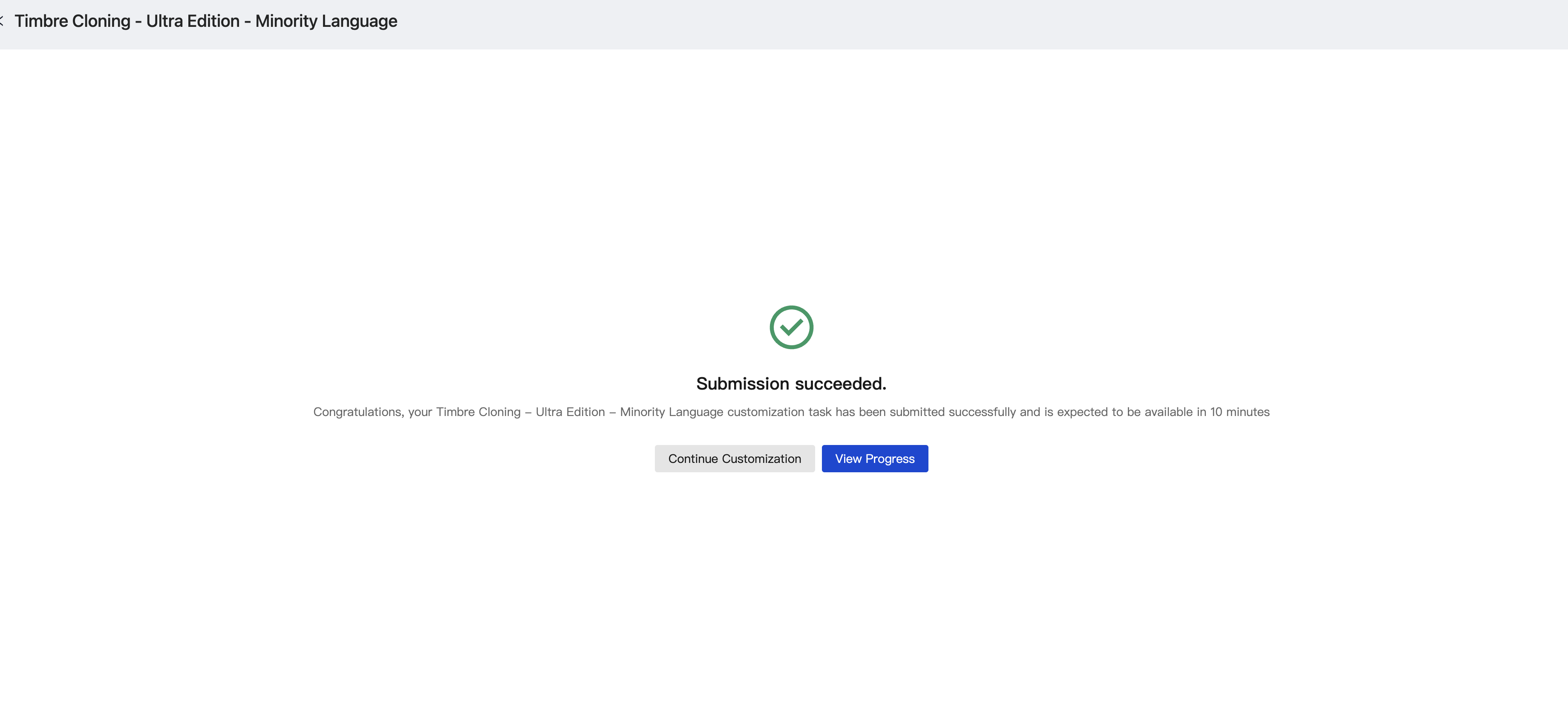
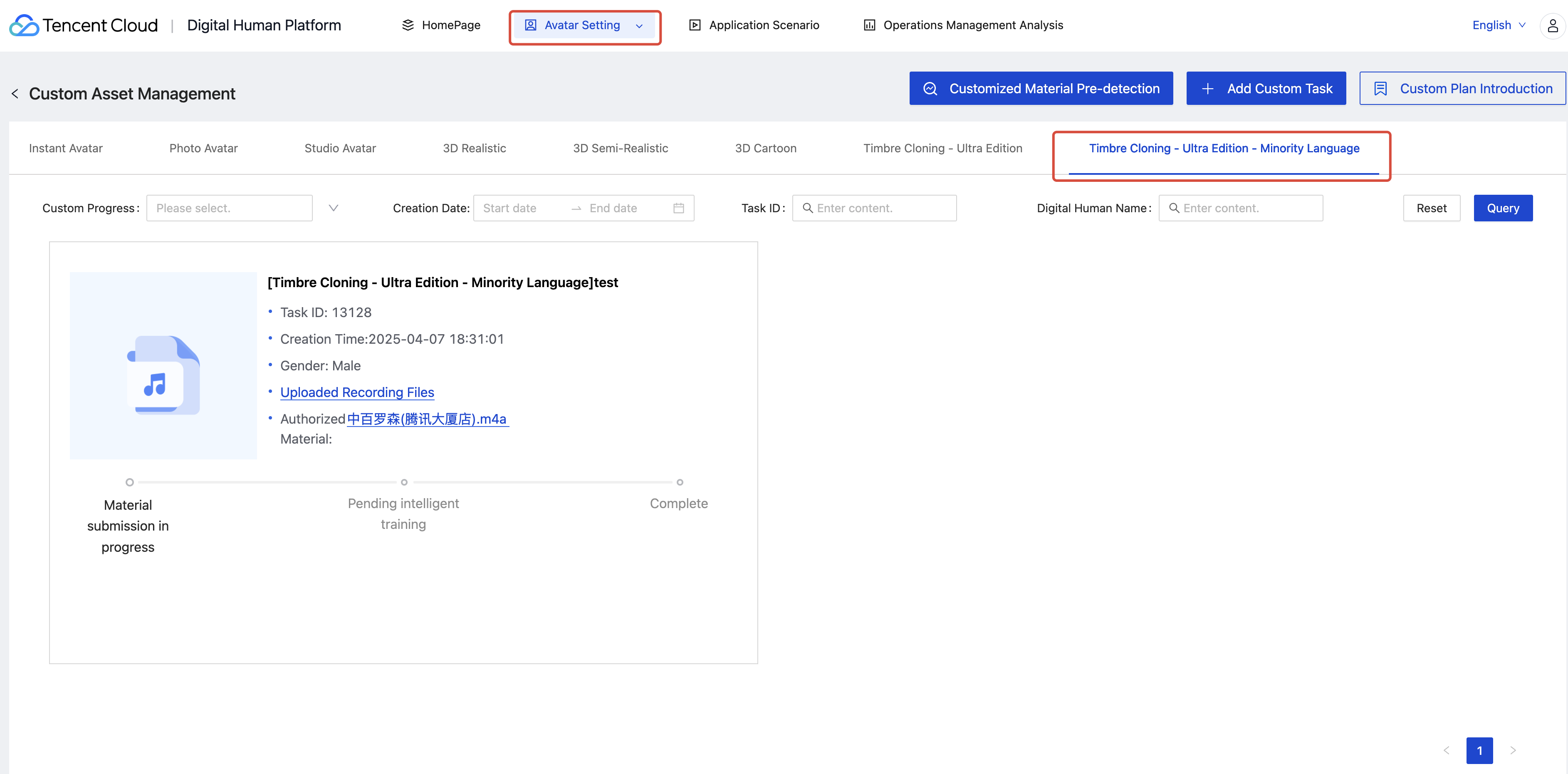
After submission, a notification will pop up: Submission succeeded (as shown above). On this page, you can directly click "view progress" to navigate to the Progress Query page. You can also directly click to view the position shown below to check the training progress of the voice type. When the display is completed, you can use this voice type in " Application Scenario".
Note:
If the Customized Text To Speech fails, don't worry. The related quota will be automatically returned and you can continue to retry the training.
Ajuda e Suporte
Esta página foi útil?
Você também pode entrar em contato com a Equipe de vendas ou Enviar um tíquete em caso de ajuda.
comentários