The Single Workflow Mode supports two calling methods: sync call and asynchronous call. In asynchronous call, the user will get an immediate response after the workflow starts running. The workflow executes asynchronously in the backend, and users do not need to wait to trigger the next request. This effectively avoids situations like workflow timeout, resource-constrained caller, or inability to maintain a persistent connection. For example, when asynchronously calling a workflow for video analysis, the user will immediately receive a response confirming the task creation and can then exit the application or analyze the next video without a long delay for the task to complete.
Note:
Asynchronous call only supports purchase of the enterprise edition.
Asynchronous call only supports single workflow applications excluding information collection nodes (such as tab nodes, parameter collection nodes) and reply nodes, performing asynchronous tasks without multi-turn interaction with users.
The concurrency of large model asynchronous calls is controlled by the permissions of that account. If multiple asynchronous call tasks are initiated at the same time, queued waiting is required.
The task will return result within 24 hours during asynchronous execution.
How to Set Up Asynchronous Call of Workflow
Enter single workflow mode, create and configure workflow. Underwrite the workflow is operating normally and does not include information collection node and reply node. For details on workflow create and configuration method, see Workflow Configuration.
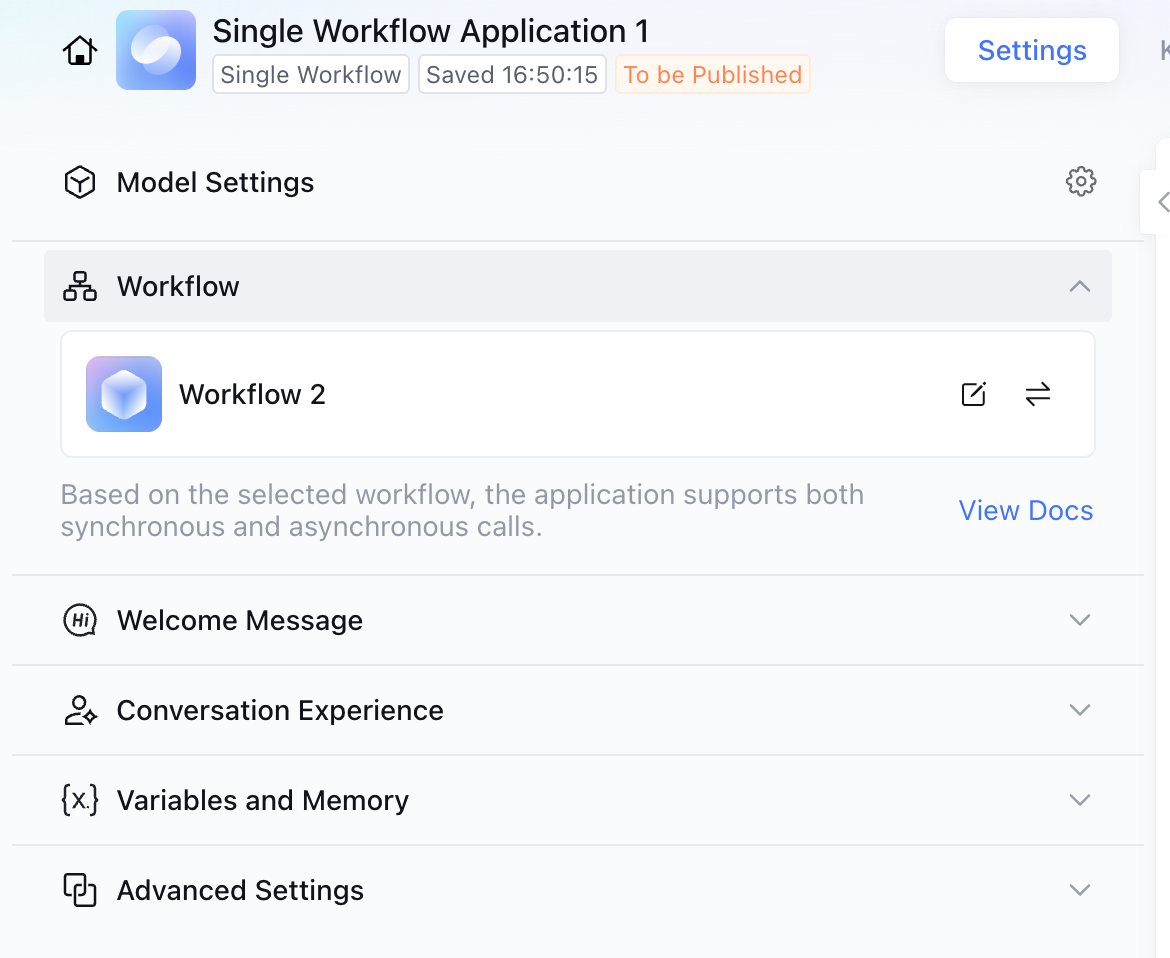
After creating and enabling the workflow, you can select the specified workflow in application. When adding workflow, you can view whether asynchronous call is supported based on system prompt.
Supports async call: based on selected workflow, the application supports sync call and async call.
Does not support async call: based on selected workflow, this application only supports sync call.
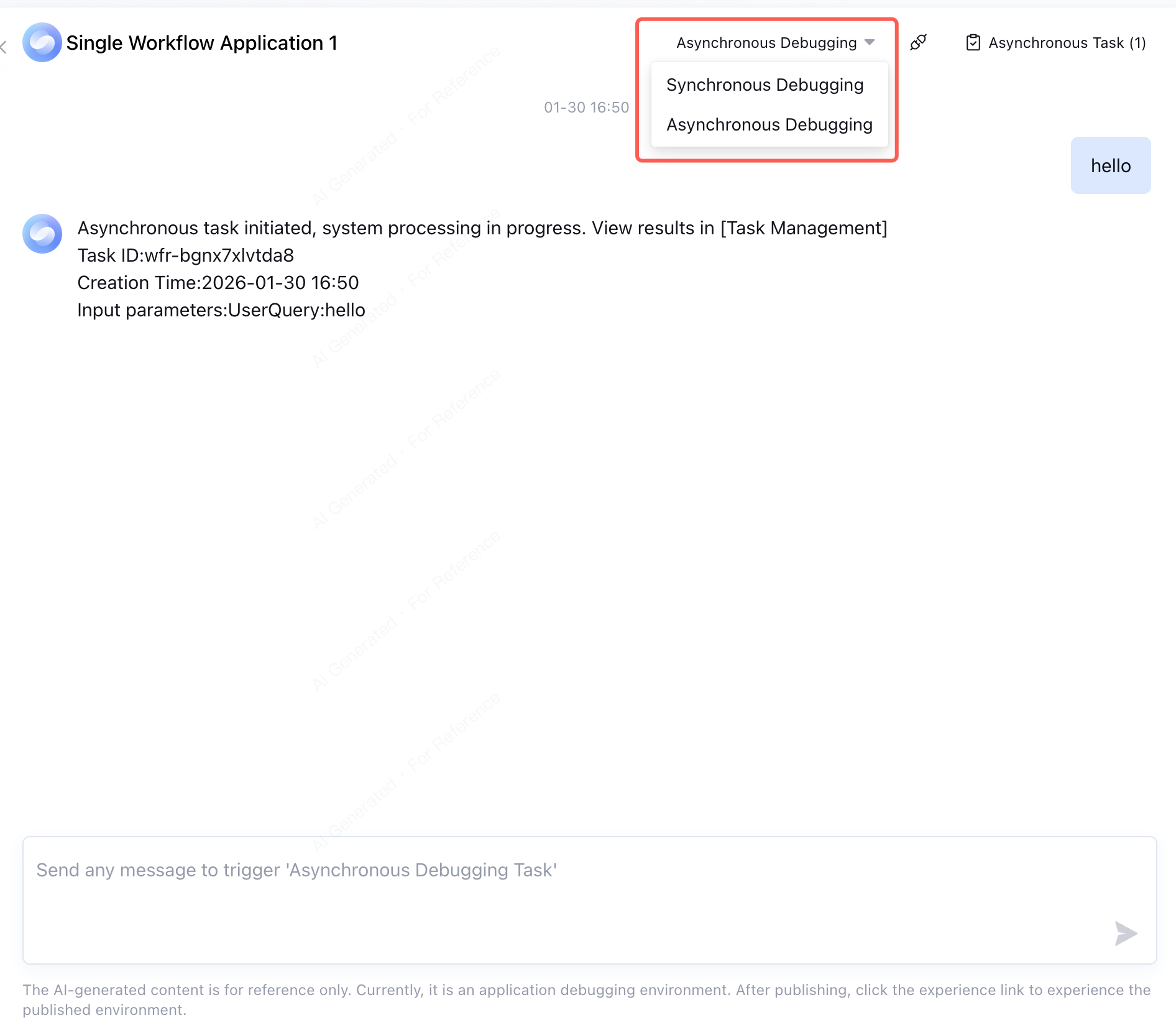
In the dialogue debugging window, click Sync Debugging to open the options popup for selecting the workflow debugging method. The popup provides two options: "Sync Debugginig" and "Async Debugging". After selecting "Async Debugging", you can directly perform dialogue in the debugging window to test the effect of async call.
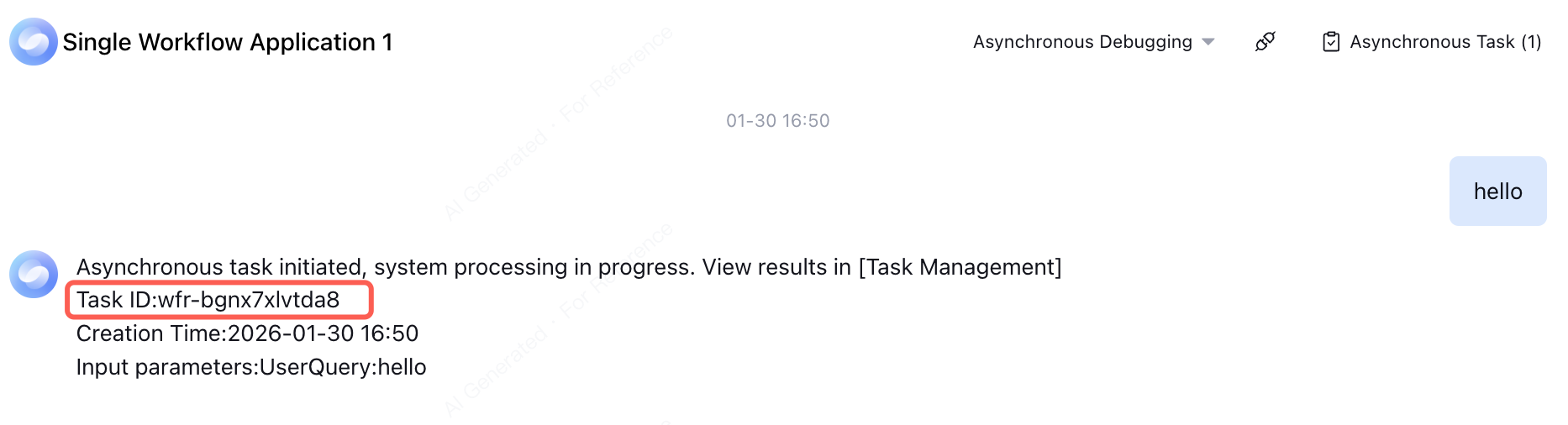
Send message in the dialogue debugging window to start an async debug task. For async debug tasks, the dialogue window does not display output content, and you cannot directly view task execution. If needed, view execution results in task management by task ID or task input parameters.
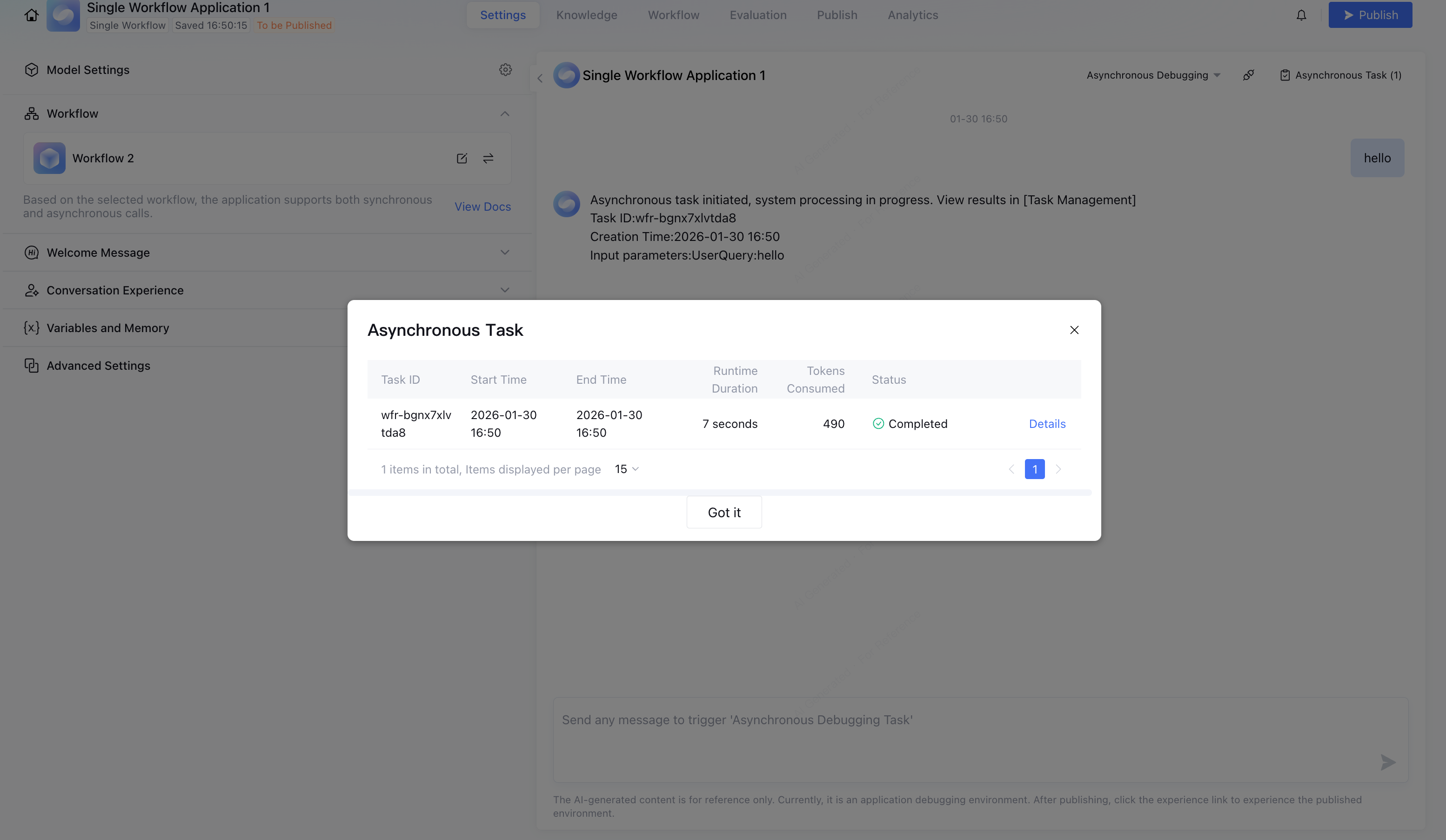
Click Asynchronous Task, enter the task management system, and view the execution status of async tasks in the dialogue debugging window.
Click Details to view workflow snapshot, obtain execution result of each node in the workflow, making it easy to locate problems and troubleshoot.
What Scenario Is Suitable for Asynchronous Call?
Scenarios suitable for asynchronous calls mainly include the following cases:
When you need to execute time-consuming operations, such as network requests, file read/write, or database queries, use asynchronous calls to avoid blocking the main thread and keep the application responsive.
In scenarios where system throughput needs to be improved, asynchronous call allows the system to receive other requests while processing one, thereby leveraging system resources more effectively.
When the operation result does not need to be obtained immediately. If users don't need to see the operation result right away, asynchronous calls can provide a better user experience.
When the system needs to process a burst of concurrent requests, asynchronous calls can help the system better respond to traffic spikes and avoid overload.