Business Intelligence (BI) enables the mapping and definition of Chinese meanings for encoded ID fields in data tables through dictionary tables. The specific operation steps and process are shown below.
Creating a Dictionary Table
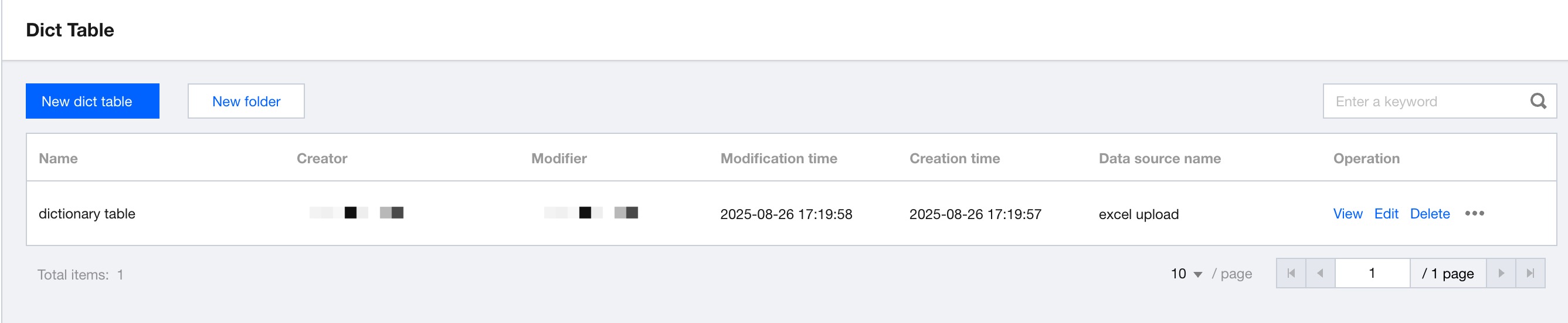
In the Dictionary Table module under Data, click Create New Dictionary Table to create a dictionary table using the data source table creation or Excel upload method:
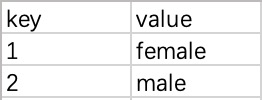
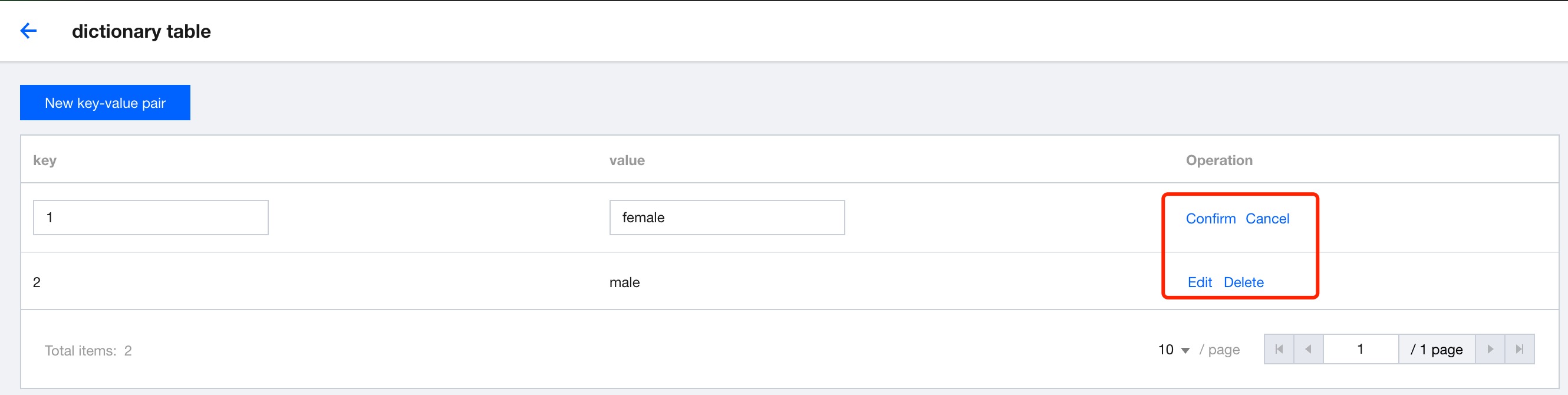
Note that the dictionary table should meet specific field structure requirements. The table should include 2 fields, that is, key and value. The two fields correspond to the key-value and mapped value, respectively. A sample dictionary table is shown in the figure below.
1. Creating a Dictionary Table Through Data Source Table Creation
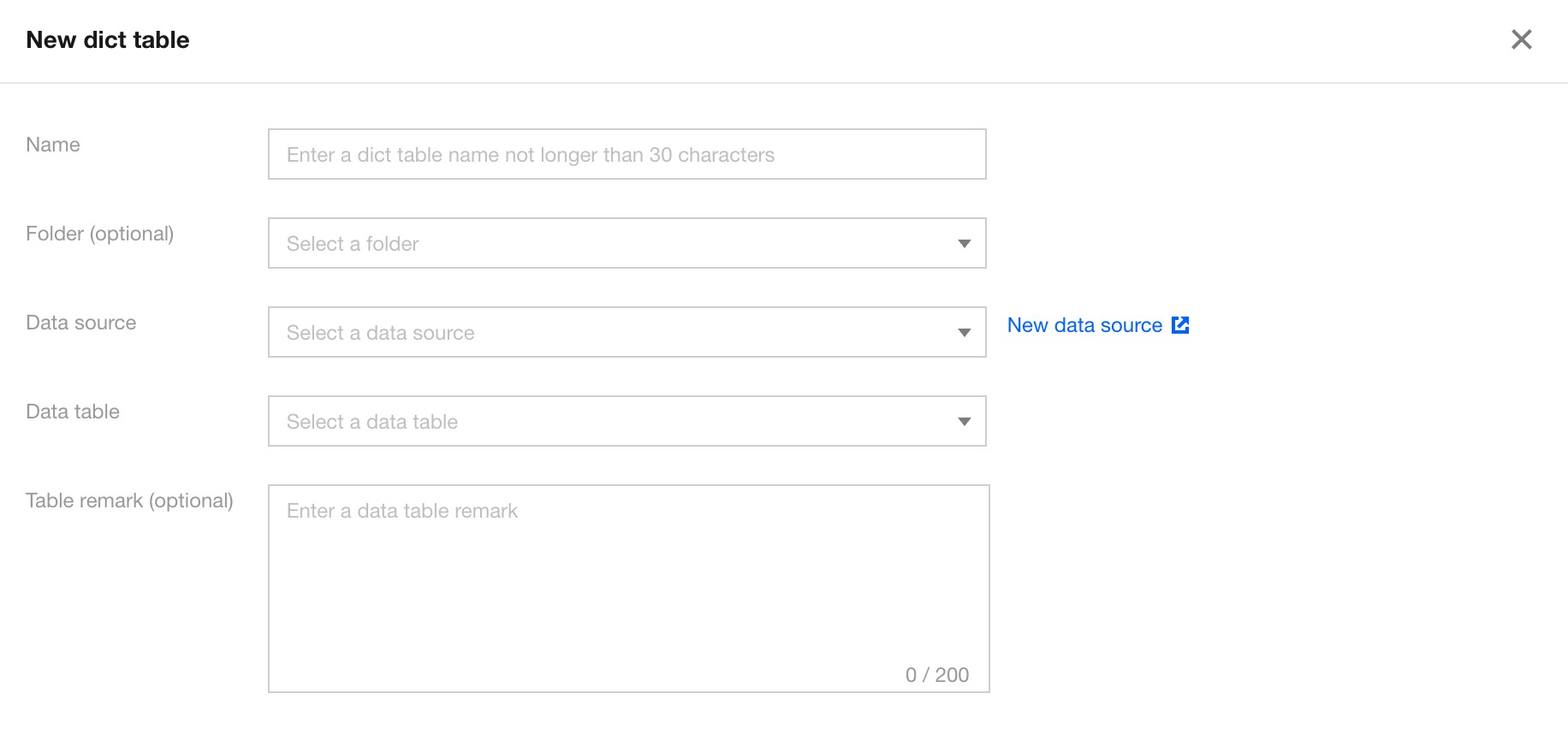
To create a dictionary table through the data source table creation method, you need to enter the following configuration content. The dictionary table should meet standard structural requirements:
Display name: The display name of the data table in BI.
Folder (optional): Click the drop-down icon to select a created folder.
Select data source: Click the drop-down icon to select a connected data source. Click Create data source to open the data source list page in a new window, and a pop-up window for creating a data source will appear. After creation, click the drop-down list again to load the created data source.
Select data table: Click the drop-down icon to select a data table from the selected data source.
2. Creating a Dictionary Table Through Excel Uploads
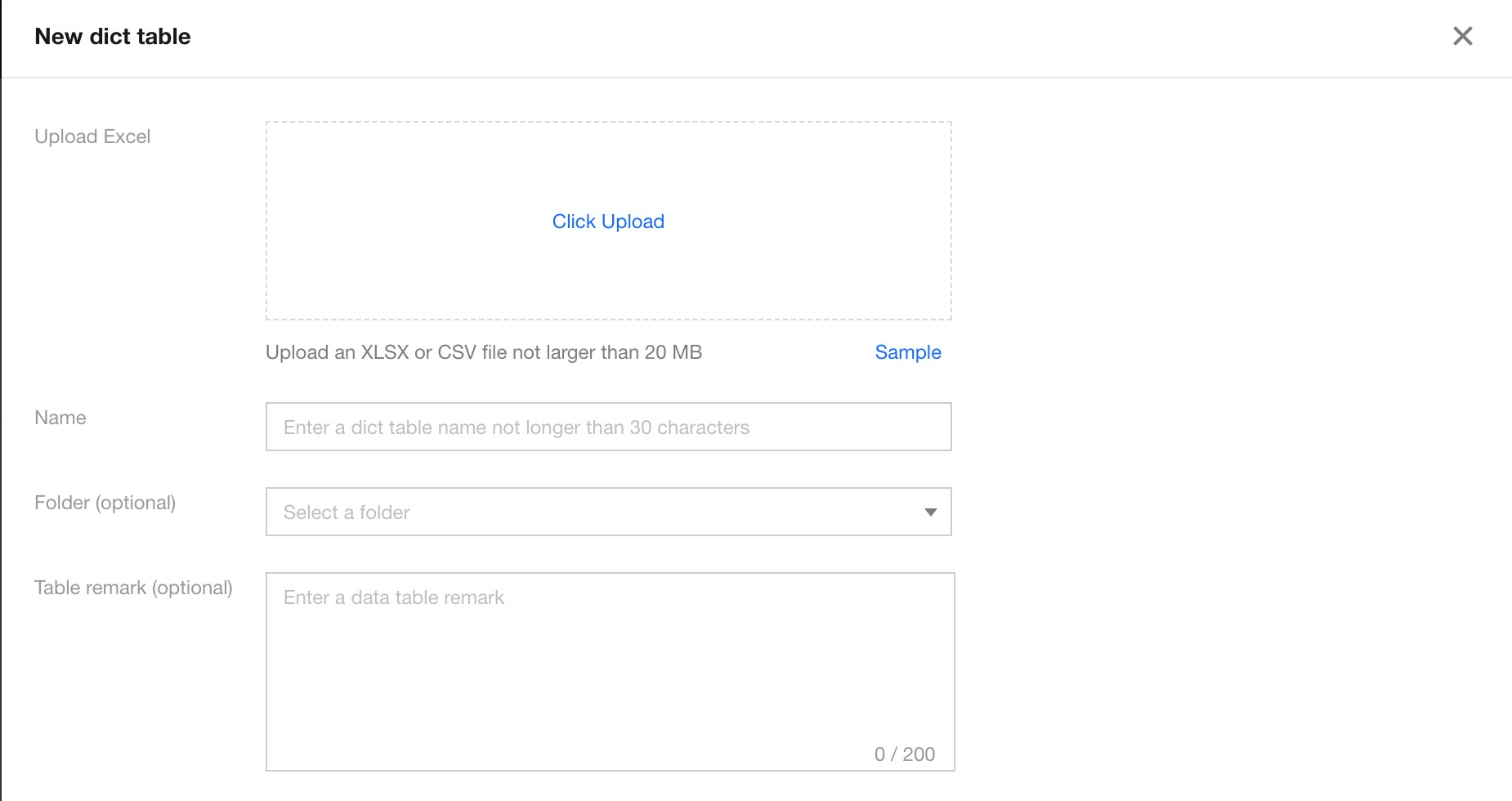
To create a dictionary table through the Excel upload method, you need to enter the following configuration content. The dictionary table should meet standard structural requirements:
Upload Excel: Files in XLSX and CSV formats can be uploaded, with a maximum size of 20 MB.
Display name: The display name of the dictionary table in BI.
Folder (optional): Click the drop-down icon to select a created folder.
Associating a Dictionary Table
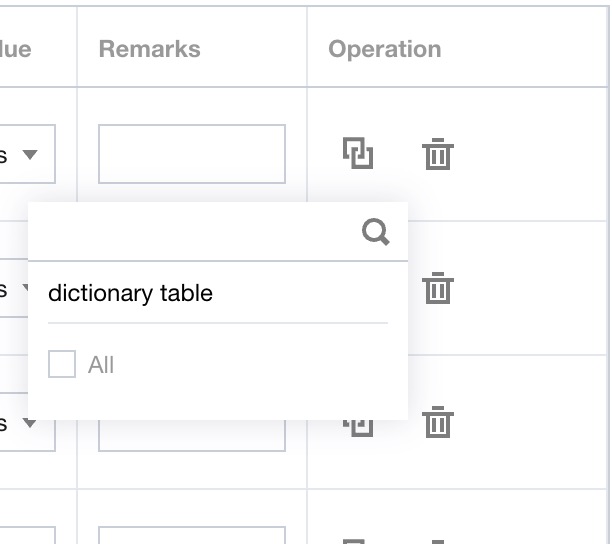
In the Data Table module under Data, select the data table to associate with a dictionary table, click Edit, then perform dictionary table association in field configuration on the data table editing page.
Dictionary Table Operations
In the Dictionary Table module under Data, you can view, edit, or delete dictionary tables:
1. Viewing a Dictionary Table and Adding/Modifying Key-Value Pairs
Select a dictionary table, then click View to view the detailed data of the dictionary table.
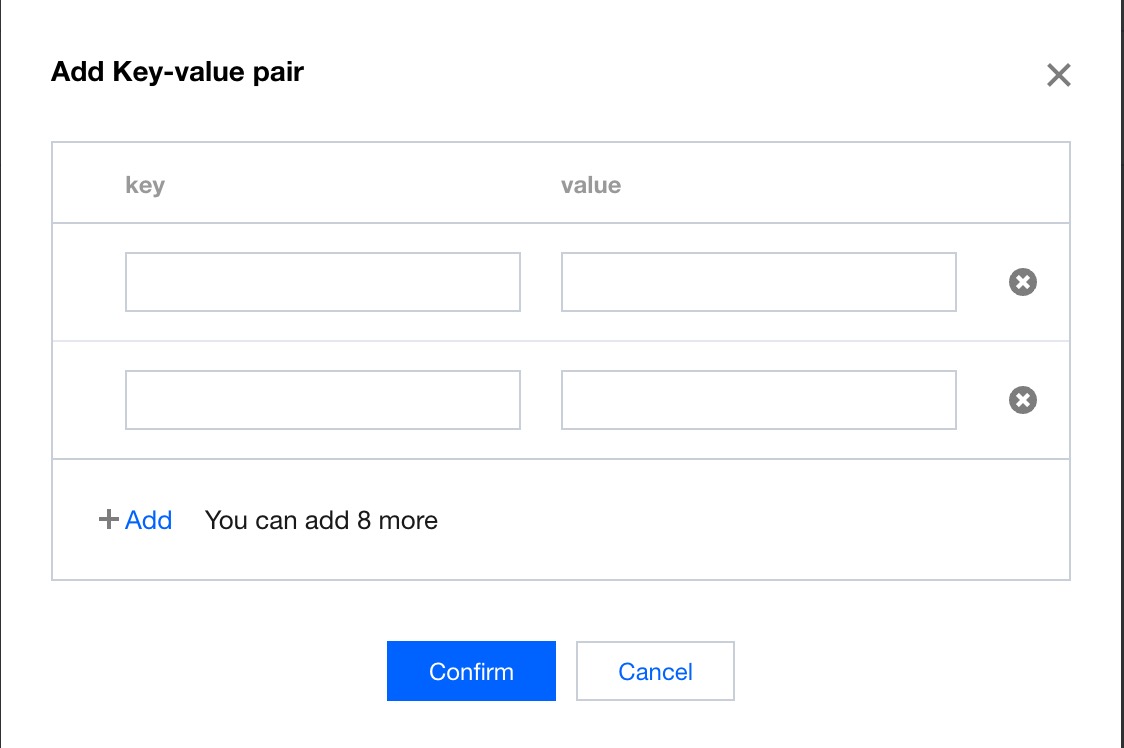
In the dictionary table view interface, click add new key-value pair, input key and value, and you can customize to add key-value pairs (up to 10).
In the dictionary table viewing interface, select a row of dictionary table data, then click Edit to modify the key and value.
2. Editing a Dictionary Table
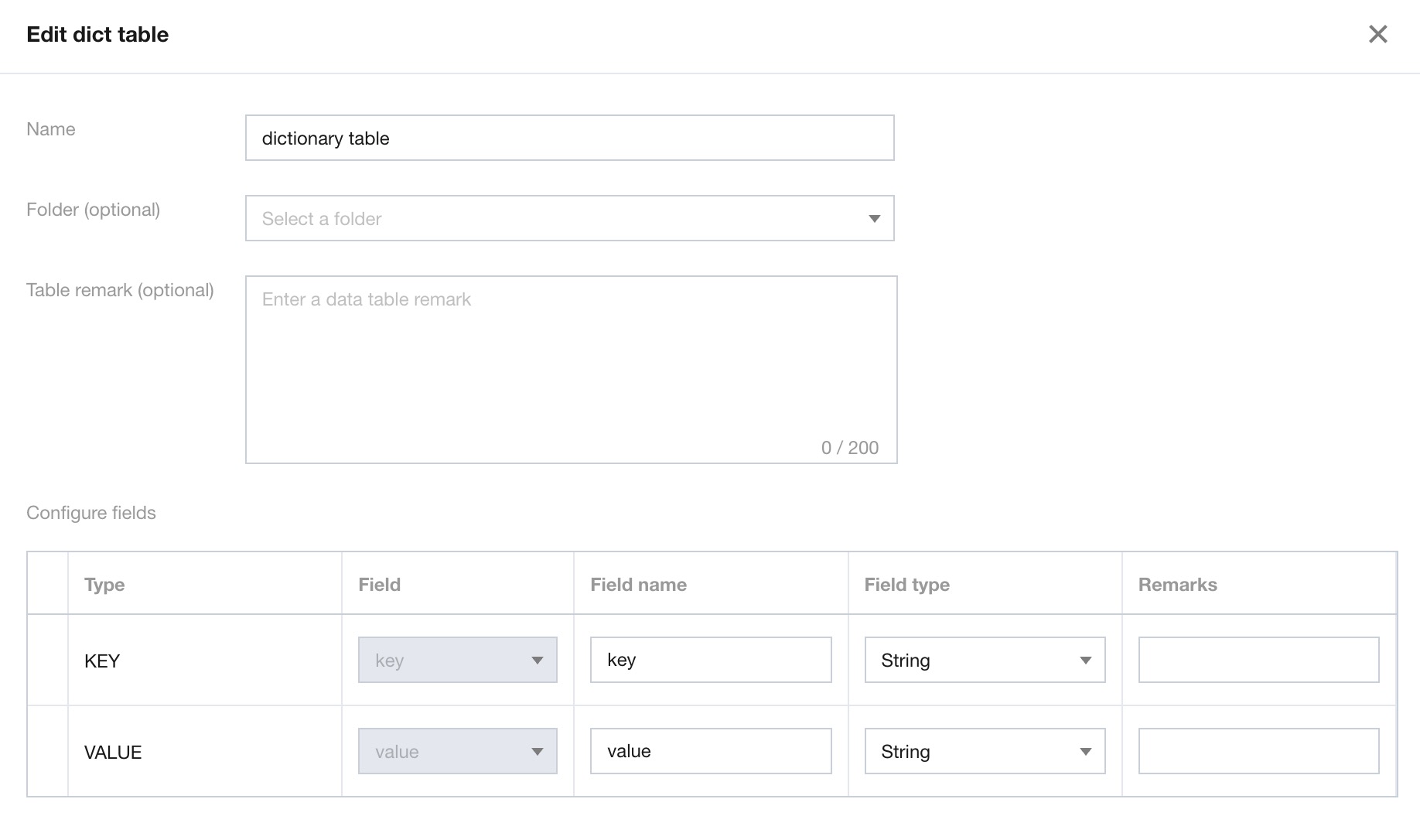
In the Dictionary Table module under Data, select a dictionary table, then click Edit to edit the dictionary table. You can modify the display name, folder, field configurations, and other related information of the dictionary table.
3. Deleting a Dictionary Table
In the Dictionary Table module under Data, select a dictionary table, then click Delete to delete the dictionary table.