Accessing Polaris with Cloud Native Gateway
Download
Focus Mode
Font Size
Overview
You can create a Cloud Native Gateway for your Polaris instance, associate services from a registry, and then create routing policies for the services in the gateway, enabling them to be exposed through the gateway. This guide uses Polaris as an example. You need to complete the following steps:
1. Create a Cloud Native Gateway.
2. Associate a service source.
3. Add a service.
4. Configure routing rules for the service.
5. Call the API.
Operation Steps
Step 1: Creating a Cloud Native Gateway
To create a Cloud Native Gateway, see Creating a Gateway. If you have already created one, go to the Cloud Native Gateway console to proceed with subsequent operations.
Step 2: Associating with the Service Source
1. Click the ID of the created Cloud Native Gateway to go to the Basic Information page.
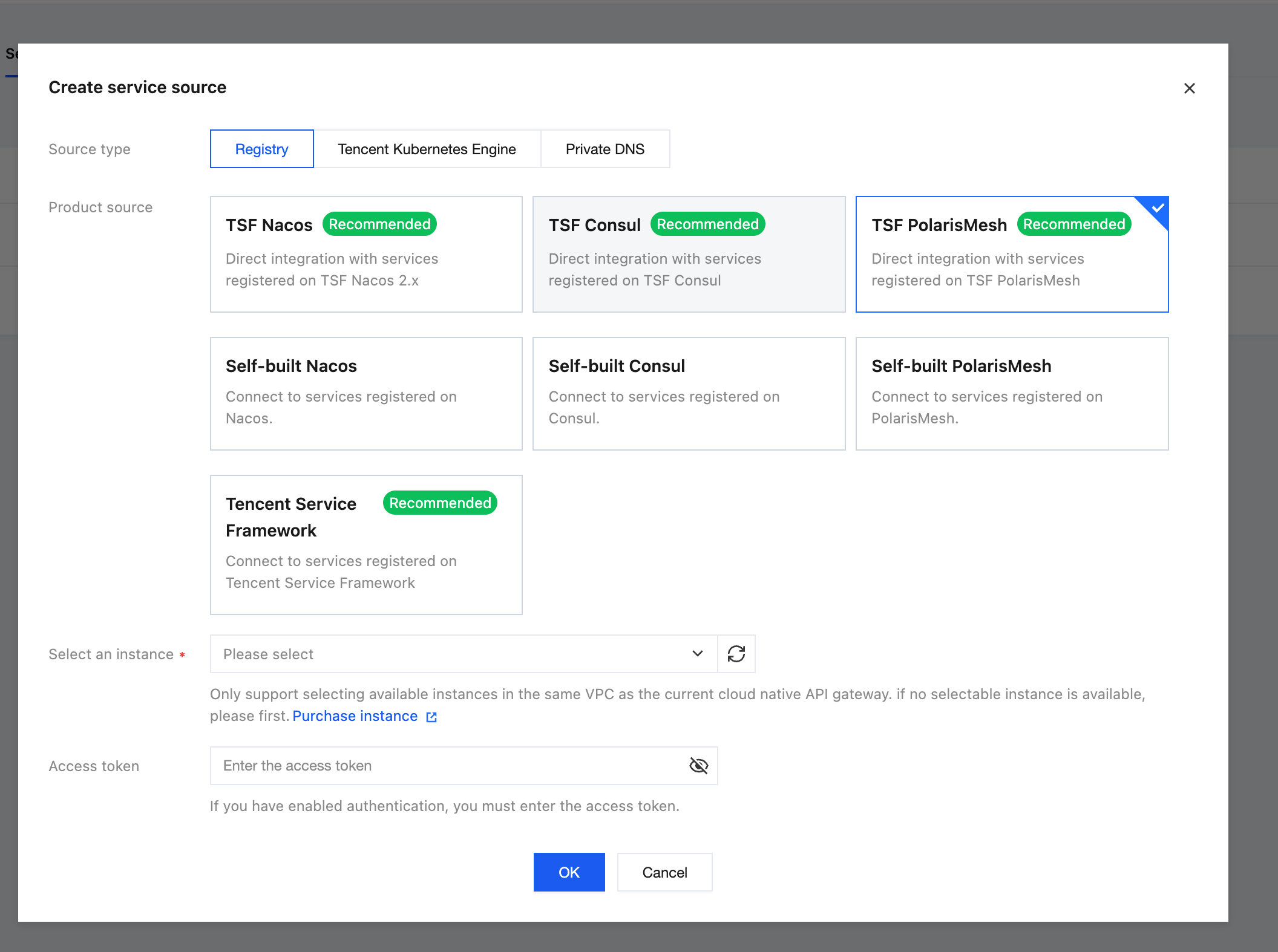
2. In the left sidebar, choose Service & Route > Service Source. On the Service Source page, click New. For Service Source Type, select Registry. For Source Product, select Polaris. For Service Instance, select an available instance that resides in the same VPC as the Cloud Native Gateway. Then, click OK.**
Step 3: Adding a Service
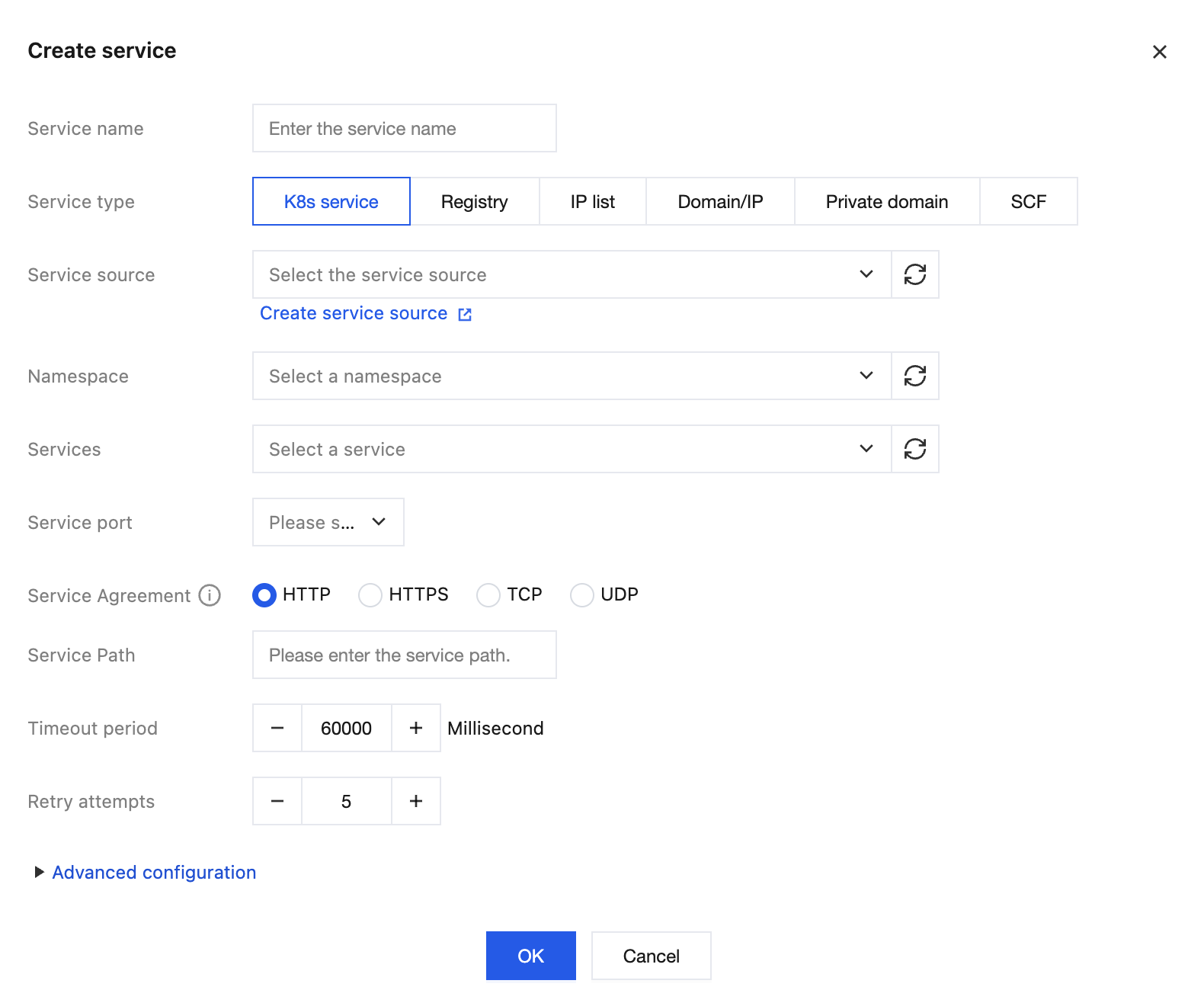
1. Choose Service & Route > Service. On the Service List page, click New. For Service Type, select Registry. For Service Source, select the service source associated in the previous step. Enter the namespace ID and service name for the Polaris service. The service list is a required field. Ensure that you select the correct service from the associated service source.
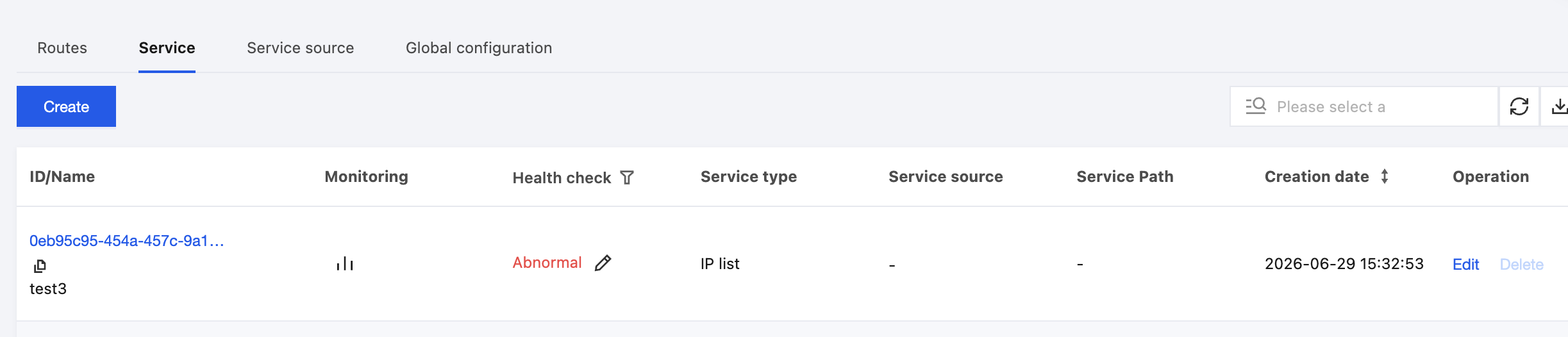
2. Click OK. After the creation is complete, you can view the service information in the service list.
Step 4: Configuring Routing Rules for the Service
1. After the backend service is added, click the service name to enter the Service & Route > Route page.
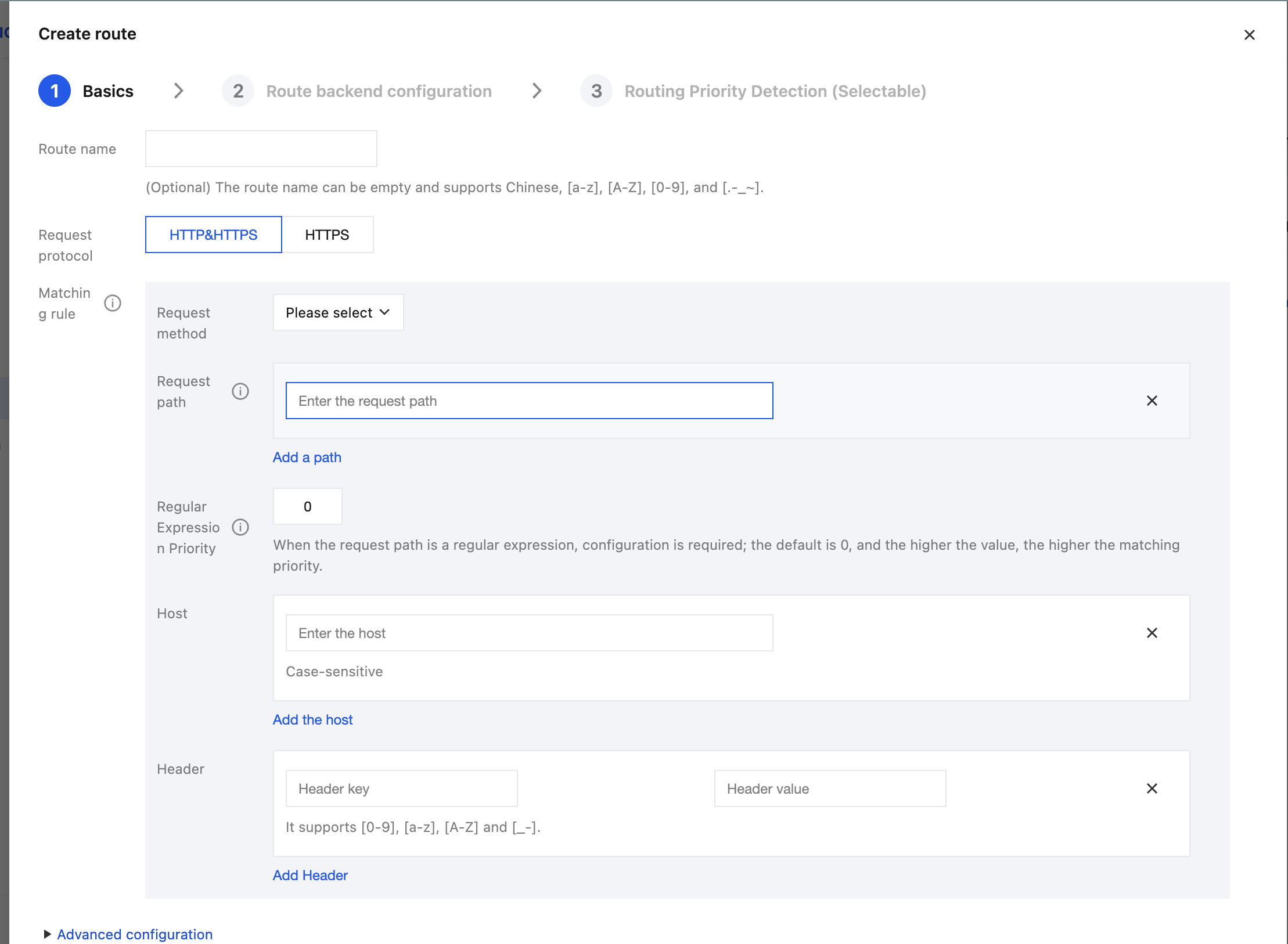
2. Click Create, configure the routing information, and then click Next. At least one of the request method, request path, or Host must be configured.
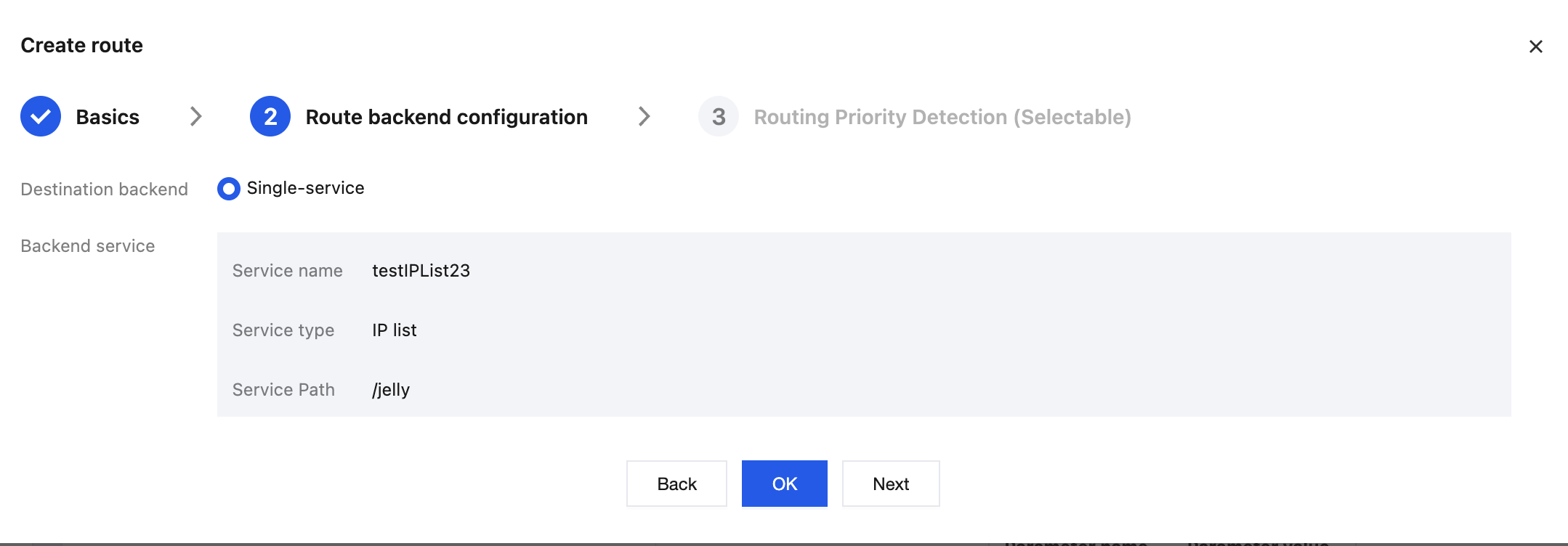
3. Configure the backend information for the route. After confirming that the backend service information is correct, click OK to complete the route creation. Route Priority Detection (Optional): When multiple routes exist under the same service, you can use route priority detection to confirm the matching order of requests and avoid route conflicts.
Step 5: Accessing the Route
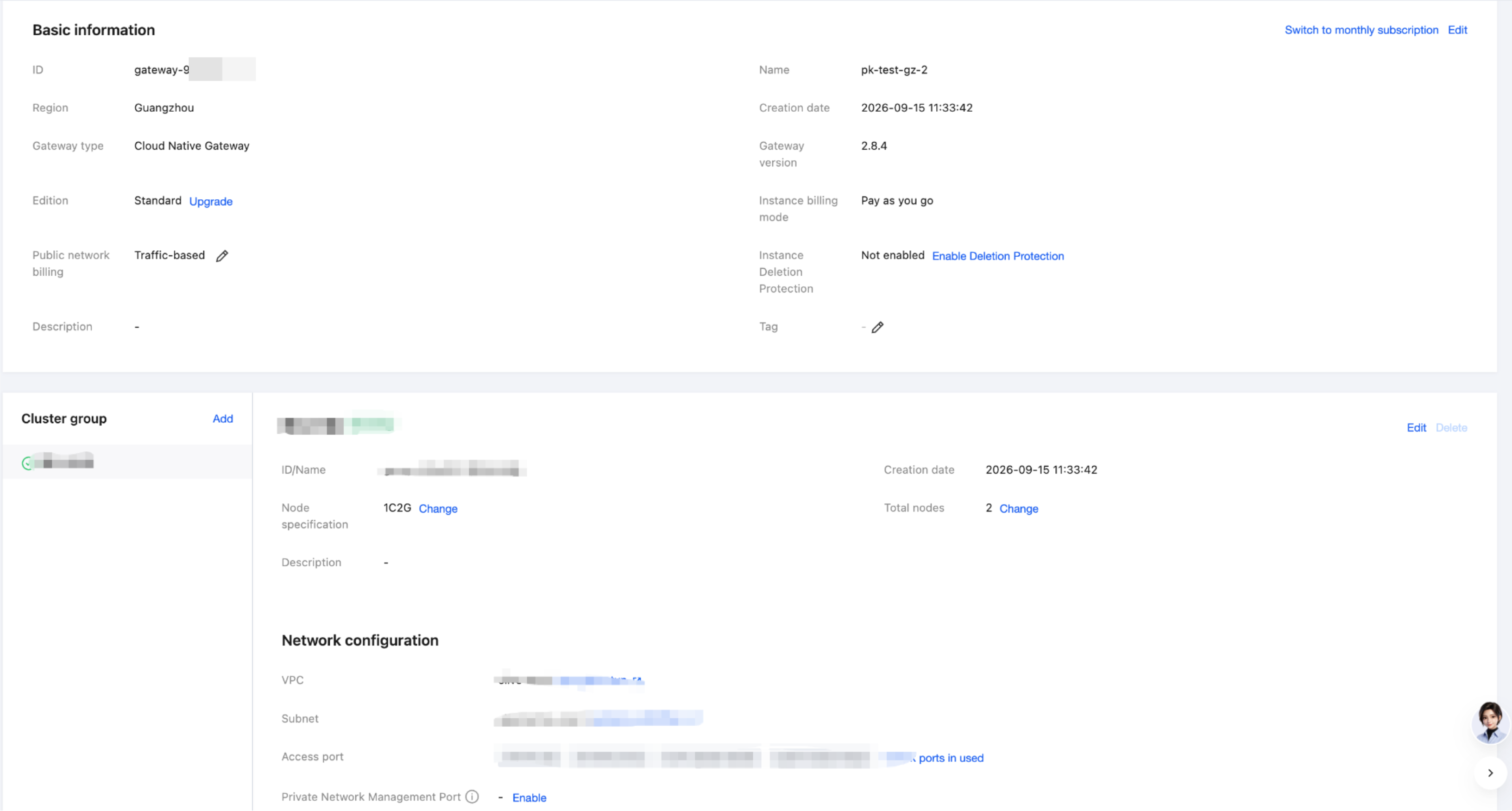
1. Go to the Basic Information page of the Cloud Native Gateway and obtain the CLB IP address.
2. Use the CLB IP address and the configured route path to access the API. Execute a curl command to test. You can then access the backend service through the Cloud Native Intelligent Gateway.
curl http://<GWLB IP>/<Route Path>
Help and Support
Was this page helpful?
You can also Contact sales or Submit a Ticket for help.
Help us improve! Rate your documentation experience in 5 mins.
Feedback