Implementing WebSocket Service Forwarding with Cloud Native Gateway
Download
Focus Mode
Font Size
You can configure a WebSocket service as you would a normal HTTP (HTTPS) service. When you access the gateway using the WebSocket protocol, the gateway automatically upgrades the protocol to WebSocket, so you do not need to explicitly specify the WebSocket protocol. This document quickly guides you on how to access APIs whose backend service is of the WebSocket type in Cloud Native Gateway.
Operation Steps
Step 1: Creating a Cloud Native Gateway Instance
Refer to Creating a Gateway to create a Cloud Native Intelligent Gateway. If you have already created one, you can go directly to the Cloud Native Gateway console for subsequent operations.
Step 2: Defining Backend Service Information
1. Click the ID of the created gateway instance to enter the instance details page.
2. In the left sidebar, choose Service & Route > Service. Then, in the service list, click New.
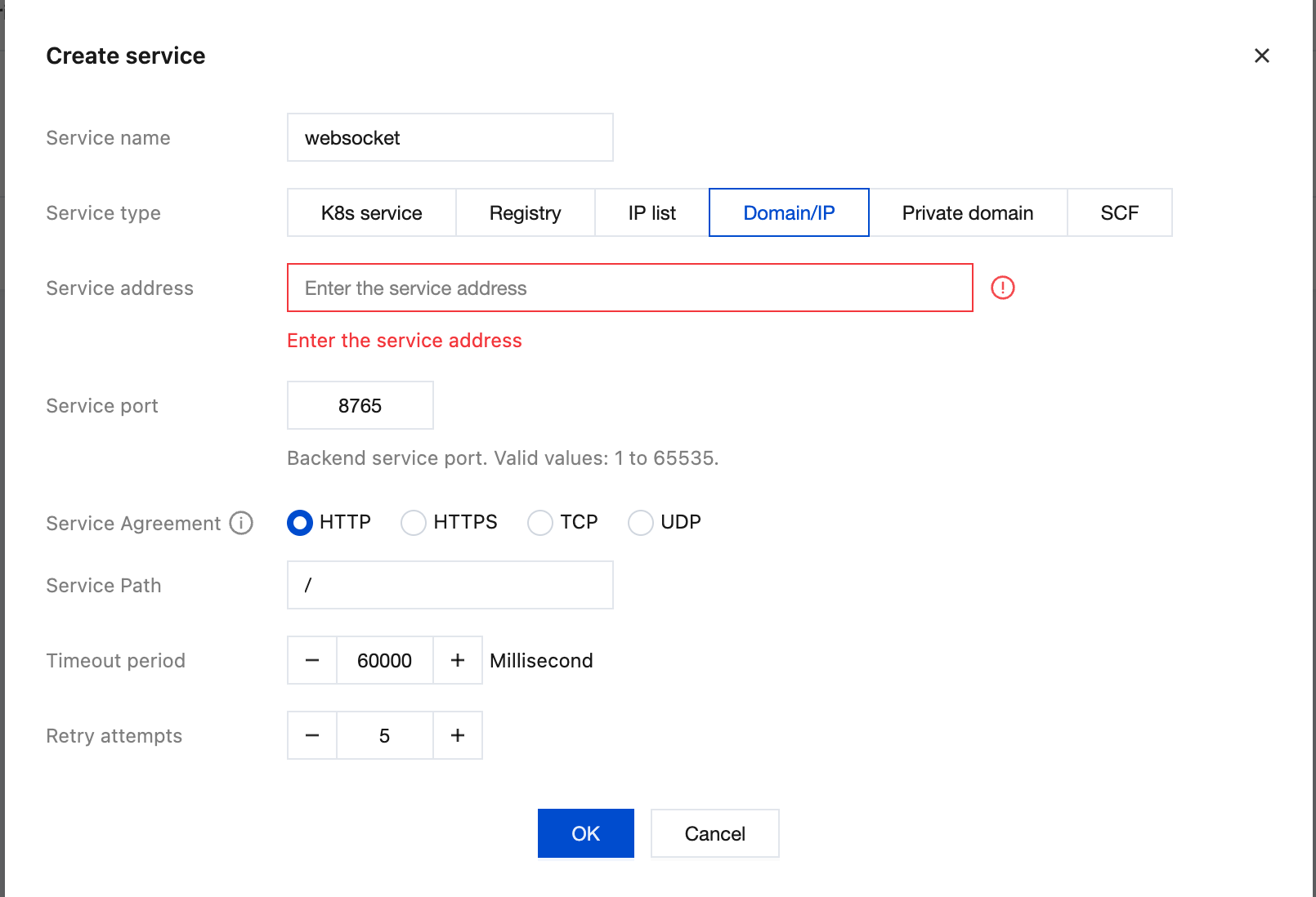
3. After configuring the relevant parameters in the Create Service window, click OK.
Note:
Create a gateway service. If the backend WebSocket service uses the WS protocol, select HTTP as the service protocol. If the backend service uses the WSS protocol, select HTTPS as the service protocol. The service type can also be K8S Service / IP List, or others.
Step 3: Configuring Routing for the Backend Service
1. After the backend service is added, click the backend service name to enter the Service & Route > Route page.
2. Click Create and set routing information.
Request Method: Set it to ANY.
Request Path: Set it to /websocket.
3. Click Next.
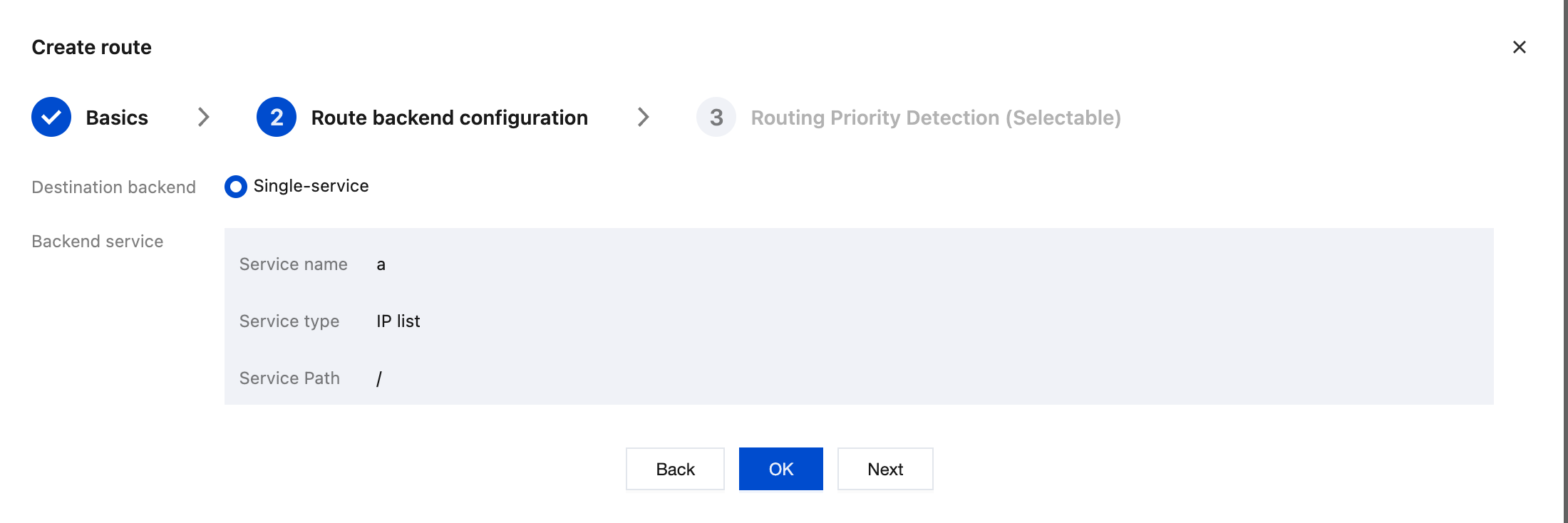
4. Configure the backend information for the route. After confirming that the backend service information is correct, click OK to complete the route creation. Route Priority Detection (Optional): When multiple routes exist under the same service, you can use route priority detection to confirm the matching order of requests and avoid route conflicts.
Step 4: Accessing the WebSocket Service
1. Go to the Basic Information page of the Cloud Native Gateway and obtain the CLB IP address.
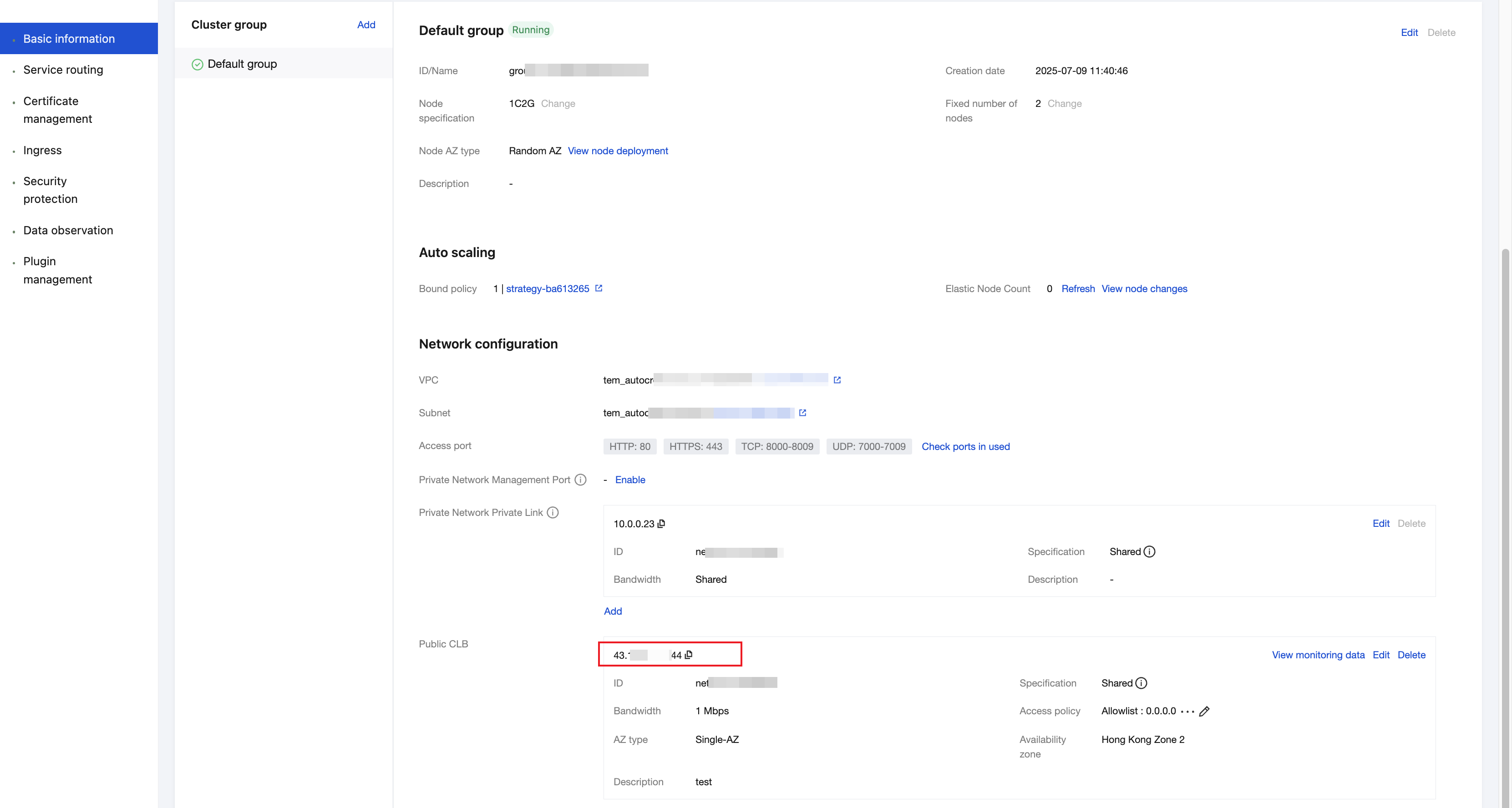
2. Use the CLB IP address and configured routing path to access the route.
To access the gateway using the WS protocol:
websocat ws://<GWLB IP address or domain>/websocket.To access the gateway using the WSS protocol:
websocat wss://<GWLB IP or domain>/websocket -k.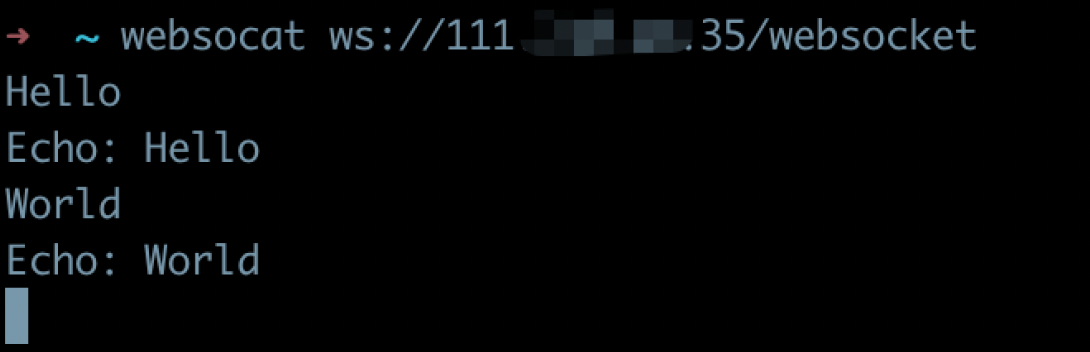
Help and Support
Was this page helpful?
You can also Contact sales or Submit a Ticket for help.
Help us improve! Rate your documentation experience in 5 mins.
Feedback