Using the Traffic Mirroring Plugin
Download
Focus Mode
Font Size
Scenarios
This document describes how to implement the following common traffic mirroring scenarios using the traffic mirroring plugin on a cloud-native gateway.
Mirroring a certain ratio of the production traffic to the test backend
Mirroring the production traffic to multiple test backends
Prerequisites
The cloud-native gateway instance has been purchased. For details, see Create Gateway.
Extension Descriptions
Plugin name: TSE TRAFFIC MIRROR
Plugin group: Traffic Control
Overview: This plugin is used to perform traffic mirroring for the client's requests. The online traffic is mirrored to the test backend, and the response data returned from the test backend is automatically discarded. This ensures that test businesses in the test backend do not affect online businesses. It is widely used in test environments to simulate online traffic and test new features.
Specific capabilities:
Traffic can be mirrored to a Cloud Native Gateway Upstream or a mirroring service address.
Traffic is mirrored based on the sampling ratio, and the ratio of traffic forwarded to the mirrored backend can be configured.
Traffic can be mirrored based on request parameters. When the plugin is configured on a route, requests that match the request parameters are mirrored.
Traffic can be mirrored to multiple backends.
Plugin Configurations
Configuration Item | Required | Configuration Description |
Mirroring ratio | Yes | Ratio of requests forwarded to the mirrored service. The value range is 1 to 100. |
Backend Address Type | Yes | Type of the mirrored service, which can be Host or Upstream. |
Backend address - Host | Yes | The address of the mirrored service must include the scheme (http/https) and the Host address, for example, http://127.0.0.1. |
Backend address - Port | Yes | Port of the mirrored service, ranging from 1 to 65535. |
Backend address - Upstream | Yes | The cloud-native gateway Upstream for the mirrored service must include the scheme (http/https) and the Upstream name, for example, http://myupstream. |
Backend address - Path | No | Path of the mirrored service. If it is not specified, the current request path is used by default. |
Operation Steps
Scenario 1: Mirroring Traffic Based on the Sampling Ratio
1. Log in to the TSF console.
2. Select Cloud Native Gateway in the left sidebar and click the target instance to go to the instance details.
3. On the Basic Information page, click the Konga console Tag to view the management console login method.
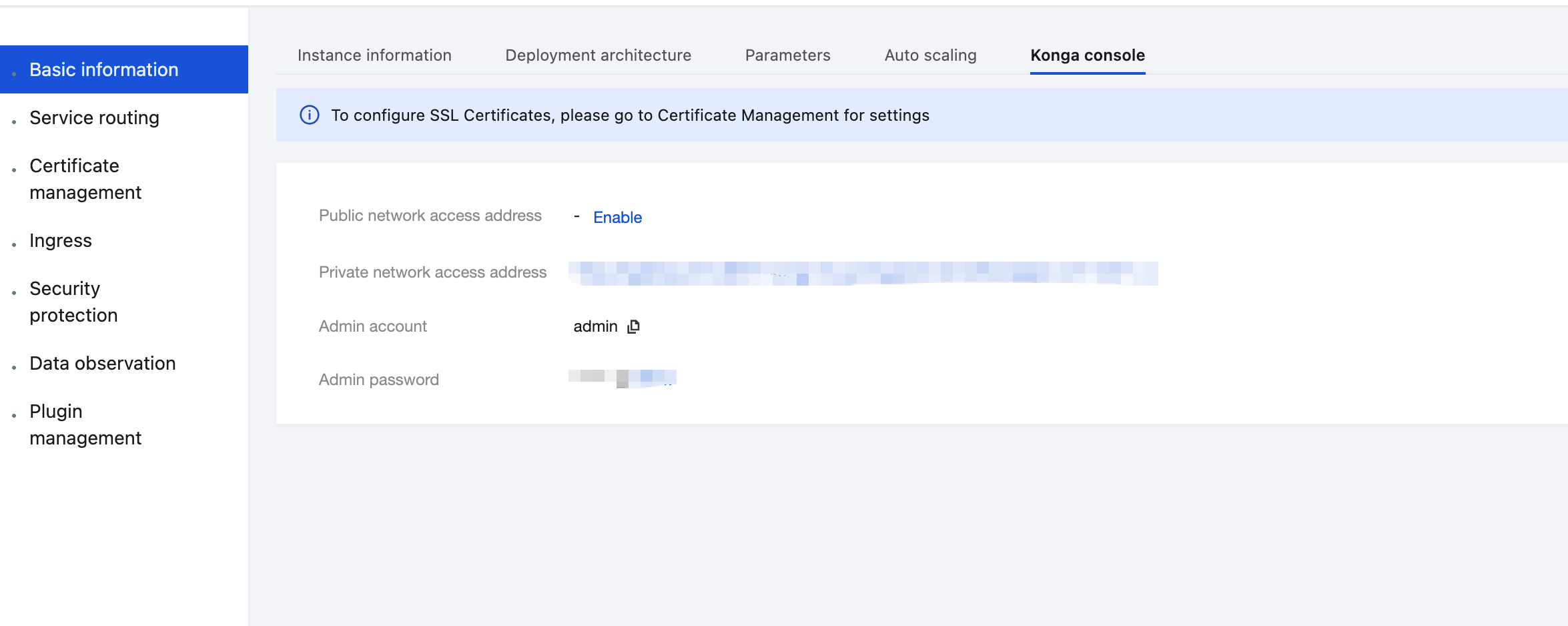
4. Click the public network access address to go to the Konga console.
5. Go to the details page of the Service that requires traffic mirroring configuration, enter the username and password to access the Kong console, click Add Plugin to add a plugin, and select the TSE TRAFFIC MIRROR plugin under the Traffic Control group.
6. In this scenario, it is simulated that 30% of the online traffic is mirrored to a Host-type test backend.
7. On the plugin configuration page, specify the following parameters and click ADD PLUGIN.
Mirroring ratio: 30%
Backend address type: Host
Backend address:
Host: Enter the access address of the test service, such as http://example-test-service.
Port: Enter the port of the test service.
Path: Optional. If left blank, the real request path is used.
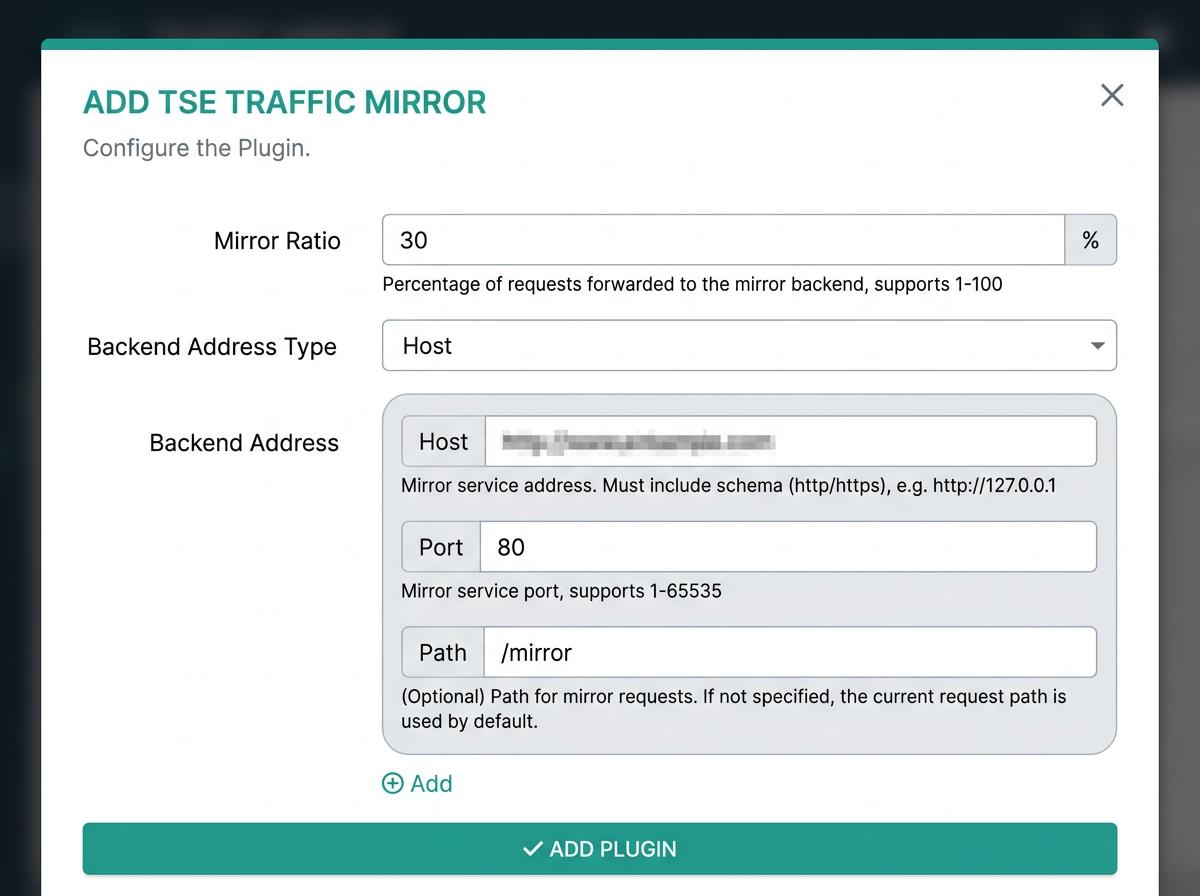
8. Initiate API requests and check that the traffic mirroring backend receives a certain ratio of mirrored requests.
Scenario 2: Mirroring Traffic to Multiple Backends
1. Log in to the TSF console.
2. Select Cloud Native Gateway in the left sidebar and click the target instance to go to the instance details.
3. On the Basic Information page, click the Konga console Tag to view the management console login method.
4. Click the public network access address to go to the Konga console.
5. Go to the details page of the Service that requires mirroring configuration, click Add Plugin to add a plugin, and select the TSE TRAFFIC MIRROR plugin under the Traffic Control group.
6. This scenario simulates mirroring traffic to multiple Upstream services.
In the plugin, enter the following configuration:
Mirroring ratio: 100%
Backend address type: upstream
Add multiple backend addresses. Enter the following information for each backend address:
Upstream: Enter the upstream service where the mirrored service resides.
Path: Optional. Enter the mirroring request path.
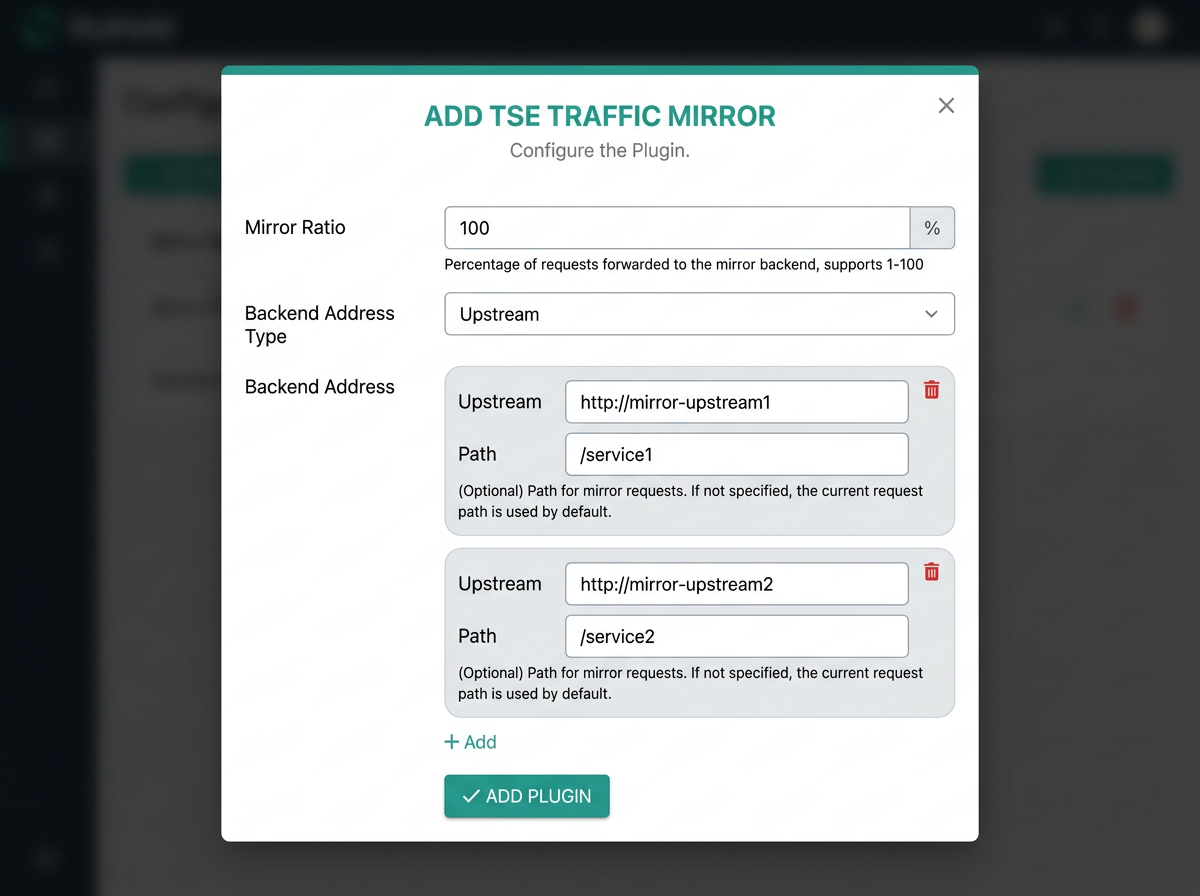
7. Initiate API requests and view the mirrored requests in the two upstream services.
Help and Support
Was this page helpful?
You can also Contact sales or Submit a Ticket for help.
Help us improve! Rate your documentation experience in 5 mins.
Feedback