Model Detection
Download
Focus Mode
Font Size
Scenarios
Custom vendor model detection supports automatically discovering the list of models provided by a vendor through its probing capability when a custom model service is created, eliminating the need to manually configure each model name. It is applicable in the following scenarios:
Quick Access: Quickly obtain the list of available models when connecting to a custom provider that supports the OpenAPI-compatible protocol.
Batch Import: When a vendor provides multiple models, you can import all model names with one click, eliminating the need for manual entry.
Version Synchronization: The vendor's model list is periodically probed, and newly added or decommissioned models are automatically synchronized.
Compatibility Verification: Verify the API Endpoint and protocol compatibility of the custom vendor to ensure correct configuration.
Note:
Model detection only supports vendors that use the OpenAI-compatible protocol. It obtains the model list by calling the vendor's
/v1/models API.Prerequisites
1. The AI gateway instance has been created and is in a running state.
2. Prepare the API Endpoint and access credentials for the custom vendor.
3. The vendor must support the model list query API (
/v1/models) that is compatible with the OpenAI protocol.Operation Steps
Scenario 1: Initiating Model Detection When a Custom Model Service is Created
Step 1: Go to the Model Service Creation Page
1. Log in to the Microservices Platform console. In the left sidebar, click AI Gateway > Instance List.
2. On the instance list page, click the ID of the gateway instance you want to configure to go to its basic information page.
3. In the left sidebar, click Model Management. Then, click the Model Service tab. In the service list, click New.
Step 2: Select a Custom Vendor
1. In the Model Vendor section, select Custom Vendor.
2. Configure the basic information.
Step 3: Initiate Model Detection
After the basic information is configured, click Initiate Model Detection in the Select Model Policy section.
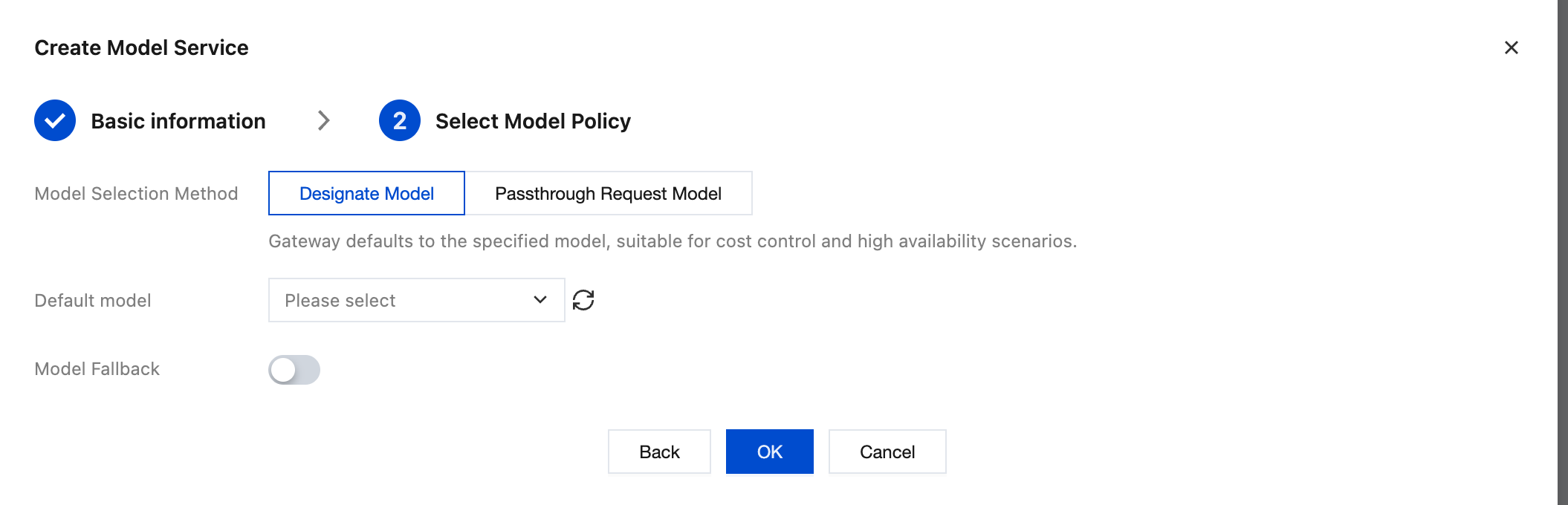
Step 4: Confirm and Import the Model
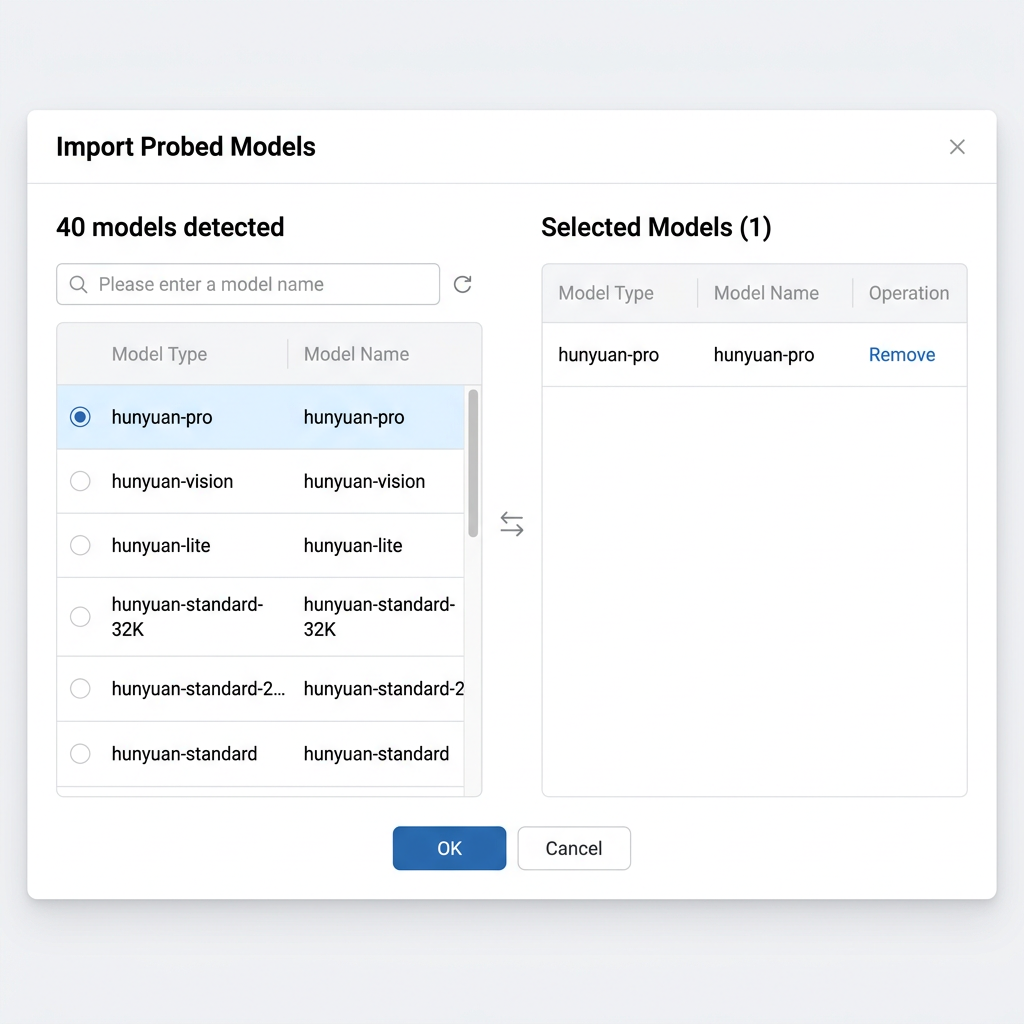
1. In the detection result list, select the models you want to import.
2. Click OK or a similar confirmation button.
3. The selected models are imported into the model configuration.
Scenario 2: Re-detecting an Existing Service
For a custom model service that has been created, you can re-initiate model detection to synchronize vendor model updates.
Operation Steps
1. Go to the edit page of the target model service.
2. In the Select Model Policy section, click Initiate Model Detection.
3. Review the detection results. Select the newly added models or deselect the decommissioned models.
4. Save the configuration.
Must-Knows
1. API Requirements: Model detection obtains the model list by calling the vendor's
/v1/models API. Ensure that the vendor supports this API.2. Access Credentials: During detection, you must use the vendor's API Key or other access credentials for authentication.
3. Handling Detection Failures: If detection fails (for example, due to network unreachability, authentication failure, or API incompatibility), the page displays specific error messages. This does not affect subsequent manual model configuration.
4. Frequency of Re-detection: It is recommended to re-detect periodically (for example, weekly) to synchronize vendor model updates. However, avoid doing this too frequently to prevent placing an unnecessary burden on the vendor.
5. Model Name Accuracy: The imported model name is the original name returned by the vendor. Please ensure that it matches the model parameter used during actual invocation.
Help and Support
Was this page helpful?
You can also Contact sales or Submit a Ticket for help.
Help us improve! Rate your documentation experience in 5 mins.
Feedback