EIP 直通
下载
聚焦模式
字号
EIP 直通功能适用于云服务器内需要查看公网 IP 的场景,例如,将内网流量和外网流量分别转发到不同的 IP 地址。本文介绍如何在 Linux 云服务器和 Windows 云服务器中配置 EIP 直通。
注意:
EIP 直通过程会导致网络中断,请确认您的业务允许短暂的中断。
操作场景
用户通过 EIP 访问外网时,可选 NAT 模式或公网 IP 直通模式,当前默认 NAT 模式。
NAT 模式下,EIP 在本地不可见,配置时须每次手动加入 EIP 地址。
直通后,EIP 在本地可见,配置时无须每次手动加入 EIP 地址,可降低开发成本。
使用限制
直通为内测功能,目前仅支持私有网络,如有需要请提交 工单申请。
配置 EIP 直通的云服务器如果切换了私有网络,则需重新配置直通。
轻量应用服务器暂不支持配置 EIP 直通。
云服务器的 EIP 直通不能与 NAT 网关同时使用。如果您的云服务器所在子网的路由表配置了通过 NAT 网关访问公网的路由策略,则云服务器上的 EIP 将无法实现直通功能;您可以通过 调整 NAT 网关和 EIP 的优先级,使云服务器先通过本身的 EIP,而不是 NAT 网关来访问公网,此时可以实现 EIP 直通功能。
操作步骤
注意:
您将 EIP 直通脚本下载到云服务器以后,需要先在公网 IP 控制台开启直通功能,然后再运行 EIP 直通脚本,否则可能会导致 EIP 直通失败或出现故障。
腾讯云提供了配置 IP 的 EIP 直通脚本,让内网流量经内网 IP流转,外网流量经公网 IP流转。如有其他业务场景,请根据具体业务场景配置路由。
Linux 脚本针对的场景为:内网 IP 和公网 IP 均在主网卡(eth0)上,公网地址通过公网 IP 访问,内网地址通过内网 IP 访问。
说明:
Linux 脚本支持系统版本 CentOS 6 及以上和 Ubuntu。
步骤1:下载 EIP 直通脚本
由于 EIP 直通过程会导致网络中断,需先获取 EIP 直通脚本到云服务器中。您选择如下任意一种方式获取:
手动下载
单击 Linux 脚本下载 下载 EIP 直通配置脚本到本地,然后再上传至需要进行 EIP 直通的云服务器中。
使用 wget 命令下载
进入 云服务器控制台 并登录需要 EIP 直通的云服务器,在云服务器中执行以下命令下载:
wget https://eip-network-config-1255852779.cos.accelerate.myqcloud.com/eip/eip_direct.sh
步骤2:在控制台配置 EIP 直通
1. 登录 公网 IP 控制台。
2. 选择云服务器主网卡绑定的 EIP 所在地域,找到需要开启直通功能的 EIP 实例,在列表页最右侧的操作栏中,点击更多 > 直通。
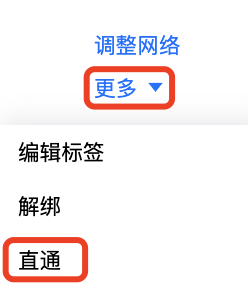
3. 在弹出的“EIP 直通”对话框中,单击确定。
步骤3:运行 EIP 直通脚本
为主网卡配置 EIP 直通后,需要登录云服务器,运行 EIP 直通脚本。
1. 登录 云服务器控制台 ,选择需要 EIP 直通的云服务器所在地域,并登录该云服务器。
2. 运行 EIP 直通脚本。具体方法:
2.1 执行如下命令,为配置脚本添加执行权限。
chmod +x eip_direct.sh
2.2 执行
ip addr 查看需要直通的网卡名称。[root@VM-31-11-centos ~]# ip addr1: lo: <LOOPBACK,UP,LOWER_UP> mtu 65536 qdisc noqueue state UNKNOWN group default qlen 1000link/loopback 00:00:00:00:00:00 brd 00:00:00:00:00:00inet 127.0.0.1/8 scope host lovalid_lft forever preferred_lft foreverinet6 ::1/128 scope hostvalid_lft forever preferred_lft forever2: eth0: <BROADCAST,MULTICAST,UP,LOWER_UP> mtu 8500 qdisc mq state UP group default qlen 1000link/ether 52:54:00:aa:a2:bd brd ff:ff:ff:ff:ff:ffinet 172.16.31.10/24 brd 172.16.31.255 scope global noprefixroute eth0valid_lft forever preferred_lft foreverinet 172.16.31.20/24 brd 172.16.31.255 scope global secondary noprefixroute eth0:0valid_lft forever preferred_lft foreverinet6 fe80::5054:ff:feaa:a2bd/64 scope linkvalid_lft forever preferred_lft forever[root@VM-31-11-centos ~]#
2.3 参照如下命令,执行配置脚本。
弹性网卡支持分配多个内网 IP 并允许绑定 EIP,您可以按需为弹性网卡的主 IP 或辅助 IP 配置 EIP 直通,相关命令行说明如下。

为弹性网卡主 IP 配置直通时,可在云服务器配置脚本所在路径,执行
./eip_direct.sh install ethx XX.XX.XX.XX,其中 ethx 为需要配置直通的网卡名称,XX.XX.XX.XX为 EIP 地址(选填)。[root@VM-31-11-centos ~]# ./eip_direct.sh install eth0 39.XX.XX.XX
为弹性网卡辅助 IP 配置直通时,可在云服务器配置脚本所在路径,执行
./eip_direct.sh install ethx XX.XX.XX.XX,其中 ethx 为需要配置直通的网卡名称,XX.XX.XX.XX为 EIP 地址(必填)。[root@VM-31-11-centos ~]# ./eip_direct.sh install eth0 43.XX.XX.XX
2.4. 执行
ip addr命令查看配置是否生效。执行命令后,系统会显示网卡的详细配置,如2.3步骤直通脚本已执行成功,则此处会显示 EIP 地址,即公网 IPv4 地址。
[root@VM-31-11-centos ~]# ip addr1: lo: <LOOPBACK,UP,LOWER_UP> mtu 65536 qdisc noqueue state UNKNOWN group default qlen 1000link/loopback 00:00:00:00:00:00 brd 00:00:00:00:00:00inet 127.0.0.1/8 scope host lovalid_lft forever preferred_lft foreverinet6 ::1/128 scope hostvalid_lft forever preferred_lft forever2: eth0: <BROADCAST,MULTICAST,UP,LOWER_UP> mtu 8500 qdisc mq state UP group default qlen 1000link/ether 52:54:00:aa:a2:bd brd ff:ff:ff:ff:ff:ffinet 172.16.31.10/24 brd 172.16.31.255 scope global noprefixroute eth0valid_lft forever preferred_lft foreverinet 39.XX.XX.XX/32 scope global eth0valid_lft forever preferred_lft foreverinet 43.XX.XX.XX/32 scope global eth0valid_lft forever preferred_lft foreverinet 172.16.31.20/24 brd 172.16.31.255 scope global secondary noprefixroute eth0:0valid_lft forever preferred_lft foreverinet6 fe80::5054:ff:feaa:a2bd/64 scope linkvalid_lft forever preferred_lft forever[root@VM-31-11-centos ~]#
Windows 脚本针对的场景为:主网卡处理外网流量,辅助网卡处理内网流量。
说明:
Windows 系统的 EIP 直通,需要内网 IP 和外网 IP 各一张网卡,公网 IP 需在主网卡上,辅助网卡仅需有内网 IP 即可。
Windows 系统主网卡配置 EIP 直通后,无法将公网 IP 绑定在 CLB下,如有相关需求,请为 CLB 绑定云服务器的辅助网卡内网 IP。
Windows 设置直通过程中,外网会中断,建议采用 VNC 登录的方式。
本文以 Windows Server 2025为例。
步骤1:下载 EIP 直通脚本
由于 EIP 直通过程会导致网络中断,您需先下载 EIP 直通脚本到云服务器中。
1. 使用 VNC 登录的方式 登录需要 EIP 直通的云服务器。
2. 在云服务器的浏览器中打开如下链接下载 EIP 直通脚本。
https://eip-network-config-1255852779.cos.accelerate.myqcloud.com/eip/eip_windows_direct.bat
步骤2:配置辅助网卡
由于 Windows 脚本针对的场景为辅助网卡处理内网流量,因此,需为云服务器配置辅助网卡。
1. 登录 云服务器控制台。
2. 在云服务器列表中,选择所配置的云服务器的所在地域,单击云服务器 ID,进入详情页。
3. 选择弹性网卡标签页,单击绑定弹性网卡,新建一个与主网卡同一子网的辅助网卡。
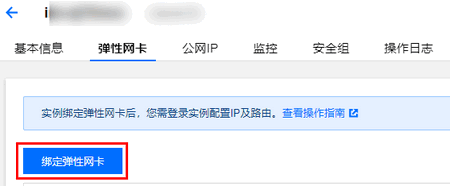
4. 在弹出的绑定弹性网卡窗口中,选择新建弹性网卡并绑定,填写相关信息,单击确定。
所属子网:选择云服务器所属子网。
分配 IP:可选择自动分配 IP 或手动填写。
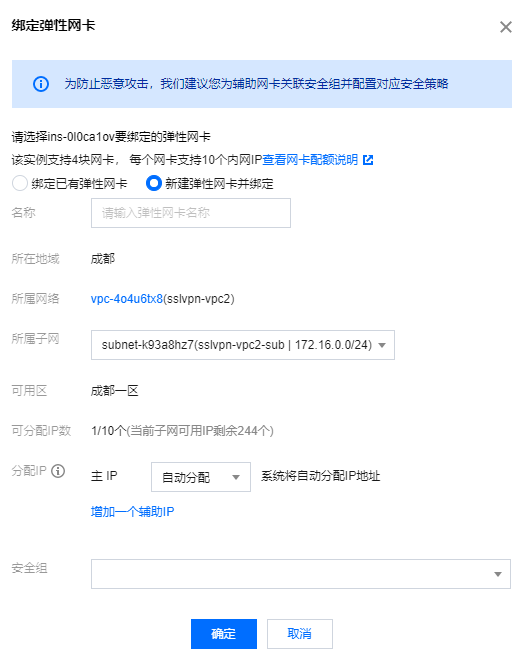
5. 在弹出的提示框中,根据提示信息,您需要登录实例配置 IP 及路由,请按提示步骤执行操作,然后单击确定。
步骤3:配置主网卡 EIP 直通
完成辅助网卡的配置后,在 EIP 控制台中为主网卡配置 EIP 直通。
1. 登录 公网 IP 控制台。
2. 选择云服务器主网卡绑定的 EIP 的地域,并在对应 EIP 的右侧操作栏中,选择更多 > 直通即可。
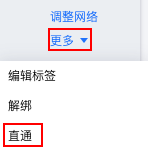
3. 在弹出的“EIP 直通”对话框中,单击确定。
步骤4:云服务器内配置 EIP
在 EIP 控制台中为主网卡配置 EIP 直通后,需要登录云服务器配置 EIP。
1. 登录云服务器,由于操作过程中外网访问会中断,因此需使用 VNC 登录的方式。
2. 在操作系统界面,单击左下角的

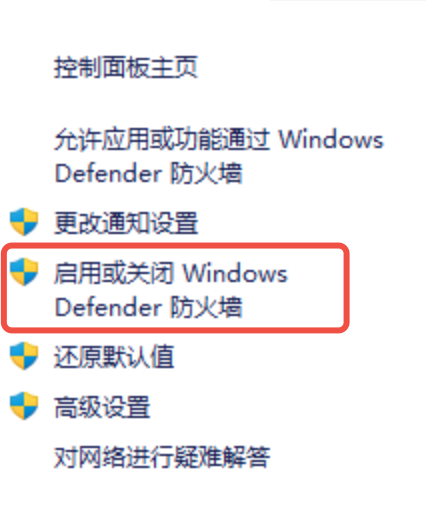
firewall.cpl 按回车,打开“ Windows 防火墙”页面。3. 单击启用或关闭 Windows Defender 防火墙,进入“自定义设置”页面。
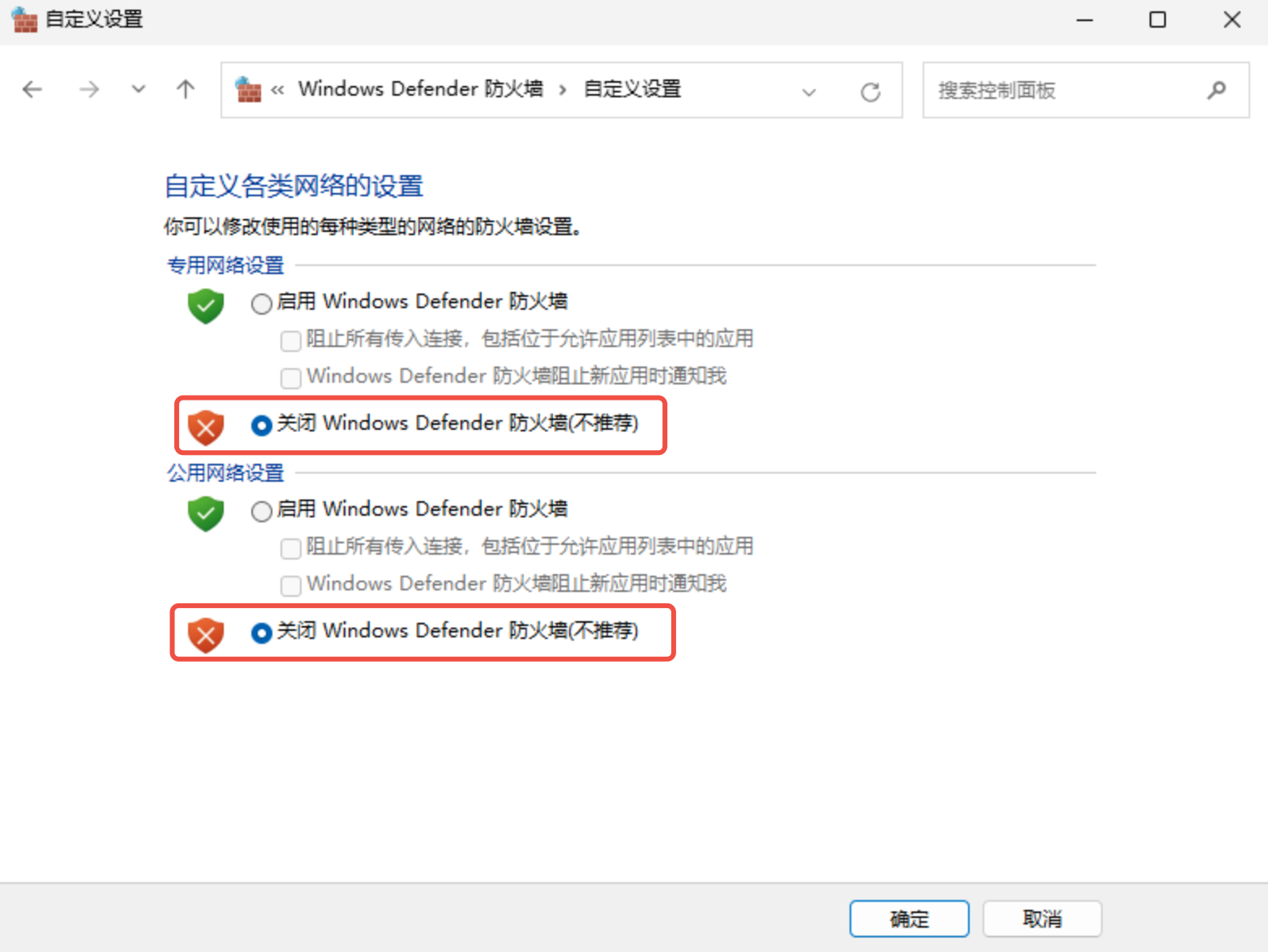
4. 在“专用网络设置”和“公用网络设置”模块中分别选择关闭 Windows Defender 防火墙,单击确定即可。
6. 在 Windows PowerShell 窗口中输入
ipconfig按回车,可看到主网卡上的 IPv4 地址变成 EIP 地址,默认网关不变。注意:
直通成功后请勿给主网卡再配置内网 IP,如果配置会导致云服务器无法访问公网。
如默认网关配置失效,您可以通过重启网络服务或重启主机完成自动配置。
文档反馈