tencent cloud

TencentDB for PostgreSQL

Release Notes and Announcements
Release Notes
Product Announcements
Product Introduction
Overview
Features
Strengths
Scenarios
Information Security
Regions and AZs
Product Feature List
Large version lifecycle description
MSSQL Compatible Version
Billing
Billing Overview
Instance Type and Specification
Purchase Methods
Refund
Overdue Payments
Backup Space Billing
Database Audit Billing Overview
Getting Started
Creating TencentDB for PostgreSQL Instance
Connecting to TencentDB for PostgreSQL Instance
Managing TencentDB for PostgreSQL Instance
Importing Data
Migrating Data with DTS
Kernel Version Introduction
Kernel Version Overview
Kernel Version Release Notes
Viewing Kernel Version
Proprietary Kernel Features
Database Audit
Audit Service Description
Activating Audit Service
View Audit Logs
Modify audit services
Audit Performance Description
User Guide
Instance Management
Upgrading Instance
CPU Elastic Scaling
Read-Only Instance
Account Management
Database Management
Parameter Management
Log Management and Analysis
Backup and Restoration
Data Migration
Extension Management
Network Management
Access Management
Data Security
Tenant and Resource Isolation
Security Groups
Monitoring and Alarms
Tag
AI Practice
Using the Tencentdb_ai Plug-In to Call Large Models
Building Ai Applications with the Tencentdb Ai Plug-In
Combining Supabase to Quickly Build Backend Service Based on TencentDB for PostgreSQL
Use Cases
postgres_fdw Extension for Cross-database Access
Automatically Creating Partition in PostgreSQL
Searching in High Numbers of Tags Based on pg_roaringbitmap
Querying People Nearby with One SQL Statement
Configuring TencentDB for PostgreSQL as GitLab's External Data Source
Supporting Tiered Storage Based on cos_fdw Extension
Implement Read/Write Separation via pgpool
Implementing Slow SQL Analysis Using the Auto_explain Plugin
Using pglogical for Logical Replication
Using Debezium to Collect PostgreSQL Data
Set Up a Remote Disaster Recovery Environment for PostgreSQL Locally on CVM
Read-Only Instance and Read-Only Group Practical Tutorial
How to Use SCF for Scheduled Database Operations
Fix Table Bloat
Performance White Paper
Test Methods
Test Results
API Documentation
History
Introduction
API Category
Making API Requests
Instance APIs
Read-only Replica APIs
Backup and Recovery APIs
Parameter Management APIs
Security Group APIs
Performance Optimization APIs
Account APIs
Specification APIs
Network APIs
Data Types
Error Codes
FAQs
Service Agreement
Service Level Agreement
Terms of Service
Glossary
Contact Us

Setting Instance Parameters

PDF
Focus Mode
Font Size
Last updated: 2025-08-14 16:29:50
You can view and modify certain parameters and query parameter modification logs in TencentDB for PostgreSQL console.

Notes

To ensure instance stability, only some parameters can be modified in the console. These parameters are displayed on the Parameter Settings page.
If the modified parameter requires instance restart to take effect, the system will ask you if you wish to restart. We recommend that you do so during off-peak hours and ensure that your application has a reconnection mechanism.
Note:
Some are key parameters, modifying which may affect your use or the normal running of the instance. Therefore, exercise caution when modifying key parameters.

Modifying Parameters in the Parameter List

Modifying parameters in batches

1. Log in to the TencentDB for PostgreSQL console. In the instance list, click an Instance ID or Manage in the Operation column to access the instance management page.
2. On the Parameter Settings tab, click Batch Modify Parameters.

3. Locate the desired parameters, and modify their values in the Current Value column. After confirming that everything is correct, click Confirm Modification.

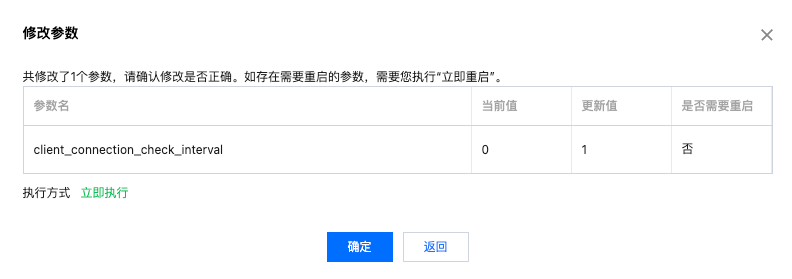
4. In the pop-up dialog box, confirm that all parameter values are correctly modified, and click OK.
Note:
If there are modified parameters requiring instance restart to take effect, click Restart Now and then the instance will be restarted. The modified parameters take effect only after the restart is completed.


Modifying one parameter

1. Log in to the TencentDB for PostgreSQL console. In the instance list, click an Instance ID or Manage in the Operation column to access the instance management page.
2. On the Parameter Settings tab, locate the desired parameter in the parameter list and click

in the Current Value column.

3. Modify the value within the restrictions stated in the Acceptable Values column and click

to save the modification. You can click

to cancel the operation.
4. In the pop-up dialog box, confirm that the parameter value is correctly modified, and click OK.
Note:
If the modified parameter requires instance restart to take effect, click Restart Now and then the instance will be restarted. The modified parameter takes effect only after the restart is completed.

Viewing Parameter Modification Logs

1. Log in to the TencentDB for PostgreSQL console. In the instance list, click an Instance ID or Manage in the Operation column to access the instance management page.
2. On the Parameter Settings tab, click Recent Modifications on the right.
3. You can view the recent parameter modification records here.


Help and Support

Was this page helpful?

Help us improve! Rate your documentation experience in 5 mins.

Feedback