查看实例备份
下载
聚焦模式
字号
备份概览
1. 登录 PostgreSQL 控制台,单击实例 ID,进入实例管理页面。
2. 单击备份恢复,进入备份概览页面。
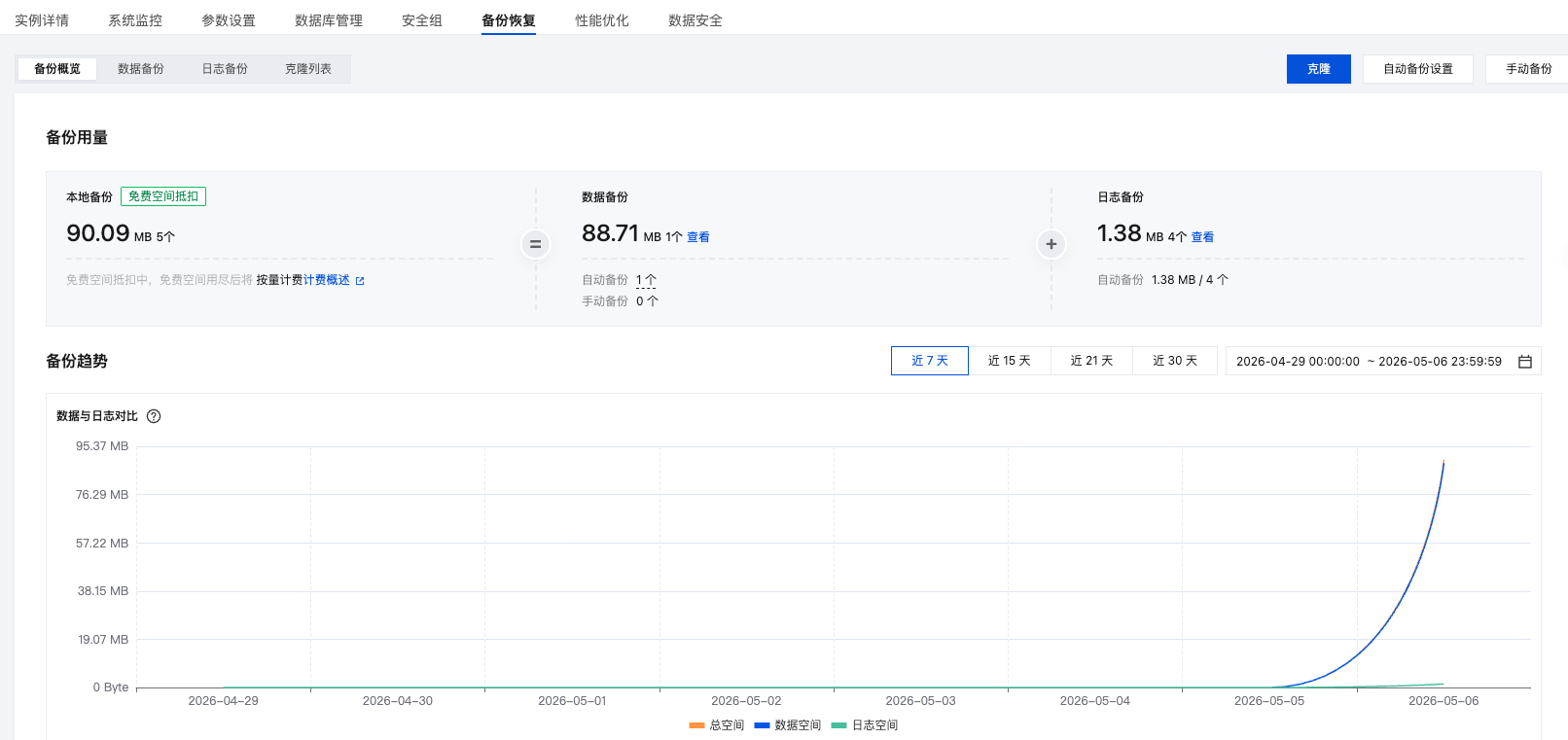
在备份概览页面,您可以查看数据备份和日志备份总览。同时,可以看到备份空间随时间变化趋势。
数据备份
1. 登录 PostgreSQL 控制台,单击实例 ID,进入实例管理页面。
2. 单击数据备份,进入数据备份详情页面。
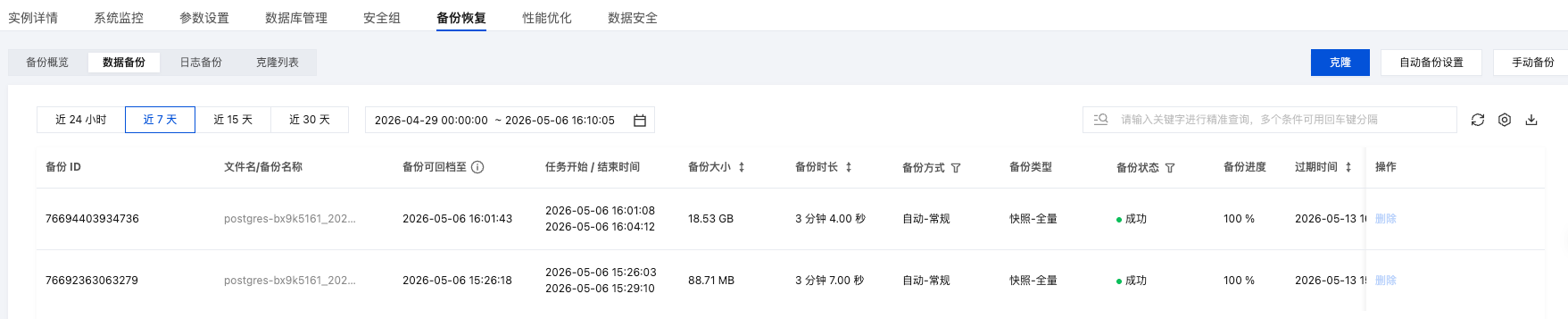
备份列表支持展示您所选时间段的所有的全量备份的文件列表,同时支持备份方式和备份状态的筛选。
日志备份
1. 登录 PostgreSQL 控制台,单击实例 ID,进入实例管理页面。
2. 单击日志备份,进入日志备份详情页面。
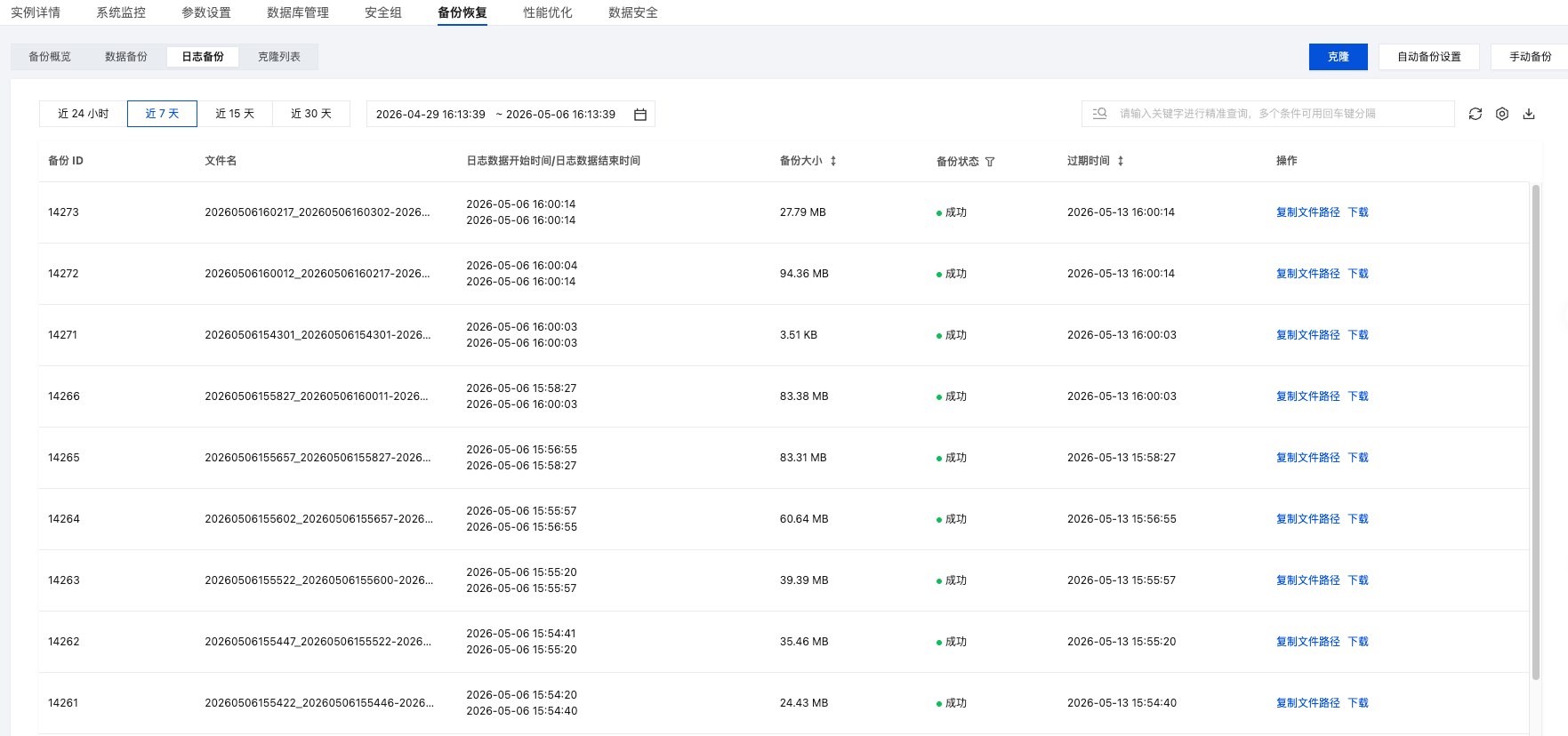
备份列表支持展示您所选时间段的所有的日志备份的文件列表,同时支持备份状态的筛选。
克隆
克隆列表
1. 登录 PostgreSQL 控制台,单击实例 ID,进入实例管理页面。
2. 单击克隆列表,进入克隆详情页面。
系统将展示您选择时间段内发起的所有克隆实例详情。

克隆
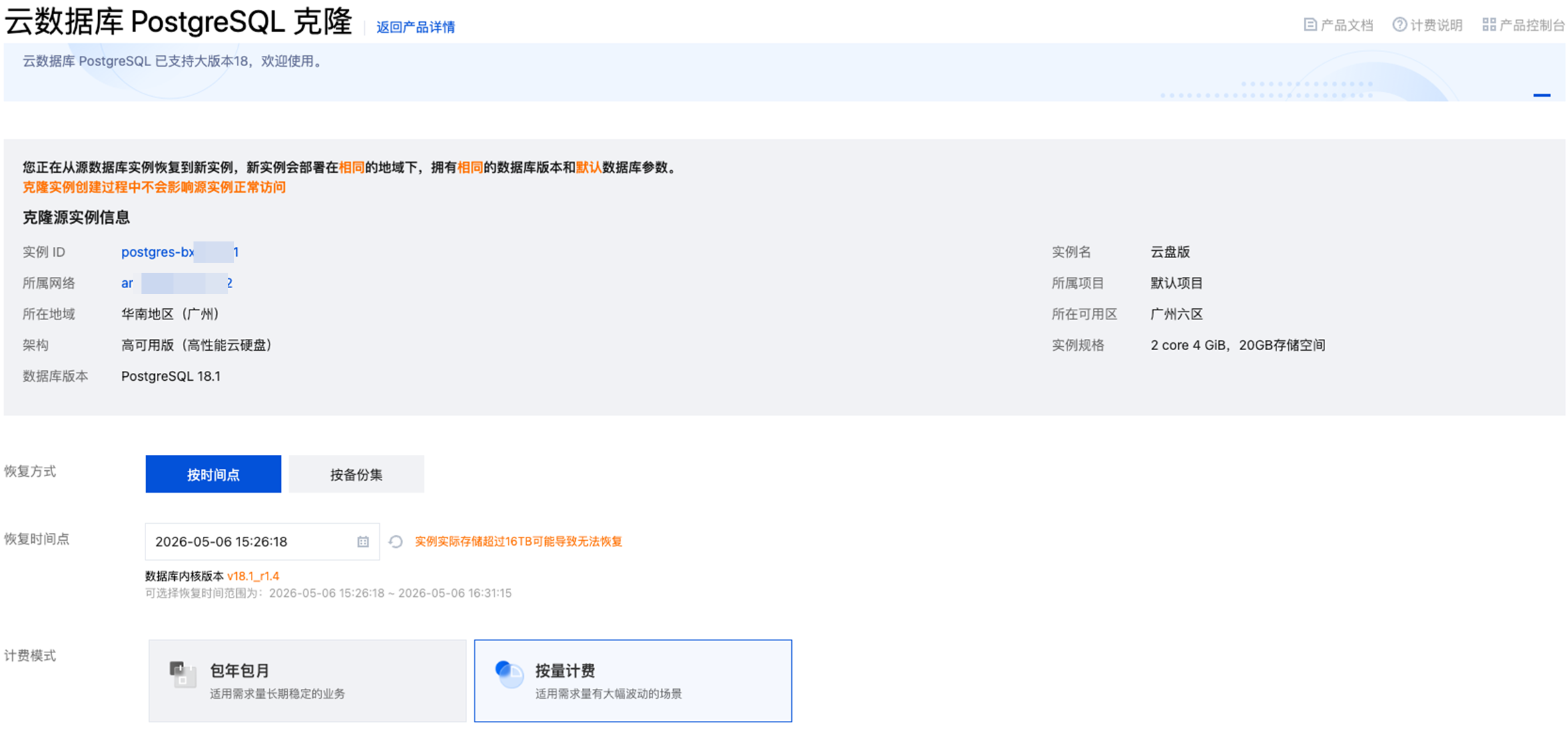
1. 登录 PostgreSQL 控制台,单击实例 ID,进入实例管理页面。
2. 单击克隆,将发起克隆任务。
自动备份设置
1. 登录 PostgreSQL 控制台,单击实例 ID,进入实例管理页面。
2. 单击自动备份设置,进入设置详情页面。
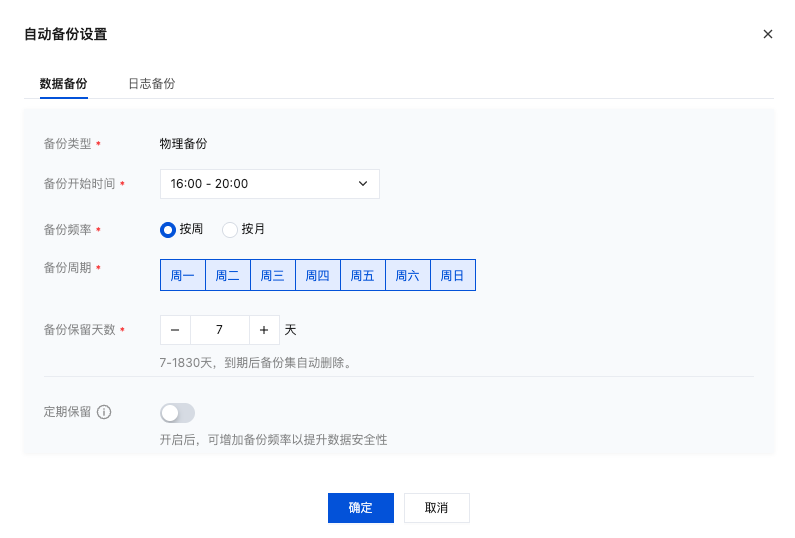
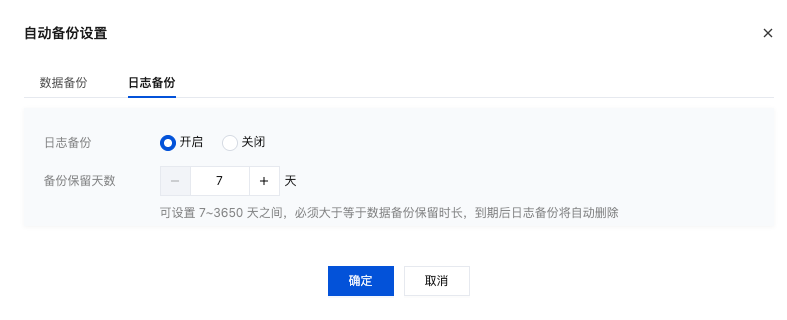
可设置内容如下:
配置项 | 参数说明 |
数据备份 | 备份开始时间:数据备份任务开启时间。系统将在您设置的时间段内开启备份任务。 备份频率: 按周:支持周一、周二、周三、周四、周五、周六、周日按天来设置数据备份。 按月:支持按月维度来进行备份设置,选择的备份执行时间间隔天数不能超过2天。 备份保留天数:7 - 1830天,到期后备份集自动删除。 定期保留: 定期备份是在常规自动备份基础上,提供了更加灵活的备份策略; 支持按每周、每月、每季度或每年设置备份保留个数,不需要额外保留新的备份文件,只是定期备份的备份保留时长会不同于(长于)常规备份; 关闭定期备份后,不会再产生新的定期备份,旧的备份集也不会立马删除。 您可以修改定期备份保留时长,以清理已有的定期备份。 |
日志备份 | 日志备份:支持开启和关闭两种选项。当关闭了日志备份之后,您无法进行 PITR 恢复。 备份保留天数:可设置7 - 3650天之间,必须大于等于数据备份保留时长,到期后日志备份将自动删除。 |
手动备份
1. 登录 PostgreSQL 控制台,单击实例 ID,进入实例管理页面。
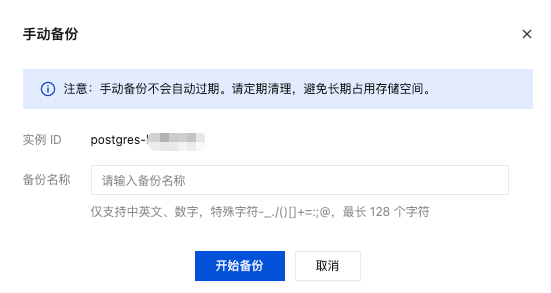
2. 单击手动备份,可发起手动备份操作。
注意:
手动备份不会自动过期。请定期清理,避免长期占用存储空间。
云盘版备份计费
云数据库 PostgreSQL 类型为云盘的实例会按照实例赠送一定额度的免费备份空间,免费备份空间大小为您购买的主实例的存储空间乘以200%。
免费备份空间(单个实例) = 购买 PostgreSQL 主实例的存储空间之和 * 200%。
收费部分(单个实例) = 数据备份量(该实例) + 日志备份量(该实例) - 免费备份空间(该实例)。
备份价格
超过免费额度的备份空间,中国大陆地域按照0.00003676美元/GB/小时的价格收费,其他地域按照0.00004118美元/GB/小时的价格收费。
备份重试机制说明
为确保备份数据的可靠性,云数据库 PostgreSQL 在备份任务执行失败时,系统会根据重试规则自动发起重试。本机制针对自动备份与首次备份场景提供了自动重试策略,而对手动备份则保持手动重试,避免对用户造成额外干扰。具体场景和失败时的重试机制请参见如下说明。
全量备份失败自动重试机制
备份失败后,系统会在当天备份时间窗口内自动重试。
场景1:自动备份(定时备份)失败
系统按备份策略自动发起的定时备份任务,在失败后会自动重试:
规则 | 说明 |
最多重试次数 | 12次 |
重试间隔 | 逐步拉长(指数退避) |
重试范围 | 仅在当天备份时间窗口内 |
重试间隔
第几次重试 | 等待时间 |
第1次 | 2分钟 |
第2次 | 4分钟 |
第3次 | 8分钟 |
第4次 | 16分钟 |
第5 - 12次 | 每次32分钟 |
重试方式: 每次重试都是重新发起一次全新的全量备份。
场景2:手动备份(用户主动发起)失败
用户通过控制台/API 手动发起的备份任务,在失败后不会自动重试:
规则 | 说明 |
自动重试 | 无 |
失败后处理 | 用户需要自行重新发起手动备份 |
场景3:首次备份(实例创建后)失败
实例创建后的第一次自动备份享有额外保护:快速重试3次,不受备份窗口限制,以确保新实例尽快拥有可用备份。
文档反馈