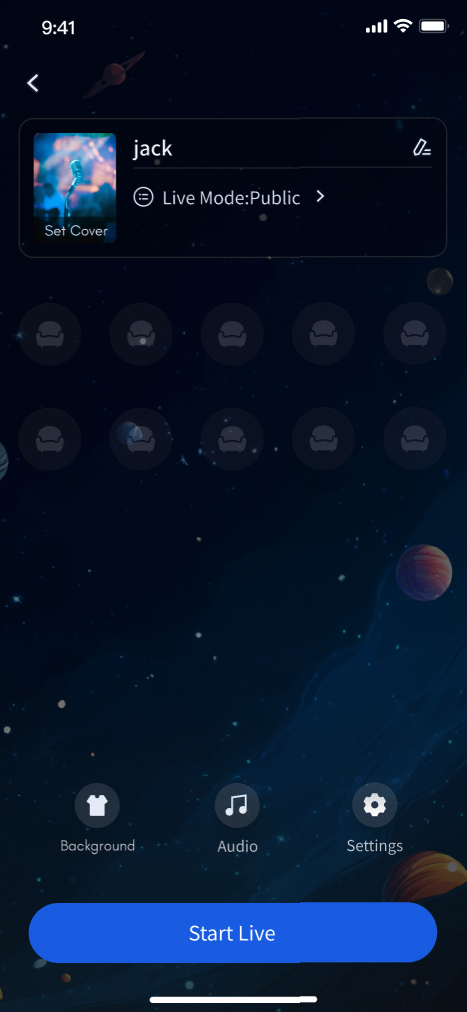
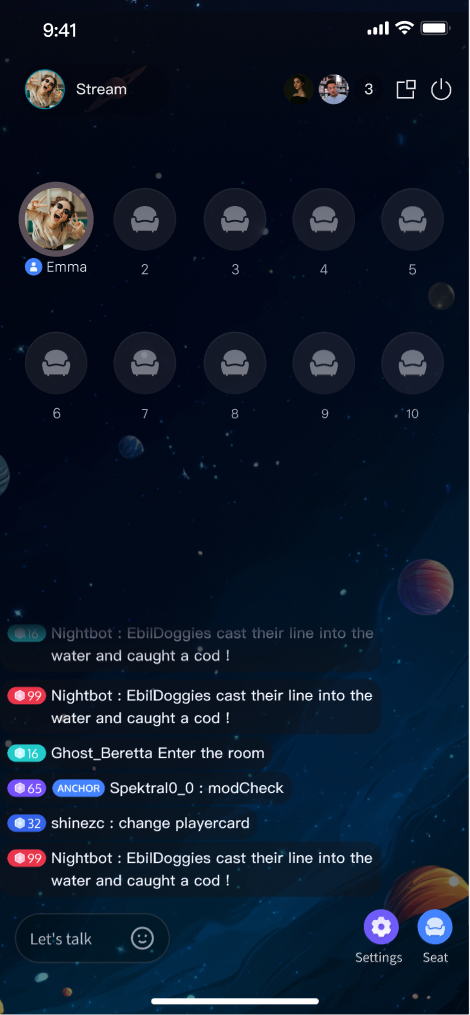
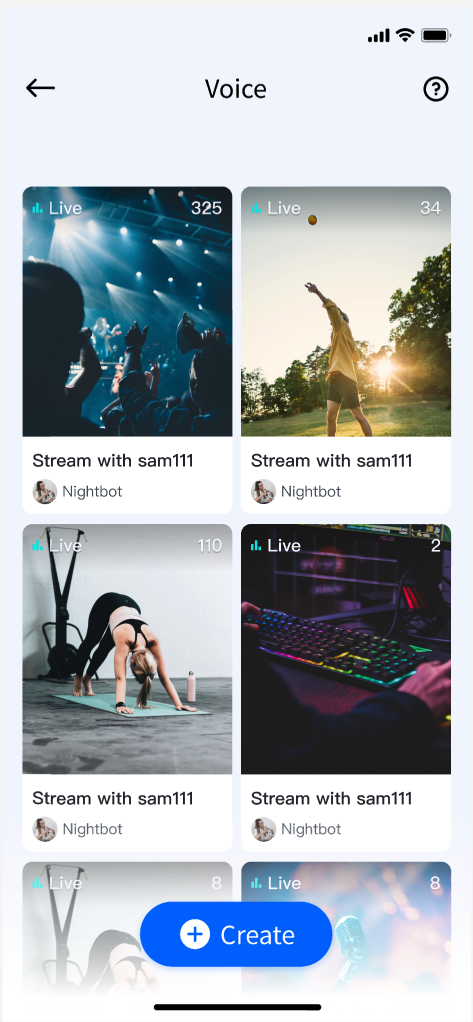
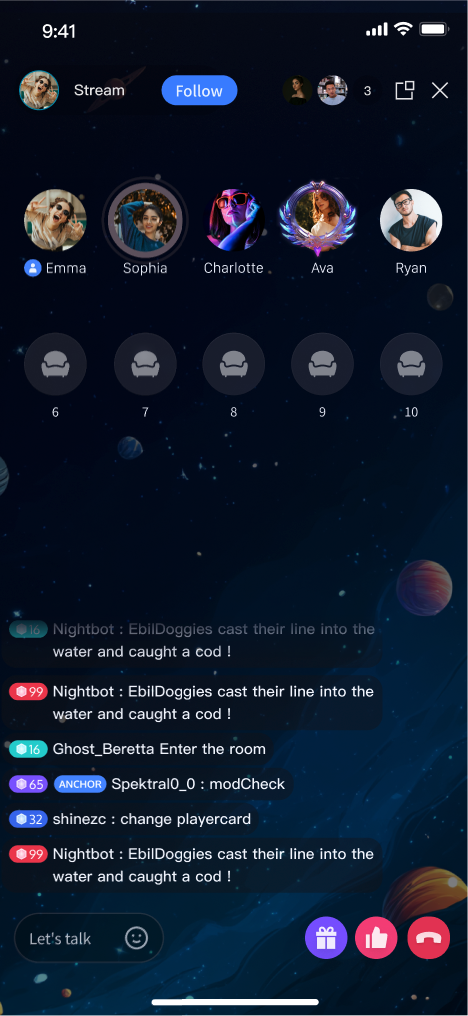
Feature Overview
TUILiveKit is a comprehensive voice chat room component. After integration, you can quickly implement the following key modules:
Prerequisites
Activate the Service
Before using TUILiveKit, please refer to Activate Service to get the TUILiveKit trial version or activate the Pro Edition package. Environment Requirements
Flutter
Flutter 3.27.4 or higher.
Dart 3.6.2 or higher.
Android
Android 5.0 (SDK API Level 21) or later.
Gradle 7.0 or higher.
Android 5.0 or higher mobile devices.
iOS
Xcode 15 or later.
iOS 13.0 or later.
Code Integration
Step 1: Install TUILiveKit
In the root directory of your project, run the following command to install the tencent_live_uikit: flutter pub add tencent_live_uikit
After installation completes, you should see output similar to:
Resolving dependencies...
Downloading packages...
......
+ tencent_live_uikit x.x.x
......
Changed xx dependencies!
xx packages have newer versions incompatible with dependency constraints.
Try `flutter pub outdated` for more information.
Step 2: Configure the Project
1. If you're building for Android, add certain SDK classes to the obfuscation exclusion list because the SDK uses Java reflection internally.
Configure and enable obfuscation rules in your project's android/app/build.gradle file:
android {
......
buildTypes {
release {
......
minifyEnabled true
proguardFiles getDefaultProguardFile('proguard-android.txt'), 'proguard-rules.pro'
}
}
}
Add the following code in the android/app/proguard-rules.pro file. If the file does not exist, create a new one:
-keep class com.tencent.** { *; }
This completes the Proguard configuration.
2. Enable Multidex support in your android/app/build.gradle:
android {
......
defaultConfig {
......
multiDexEnabled true
}
}
1. When building for iOS release, configure symbol retention rules. In Xcode, select your target (usually Runner) in TARGETS, go to Project > Build Settings > Deployment, and set Strip Style to Non-Global Symbols to retain required global symbol information. This is mandatory—otherwise, runtime exceptions may prevent you from entering the room.
2. (Optional) If you need to debug on the iOS simulator and your Mac uses an Intel chip, add the following to your ios/Podfile:
target 'xxxx' do
......
end
......
post_install do |installer|
installer.pods_project.targets.each do |target|
flutter_additional_ios_build_settings(target)
target.build_configurations.each do |config|
config.build_settings['VALID_ARCHS'] = 'arm64 arm64e x86_64'
config.build_settings['VALID_ARCHS[sdk=iphonesimulator*]'] = 'x86_64'
end
end
end
3. TUILiveKit requires microphone access. You need to request microphone permission in your iOS app. Add the following entry to the top-level <dict> in your iOS project's Info.plist. This message is displayed to users when requesting permission:
<key>NSMicrophoneUsageDescription</key>
<string>CallingApp needs to access your microphone permission. Recorded video will have sound when enabled</string>
Add the following preprocessor definition in your ios/Podfile to enable microphone permissions:
post_install do |installer|
installer.pods_project.targets.each do |target|
flutter_additional_ios_build_settings(target)
target.build_configurations.each do |config|
config.build_settings['GCC_PREPROCESSOR_DEFINITIONS'] ||= [
'$(inherited)',
'PERMISSION_MICROPHONE=1',
]
end
end
end
After completing these steps, your app should compile successfully.
Step 3. Configure Navigation and Localization
To enable TUILiveKit’s page navigation and multi-language support, update your Flutter app configuration:
Add TUILiveKitNavigatorObserver.instance to navigatorObservers to track route changes and manage component lifecycle.
Add the required localization delegates to localizationsDelegates to display UI text in the correct system language.
Below is an example using MaterialApp:
import 'package:tencent_live_uikit/tencent_live_uikit.dart';
class XXX extends StatelessWidget {
const XXX({super.key});
@override
Widget build(BuildContext context) {
return MaterialApp(
navigatorObservers: [TUILiveKitNavigatorObserver.instance],
localizationsDelegates: [
...LiveKitLocalizations.localizationsDelegates,
...BarrageLocalizations.localizationsDelegates,
...GiftLocalizations.localizationsDelegates],
......
);
}
}
After configuring these settings, TUILiveKit navigation and internationalization will be enabled.
Complete Login
After integrating the code, call TUILogin.login to authenticate. This step is required before you can use any TUILiveKit features. Make sure all parameters are set correctly.
Note:
In production, it is highly recommended that you call login after your own user authentication and login operations. This prevents business logic confusion or data inconsistency, and better aligns with your existing user management and permission controls.
import 'package:tencent_cloud_uikit_core/tencent_cloud_uikit_core.dart';
......
login() async {
await TUILogin.instance.login(
1400000001,
"denny",
"xxxxxxxxxxx",
TUICallback(
onError: (code, message) {
print("TUILogin login fail, {code:$code, message:$message}");
},
onSuccess: () async {
print("TUILogin login success");
},
),
);
}
Login API Parameters
Parameter | Type | Description |
SDKAppID | int | |
UserID | String | Unique identifier for the current user. Only letters, numbers, hyphens, and underscores are allowed. To avoid multi-device login conflicts, do not use simple IDs like 1, 123, etc. |
userSig | String | Authentication credential for TRTC. Please note: In Development Environment: You can adopt the genTestSig function of the local GenerateTestUserSig class (example/lib/debug/generate_test_user_sig.dart) to generate userSig or, generate a temporary UserSig via the UserSig Generation Tool. |
(Optional) Set up Floating Window
By default, your app's MaterialApp home page is attached to the rootNavigator.
To enable floating window (allowing the live stream window to be minimized and float above other pages), you need a navigator that persists across page navigation. Refer to the following steps:
1. Add a secondaryNavigator above the rootNavigator
2. Move your home page from rootNavigator to secondaryNavigator
3. Display the live stream page's Overlay on secondaryNavigator
The secondaryNavigator remains resident in the app throughout its lifecycle, enabling the floating window to persist even when navigating between different pages.
import 'package:tencent_live_uikit/tencent_live_uikit.dart';
import 'package:tencent_live_uikit/common/widget/global.dart';
class XXX extends StatelessWidget {
const XXX({super.key});
@override
Widget build(BuildContext context) {
return MaterialApp(
home: Navigator(
key: Global.secondaryNavigatorKey,
onGenerateRoute: (settings) => MaterialPageRoute(
settings: const RouteSettings(name: 'home_widget'),
builder: (BuildContext context) {
return const HomeWidget();
},
),
),
......
);
}
}
Next Steps
You’ve successfully integrated the voice chat component and completed login. Next, implement features such as Host Live Stream, Audience Viewing, and Live Stream List. See the table below for details:
Feature | Description | Integration Guide |
Host Live Streaming | The complete process for hosts to create a voice chat room, including preparation and all live interactions. | |
Audience viewing | Audience members can listen, request to join the mic, view bullet comments, and more after entering a voice chat room. | |
Live Stream List | Displays the list of available voice chat rooms and their details. | |
FAQs
Repeated Login
You do not need to log in each time you enter a room. Typically, a single call to TUILogin.login is sufficient. We recommend aligning TUILogin.login and TUILogin.logout with your own authentication logic.
Unable to Enter Room on iOS Release Builds
In Xcode, select your application target (usually Runner) from the TARGETS list, choose Item > Build Settings > Deployment, and set Strip Style to Non-Global Symbols to preserve the necessary global symbol information. Otherwise, runtime exceptions may prevent you from entering the room.
Contact Us