tencent cloud

SSL Certificates

Release Notes
Announcements
Notice on price adjustment of DigiCert and its affiliated brands'SSL certificates​
Price Change to DigiCert SSL Certificates
TrustAsia Root Certificate Update
Domain Validation Policy Update
SSL Certificate Service Console
Multi-Year SSL Certificate and Automatic Review
Notice on Stopping the Issuance of 2-Year SSL Certificates by CAs Starting from September 1, 2020
Announcement on Stop Using the Symantec SSL Certificate Name After 30 April 2020
Notice on Certificate Revocation Due to Private Key Compromises
Notice on Application Limits for DV SSL Certificates
Notice on Adjustment of Free SSL Certificates Policy
Let's Encrypt Root Certificate Expired on September 30, 2021
Product Introduction
Overview
Introduction to Tencent Cloud SSL Certificates
Strengths
Advantages of HTTPS
Browser Compatibility Test Report
Multi-Year SSL Certificate and Automatic Review Overview
SSL Certificate Security
Purchase Guide
Pricing
SSL Certificate Purchase Process
SSL Certificate Selection
Paid SSL Certificates Renewal
SSL Certificate Renewal Process
SSL Certificate Refund Process
Getting Started
Certificate Application
Information Submission Process for Paid SSL Certificates
Domain Ownership Validation
Domain Validation Method Selection
Automatic DNS Addition
DNS Validation
File Validation
Automatic DNS Validation
Automatic File Validation
Validation Result Troubleshooting Guide
Operation Guide
Domain Ownership Verification
Uploading Certificates
Secured Seal
CSR Management
Certificate Installation
Installing an SSL Certificate on a Tencent Cloud Service
Installation of International Standard Certificates
Selecting an Installation Type for an SSL Certificate
Certificate Management
Instructions on SSL Certificate Auto-Renewal
Certificate Hosting
Uploading (Hosting) an SSL Certificate
Reminding Reviewers to Review an SSL Certificate Application
Revoking an SSL Certificate
Deleting an SSL Certificate
Reissuing an SSL Certificate
Ignoring SSL Certificate Notifications
Customizing SSL Certificate Expiration Notifications
API Documentation
History
Introduction
API Category
Making API Requests
Certificate APIs
Certificate Renewal (Certificate ID Unchanged) APIs
CSR APIs
Data Types
Error Codes
Use Cases
Automatic Solution for Implementing and Issuing Multi-Year Certificates and Binding Resources
Apple ATS Server Configuration
Quickly Applying for a Free SSL Certificate via DNSPod
Enabling Tencent Cloud DDNS and Installing Free Certificates for Synology NAS
Batch Applying for and Downloading Free Certificates Using Python-based API Calls
Profile Management
Adding Organization Profile
Adding Administrator
Adding Domain
Troubleshooting
Domain Validation Failed
Domain Security Review Failed
Website Inaccessible After an SSL Certificate is Deployed
404 Error After the SSL Certificate is Deployed on IIS
“Your Connection is Not Secure” is Displayed After the SSL Certificate is Installed
Message Indicating Parsing Failure Is Displayed When a Certificate Is Uploaded
Automatic DNS Validation Failed for a Domain Hosted with www.west.cn
Host Name Field Cannot Be Edited in IIS Manager When Type Is Set to https
Message Indicating Intermediate Certificates Missing in Chain Is Displayed When a Free SSL Certificate Is Deployed on IIS
FAQs
SSL Certificate Selection
SSL Certificate Application
SSL Certificate Management
SSL Certificate Installation
SSL Certificate Region
SSL Certificate Review
SSL Certificate Taking Effect
SSL Certificate Billing and Purchase
SSL Certificate Validity Period
Related Agreement
SSL Service Level Agreement
Contact Us
Glossary
DokumentasiSSL CertificatesUse CasesApple ATS Server Configuration

Apple ATS Server Configuration

PDF
Mode fokus
Ukuran font
Terakhir diperbarui: 2024-03-06 17:49:08
Note:
You need to configure cipher suites compliant with PFS specifications. The recommended configuration is: ECDHE-RSA-AES128-GCM-SHA256:ECDHE:ECDH:AES:HIGH:!NULL:!aNULL:!MD5:!ADH:!RC4
You need to enable the TLS1.2 protocol on the server. The recommended configuration is: TLSv1 TLSv1.1 TLSv1.2

Nginx certificate configuration

Update the conf/nginx.conf file in the Nginx root directory as follows:
server {
ssl_ciphers ECDHE-RSA-AES128-GCM-SHA256:ECDHE:ECDH:AES:HIGH:!NULL:!aNULL:!MD5:!ADH:!RC4;
ssl_protocols TLSv1 TLSv1.1 TLSv1.2;
}

Apache certificate configuration

Update the conf/httpd.conf file in the Apache root directory as follows:
<IfModule mod_ssl.c>
<VirtualHost *:443>
SSLProtocol TLSv1 TLSv1.1 TLSv1.2
SSLCipherSuite ECDHE-RSA-AES128-GCM-SHA256:ECDHE:ECDH:AES:HIGH:!NULL:!aNULL:!MD5:!ADH:!RC4
</VirtualHost>
</IfModule>

Tomcat certificate configuration

Update the %TOMCAT_HOME%\\conf\\server.xml file as follows:
<Connector port="443" protocol="HTTP/1.1" SSLEnabled="true"
scheme="https" secure="true"
SSLProtocol="TLSv1+TLSv1.1+TLSv1.2"
SSLCipherSuite="ECDHE-RSA-AES128-GCM-SHA256:ECDHE:ECDH:AES:HIGH:!NULL:!aNULL:!MD5:!ADH:!RC4" />

IIS certificate configuration

Method 1

Windows Server 2008 and earlier versions do not support the TLS1.2 protocol. Therefore, SSL tools are disabled on those versions. To address this issue, enable the TLS1.2 protocol to meet the ATS requirements.
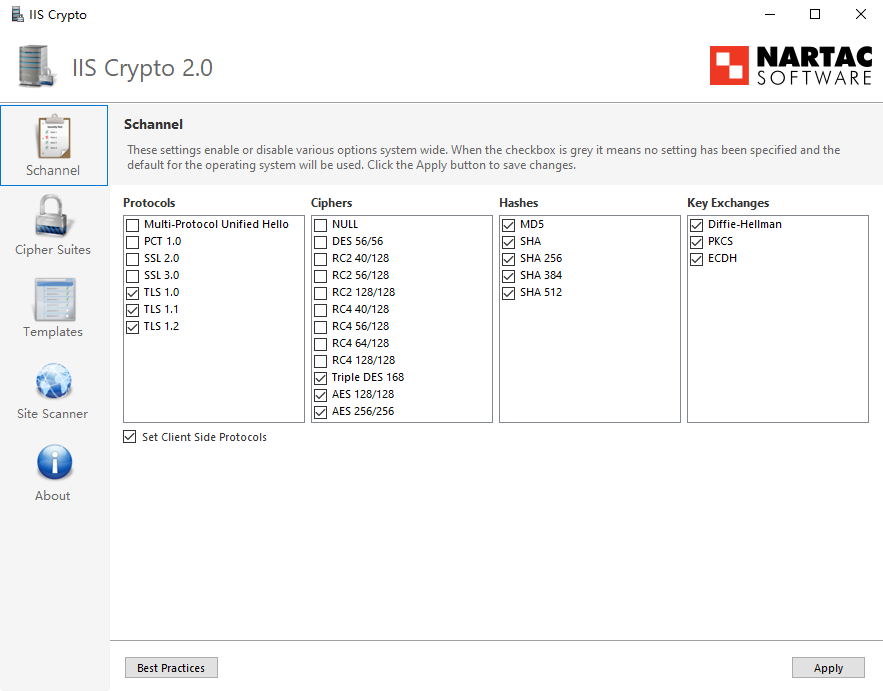
Taking Windows Server 2008 R2 as an example, there is no adjustment to protocols and cipher suites after the certificate is imported. The cipher suites will support ATS requirements after the certificate is imported but the TLS1.2 protocol required for ATS is not enabled. You can use ssltools (click to download) to enable the TLS1.2 protocol, as shown below:


Select the 3 TLS protocols, and restart the system.
If PFS is not supported, select ECDHE and DHE in Cipher Suites.

Method 2

1. Choose Start -> Run. Enter regedit.
2. Find HKEY_LOCAL_MACHINE\\SYSTEM\\CurrentControlSet\\Control\\SecurityProviders\\SCHANNEL\\Protocols, right-click it, and then choose New -> Item -> Create TLS 1.1, TLS 1.2.
3. Right-click TLS 1.1 and TLS 1.2, and choose New -> Item -> Create Server, Client.
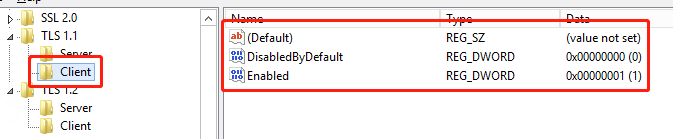
4. Create the following items (4 in total, DWORD 32-bit value) in the new servers and clients.
DisabledByDefault [Value = 0]
Enabled [Value = 1]
2


3


4


5


5. Restart the system.
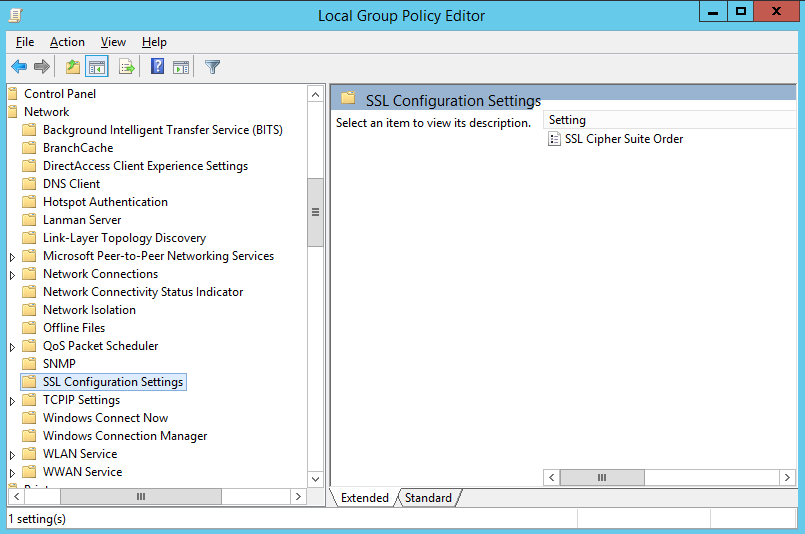
6. Adjust the cipher suites: choose Start -> Run, and enter gpedit.msc for the cipher suite adjustments after enabling the TLS1.2 protocol.
Note:
Adjustments can be made through the Group Policy Editor if PFS is not supported by the cipher suites.

3


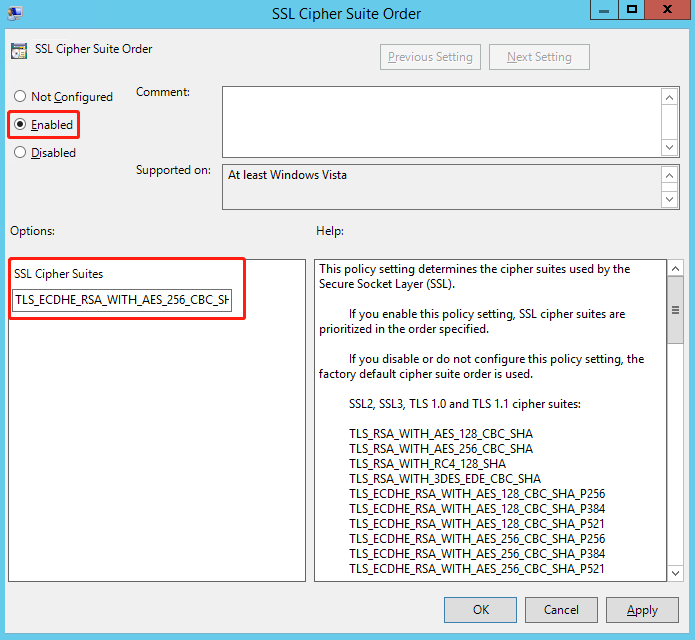
7. Double-click SSL Cipher Suite Order and enter information, as shown in the following figure:
4


Select Enabled.
Add the supported ECDHE cipher suites to the SSL cipher suites, separated by commas (,).
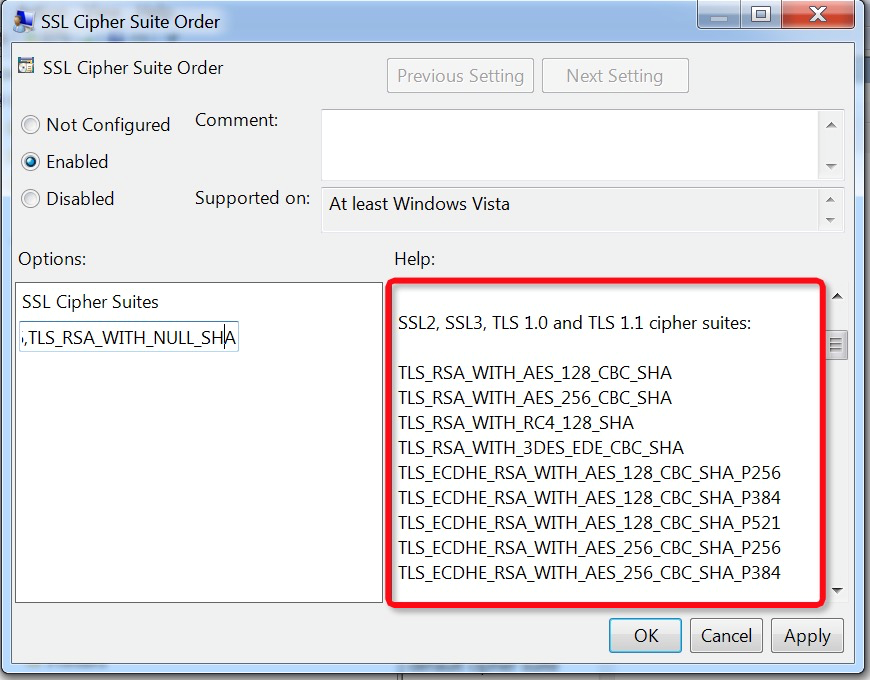
Enter the cipher suite information as follows: a. Open a blank WordPad document. b. Copy the list of available suites on the right in the figure below and paste it into the document. c. Sort the suites in the correct order and delete any suites you do not want to use. d. Type a comma at the end of each suite name (except for the last one). Make sure no space is entered. e. Remove all the line breaks so that the cipher suite names are in a single, long line. f. Copy the cipher suite line to the clipboard and paste it into the edit box. You can enter up to 1,023 characters.
8. After the cipher suite information is entered, the content in the window is updated, as shown in the following figure:
5

The following suites can be added to the cipher suite: TLS_ECDHE_RSA_WITH_AES_128_CBC_SHA TLS_ECDHE_RSA_WITH_AES_256_CBC_SHA TLS_ECDHE_RSA_WITH_AES_128_CBC_SHA256 TLS_ECDHE_RSA_WITH_AES_256_CBC_SHA384 TLS_ECDHE_RSA_WITH_AES_128_GCM_SHA256 TLS_ECDHE_RSA_WITH_AES_256_GCM_SHA384 The following suite combination is recommended: TLS_ECDHE_RSA_WITH_AES_128_CBC_SHA_P256 TLS_ECDHE_RSA_WITH_AES_128_CBC_SHA_P384 TLS_ECDHE_RSA_WITH_AES_128_CBC_SHA_P521 TLS_ECDHE_RSA_WITH_AES_256_CBC_SHA_P256 TLS_ECDHE_RSA_WITH_AES_256_CBC_SHA_P384 TLS_ECDHE_RSA_WITH_AES_256_CBC_SHA_P521 TLS_ECDHE_RSA_WITH_AES_128_CBC_SHA256_P256 TLS_ECDHE_RSA_WITH_AES_128_CBC_SHA256_P384 TLS_ECDHE_RSA_WITH_AES_128_CBC_SHA256_P521 TLS_ECDHE_RSA_WITH_AES_256_CBC_SHA384_P256 TLS_ECDHE_RSA_WITH_AES_256_CBC_SHA384_P384 TLS_ECDHE_RSA_WITH_AES_256_CBC_SHA384_P521 TLS_DHE_RSA_WITH_AES_256_GCM_SHA384 TLS_RSA_WITH_AES_128_CBC_SHA TLS_RSA_WITH_AES_256_CBC_SHA TLS_RSA_WITH_3DES_EDE_CBC_SHA TLS_RSA_WITH_AES_128_CBC_SHA256 TLS_RSA_WITH_AES_256_CBC_SHA256 TLS_RSA_WITH_AES_128_GCM_SHA256 TLS_RSA_WITH_AES_256_GCM_SHA384
Bantuan dan Dukungan

Apakah halaman ini membantu?

masukan