iOS (SwiftUI)
Download
Mode fokus
Ukuran font
This guide walks you through implementing search functionality in TUIKit SwiftUI.
Notice:
"Local Search" is available in Chat Pro edition, Pro edition Plus, and Enterprise edition. You can access this feature after purchasing the Pro edition, Pro edition Plus, or Enterprise edition.
Development Environment Requirements
Xcode 15 or later
iOS 15.0 or later
Prerequisites
Before building the interface, make sure you have completed the following steps:
1. Create an application in the console.
2. Create at least two user accounts in the console.
3. Integrate
TUIKit SwiftUI.4. Call the
login method of LoginStore to log in to the component.Notice:
1. You only need to log in once each time the app starts.
2. Please ensure the login is successful. We recommend performing subsequent operations in the login success callback.
If you have not completed the steps above, refer to the corresponding instructions in Quick Start before proceeding.
Step-by-Step Instructions
The local search interface is built using the Search component. Before testing the search feature, we recommend generating some local sample data, such as contacts, messages, and groups. Otherwise, no results will be available for search.
Note: If you use the sample code directly, make sure to pre-fill the following parameters:
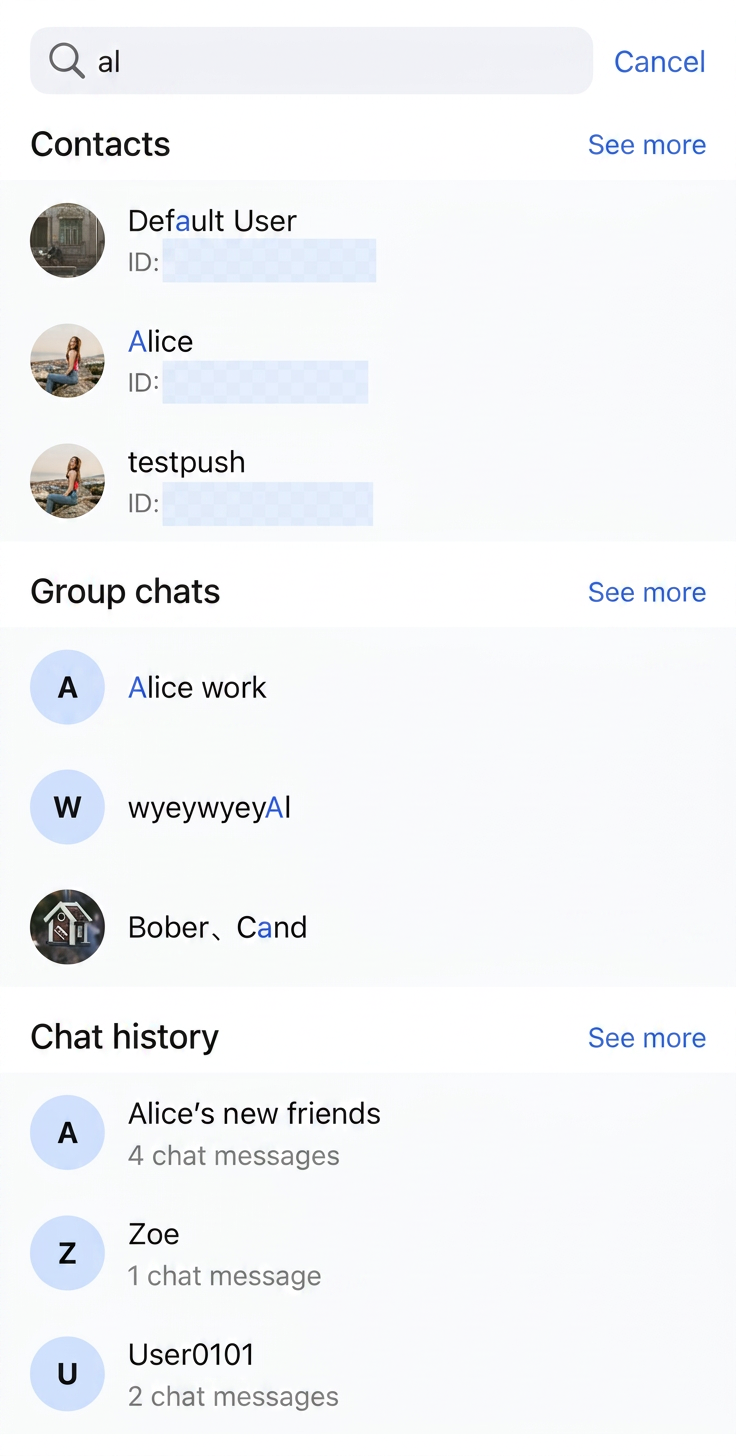
sdkAppID: The sdkAppID you obtained earlier.userID: The userID of the operator, which is user1 created in Quick Start.userSig: The userSig for the operator, which is the userSig for user1 created in Quick Start.When the app launches, the SearchBar entry will appear. Clicking the SearchBar and entering a search term will trigger the search. Sample code is provided below:
// ContentView.swiftimport SwiftUIstruct ContentView: View {var body: some View {SearchPage()}}// SearchPage.swiftimport AtomicXimport AtomicXCoreimport SwiftUIpublic struct SearchPage: View {@StateObject private var themeState = ThemeState.shared@State private var isLoggedIn = false@State private var isLoggingIn = true@State private var loginError: String? = nilprivate let sdkAppID: Int32 = 1234567890 // TODO: Fill in the sdkAppID hereprivate let userID = "" // TODO: Fill in your userID hereprivate let userSig = "" // TODO: Fill in your generated userSig herepublic var body: some View {Group {if isLoggedIn {searchContentView} else if isLoggingIn {ProgressView("Logging in...")} else {VStack(spacing: 12) {Image(systemName: "exclamationmark.triangle").font(.system(size: 40)).foregroundColor(.orange)Text(loginError ?? "Login failed").foregroundColor(.secondary)}}}.environmentObject(themeState).onAppear {login()}}// MARK: - Search Contentprivate var searchContentView: some View {VStack(spacing: 0) {navigationBarViewDivider().background(.gray)// Add SearchBar to this page.SearchBar(onTapItem: { result inhandleSearchResult(result)}).padding(.vertical, 8)Spacer()}.background(themeState.colors.bgColorOperate.ignoresSafeArea(edges: .top))}// MARK: - Navigation Barprivate var navigationBarView: some View {HStack {Image(systemName: "magnifyingglass").font(.system(size: 24)).foregroundColor(.gray)Text("Search").font(.system(size: 17, weight: .semibold)).foregroundColor(themeState.colors.textColorPrimary)Spacer()}.padding(.horizontal, 16).frame(height: 44)}// MARK: - Handle Search Resultprivate func handleSearchResult(_ result: Any) {if let friendInfo = result as? FriendSearchInfo {// Handle friend search resultlet conversationID = ChatUtil.getC2CConversationID(friendInfo.userID)print(">>>>> Search result - Friend: \\(friendInfo.userID), conversationID: \\(conversationID)")} else if let groupInfo = result as? GroupSearchInfo {// Handle group search resultlet conversationID = ChatUtil.getGroupConversationID(groupInfo.groupID)print(">>>>> Search result - Group: \\(groupInfo.groupID), conversationID: \\(conversationID)")} else if let messageDict = result as? [String: Any],let messageInfo = messageDict["message"] as? MessageInfo,let conversationID = messageDict["conversationID"] as? String{// Handle message search result (from search detail view)let conversationName = messageDict["conversationName"] as? String ?? "Unknown"print(">>>>> Search result - Message in \\(conversationName), conversationID: \\(conversationID), messageID: \\(messageInfo.id)")} else if let conversationDict = result as? [String: Any],let conversationID = conversationDict["conversationID"] as? String{// Handle conversation search result (from detail view)let conversationName = conversationDict["conversationName"] as? String ?? "Unknown"print(">>>>> Search result - Conversation: \\(conversationName), conversationID: \\(conversationID)")} else {print(">>>>> Search result - Unknown type: \\(result)")}}// MARK: - Loginprivate func login() {guard !userSig.isEmpty else {isLoggingIn = falseloginError = "userSig is empty. Please fill in a valid userSig."return}// Login is required when page appears.LoginStore.shared.login(sdkAppID: sdkAppID, userID: userID, userSig: userSig) { result inswitch result {case .success:print(">>>>> SearchPage login success, userID: \\(userID)")isLoggedIn = trueisLoggingIn = falsecase .failure(let error):print(">>>>> SearchPage login failed: \\(error.code), \\(error.message)")loginError = "Login failed: \\(error.code), \\(error.message)"isLoggingIn = false}}}}
The runtime effect is shown below:
Notice:
In the sample code above, the handleSearchResult method in SearchPage currently only prints the search result information. In a production environment, you should implement navigation logic here: based on the search result type (friend, group, message, or conversation), navigate to the corresponding chat page. If the result is a message, you can automatically scroll to the message after entering the chat page.
FAQs
How can I search for rich media messages?
Rich media messages include files, images, audio, and video messages.
For file messages, the interface usually displays the file name. You can set the
fileName parameter when creating the message, which will be indexed for search. If fileName is not set, the file name is extracted from filePath and stored locally and on the server.For image, audio, and video messages, the interface typically displays a thumbnail or duration. You can filter by message type for category-based search, but keyword search is not supported.
Bantuan dan Dukungan
Apakah halaman ini membantu?
Anda juga dapat Menghubungi Penjualan atau Mengirimkan Tiket untuk meminta bantuan.
masukan