Overview
Unduh
Mode fokus
Ukuran font
Overview
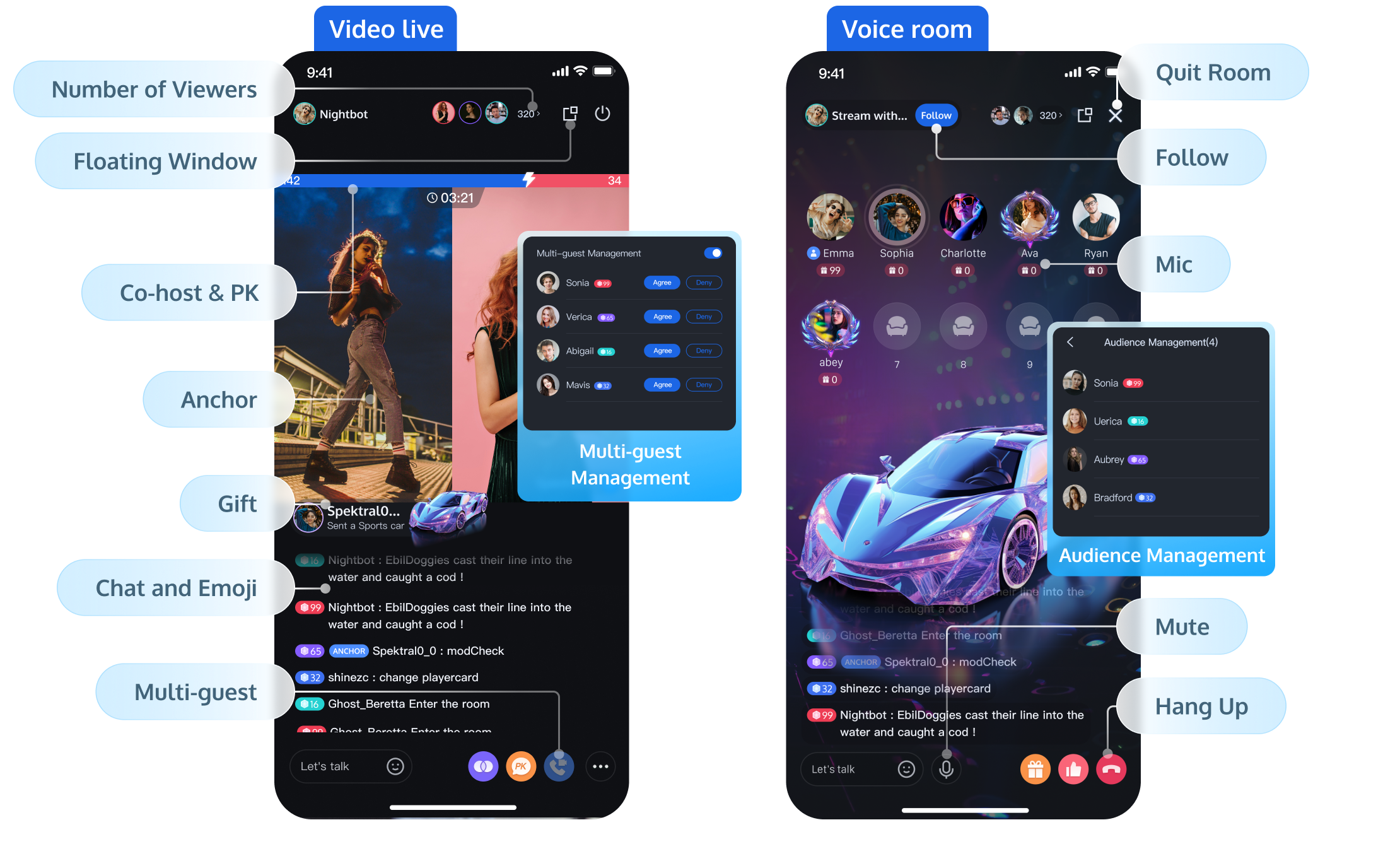
Live is a real-time interactive live streaming component, encompassing functionalities such as anchor going live, audience viewing, chat and emoji, likes and gift-giving, audience management, and multi-guest management. It is perfectly suited for live streaming scenarios across entertainment, e-commerce, education, and more. By integrating Live, you can swiftly incorporate all the aforementioned live streaming features into your application in just three steps, enabling a rapid deployment of your service. The basic functionalities are illustrated in the figure below:
Supported Platforms
Platform | Android | iOS | Desktop | Flutter | Web |
Supported | | | | | |
Supported Languages/Frameworks | Java Kotlin | Swift Objective-C | Electron(Windows, Mac) | Dart | Vue3 React |
Features
Basic Features
Features | Feature Description |
High-Definition Live Streaming | The host can preview the screen before going live, with the option to start and stop the stream |
Voice Chat Room | The host can set the background and sound effects before starting the voice chat room, with the option to open and close the chat room |
Live Streaming Viewing | Supports multiple viewers watching the live stream simultaneously |
Single-room Multi-Guest | Supports Multi-Guest within a single room |
Cross-room Multi-Guest/PK | Supports two-person and multi-person cross-room connection/PK |
Audience List | The audience list component supports displaying the latest 100 viewers entering the live room and the total number of viewers, with simplified and detailed view options |
Chat and Emoji Chat in Live Room | Users can send emoticons and text message barrages, which are displayed in real-time within the live room |
Likes | Supports a like feature and tracks basic like data |
Advanced Features
Features | Feature Description |
Member Management | Supports the host in blocking and muting viewers. |
Live Preview | Viewers can preview the live room content without entering it. |
Live Feed | Viewers can swipe up and down the screen to view different live rooms, supporting both single-column and double-column waterfall UI formats. |
Gift System | Provide a comprehensive gift solution, including gift material configuration, panel display, special effects playback and data analytics capabilities, to support rapid monetization. |
Number of Robots | Supports adding live room robots, which can join the room as dummy viewers, interact via multi-guest, and send comments. |
View Past Messages | Users who join a live room can view messages sent before they entered the room. |
Follow | Viewers can follow the host and other viewers in the live room. |
In-Room Search | Supports searching for members within the live room. |
Ultimate Image Quality | Significantly reduces bitrate while maintaining picture quality, or improves picture quality at the same bitrate, optimizing the viewing experience in bandwidth-limited environments. |
PC Live Streaming Assistant | Supports multi-camera scene capture and local audio-video mixing, suitable for professional streaming on PC. |
RTMP Entry/Input Online Media Stream | Pushes local video and audio to the live room via RTMP protocol, supporting scenarios such as host OBS streaming and virtual host live streaming. |
QUIC Weak Network Optimization | Automatically selects and switches network links or multi-link transmission based on the terminal's network condition, improving transmission speed in weak network environments. |
Beauty AR | With the default beauty enabled, you can integrate Beauty AR to unlock a wider range of advanced beauty features. |
Sound Effects | Supports setting volume, voice change, and reverb effects before starting the stream. |
Use Cases
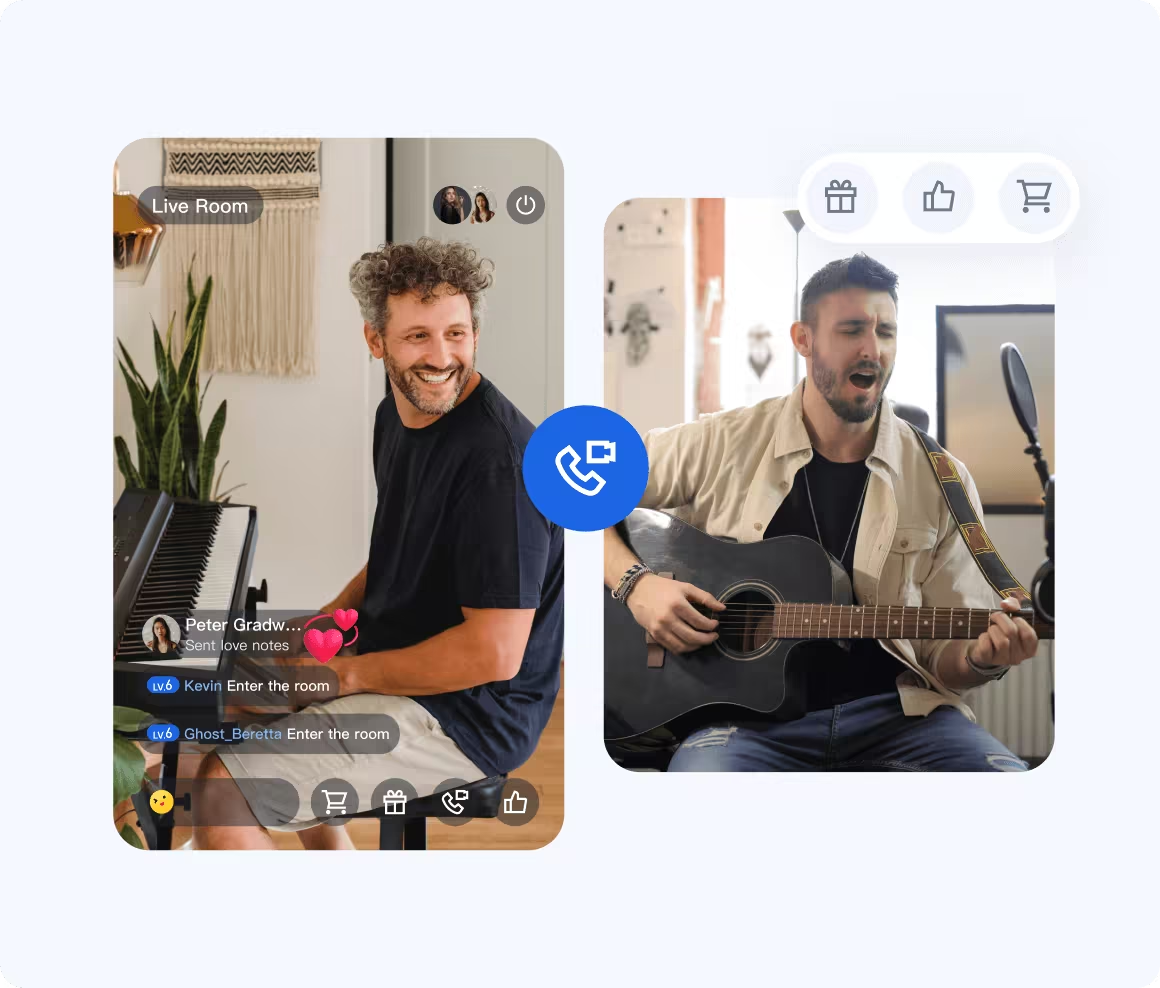
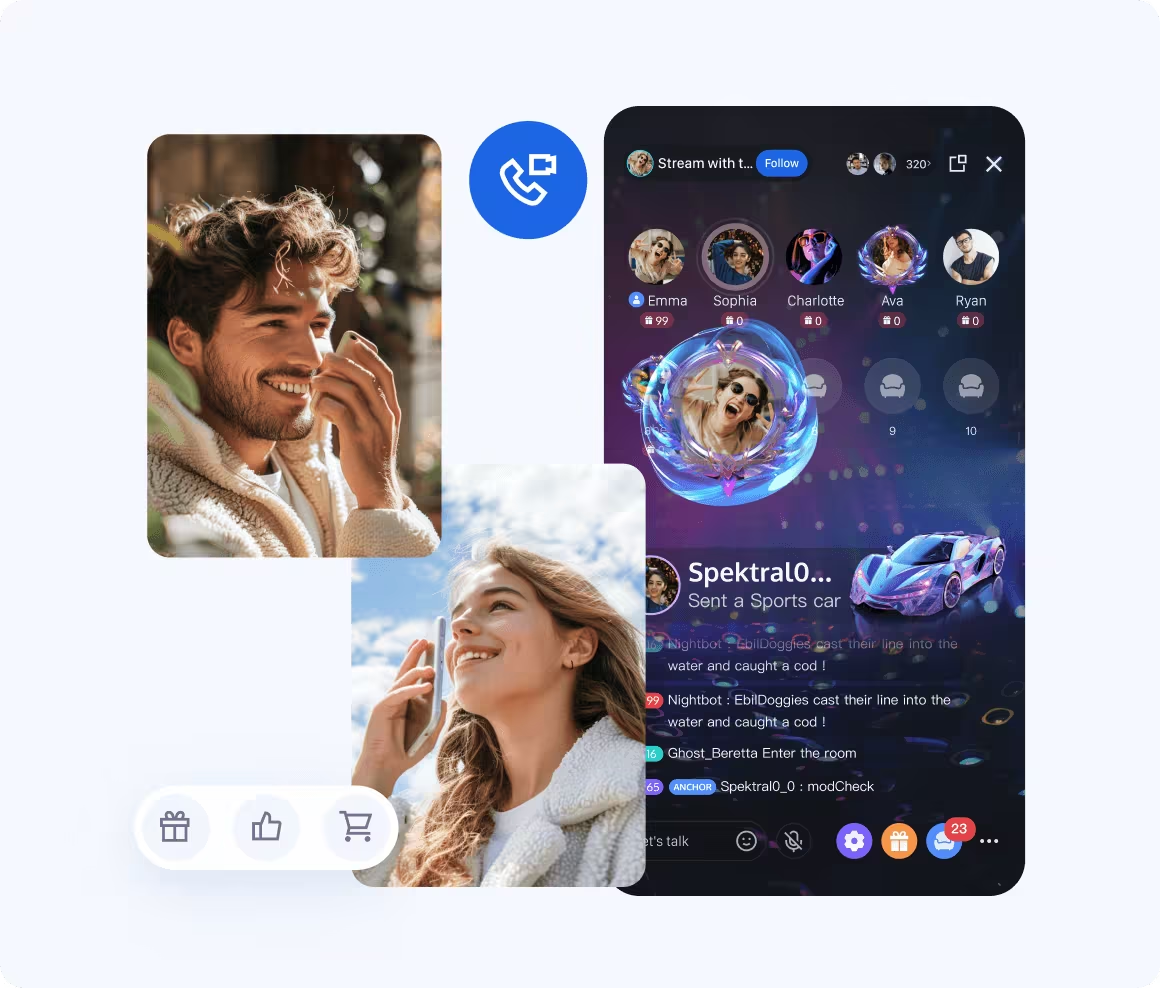
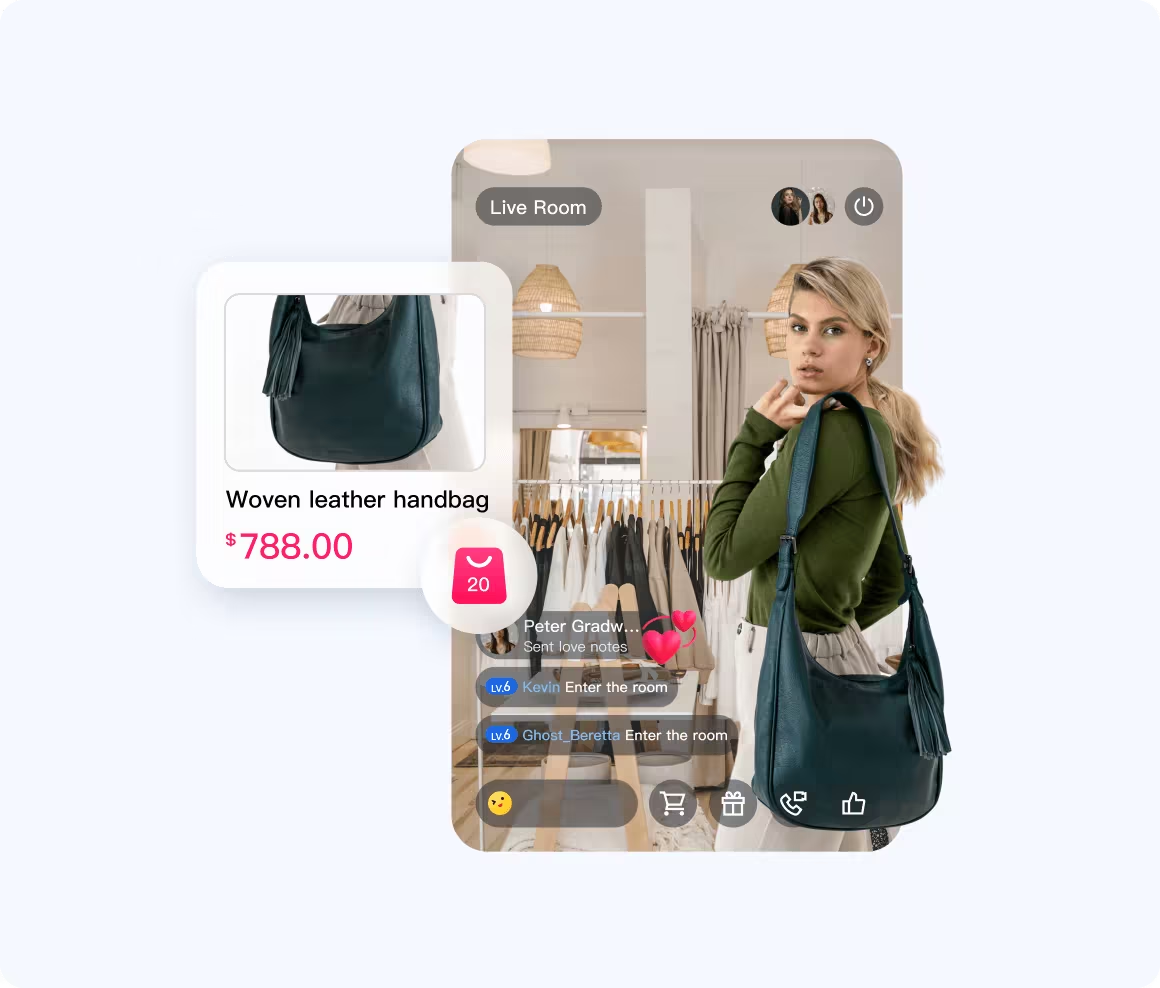
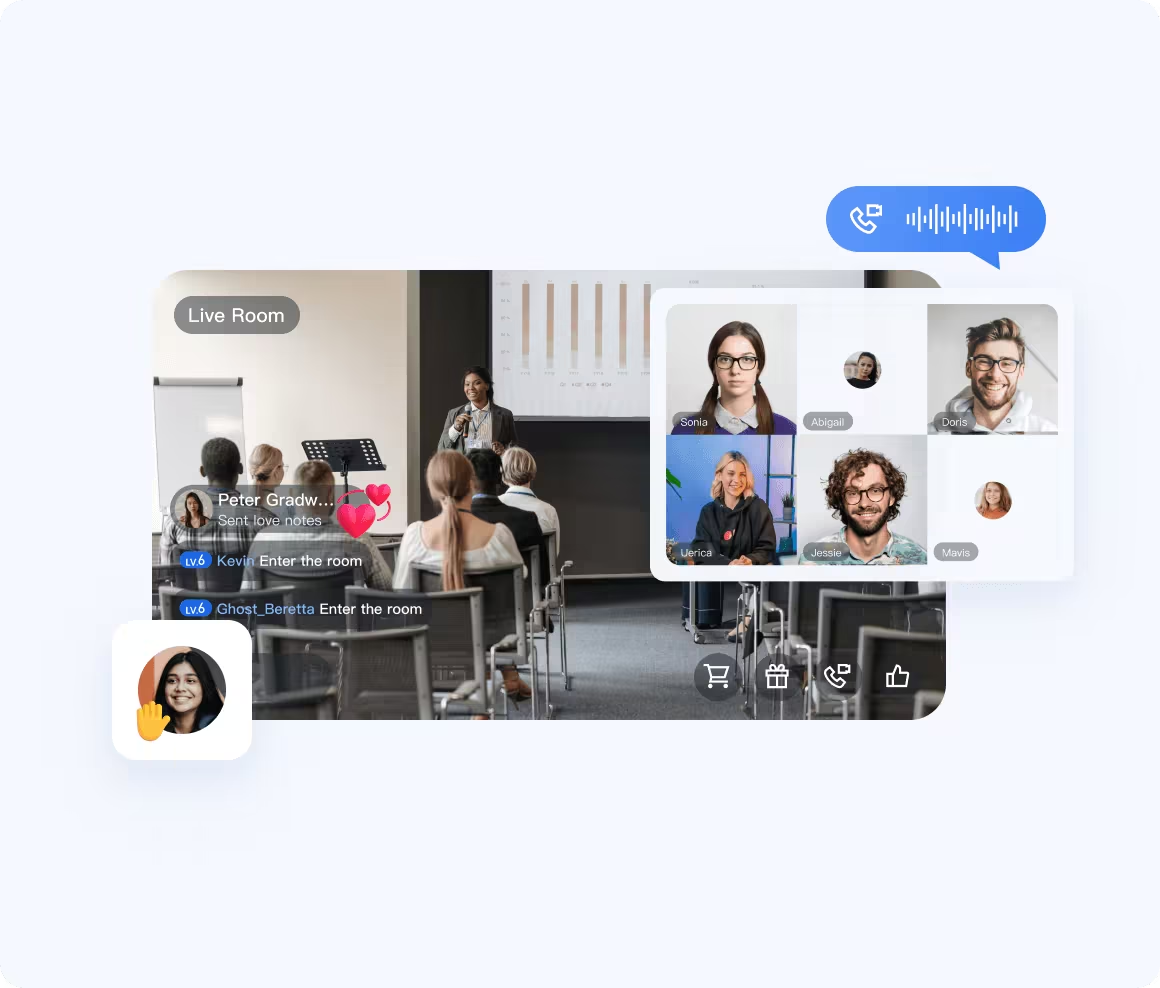
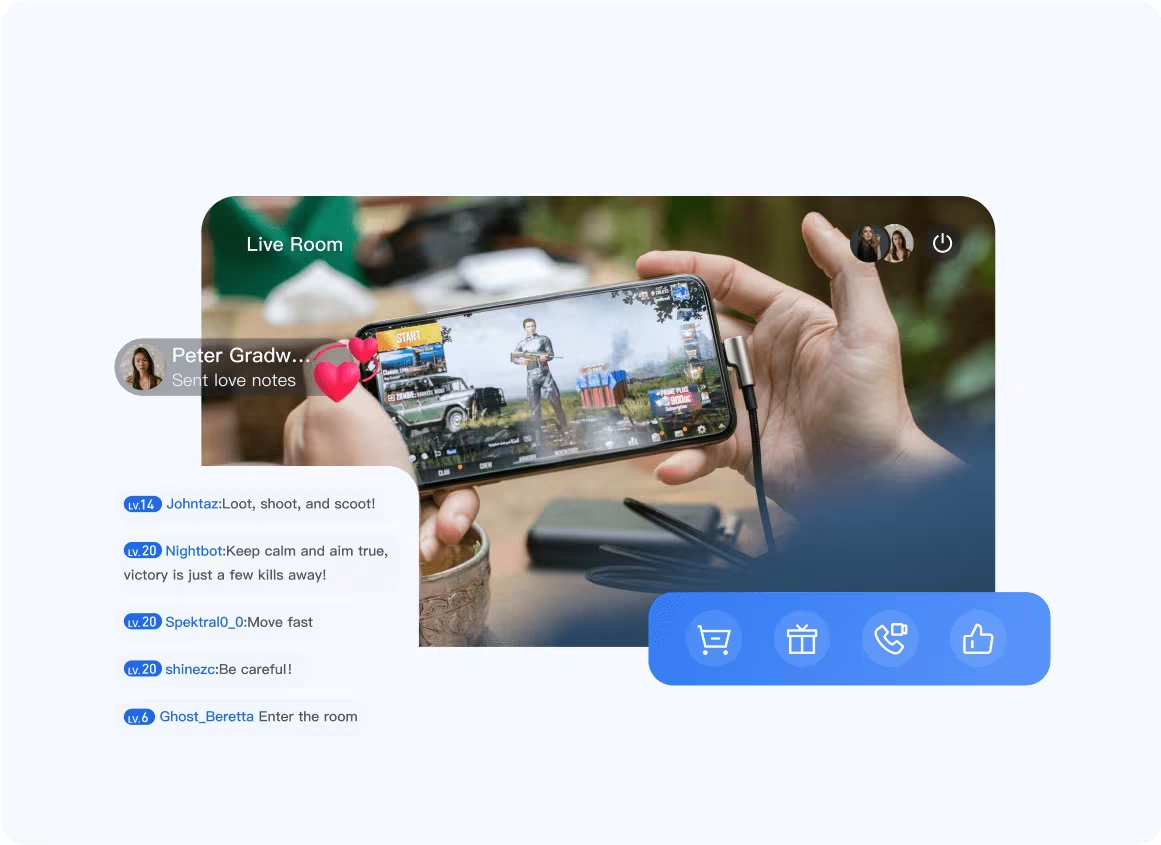
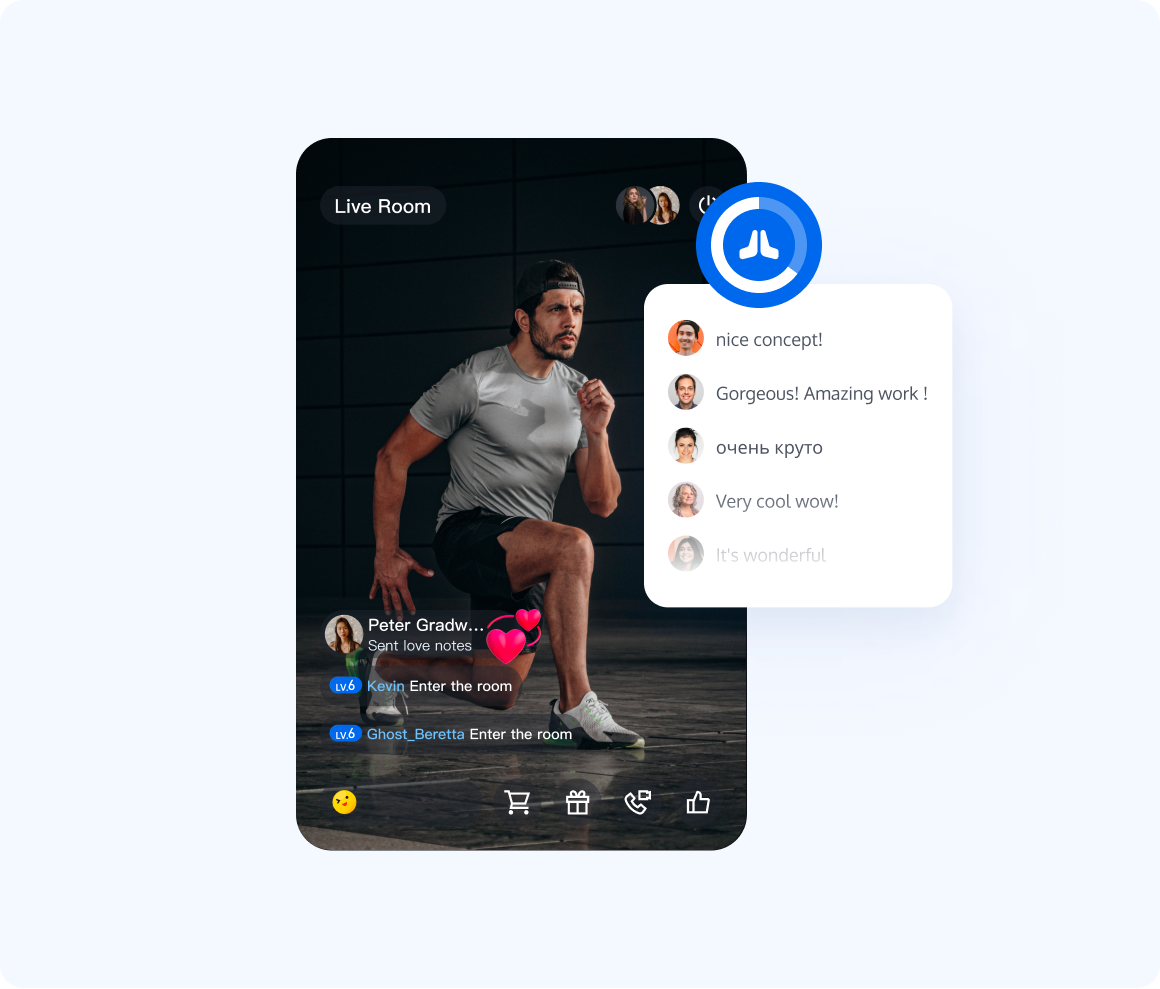
Live is suitable for all kinds of high-concurrency and large-scale live streaming scenarios such as live show, live shopping, live sports streaming, live product launch, live roadshow, and online auction.
Social entertainment | Voice Room |
 |  |
Live shopping | Live Education |
 |  |
Live Gaming | Live Fitness |
 |  |
Trying It Online
Platform | Android | iOS | Desktop | Flutter | Web |
Demo Integration |
How to Connect
Live provides two integration options: Integration with UI (UI Component Library) and Core SDK Integration (No UI). Regardless of your development platform, you can select the integration method that best aligns with your UI customization requirements.
Integration with UI
Integration Description: UI Integration delivers a full-featured business logic and interactive interface for live streaming and voice chat rooms. It includes standard UI interactions, beauty effects, multi-host layouts, live comments, and other essential features out of the box.
Applicable Scenarios: Best for rapidly launching standalone live streaming apps, or seamlessly adding standard Live Streaming and Voice Chat Room features to an existing app.
Quick Start:
Note: The UI Component Library supports flexible, modular integration. Refer to the UI Component Library section in your platform's navigation menu and choose the appropriate components to complete your integration.
Core SDK Integration (No UI)
Integration Description: The Core SDK provides scenario-based business APIs without any UI components. Use it to efficiently build live streaming and voice chat room experiences with your own custom UI logic.
Applicable Scenarios: Non-UI Integration is suitable for applications requiring highly native UI experiences, unique interaction logic, or a fully customized interface. It's ideal for apps with mature, custom-built UIs.
Quick Start:
Scenario
This section provides an overview of the interactive scenarios supported by Live, along with the available layout templates for each scenario.
Scenario Types
Live supports a range of real-time interactive scenarios, including video live streaming, voice chat rooms, and karaoke rooms. These options are designed to accommodate various business needs.
Note:
Each scenario has its own interaction mode and billing policy:
Usage of the Live Video Streaming Component is billed according to the Live Video Streaming Billing Description.
Usage of the Voice Chat Room and Karaoke Room components is billed based on Audio/Video Duration.
Name | Video Live Streaming | Voice Chat Room | Karaoke Room |
Description | Centered on the host’s video stream, this scenario enables audience viewing, interactive co-hosting, gifting, and more. Multiple layout templates are available. For details, see Video Live Streaming Layout Types. | Designed for multi-user voice interaction, users communicate in real time through mic slots. The interface displays a mic grid. | Built around voice interaction, this scenario includes features like song selection and chorus. A music player appears above the mic slots. |
Preview | 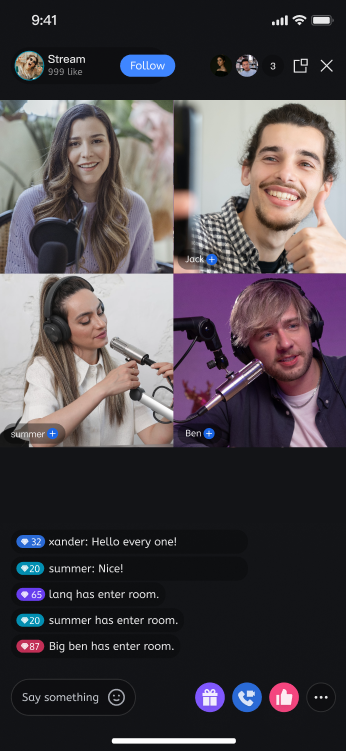 | 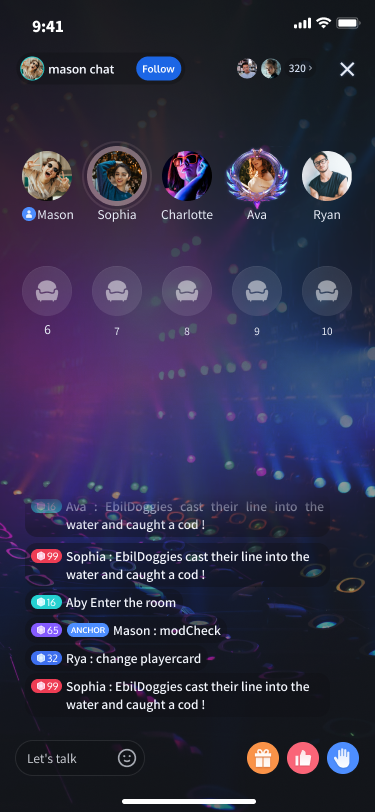 | 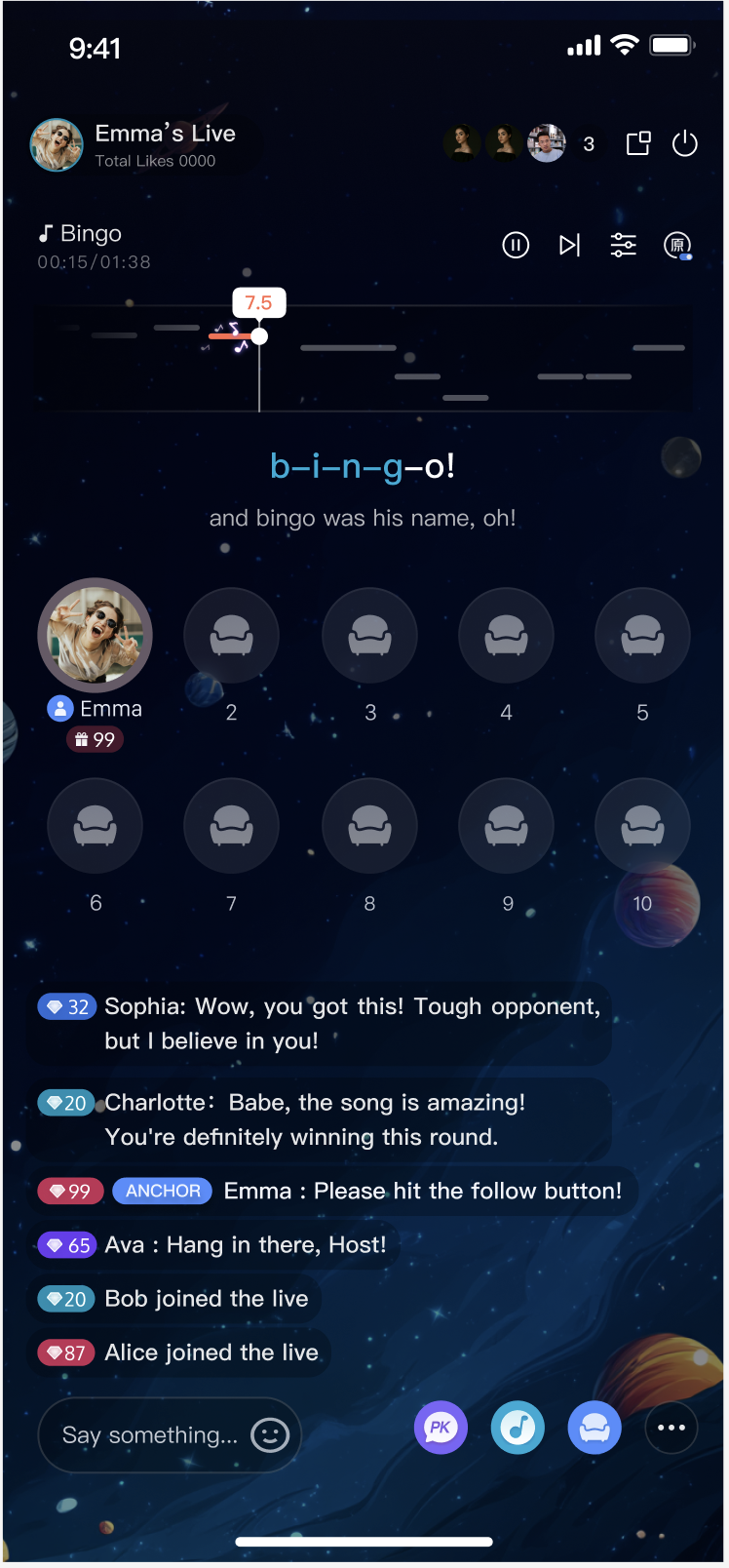 |
Video Live Streaming Layout Types
Video live streaming supports five layout templates, including dynamic grid and floating window options. When creating a room, set
liveInfo.seatTemplate to one of the following Template IDs to use the Live video streaming component.Name | Dynamic grid layout | Dynamic float layout | Static grid layout | Static float layout | Landscape floating layout |
Template ID | VideoDynamicGrid9Seats | VideoDynamicFloat7Seats | VideoFixedGrid9Seats | VideoFixedFloat7Seats | VideoLandscape4Seat |
Description | The default layout; grid size adjusts dynamically based on the number of co-hosts. | Co-hosts are displayed in floating small windows. | The number of co-hosts is fixed, and each co-host occupies a fixed grid cell. | The number of co-hosts is fixed, and co-hosts are displayed in fixed small windows. | Co-hosts are shown as floating small windows at the bottom of the screen. |
Preview | 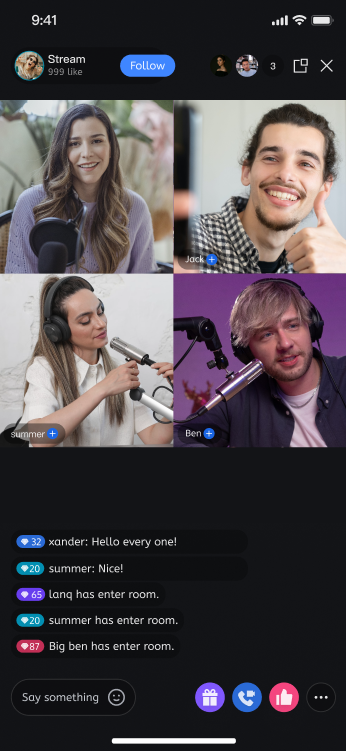 | 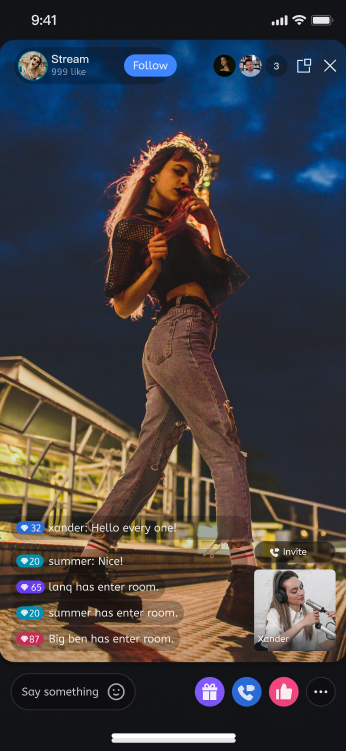 | 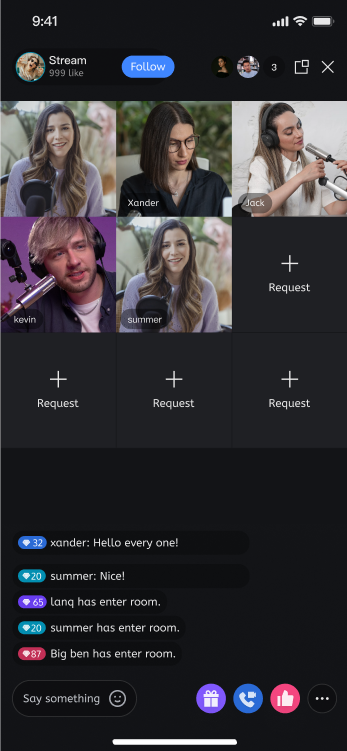 | 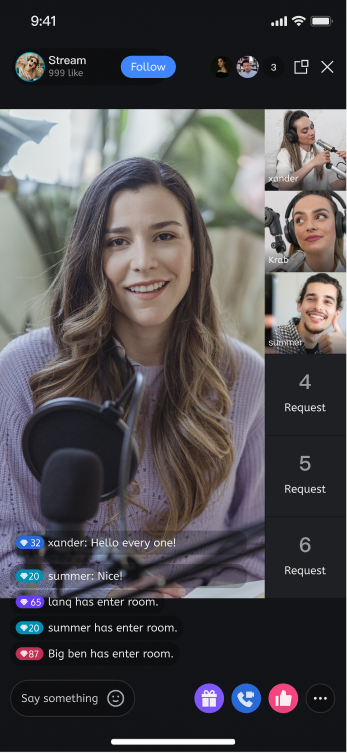 | 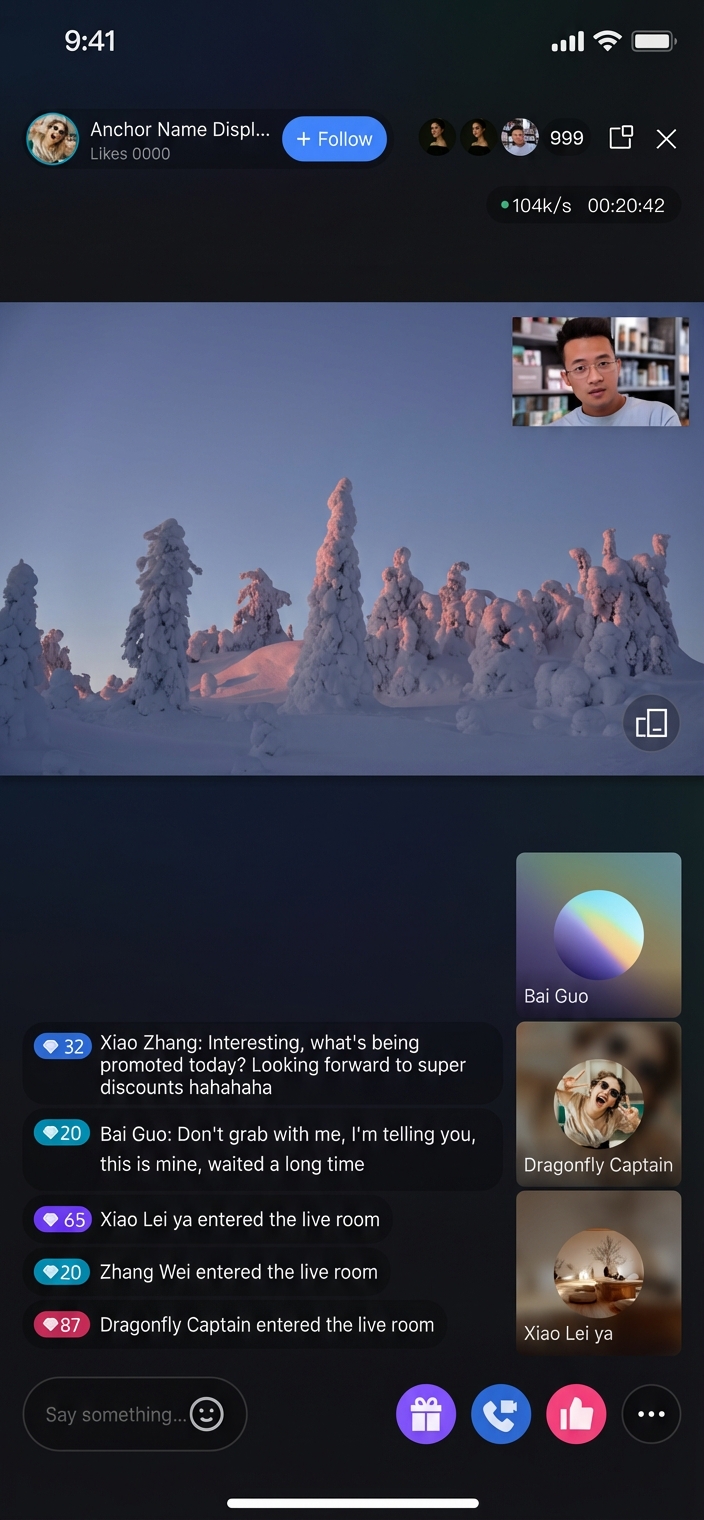 |
Voice Chat & Karaoke Room Layout Templates
To use the Live Voice Chat Room or Karaoke Room component, set
liveInfo.seatTemplate to one of the following Template IDs when creating a room.Name | Voice Chat Room Layout | Karaoke Layout |
Template ID | karaoke | audioSalon |
Description | Default layout. Only the mic seat grid is displayed. | A KTV song player is shown above the mic seat grid. |
Preview | 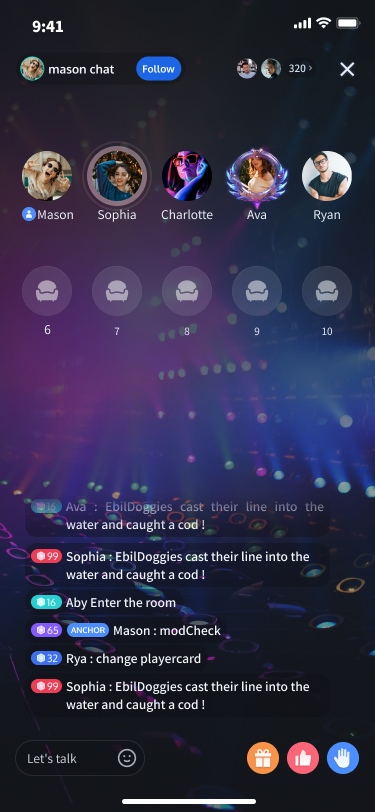 | 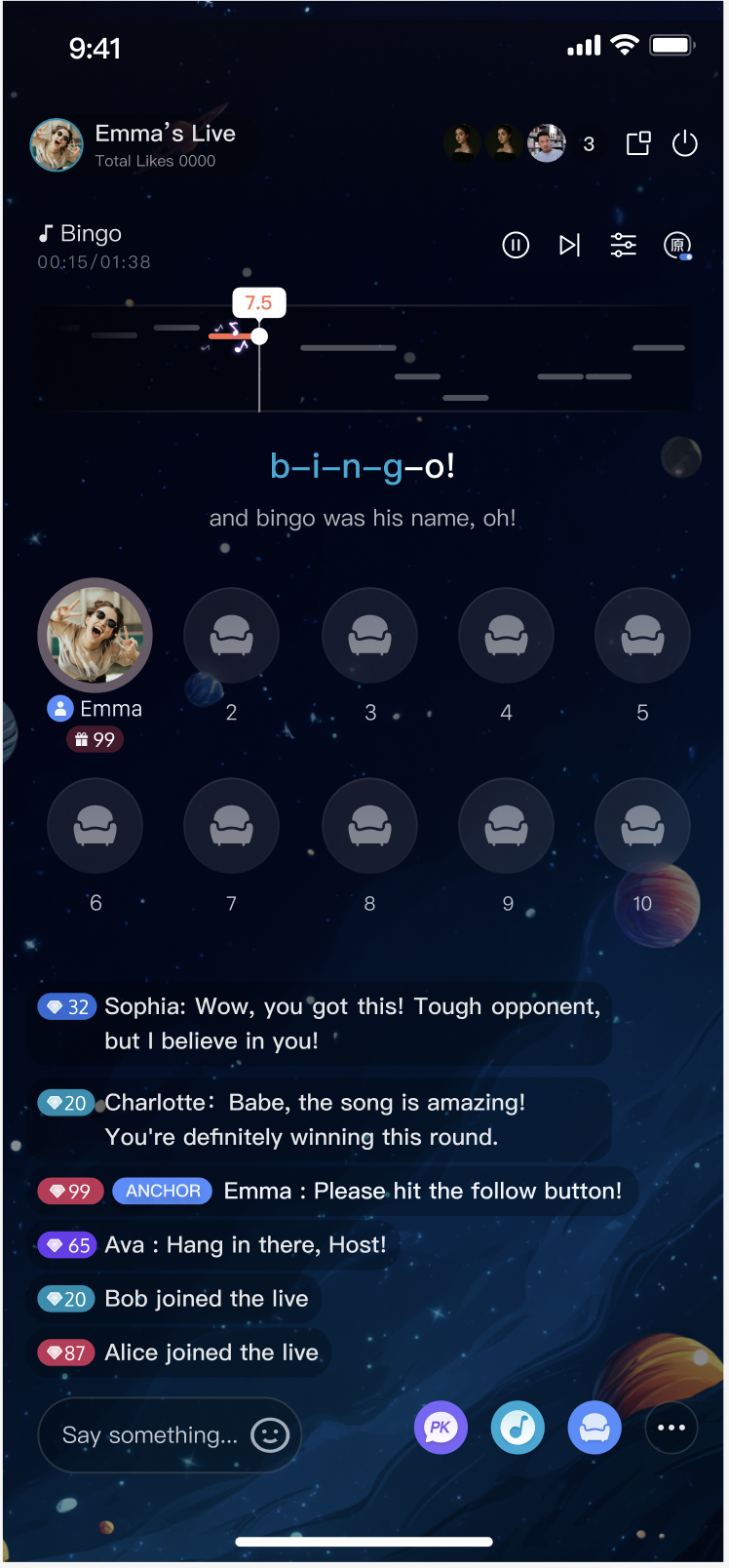 |
Suggestions and Feedback
If you have any questions or suggestions during running the demo or usage, join our Telegram technical group or contact us for support.
Bantuan dan Dukungan
Apakah halaman ini membantu?
Anda juga dapat Menghubungi Penjualan atau Mengirimkan Tiket untuk meminta bantuan.
masukan