Managing Functions
ダウンロード
フォーカスモード
フォントサイズ
To use custom functions in an SQL job, you must first create a custom function (UDF). This document describes how to create, use, update, and delete custom functions.
Must-Knows
To avoid JAR package dependency conflicts, you need to pay attention to the following points when developing custom functions:
Ensure that the Flink version selected on the job development page matches the Flink version in the POM dependencies.
For Flink-related dependencies, set the scope to provided by adding <scope>provided</scope> in the dependencies.
Package other third-party dependencies using the Shade method. For details about Shade packaging, see Apache Maven Shade Plugin.
Creating a UDF
1. Go to the custom function creation entry.
1.1 Log in to the SCS console.
1.2 Select and go to the target workspace. In Job Management, create an SQL job. For details, see Create SQL Job.
1.3 Switch to Development and Debugging, and then perform operations in the Function Management page on the left.
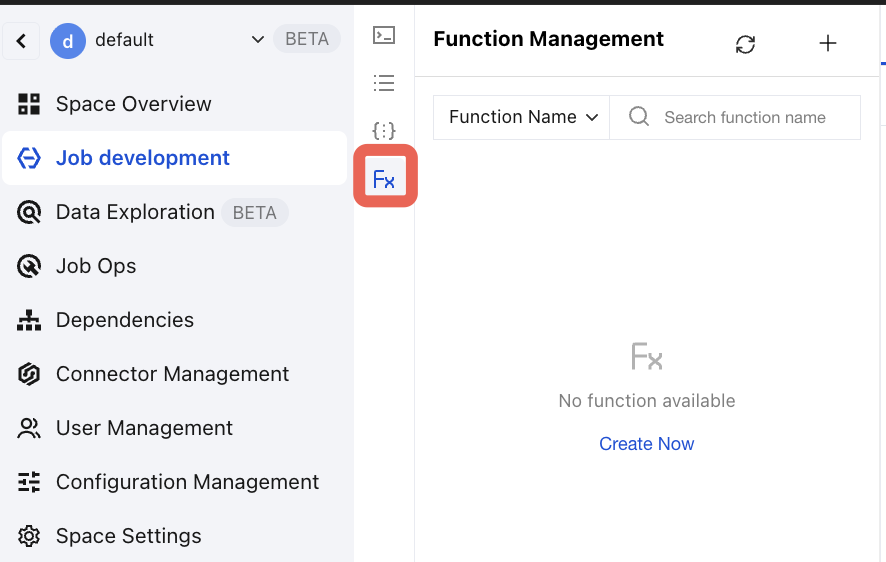
2. Click Create.
3. Upload the UDF JAR file.
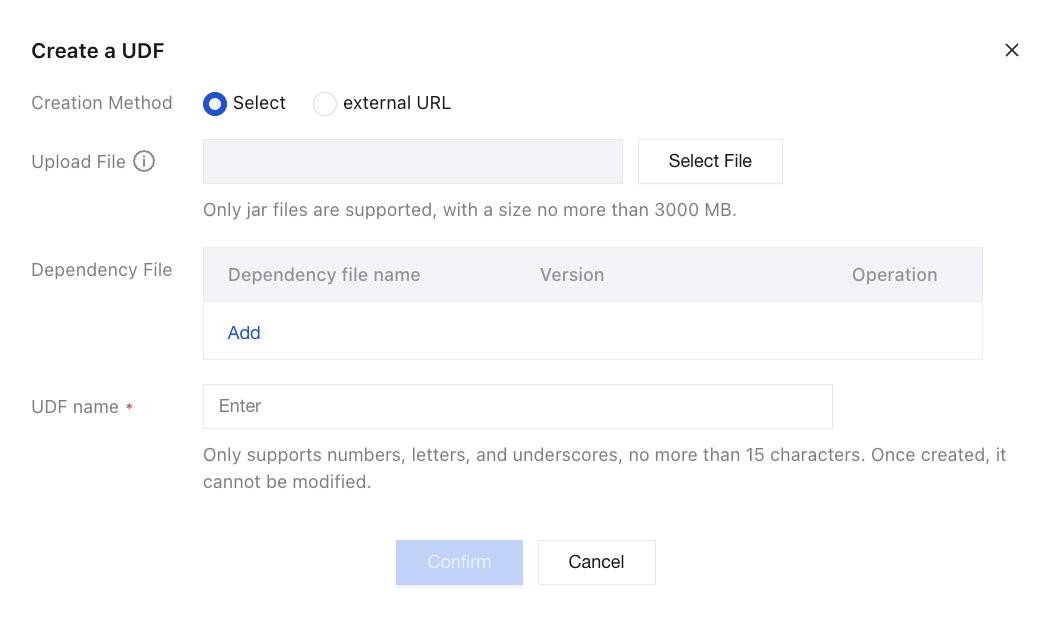
You can upload the UDF JAR file in any of the following ways:
Upload files: Click Select File to the right of the Select File item, and then select your target UDF Artifact file. If there are dependency files, click Select File to the right of the Dependency File item and select the files that your target UDF Artifact depends on.
Note:
For Java UDFs, their dependencies can be packaged into the UDF JAR file or uploaded through the dependency file item.
Dependency files: When you need to use JAR files that exist in dependency management, you can obtain UDF files by using the dependency file feature.
External URL: When you need to use a UDF file that exists on another service, you can obtain the UDF file by using the external URL feature.
Note:
The COS Bucket address selected when you activate Oceanus. You can view the bound COS Bucket in the cluster details on the real-time computing management console.
The addresses of other external storage systems that Real-time Compute Flink Edition can access and is allowed to access (with public read or granted permissions).
4. Click OK.
5. On the Available Functions page, select the UDF you want to create, and then click OK to register the function.
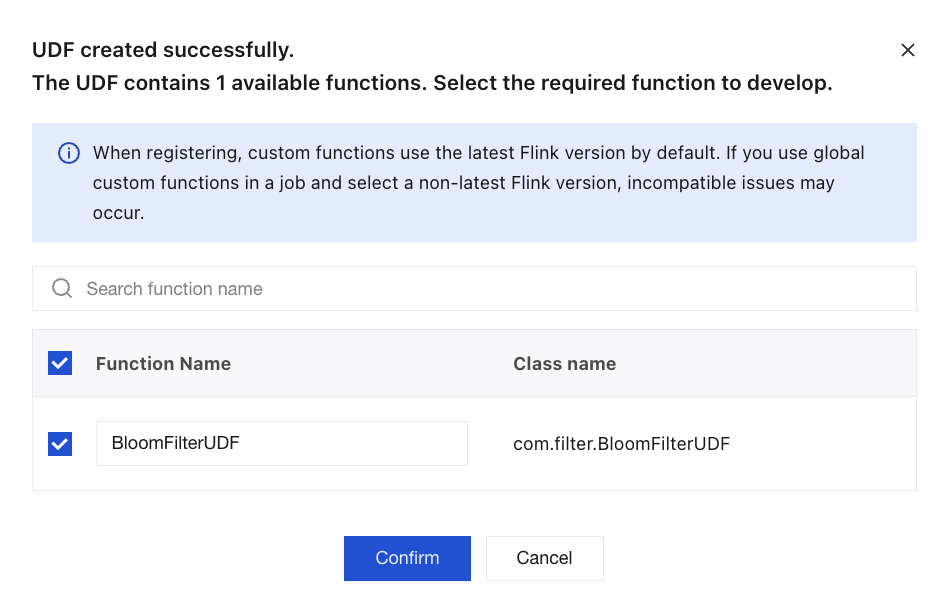
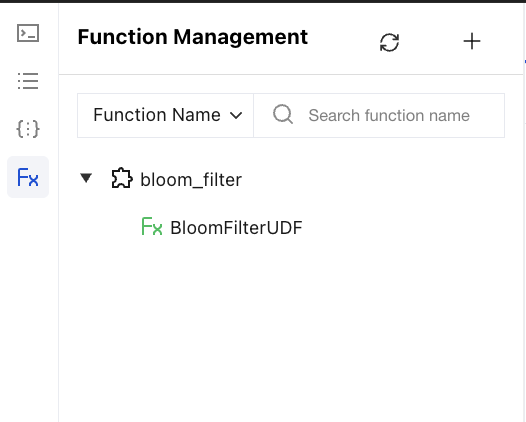
The Flink development console parses the custom function file to determine whether it contains classes that implement the Flink UDF, UDAF, and UDTF interfaces. It then automatically extracts the class names and populates the Function Name field. After successful registration, you can view all successfully registered UDFs in the function list on the left. A successfully registered UDF is marked with a green Fx identifier on its left.
Using UDFs
1. After you create a UDF function, select Reference Function to insert the function into the SQL code development page.
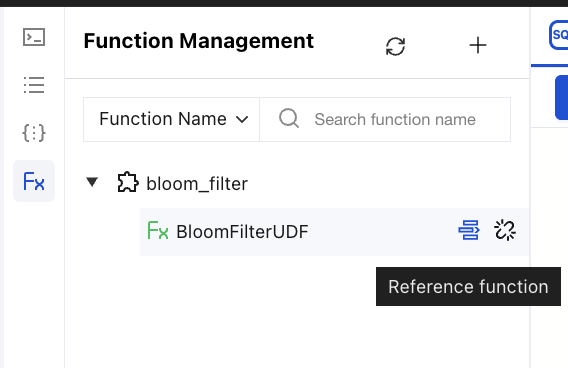
2. Write SQL code to call the UDF function. The SQL code example is as follows:
-- Use a UDF to filter duplicate name values.-- A name is retained only when it appears for the first time.insert intologger_sink_tableselectid,BloomFilterUDF(name) as name,agefrommysql_cdc_source_table;
Updating a UDF
If new UDFs are added or code changes are made to existing registered UDFs in your UDF JAR file, you can update the UDF JAR file by following the steps below.
1. Go to the custom function management entry.
1.1 Log in to the SCS console.
1.2 Select and go to the target workspace. In Job Management, click an SQL job.
1.3 Switch to Development and Debugging, and then perform operations in the Function Management page on the left.
2. In the function management list, hover the mouse over the target UDF name and click Update.
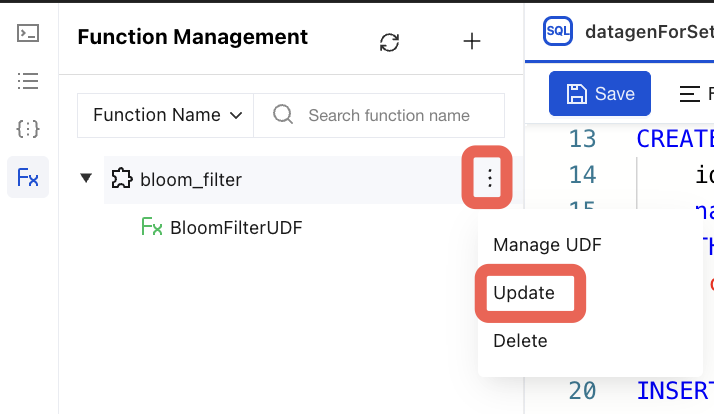
Note:
The new UDF JAR file you upload must contain all classes of the currently registered UDFs. No class of any registered UDF can be missing.
The code in the new UDF JAR file is used only when a job is restarted or a new job is submitted. If a job referencing this UDF JAR is running, the old UDF JAR file is still used.
Deleting a UDF
Note:
Before deleting a UDF JAR file, ensure that its registered UDFs are not referenced by any SQL jobs.
If your UDF JAR file is no longer in use, you can delete the UDF by following the steps below.
1. Go to the custom function management entry.
1.1 Log in to the SCS console.
1.2 Select and go to the target workspace. In Job Management, click an SQL job.
1.3 Switch to Development and Debugging, and then perform operations in the Function Management page on the left.
2. In the function management list, hover the mouse over the target UDF name and click Delete.
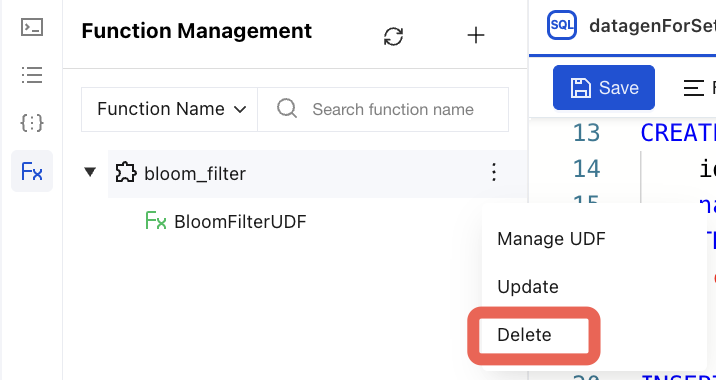
3. Select and delete all the above functions and their associated files. If you want to delete this UDF JAR file, you must delete all UDFs registered in this UDF JAR to avoid leaving any stale data.
4. Click OK to delete.
フィードバック